TR7007M_SII_Hardware_en_v1-0-1.pdf - 第21页
Test Research, Inc. TR7007M SII User Guide – Hardware 11 Figure 23 : Bypass S peed Setting LOW SPEED : This is the reduced speed. Press [ ENTER ] at the f ollowi ng f igure to set this speed. The sp eed range has an up…
Test Research, Inc.
10 TR7007M SII User Guide – Hardware
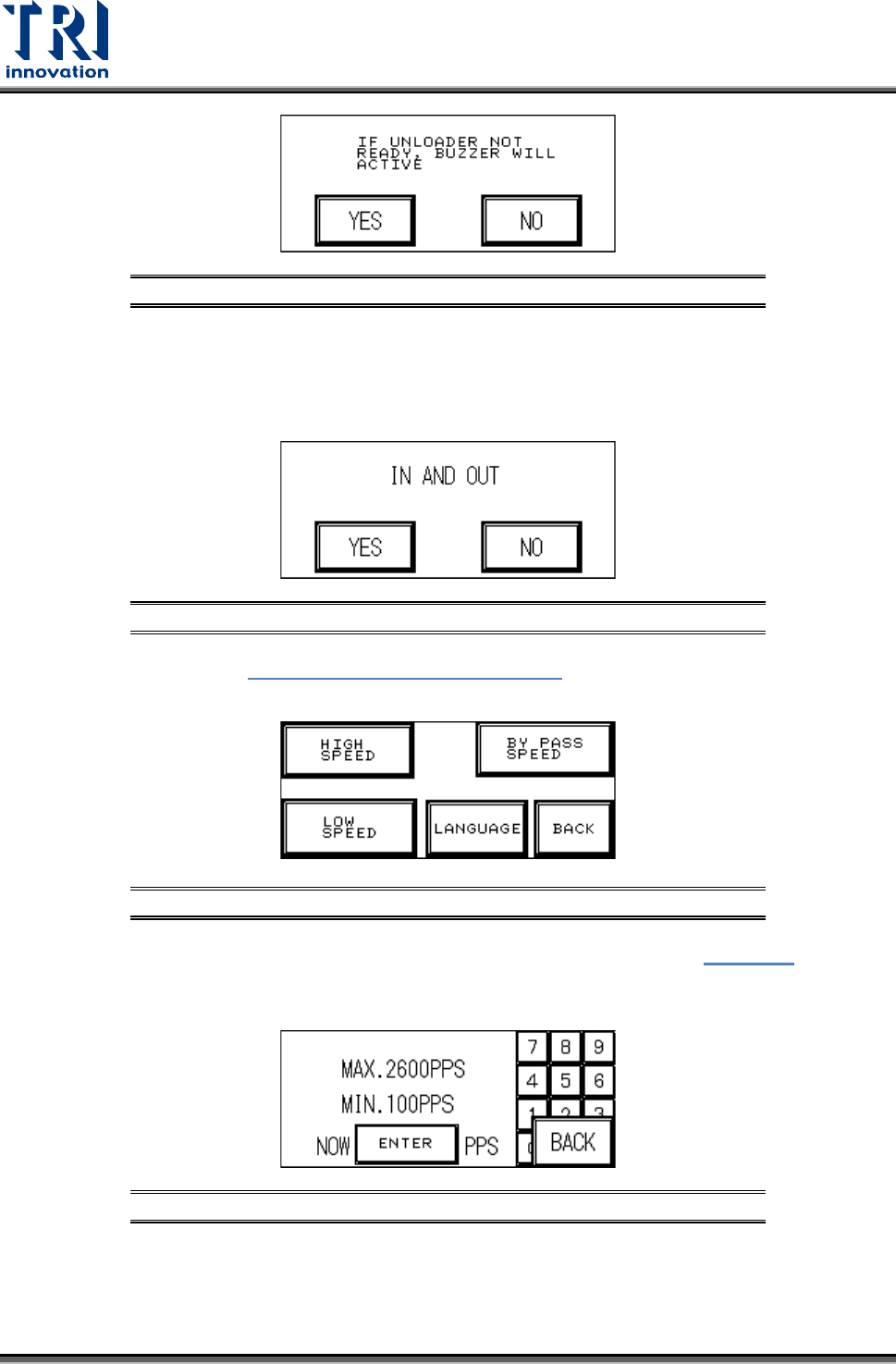
Figure 19: Confirm Buzzer
IN AND OUT: Choose simultaneous In and Out to load a board while another board is
being unloaded (the test board length must be less than 200mm or there may be an
issue with board overlap). If NO is chosen then a board must be fully unloaded before
another is loaded.
Figure 20: Choose Simultaneous In & Out
Next Page: From Figure 18: Other Settings Page 2, select [NEXT PAGE]. The five
options available are:
Figure 21: Other Settings Page 3
HIGH SPEED:This is the normal I/O speed. Press [ENTER] at Figure 22 to set
this speed. The speed range has an upper limit of 2600PPS and lower limit of
100PPS. Default setting is 2000.
Figure 22: High Speed Setting
BYPASS SPEED: This is the bypass speed. Press [ENTER] at the following
figure to set this speed. The speed range has an upper limit of 2600PPS and
lower limit of 100PPS. Default setting is 2000.
Test Research, Inc.
TR7007M SII User Guide – Hardware 11
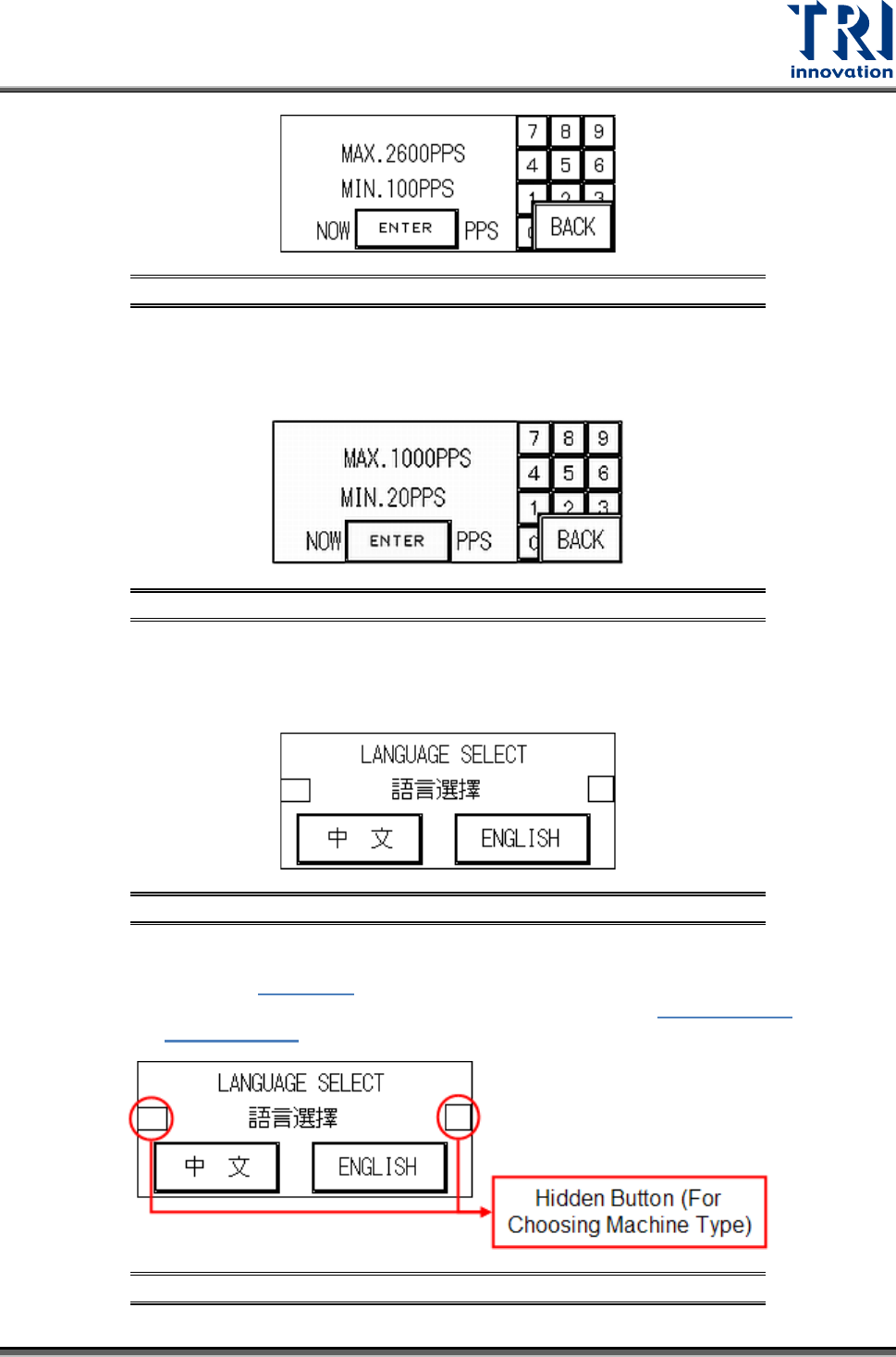
Figure 23: Bypass Speed Setting
LOW SPEED: This is the reduced speed. Press [ENTER] at the following figure
to set this speed. The speed range has an upper limit of 1000PPS and lower
limit of 20PPS. The default is 100.
Figure 24: Low Speed Setting
LANGUAGE: Choose Chinese or English user interface on the following screen.
Once selection has been made it will be automatically saved and does not need
to be set again the next time the machine is turned on.
Figure 25: Select Language
• Machine Type and Barcode Testing Settings: Press the hidden buttons
located in Figure 25
separately (within a 2 second interval) to display the
machine type and barcode setting display as shown in Figure 28: Set
Machine Type.
Figure 26: Select Language – Choosing MachineType
Test Research, Inc.
12 TR7007M SII User Guide – Hardware
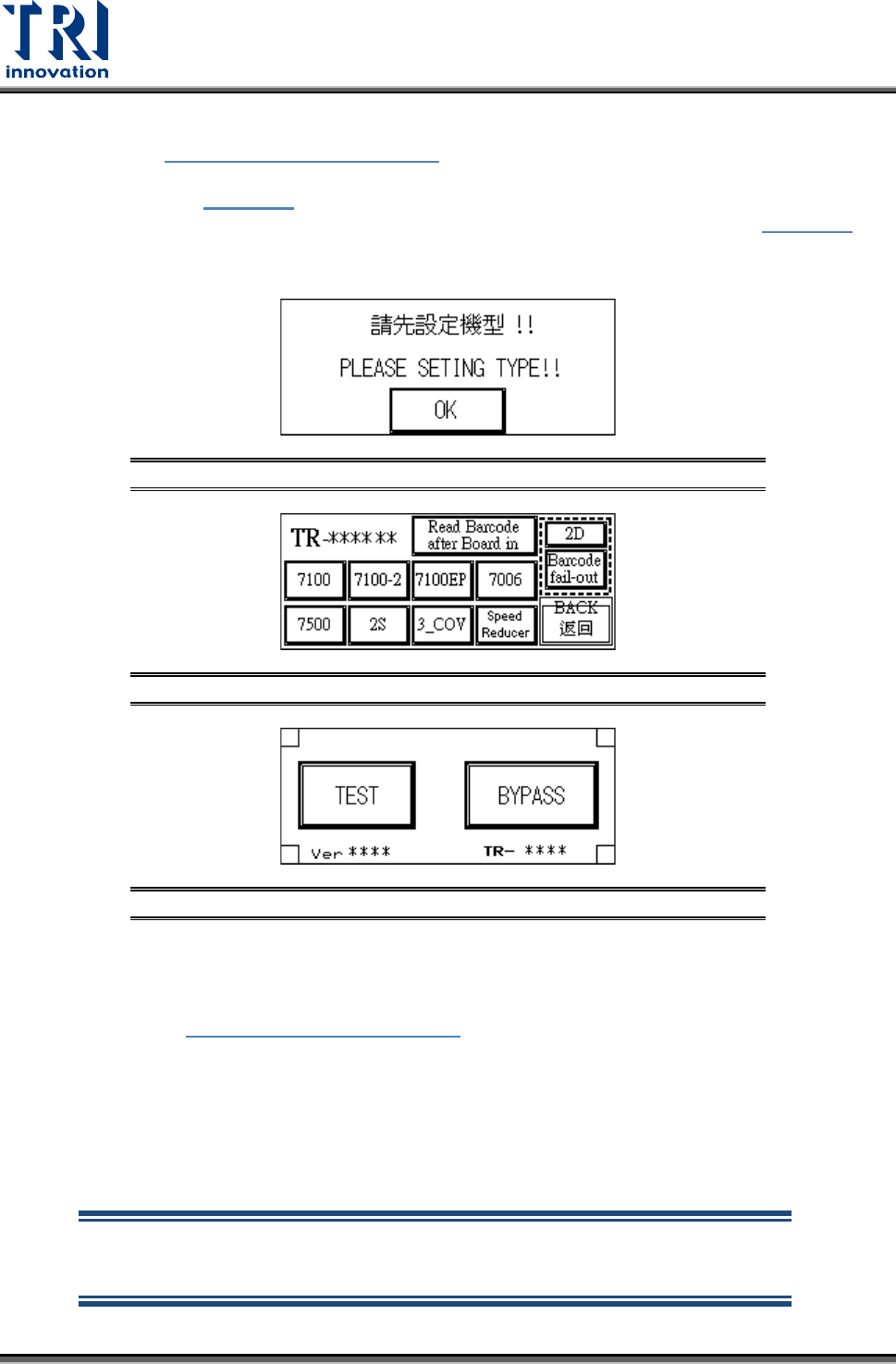
• Machine Type Setting: If this is the first time a new machine has been set up,
Figure 28: Set Machine Type
display will be shown at the start for the
machine type to be set. Once setting is done, to change the settings again,
use
Figure 25, the Language selection display. There are two hidden buttons
on either side of the display. Press both simultaneously to jump to Figure 28
to make the selection. Once setting is complete the [TR-****] position will
show the set machine type.
Figure 27: Initial Set Type Display
Figure 28: Set Machine Type
Figure 29: Start Test
• Barcode Sampling Setting: This setting is used to stop board loading if
reading of the barcode fails. If this function is not used please set the PC
software to not sample the barcode, or press to highlight the [Barcode fail-out]
in Figure 28: Set Machine Type
, otherwise the board won’t load.
• 2D Barcode: If 2D Barcode is used, 2D needs to be highlighted. .
• Dual Screw Conveyor Belt: If the conveyor belt uses dual screws, 2S needs to
be highlighted.
• Three Stage Conveyor Belt: If the conveyor belt uses three stages, the
3_COV. needs to be highlighted.
NOTE: If the machine has a single-stage conveyor belt then this setting
must not be selected or the PLC may crash. If a crash occurs, reset the
main power and then deselect this setting.