TR7007M_SII_Hardware_en_v1-0-1.pdf - 第35页
Test Research, Inc. TR7007M SII User Guide – Hardware 25 Figure 68 : Board Test Fail 3.3.8 Width Motor A bnormal or Limite r Sensor O n The limit of the width of the auto conv eyor for TR7500L or TR7006LL is 110000pps. T…
Test Research, Inc.
24 TR7007M SII User Guide – Hardware
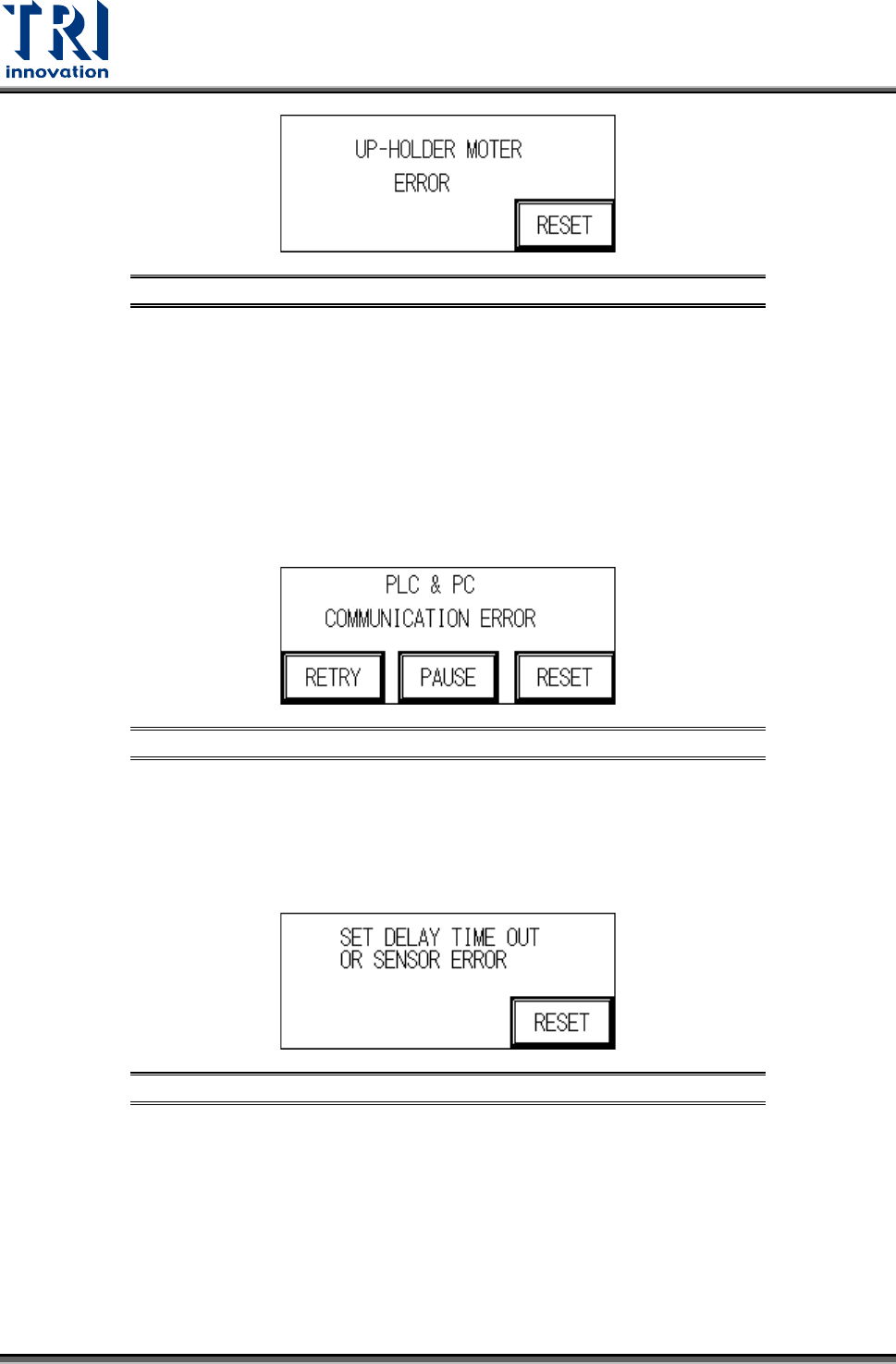
Figure 65: Up-Holder Motor Error
3.3.5 PC & PLC Communication Error
The candidate board has been locked and the PC notified to commence testing. No action
taken within 10 seconds of the notification. After troubleshooting, user can press [RETRY] to
inspect the board again or press [PAUSE] to turn off the alarm sound or press [RESET] to
return to standby screen.
1) PC & PLC communication link malfunction.
2) PC program not being executed or malfunctioning.
Figure 66: PC & PLC Communication Error
3.3.6 Set Delay Time Out or Sensor Error
When the loading speed is too fast or Sensor 1 and Sensor 2 are located too closely
together, speed reduction may not occur in time so this measure is triggered to prevent
boards from falling off.
Figure 67: Speed Reduction Error
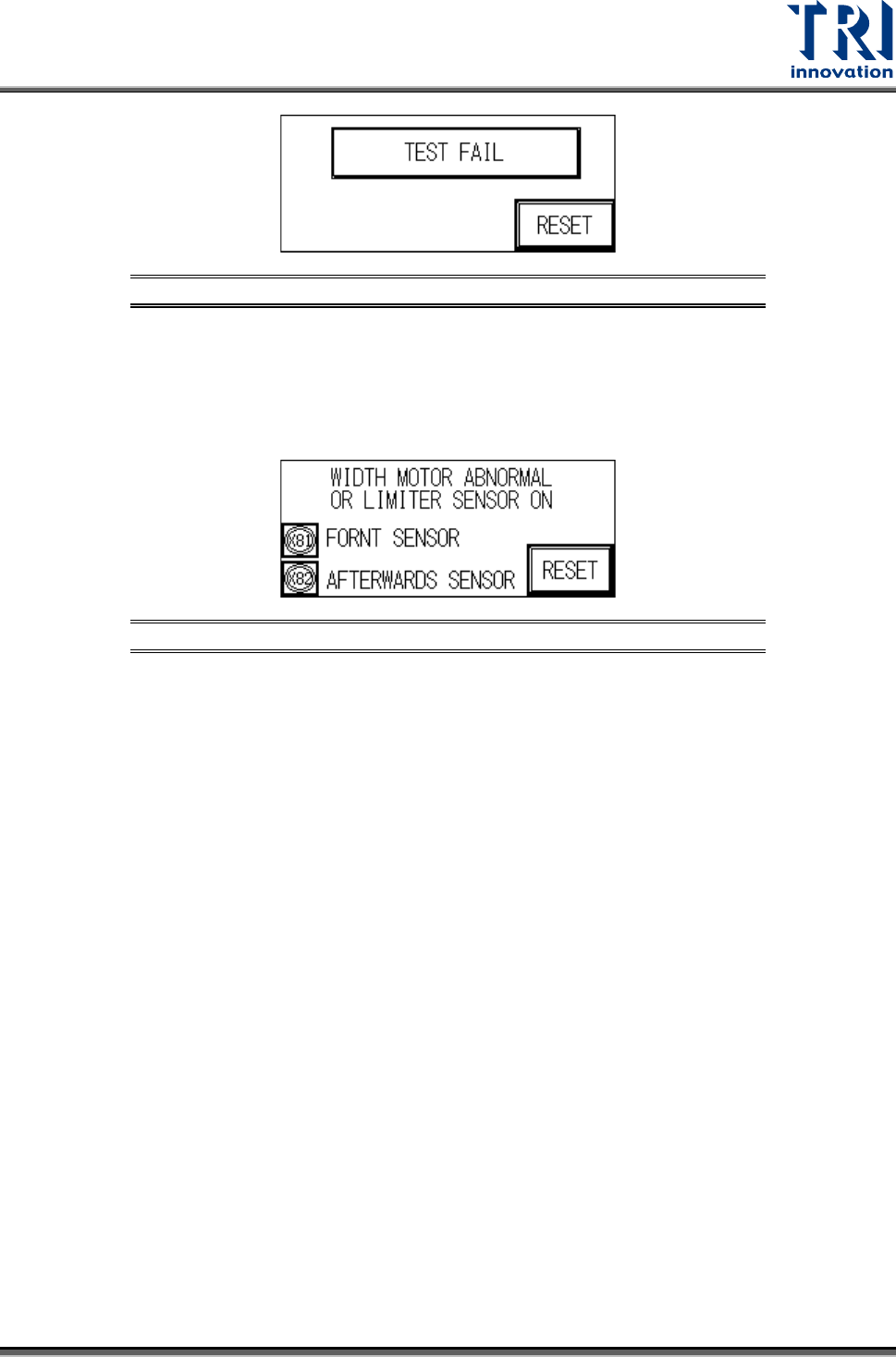
3.3.7 Test Fail
When the test results in a Fail, the PC will send a FAIL signal. A confirmation from the PC is
required before it can return to the system’s operational display.
Test Research, Inc.
TR7007M SII User Guide – Hardware 25
Figure 68: Board Test Fail
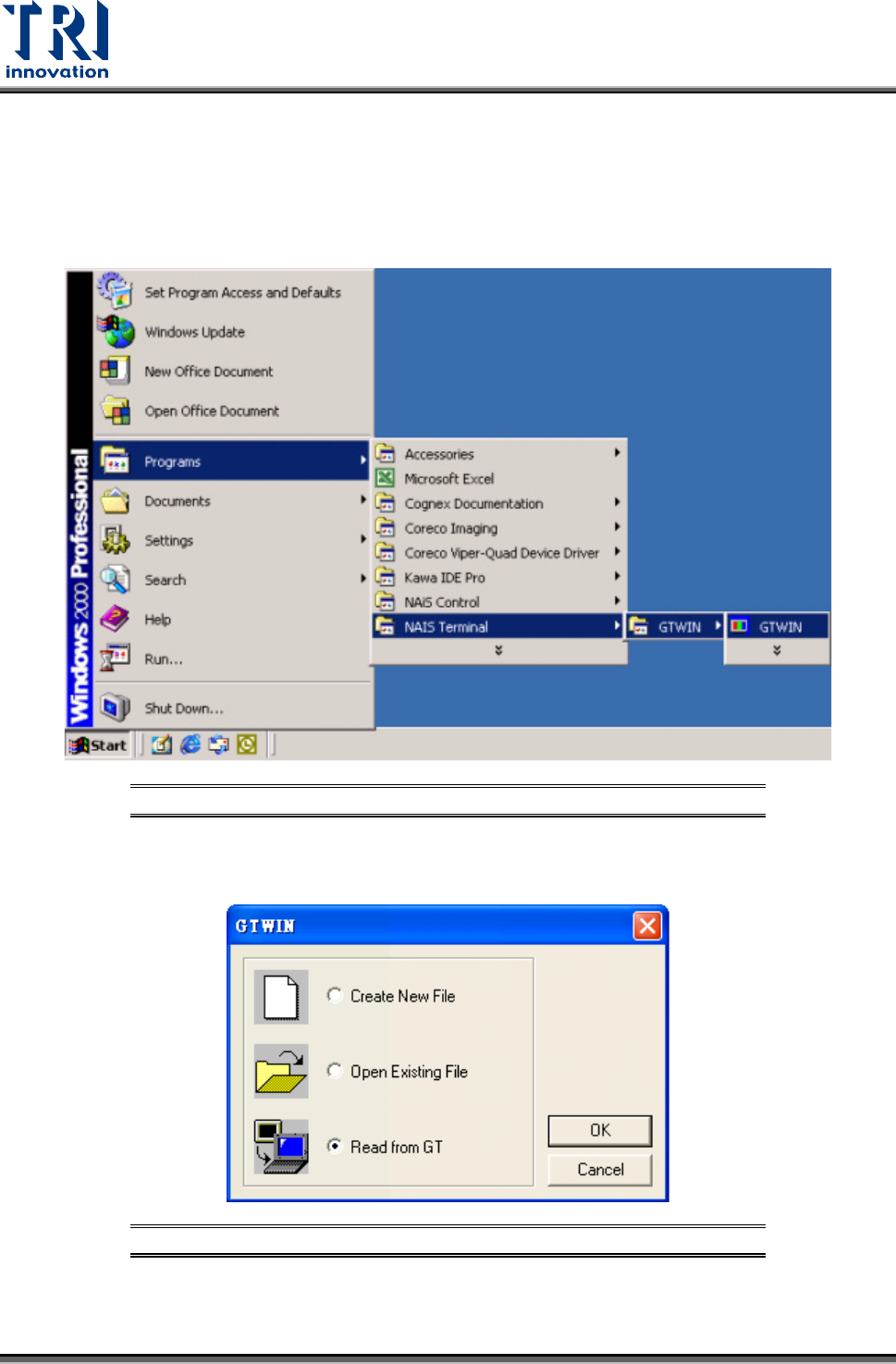
3.3.8 Width Motor Abnormal or Limiter Sensor On
The limit of the width of the auto conveyor for TR7500L or TR7006LL is 110000pps. These
two systems are equipped with the new limit sensors X81 and X82. When the limit sensor is
triggered, the system will display the following screen.
Figure 69: Width Motor Abnormal or Limiter Sensor On
Test Research, Inc.
26 TR7007M SII User Guide – Hardware
3.4 HCI & PLC Program Replacement
1) First connect the PLC-PC data cable properly, with the PS2 connector connected to the
rear of the PCI, and the RS232 connected to Main PC COM1.
2) Open the Program Files’ GTWIN (as shown in the figure below)
Figure 70: Open GTWIN Program
3) Enter the GTWIN software program and as shown in the figure below, select [Read from
GT] (Read HCI data).
Figure 71: GTWIN -- Select Read from GT
4) After loading (this takes some time, please be patient), click on [File] and select [Save] to
make a backup of the original files as shown in the picture below.