TR7007M_SII_Hardware_en_v1-0-1.pdf - 第85页
Test Research, Inc. TR7007M SII User Guide – Hardware 75 Figure 116 : EzLink Scan Scr een Figure 117 : EzLink Disconnec t/Connect Status Scree n 6) Loading Param eters
Test Research, Inc.
74 TR7007M SII User Guide – Hardware
4) Connection Status for Expansion Devices
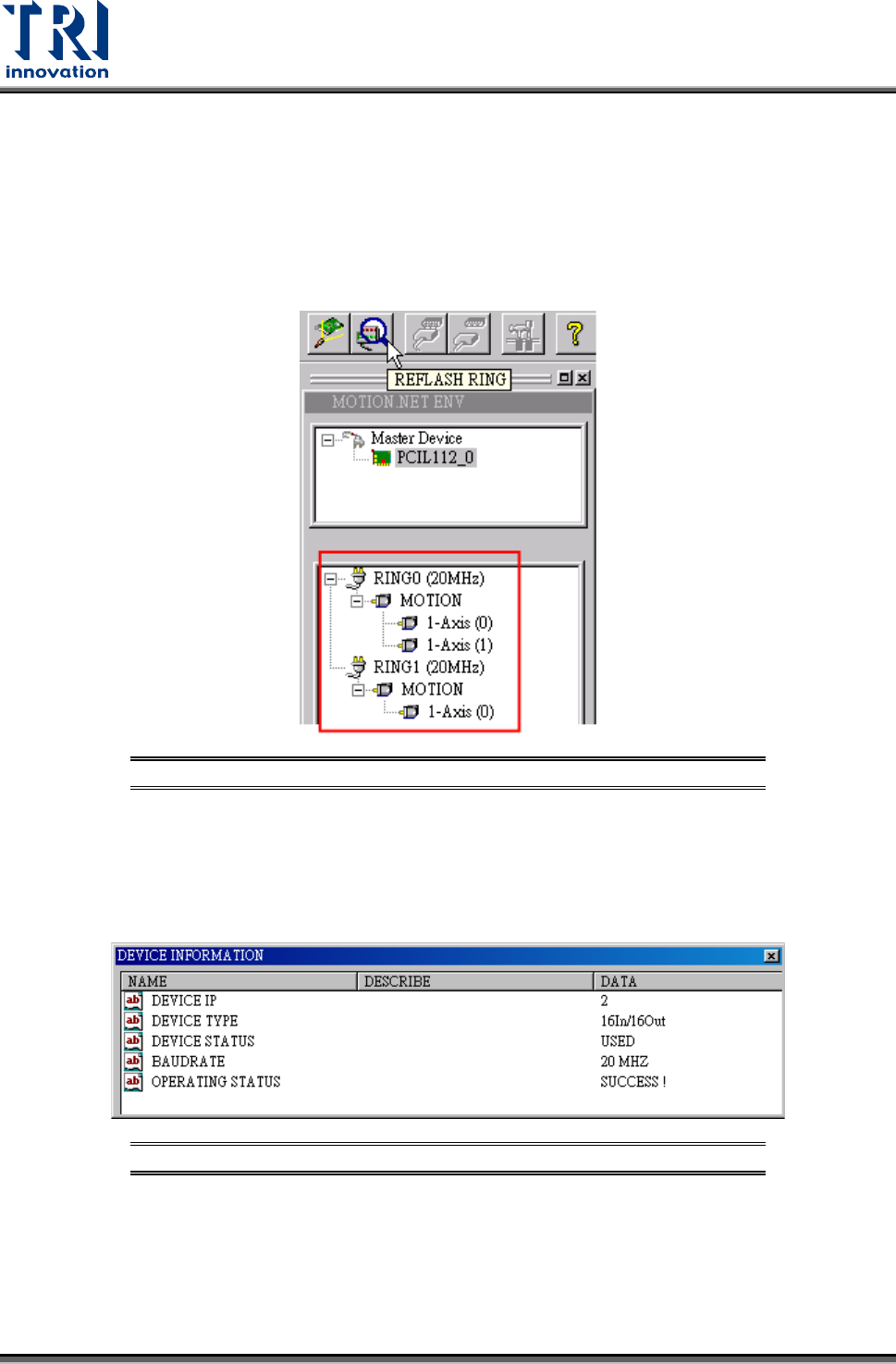
Once the system connection has been established and all devices have been identified, the
EzLink program will indicate the current connection and allocation status for all devices,
which can be seen in the device listing window as shown in the figure below.
If the axis numbers of Ring0 and Ring1 are reversed, check if the X and Y connectors on the
DSP card are properly connected.
Figure 114: EzLink Device List Screen
Clicking on a device from the device list will display its related information as shown in the
picture below.
The displayed information includes the IP number, device type, working status, connection
baud rate, and the operating status.
Figure 115: EzLink Device Information Screen
5) Connecting to the Extension Devices
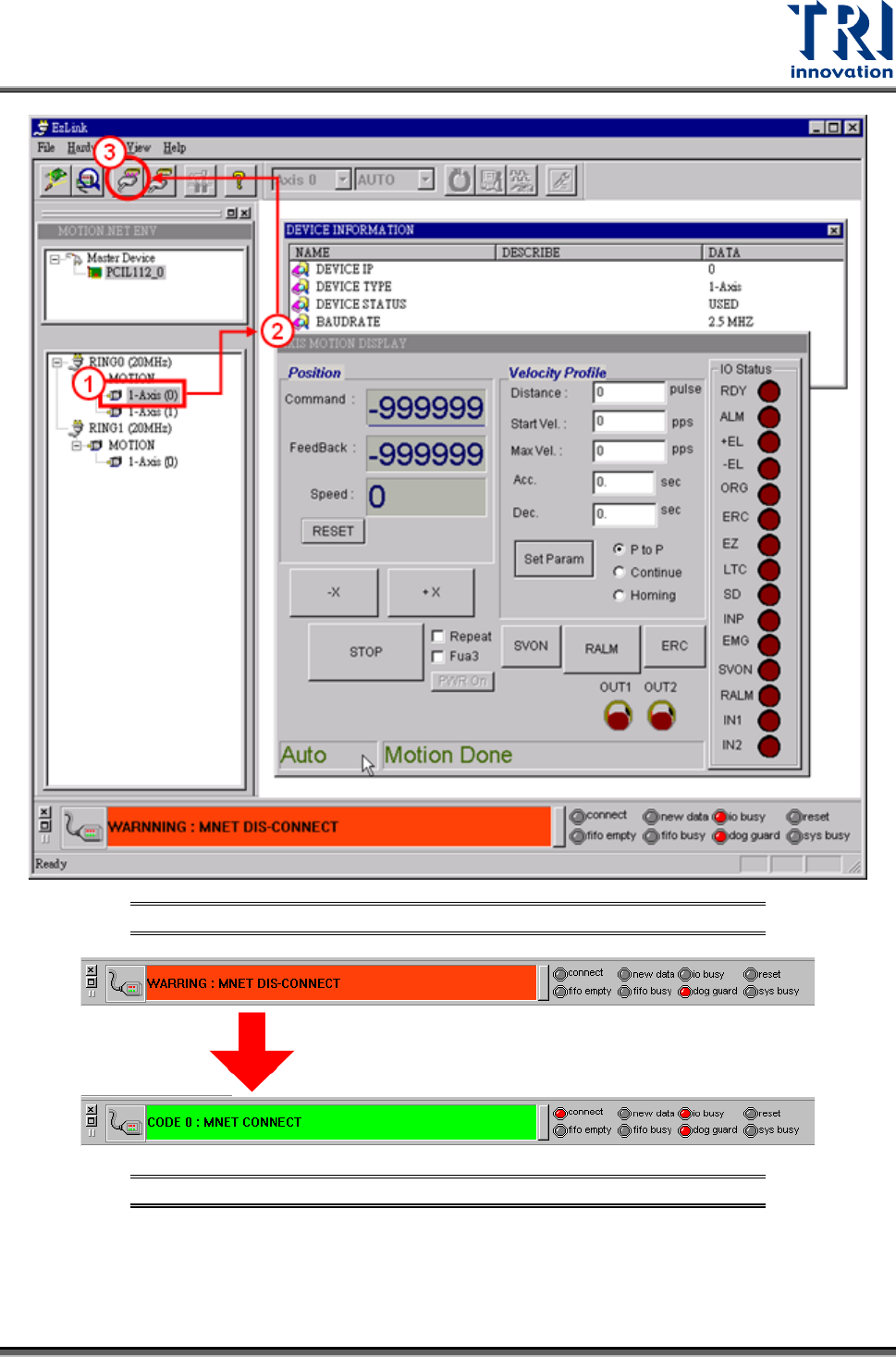
Once the EzLink program finishes the scanning for Master devices, it will activate all the
master devices and attempt to establish connection to the associated extension devices. The
connection status is indicated at the bottom of the window. The changes during the
connection process are illustrated below.
Test Research, Inc.
TR7007M SII User Guide – Hardware 75
Figure 116: EzLink Scan Screen
Figure 117: EzLink Disconnect/Connect Status Screen
6) Loading Parameters
Test Research, Inc.
76 TR7007M SII User Guide – Hardware
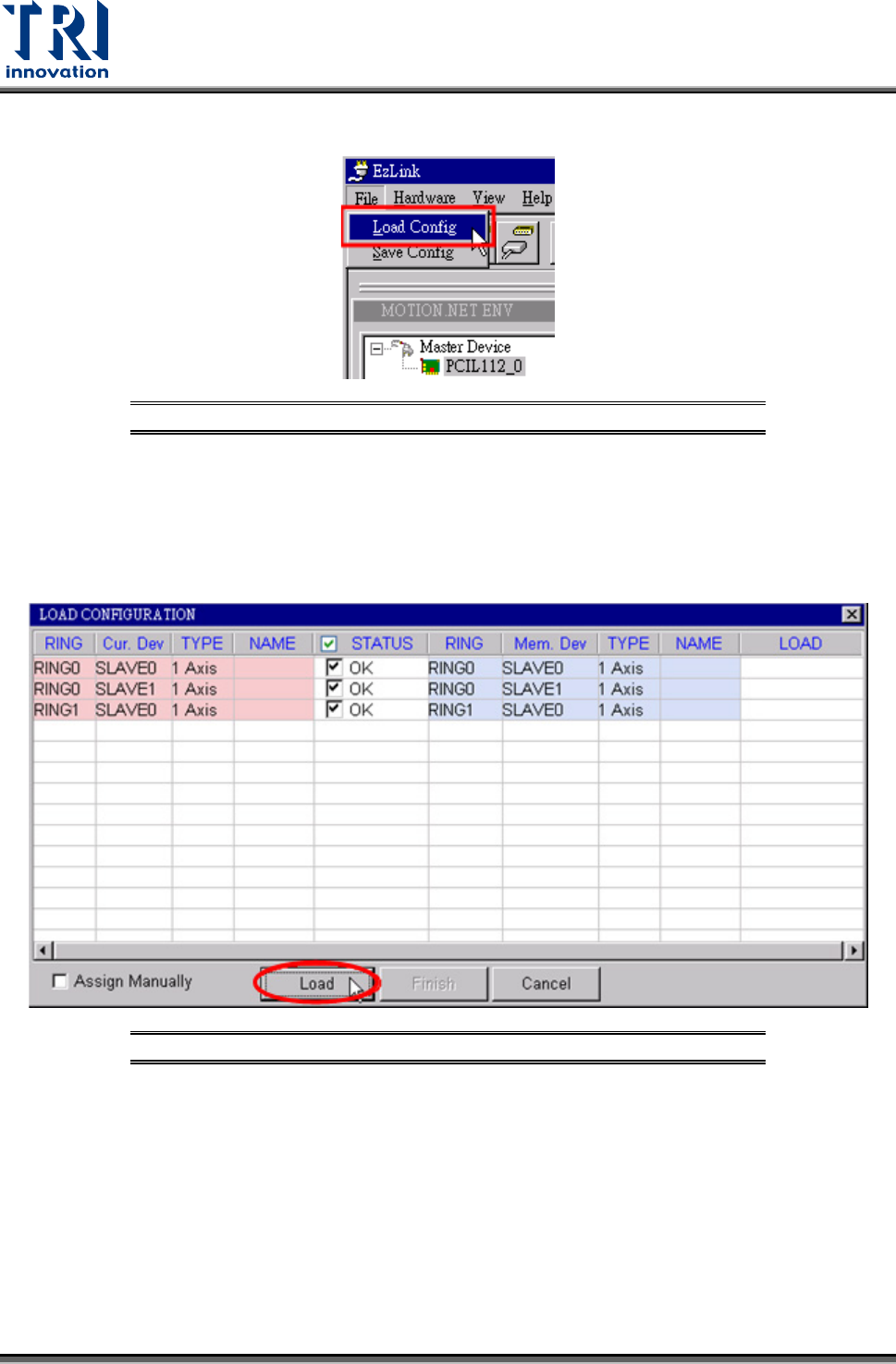
A. Select FILE > LOAD CONFIG from the EzLink main menu list
Figure 118: EzLink-File/Load Config.
B. Select the file to be loaded. For TR7550, user should select [TR7500LinearMotor] in
[Ezlink_32] folder; for TR7066/7007/7700, user should select [TR7066/7007/7700] in
[Ezlink_64] folder.
C. Select any slave device from the list and click on the LOAD button. This will
automatically load all the device’s axes.
Figure 119: EzLink Load Configuration Screen
D. Once all slave devices have been loaded successfully, click on the FINISH button to
close the window.