00195398-0103-AI-01005Paket_DE_EN.pdf - 第58页
Asse mb ly In st ruct i on s 0100 5- Pac ket E di tio n 1 2 /20 07 58 3.6. 8 Costum er req uires MFU usin g c ustomer- owned 01005 compone nt s This m easurem ent can be performe d when required by the cus tome r . A MFU…
Assembly Instructions 01005-Packet
Edition 12/2007
57
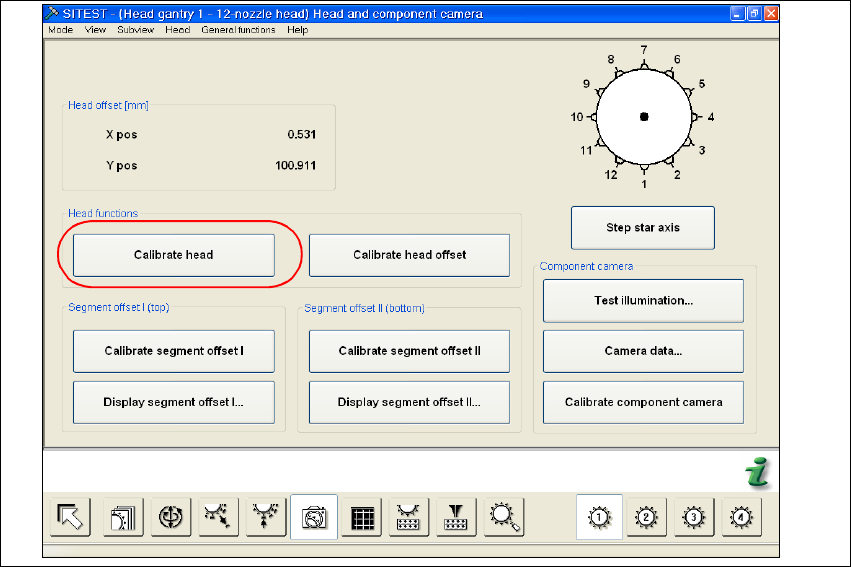
Æ Select the function "C&P Heads".
Æ Select the "Head and Component Camera" function for the relevant placement head.
Fig. 34 SITEST "head and component camera"
Æ Activate the "Calibrate head" function. A complete calibration of the head and the component
camera will be executed.
Æ Calibrate the machine zero point.
3.6.7 MFU with Retrofitted Machine using the 01005 Travel Profile 33/34
Æ
Check that the 3 sleeves for 01005 placement have been used at the measured positions.
Where necessary, insert the sleeves for 01005 placement. See also section 3.6.4 on page -
48.
Æ Make sure that the travel profiles in the CS description of the "Ceram Pad" component are set
according to the description in section 3.7.2.2 on page - 62.
Æ Perform the MFU with all segments i.e. also with the standard sleeves (at the same time).

Assembly Instructions 01005-Packet
Edition 12/2007
58
3.6.8 Costumer requires MFU using customer-owned 01005 components
This measurement can be performed when required by the customer. A MFU with 01005 compo-
nents can only count as a test for the placement capability of the components. 3
In no way should a measured offset be entered into a
FK_Off.ma during this process. 3
NOTE:
The proof for the machine capability is executed using the default components, i.e. "Ceram Pads
2x2mm taped" (00359505-01). 3
3.7 Configurations in SIPLACE Pro
3.7.1 Configuring the Setup
During setup and, if applicable, during the 0201-placement of the component sensor, the new
component camera must be entered. 3
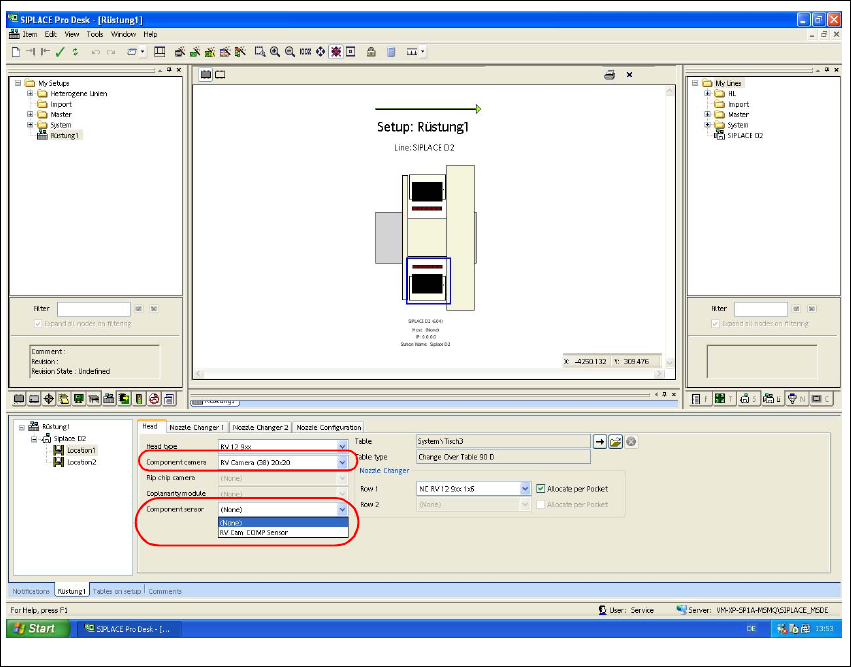
Æ Open the required setup in SIPLACE Pro.
Æ Select the "Head" tab.
Assembly Instructions 01005-Packet
Edition 12/2007
59
Fig. 35 SIPLACE Pro "setup editor" - "head" tab
Æ Go to "Component camera" and select the "RV Camera (38) 20x20" type.
Æ Ensure that the "Component sensor" is available at the machine.
Æ If the component sensor is not available, select "None" in the Setup Editor to deactivate the
component sensor.
Æ If the component sensor is available, you need to activate the sensor in this menu.
3