00193893-04.pdf - 第82页
2 Retrofit instructions - SIPLACE HF series head re confi guration kits SIPLACE HF Series Head Reconfiguration Kits 05/2006 Edition 82 : Set the DIP switches on the vision control unit as shown in the t able below: 2 : C…
SIPLACE HF Series Head Reconfiguration Kits 2 Retrofit instructions - SIPLACE HF series head reconfiguration kits
05/2006 Edition
81
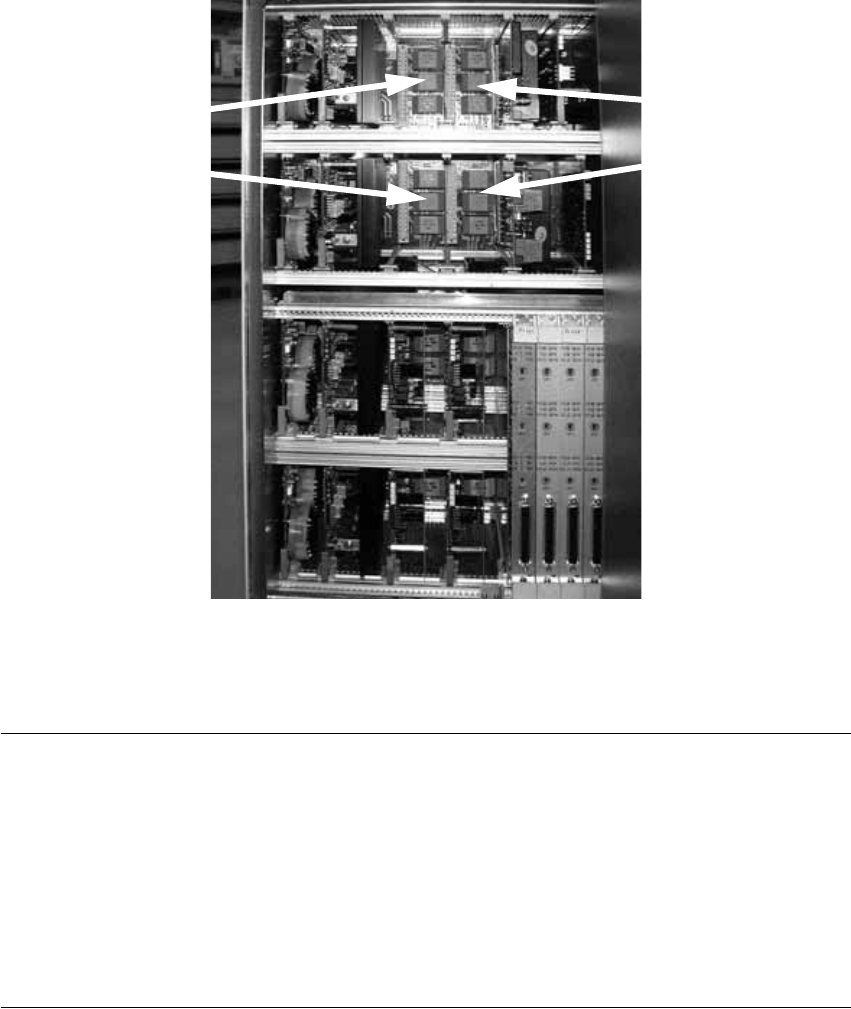
2.4.7 Replacing the servo cards
: Use the machine key to open the door of the servo unit.
: Pull out servo boards A 9, A 11 and A 15 (see reference plan on the back of the door).
It is a good idea to label the servo boards to avoid any confusion.
2
2
: Plug in the other relevant servo boards and the A 13 into the drawer unit.
PLEASE NOTE: 2
From software version 505 onwards, the C&P head can also be fitted on gantry 2, in which case
the servo boards must be arranged as follows if the head is converted back to the TwinHead: 2
2
2
A10 A12
A14 A16
A 9
A 11
A 15
A 13
2 Retrofit instructions - SIPLACE HF series head reconfiguration kits SIPLACE HF Series Head Reconfiguration Kits
05/2006 Edition
82
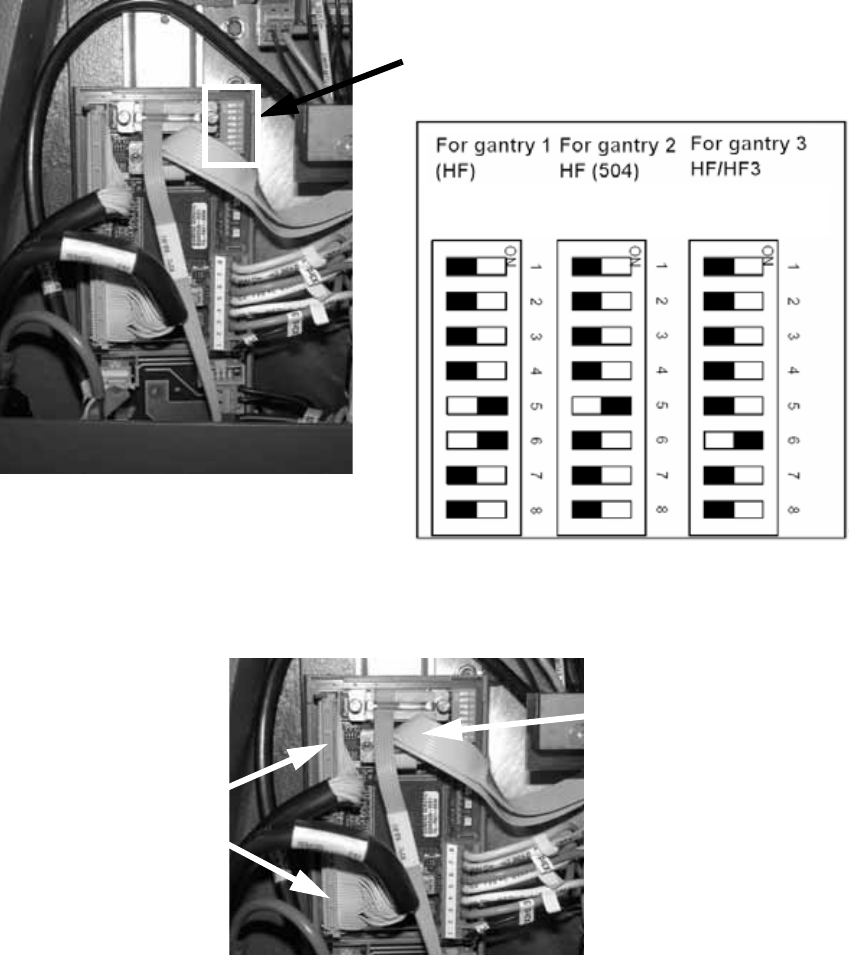
: Set the DIP switches on the vision control unit as shown in the table below:
2
: Check whether the CAN bus connector and the ribbon cable for the camera connection are
plugged in.
2
2.4.8 Configuring the TwinHead in SITEST
Detailed instructions for configuring the placement head can be found in the SITEST online help
under Settings / Settings for the TwinHead. 2
Vision control unit
CAN bus connector
Camera cable
SIPLACE HF Series Head Reconfiguration Kits 2 Retrofit instructions - SIPLACE HF series head reconfiguration kits
05/2006 Edition
83
2.4.9 Firmware download
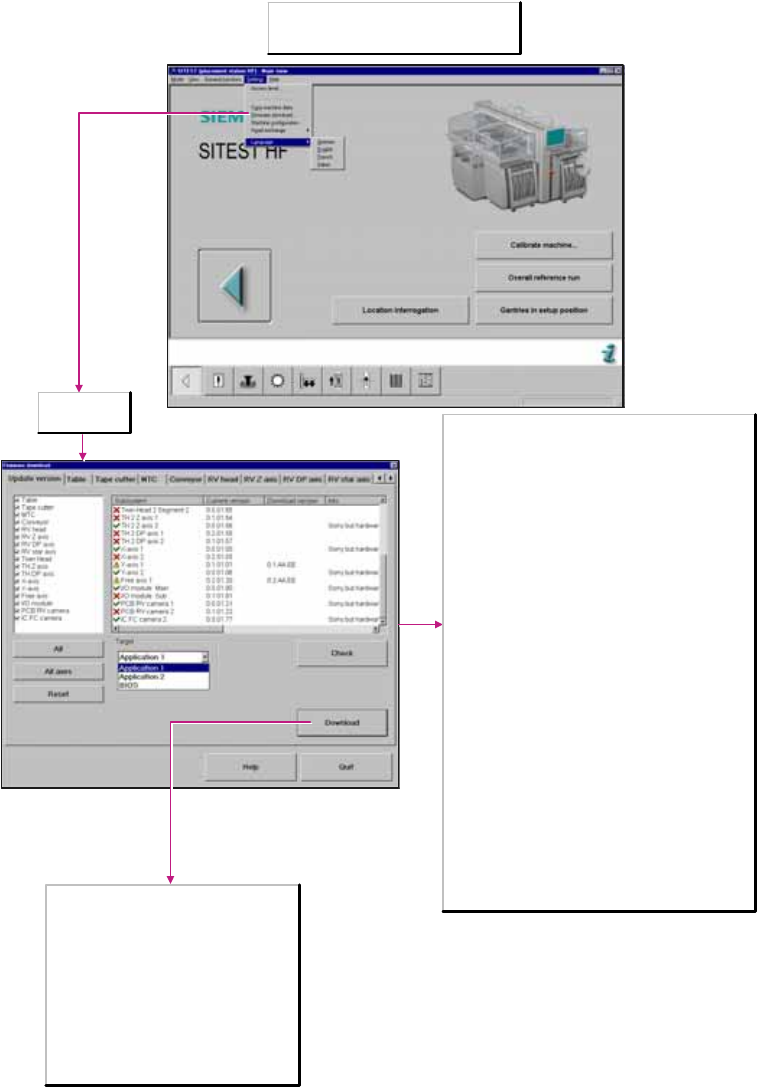
: Download the TwinHead firmware.
2
2
Note
You can only perform a download if you have
logged in at the Service (Siemens) access level.
Update version
tab selected
Download
The download is started with all selected settings.
The process moves the old firmware files to the
directory C:\SRProgramme\CanFWPool, the newly
downloaded files are now located in the directory
C:\SRProgramme\CanFW.
Target
Application 1/2
When activated, the firmware that controls the
actions of the subsystem is loaded.
BIOS
When activated, the operating system for the
subsystems is loaded.
Subsystem
Machine components
Current version
Firmware version available on the individual machine
components.
Download version
Version that can be loaded. This is located in the directory
C:\SRProgramme\CanFW.
Info
Additional information, for example, about the hardware status
of the various machine components.
Check
Reads the current firmware version from the subsystems.
These versions are stored in the directory
C:\SRProgramme\CanFW. This directory may contain a
maximum of one version for each of the subsystems. If there
are a number of versions available for a subsystem, one of
these versions must be moved into the directory
C:\SRProgramme\CanFWPool. If you do not do so, an error
message will be issued as a result of a conflicting version, and
the download cannot be executed.
Subsystem
Here you can select the subsystems.
Select the subsystem for which the download is to be
performed.
All
All subsystems are activated.
Reset
All components are deactivated.
All axes
All axes are activated.