00195642-01_IM-SetupCenter-3.0_EN.pdf - 第24页
Installation Hardware Installation Safety Instructions 24 Installation Manual SIPLACE Setup Center V3.0 6.2.1 Safety Instructions The Dragon and Symbol Sca nners conforms to laser class 2. Warning label W216 (shown above…

Installation
Operation System Installation Important Preparations
Installation Manual SIPLACE Setup Center V3.0
23
6 Installation
6.1 Important Preparations
All computers must have been set up and prepared appropriately in advance of the complete installation
of SIPLACE Setup Center to function correctly.
These preparatory measures demand knowledge about the administrative functions of Windows and
SQL Server. Please contact your system administrator for assistance if required.
6.1.1 Operation System Installation
The following steps are essential before conducting the installation of SIPLACE Setup Center:
Installation of operation system Windows
Furthermore, you require Windows administrative rights and write rights for all computers on which
you are installing SIPLACE Setup Center.
See also:
J
4.1 Computers [
J
13]
6.1.2 Database Installation
If the database decision of SIPLACE Setup Center Database is made to use SQL Express or a MSDE
installation, this must be done prior installing SIPLACE Setup Center.
The prerequisite product SQL Express and MSDE are available on the Support Media DVD.
This installer of MSDE creates a MSDE instance with the name SIPLACE_MSDE.
6.2 Hardware Installation
We recommend performing the installation in the specified order:
1. Installation of hardware
2. Installation of software
This chapter describes the hardware installation procedure.
NOTE:
Always exit the running setup verification via task manager/process before the installation or
uninstallation of Setup Center.
NOTE:
If during the installation a note appears, that Microsoft Data Access Components (MDAC) must
be installed. Accept this note.
Installation
Hardware Installation Safety Instructions
24 Installation Manual SIPLACE Setup Center V3.0
6.2.1 Safety Instructions
The Dragon and Symbol Scanners conforms to laser class 2.
Warning label W216 (shown above) is displayed on the Dragon scanner.
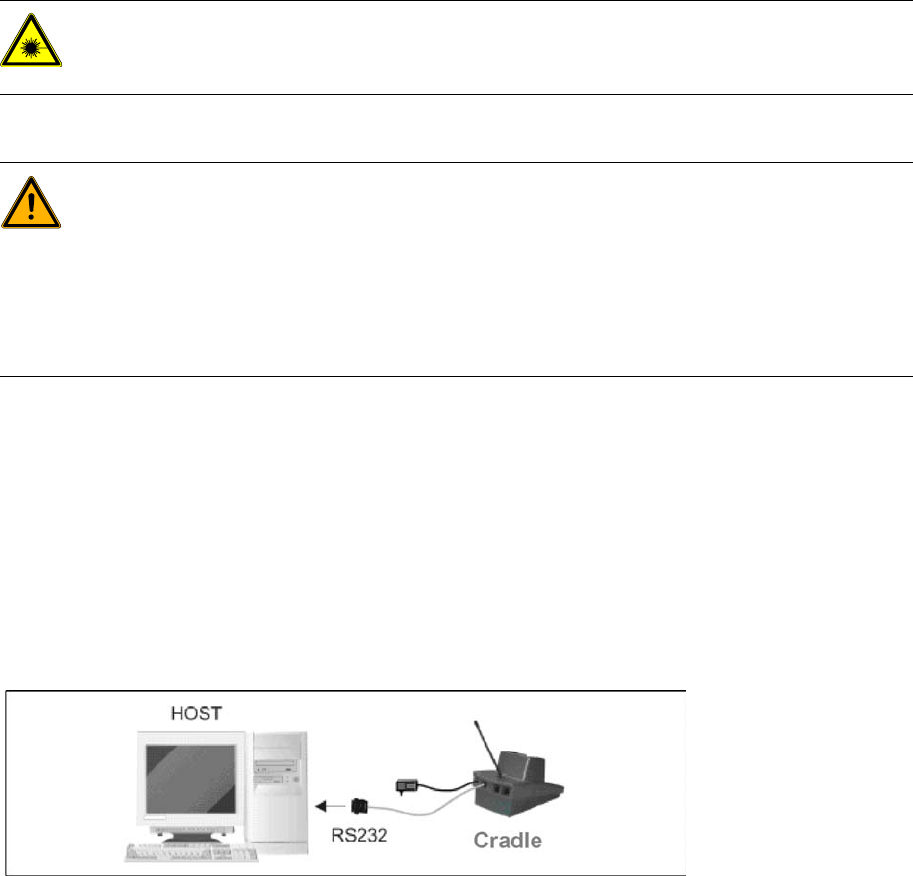
6.2.2 Dragon Scanner’s Cradle
The Dragon scanner’s cradle needs to be connected to the Setup Center PC’s COM-port. The
default port is COM1.
If the COM1 port is already in use another COM port need to be configured
(Another port can be configured in the Setup Center after installation:
open Setup Center setting dialog – menu Options/Settings – dialog Scanner/Dragon Scanner/Serial
Port).
Connect the cradle to the Setup Center PC according to the following picture:
See also:
J
6.3 Software Installation [
J
47]
DANGER: LASER RADIATION!
Do not look into beam.
Laser class 2
WARNING: CAUTION:
Before using the Dragon scanner, inform all operating personnel about the laser regulations.
While operating the Dragon scanner, observe the respective regulations in line with VDE 0837
"Protection from radiation emitted by laser devices" and the "Laser radiation" accident
prevention regulations (VBG93), applicable in Germany.
Also observe the accident prevention regulations applicable in your country.
Despite the low laser power, avoid looking directly at the laser beam. The natural closure reflex
of your eyelids will protect your eyes from the visible beam.
Installation
Motorola / Symbol MC70 1D/2D barcode scanner Hardware Installation
Installation Manual SIPLACE Setup Center V3.0
25
6.2.3 Motorola / Symbol MC70 1D/2D barcode scanner
6.2.3.1 System Requirements
The following components are required for the operation of the scanner:
WLAN-infrastructure (not included)
MC70 Scanner with firmware 05.43 or higher
MC70 scanner integrated in WLAN-infrastructure and accessible with "ping" windows-command.
SIPLACE Setup Center 3.0 or higher
6.2.3.2 Configurate WLAN on Scanner
Please configurate the barcode scanner for the operation within WLAN network - as described in
document Installation Manual WLAN Infrastructure for SIPLACE (item no. 00195606-xx).
6.2.3.3 MC70 Prerequisites installation
The installation for MC70 Prerequisites is located in the root directory of the Installation CD:
"\MobileScanner\MC70 Prerequisites\".
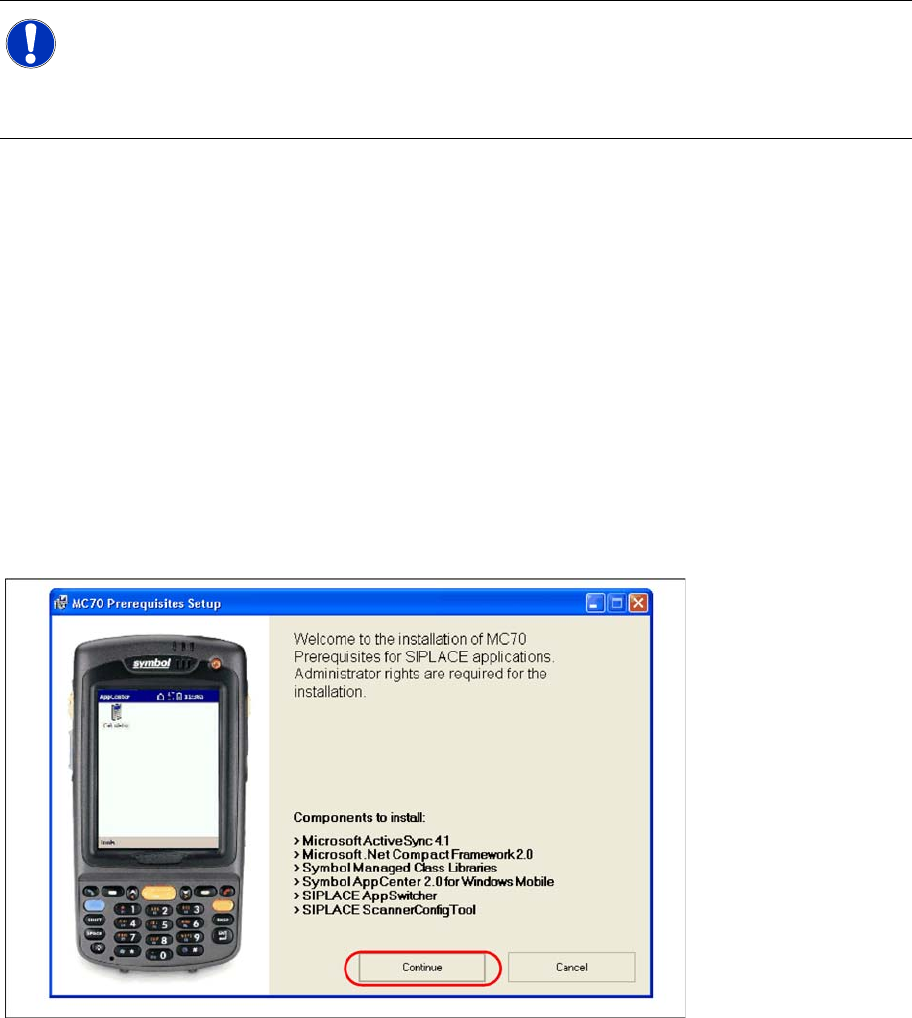
X Execute the file "Setup.exe" to start the installation.
Step 1: ActiveSync / Mobile Device Center
Windows XP: ActiveSync
If ActiveSync is not installed on the system, the installation of Microsoft ActiveSync will be executed.
Make sure that the scanner is not yet connected to the basic station.
X Select "Continue" to proceed with the installation.
NOTE:
The MC70 might be delivered with a different firmware version. Please install the firmware
version listed above. It is located on the software CD "SIPLACE Setup Center" in directory
"\3rdparty installer\Symbol MC70\". Please observe by all means the enclosed
documentation.