00195642-01_IM-SetupCenter-3.0_EN.pdf - 第35页
Installation Optional: Docking Station Hardware Installation Installation Manual SIPLACE Setup Center V3.0 35 6.2.4.2 Installing CAN Drivers X Switch on the Setup Center PC . The hardware wizard will open. X Select No, n…
Installation
Hardware Installation Optional: Docking Station
34 Installation Manual SIPLACE Setup Center V3.0
6.2.4.1 Installing the CAN Card in the PC
The data connection between the Setup Center PC, on which the Setup Center software is to be
installed, and the docking station is realized via a CAN Bus. This requires installation of a CAN card in
the SC PC on which the SC software is to be installed. This CAN card is included in the delivery of
docking station (optional).
X Open the SC PC housing according to the manufacturer's instructions.
X Select a free PCI slot in your SC PC for installing the CAN card.
X Plug the CAN card into the selected PCI slot.
X Close the SC PC housing according to the manufacturer's instructions.
X The drivers for the CAN card are contained on the SC software installation CD. These need to be
installed separately. For a detailed description, please see Section "Optional: Installing CAN
Drivers".
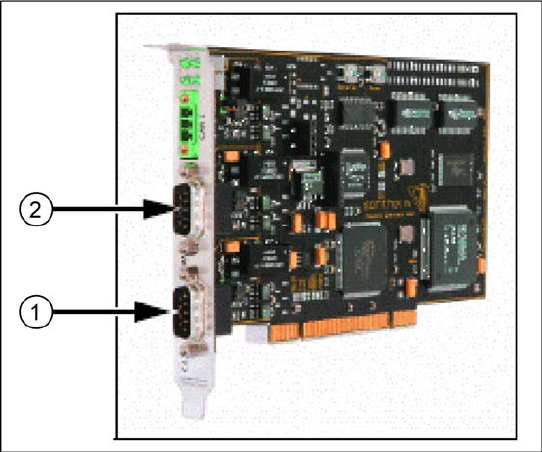
6-1: CAN card - power CAN PCI
Legend
1. Bus 1
2. Bus 2
Installation
Optional: Docking Station Hardware Installation
Installation Manual SIPLACE Setup Center V3.0
35
6.2.4.2 Installing CAN Drivers
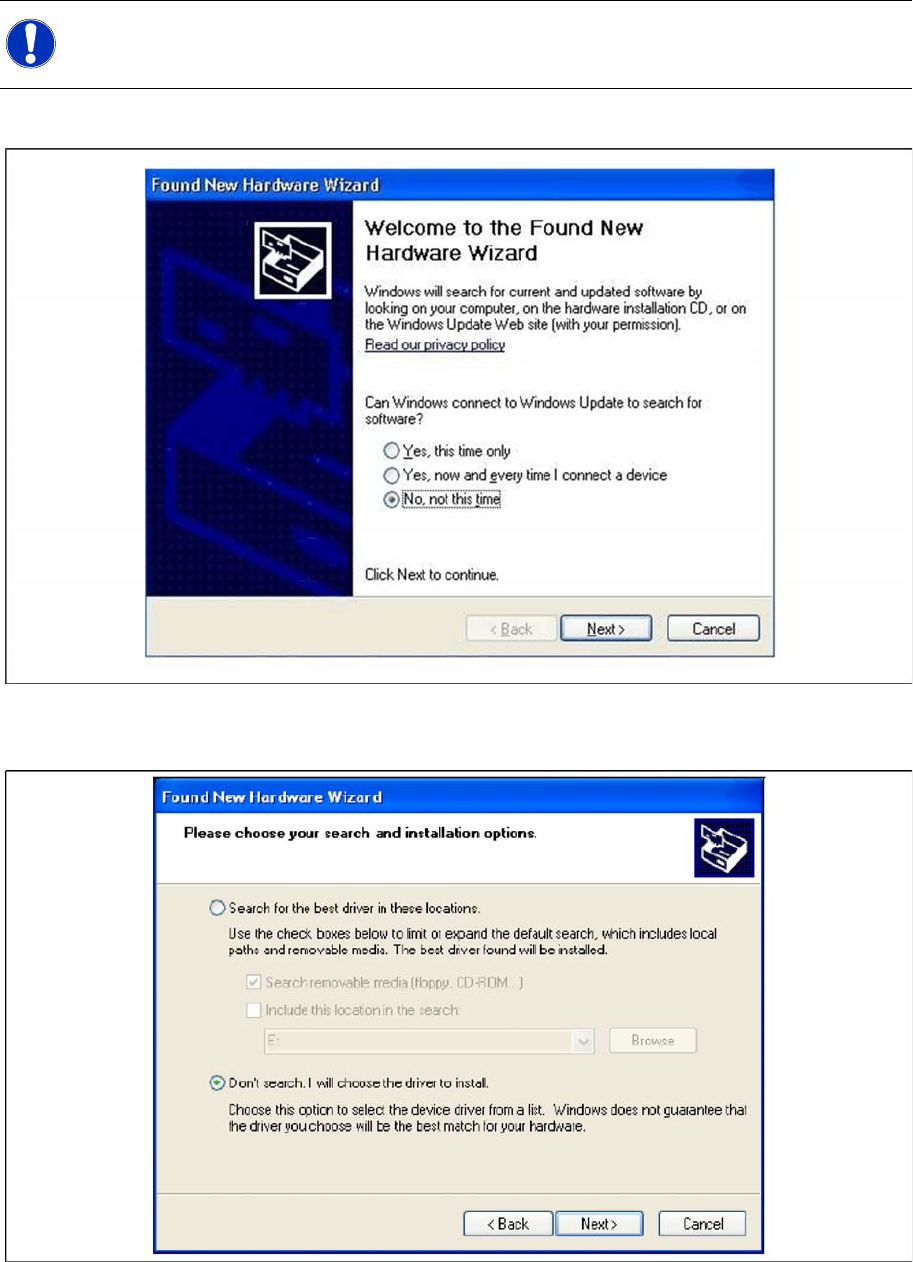
X Switch on the Setup Center PC. The hardware wizard will open.
X Select No, not this time ....
X Click on Next to continue.
6-2: hardware wizard
X Select Don’t search. I will choose ....
X Click on Next to continue.
NOTE:
You require administrator rights for the installation procedure!
Installation
Hardware Installation Optional: Docking Station
36 Installation Manual SIPLACE Setup Center V3.0
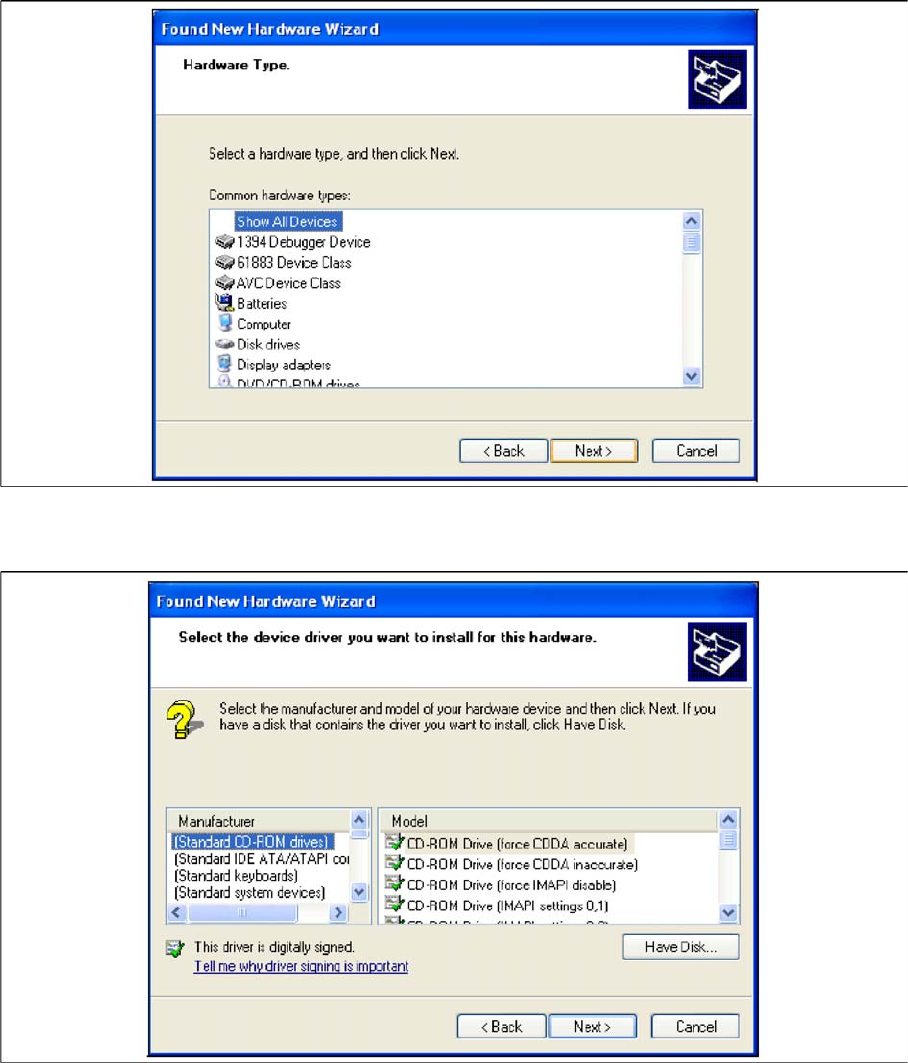
6-3: hardware wizard
X Select Show All Devices and then click on Next.
6-4: hardware wizard
X The software for the CAN card is contained on the Setup Center installation CD. This needs to be
inserted into the CD-ROM drive of your Setup Center PC.
X Click on the Have Disk ... button.