00195642-01_IM-SetupCenter-3.0_EN.pdf - 第62页
Installation Software Installation Setup Center 62 Installation Manual SIPLACE Setup Center V3.0 X Click Next to continue. Step 4 Configuration of the Splice detection X Select the checkbox Splice detection existing , if…
Installation
Setup Center Software Installation
Installation Manual SIPLACE Setup Center V3.0
61
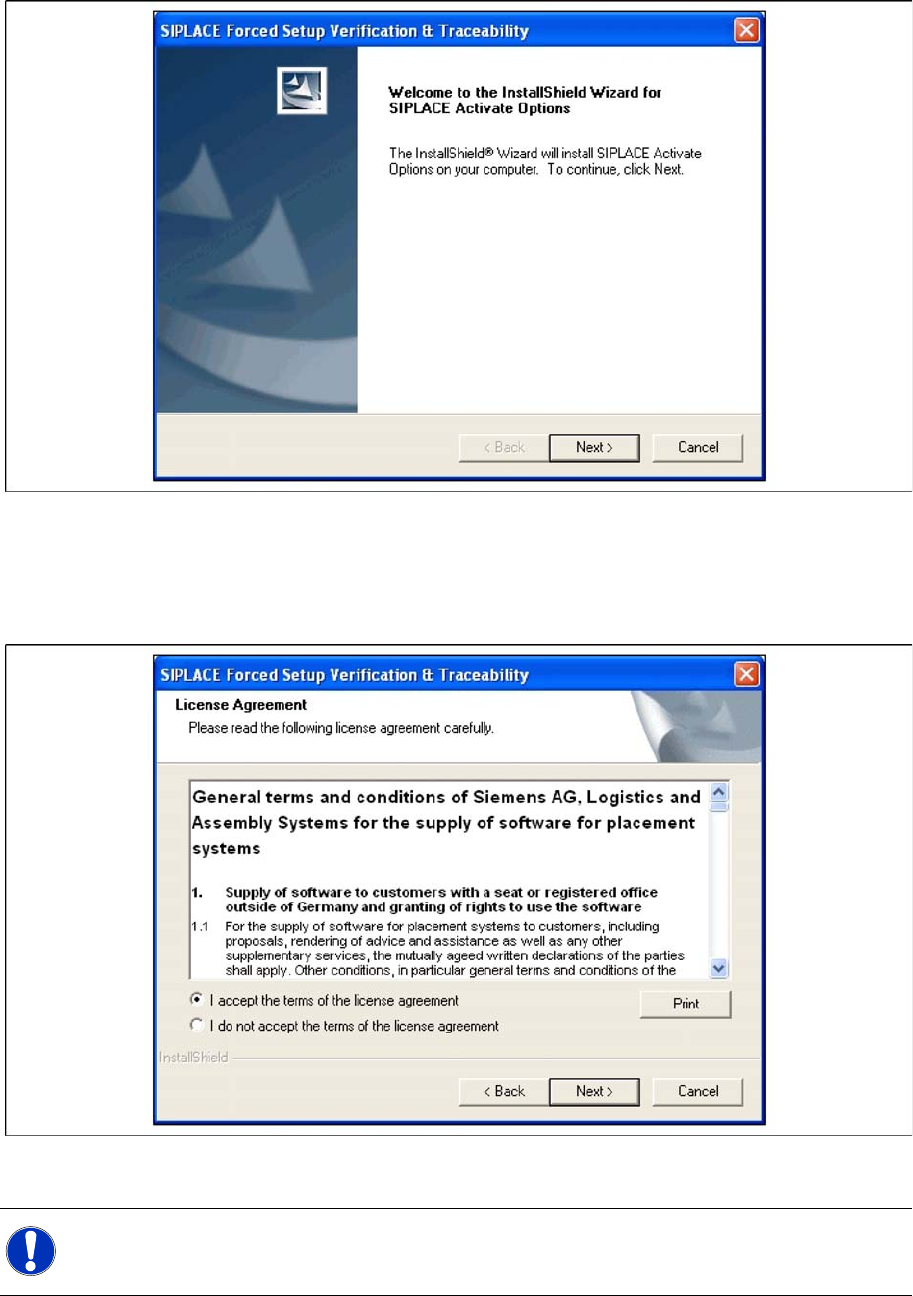
X Place the product CD in your CD-ROM drive.
X The Start screen appears.
Step 2 Licence dialog
X Read the license agreement. If you agree with the conditions, click I accept ..., otherwise click on I
do not accept.... If you select I do not accept ..., the installation procedure will be terminated.
X Click on Next, to continue the installation procedure.
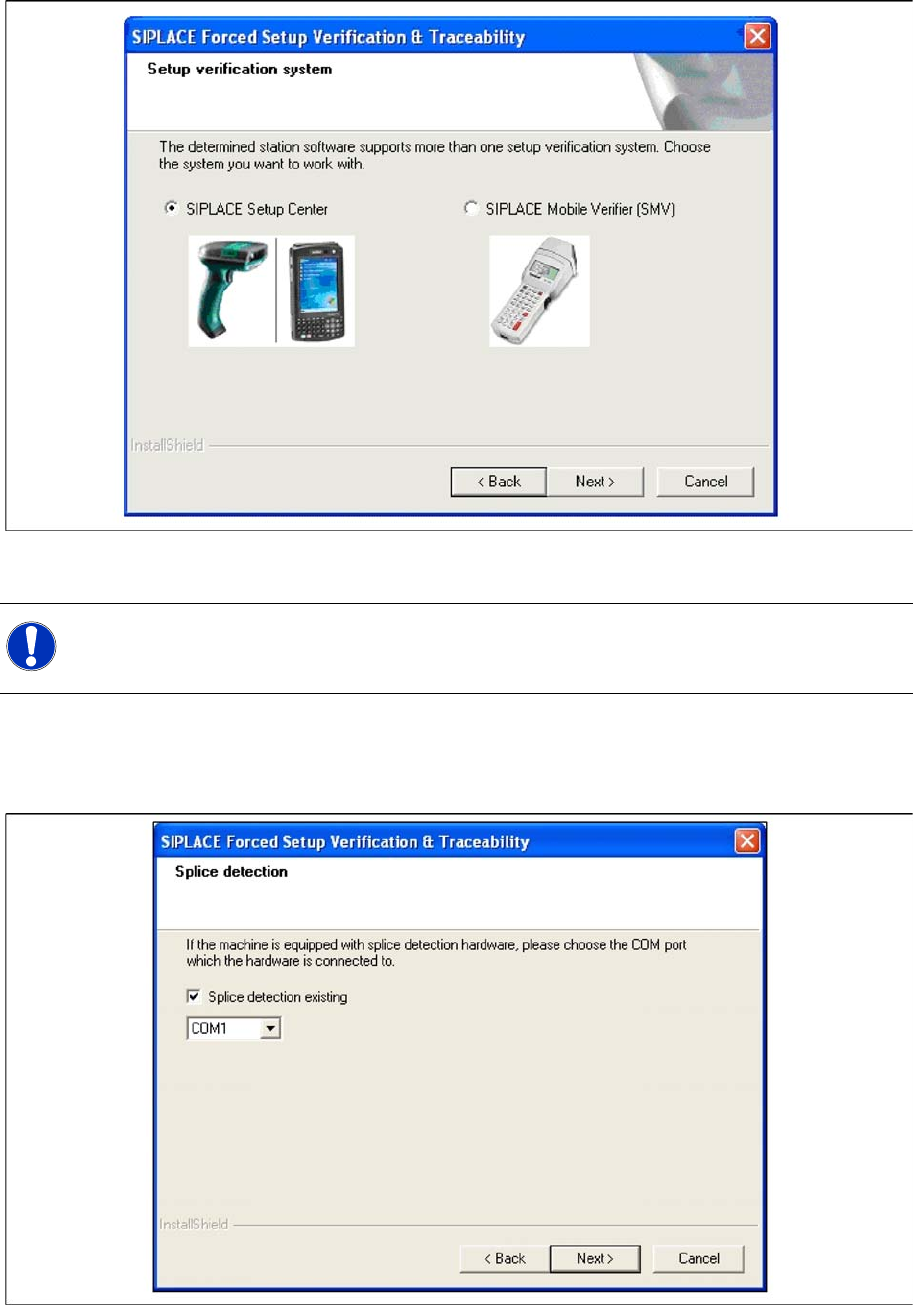
Step 3 Setup verification system
X The station software version 407 and 505 offers two different interfaces to the Setup verification
system. By choosing the corresponding Setup verification system the interface will be configured in
the station-software accordingly.
NOTE:
This Dialog will only appear for the machine with the station-software version 407 and 505!
Installation
Software Installation Setup Center
62 Installation Manual SIPLACE Setup Center V3.0
X Click Next to continue.
Step 4 Configuration of the Splice detection
X Select the checkbox Splice detection existing, if a splice detection is available.
X Enter the COM Port where Splice detection is plugged in or leave empty the entry field.
X Click Next to continue.
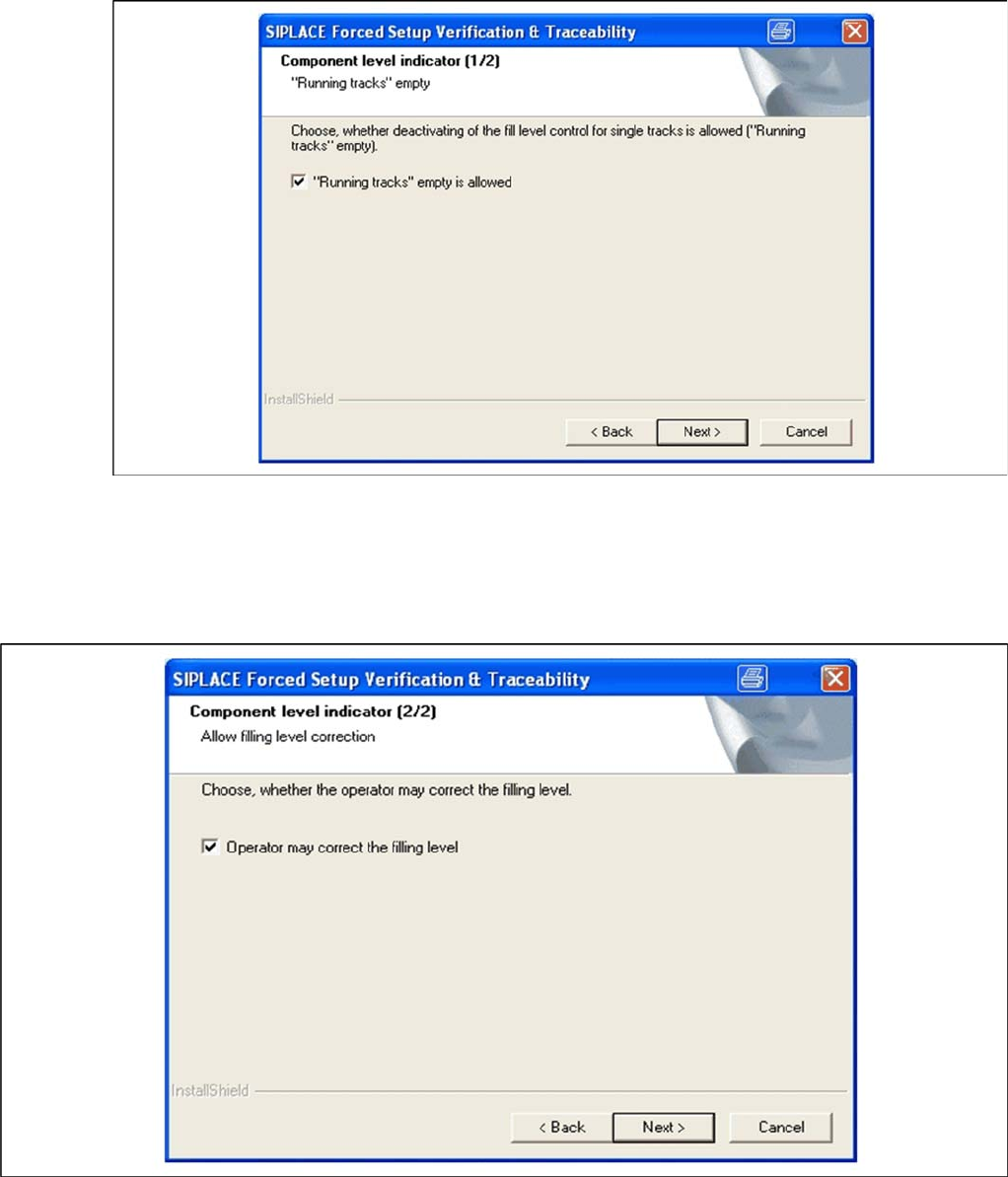
Step 5a Fill Level Control (1)
X If the fill level control should be disabled for single tracks, activate the checkbox “Running tracks”
empty is permitted. After that you can let single tracks go empty consciously.
NOTE:
This dialog will not appear for X-serie machines since the splice interface is always integrated
into the X feeders and is not available for S feeders at these machines!
Installation
Setup Center Software Installation
Installation Manual SIPLACE Setup Center V3.0
63
X Click Next to continue.
Setup 5b Fill Level Control (2)
X If the filling level correction should be allowed, activate the checkbox Operator may correct the
filling level. After that the operator may correct the filling level. Otherwise only the user with the right
"LineEngineer" and higher can correct the filling level.
X Click Next to continue.
Step 6 Activation of locked tracks
X Choose Activation without barcode reading is allowed, you can activate the locked tracks on the
machine GUI, by clicking on the button chosen track in the overview of the empty feeders.
X If the checkbox is not selected, you can activate the locked tracks only by scanning the barcode of
packaging unit again.