00195642-01_IM-SetupCenter-3.0_EN.pdf - 第68页
Installation Steps to perform after Installation DATALOGIC Scanner Configuration 68 Installation Manual SIPLACE Setup Center V3.0 X Choose the destination folder in whic h the software should be inst alled. X Please wait…
Installation
DATALOGIC Scanner Configuration Steps to perform after Installation
Installation Manual SIPLACE Setup Center V3.0
67
6.4.3.2 Firmware Upgrade of PowerScan Scanner
Installation of Datalogic Aladdin
In order to update a firmware version on a scanner the software "Datalogic Aladdin" need to be installed
on the computer, which is physically connected to the Datalogic OM30X0 cradle.
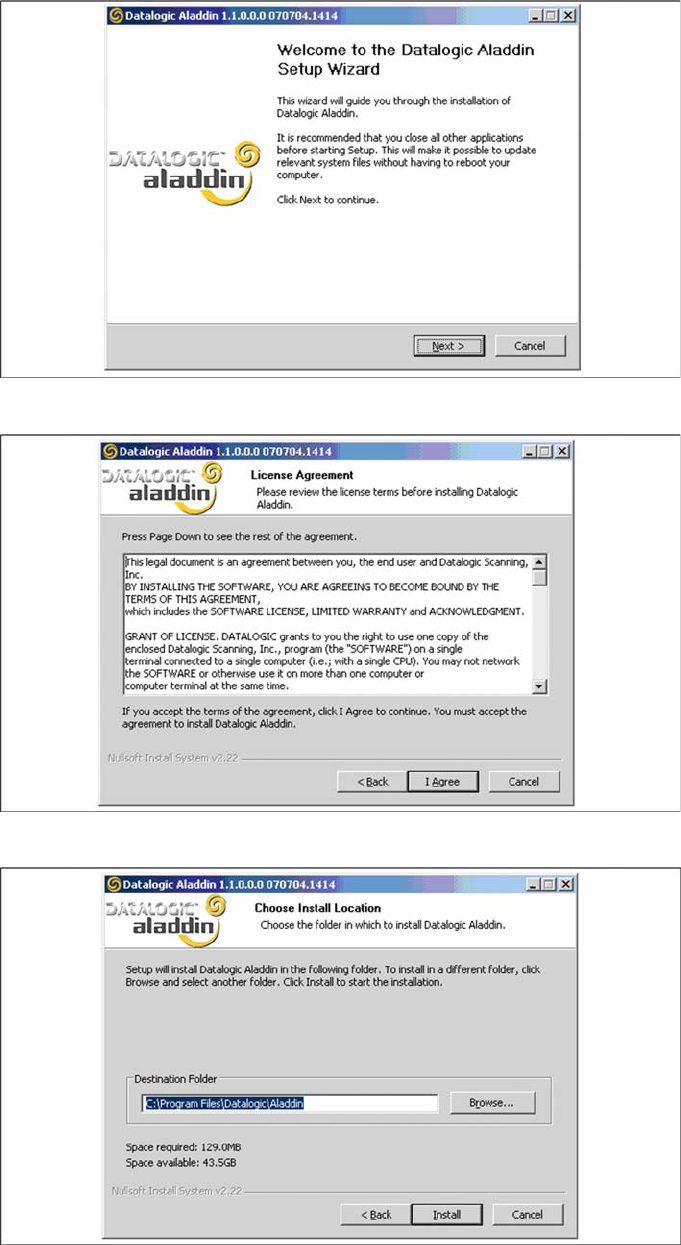
X Start the installation from the Support Media DVD under:
"\Updates\Firmware\aladdin_setup_1.1.0.0.0_070704.1414_jre.exe".
X Click on Next to continue.
X The installation routine continues if you click on the "I Agree" button to accept the license agreement.
Installation
Steps to perform after Installation DATALOGIC Scanner Configuration
68 Installation Manual SIPLACE Setup Center V3.0
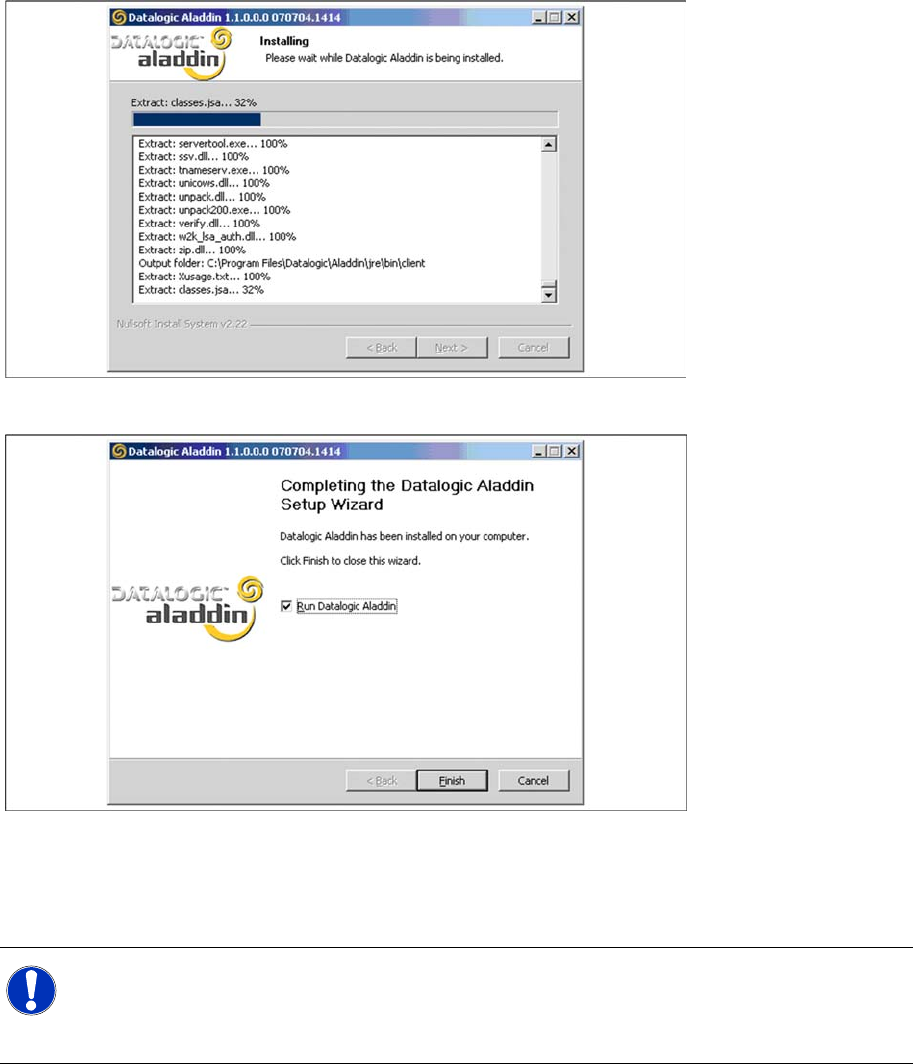
X Choose the destination folder in which the software should be installed.
X Please wait until all files were installed. If the installation is completed, click on Next to continue.
X Click on Finish.
X If the option "Run Datalogic Aladdin" was activated, the application starts now automatically.
Firmware upgrade
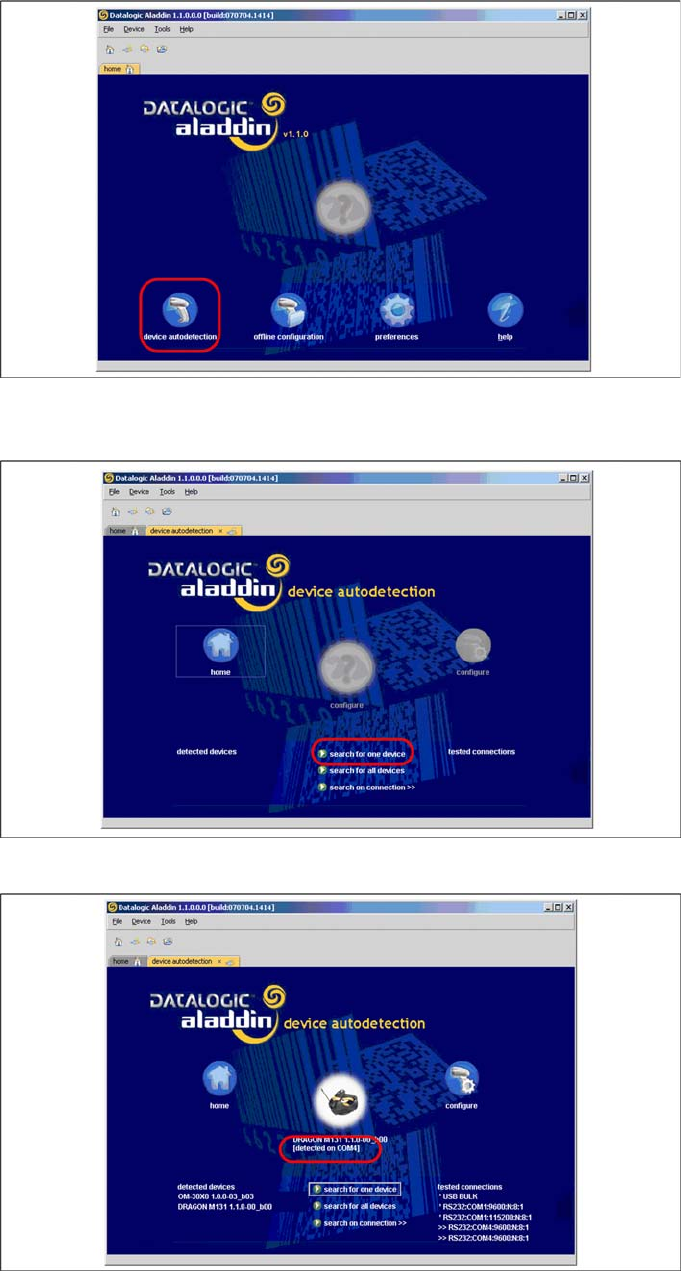
After "Datalogic Aladdin" was started, the following overview will be displayed.
NOTE:
Please make sure that no applications such as SIPLACE Setup Center are accessing the serial
communication.
X Exit these applications before you continue.
Installation
DATALOGIC Scanner Configuration Steps to perform after Installation
Installation Manual SIPLACE Setup Center V3.0
69
X Select "device autodetection" to find out at which COM port the Datalogic OM30X0 cradle is
connected.
X Select "Search for one device" to start the search.
X The cradle is now detected.