00195642-01_IM-SetupCenter-3.0_EN.pdf - 第72页
Installation Steps to perform after Installation DATALOGIC Scanner Configuration 72 Installation Manual SIPLACE Setup Center V3.0 The scanner must have an address (tempor ary "0000"), so that it can get con nec…
Installation
DATALOGIC Scanner Configuration Steps to perform after Installation
Installation Manual SIPLACE Setup Center V3.0
71
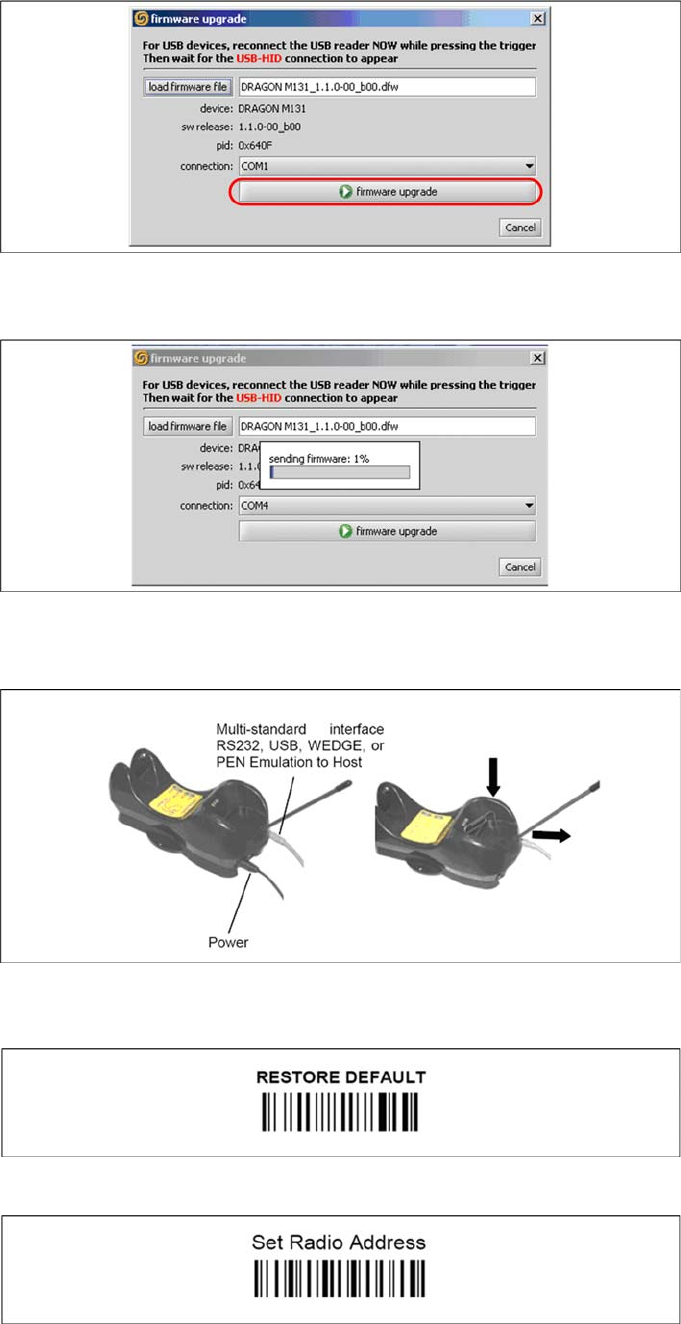
X Choose the right COM port at which the cradle is connected. This was already found out
automatically at the beginning.
X Activate the scanner by pushing the laser trigger.
X Then select "firmware upgrade" to start the transfer of the new firmware version to the scanner.
X Exit the "Datalogic Aladdin", if the transfer is completed.
6.4.3.3 Reconnection of the PowerScan scanner to the cradle OM3010
If after wrong connection to the cradle no communication could be established, the following
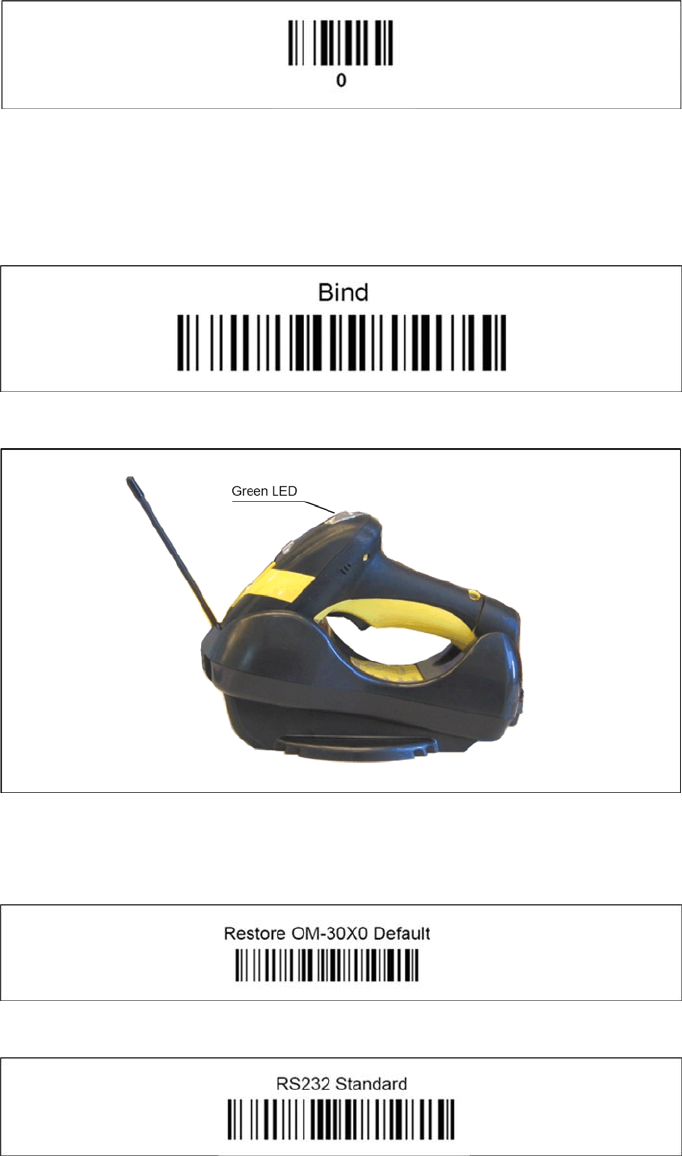
configuration steps are necessary. Please scan the following barcodes in the order they are printed:
The standard configuration of the scanner is restored.
X Sann the barcode "0" four times.
Installation
Steps to perform after Installation DATALOGIC Scanner Configuration
72 Installation Manual SIPLACE Setup Center V3.0
The scanner must have an address (temporary "0000"), so that it can get connected to the cradle. This
address will be changed / set again later by Setup Center with the automatic configuration.
In order to configure the cradle a scanner needs to be bound to the cradle with the barcode "Bind".
X Scan the barcode "Bind" now.
X If the green LED of the scanner blinks, put the scanner into the cradle.
X The green LED is now switched off and the scanner is already registered on the cradle. This can be
set up now with the following barcodes.
X Scan "Restore OM-30X0 Default" now to restore the standard configuration of the cradle.
X Scan "RS232 Standard" to fix the interface to be used on the cradle.
X On starting Setup Center, the cradle should be automatically detected now.
Installation
DATALOGIC Scanner Configuration Steps to perform after Installation
Installation Manual SIPLACE Setup Center V3.0
73
6.4.3.4 DATALOGIC scanner configuration
New scanners and scanner base stations require the setup once before the first use.
This doesn’t necessarily need to happen after the Installation of SIPLACE Setup Center, but it is
recommended. The Scanner configuration is independent from the software installation.
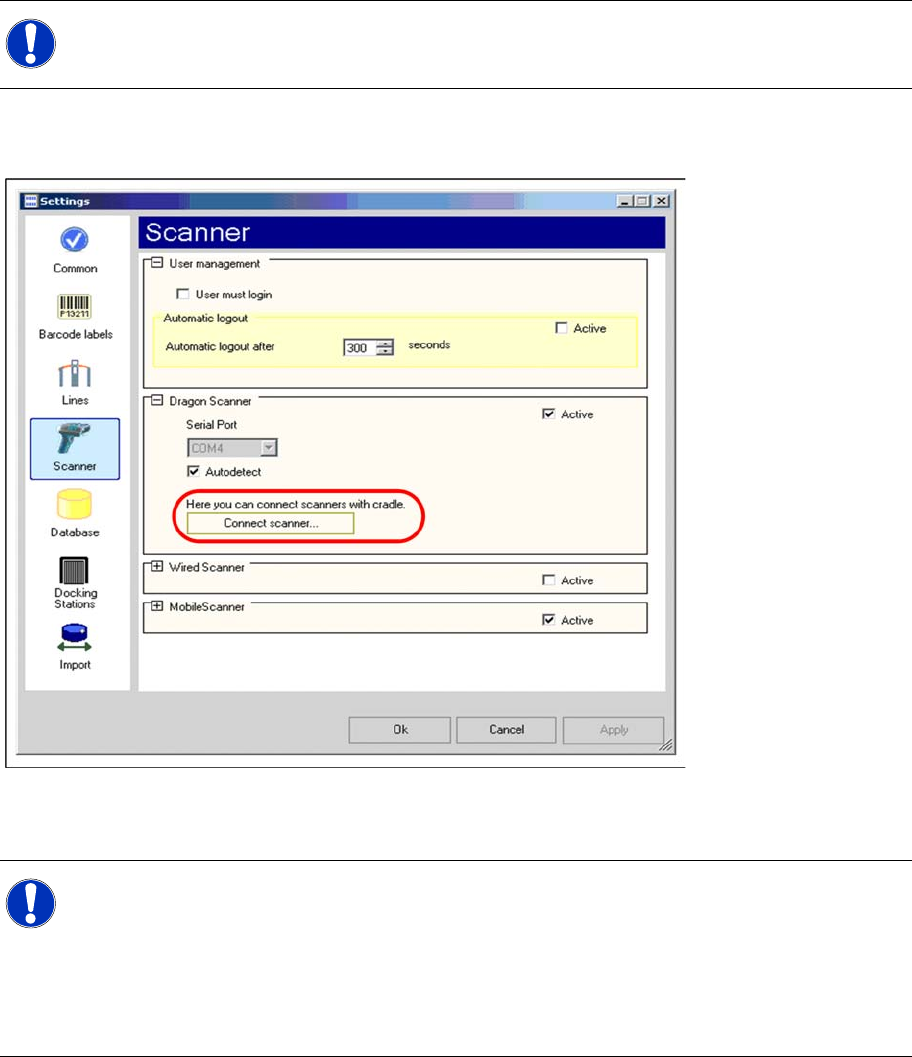
You can setup up one or more scanner by Setup Center. To configure scanner, ensure that the Datalogic
OM-Cradle is connected with the Setup Center computer.
X Open the setting dialog for scanner in Setup Center configuration.
X Click “Connect scanner…” to begin.
NOTE:
The scanner powers off after a period of inactivity. Pulling the trigger will power the scanner on.
NOTE:
If the button is disabled, Setup Center was not able to detect a cradle on startup.
X In this case, ensure the connection to a serial port and restart Setup Center.
X Alternatively you can manually change the port, where the cradle is connected, by removing
the “Autodetect” checkbox.
After changing, click “Apply” to take over the new port.
Click “Connect Scanner…” to continue.