00195642-01_IM-SetupCenter-3.0_EN.pdf - 第78页
Installation Steps to perform after Installation Motorola / Symbol MC70 Scanner Configuration 78 Installation Manual SIPLACE Setup Center V3.0 6.4.4.2 Configure Setup Center Client After the installation routine has rest…
Installation
Motorola / Symbol MC70 Scanner Configuration Steps to perform after Installation
Installation Manual SIPLACE Setup Center V3.0
77
6.4.4 Motorola / Symbol MC70 Scanner Configuration
6.4.4.1 Configurate Setup Center
The communication between Setup Center and scanner is achieved by network connection (socket).
Setup Center takes the role of the server and the scanner that one of the client.
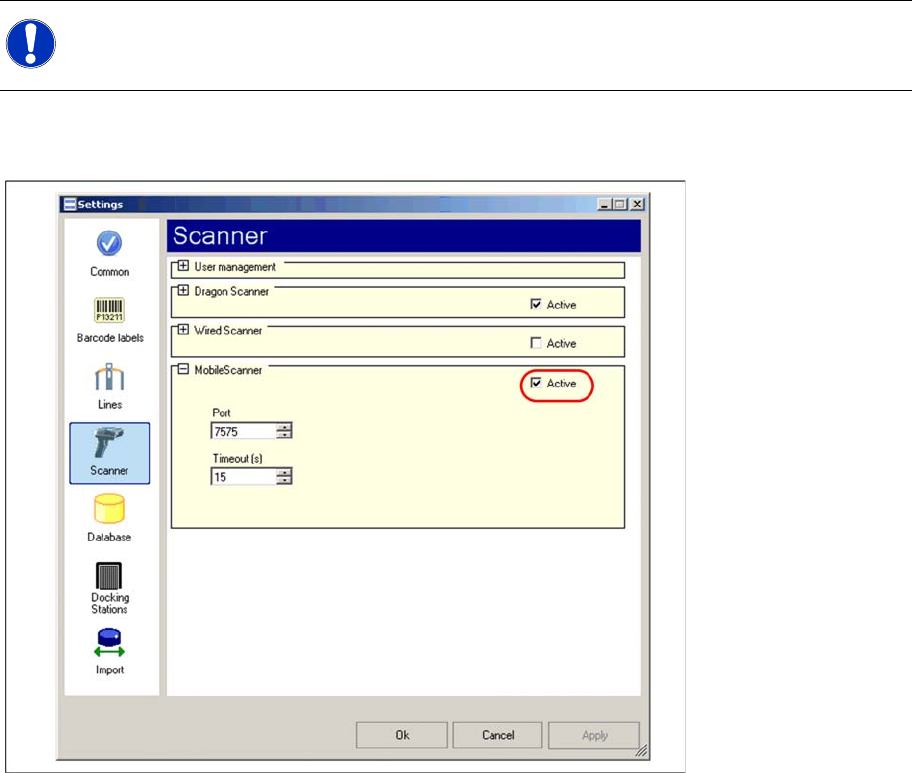
Start Setup Center and open the setting via Tools -> Settings. Within the group Scanner the following
entry is now visible:
Activate the interface by selecting "activated". Check the fire wall settings whether the port chosen by
Setup Center is enabled and correct it if necessary. To accept the settings close the configuration dialog
with "OK".
NOTE:
Please configurate the barcode scanner for the operation within WLAN network - as described
in document Installation Manual WLAN Infrastructure for SIPLACE (item no. 00195606-xx).
Installation
Steps to perform after Installation Motorola / Symbol MC70 Scanner Configuration
78 Installation Manual SIPLACE Setup Center V3.0
6.4.4.2 Configure Setup Center Client
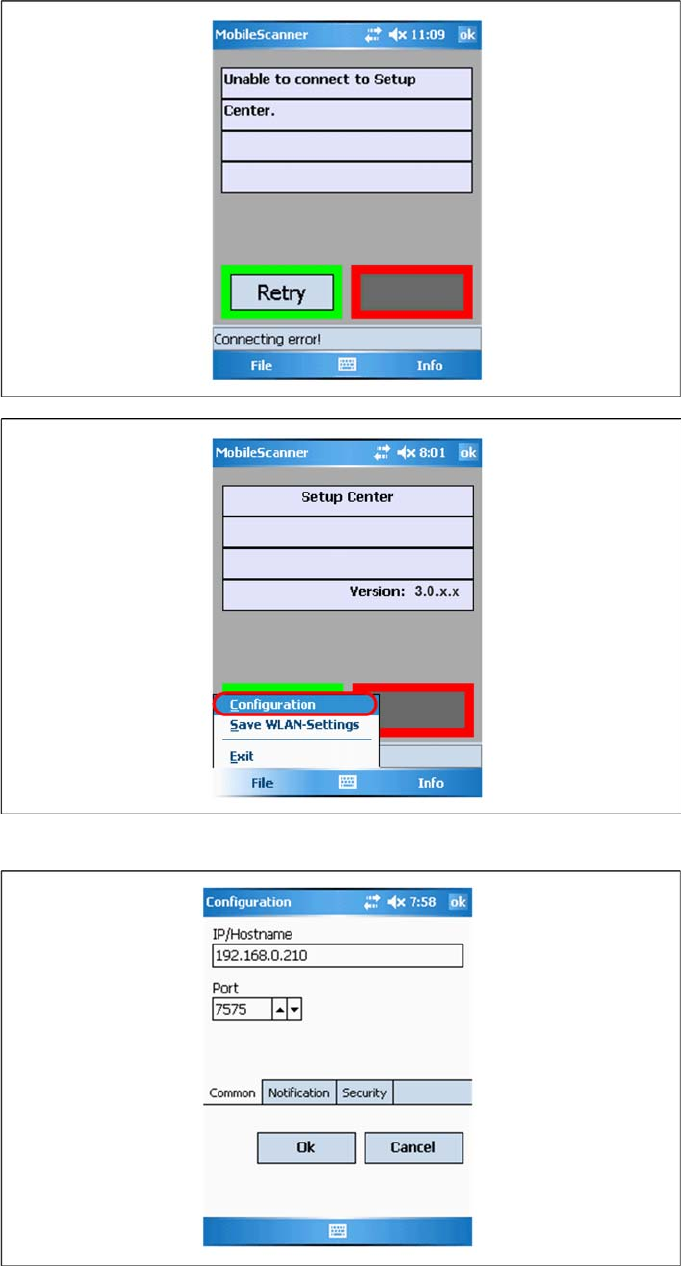
After the installation routine has restarted the scanner the Setup Center Client is started automatically.
X Open the configuration dialog via File->Settings.
X Type the IP-address/name of the PC where Setup Center is installed.
X Enter the port for which the scanner interface is configurated (default:7575).
Installation
Motorola / Symbol MC70 Scanner Configuration Steps to perform after Installation
Installation Manual SIPLACE Setup Center V3.0
79
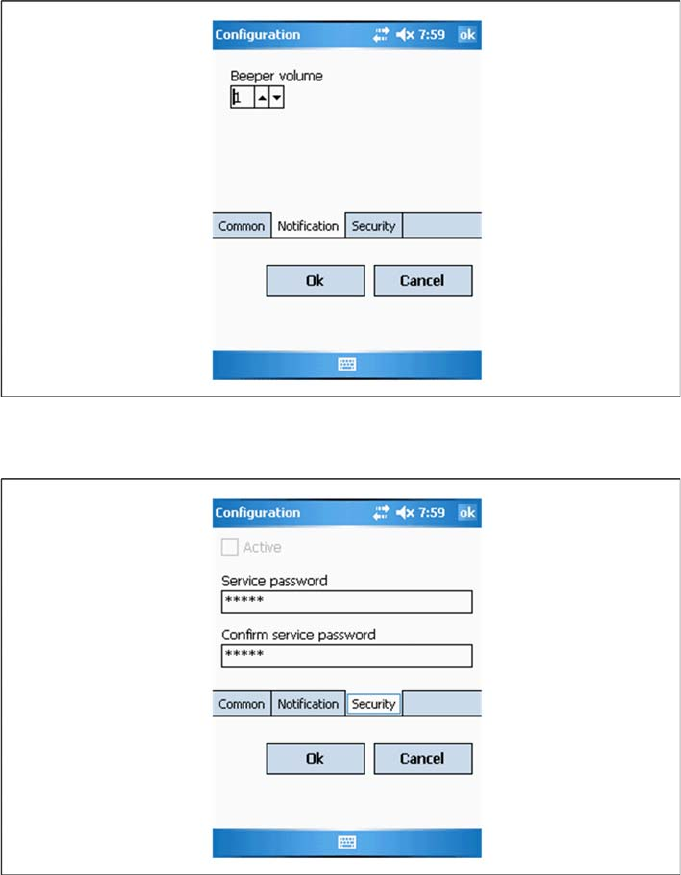
X Configurate the volume of the buzzer. The buzzer gives accustical feedback in operation mode of
Setup Center.
X Here you can set a password to prevent modification on the scanner configuration.
For the first editing of the configuration the password is empty. In this case safety is deactivated. You
can set a password now. By confirmation with "OK" all settings were saved.