00195642-01_IM-SetupCenter-3.0_EN.pdf - 第79页
Installation Motorola / Symbol MC70 Scanner Configura tion Steps to pe rform after Installation Installation Manual SIPLACE Setup Center V3.0 79 X Configurate the volume of the buzzer. The bu zzer gives accustical feedba…
Installation
Steps to perform after Installation Motorola / Symbol MC70 Scanner Configuration
78 Installation Manual SIPLACE Setup Center V3.0
6.4.4.2 Configure Setup Center Client
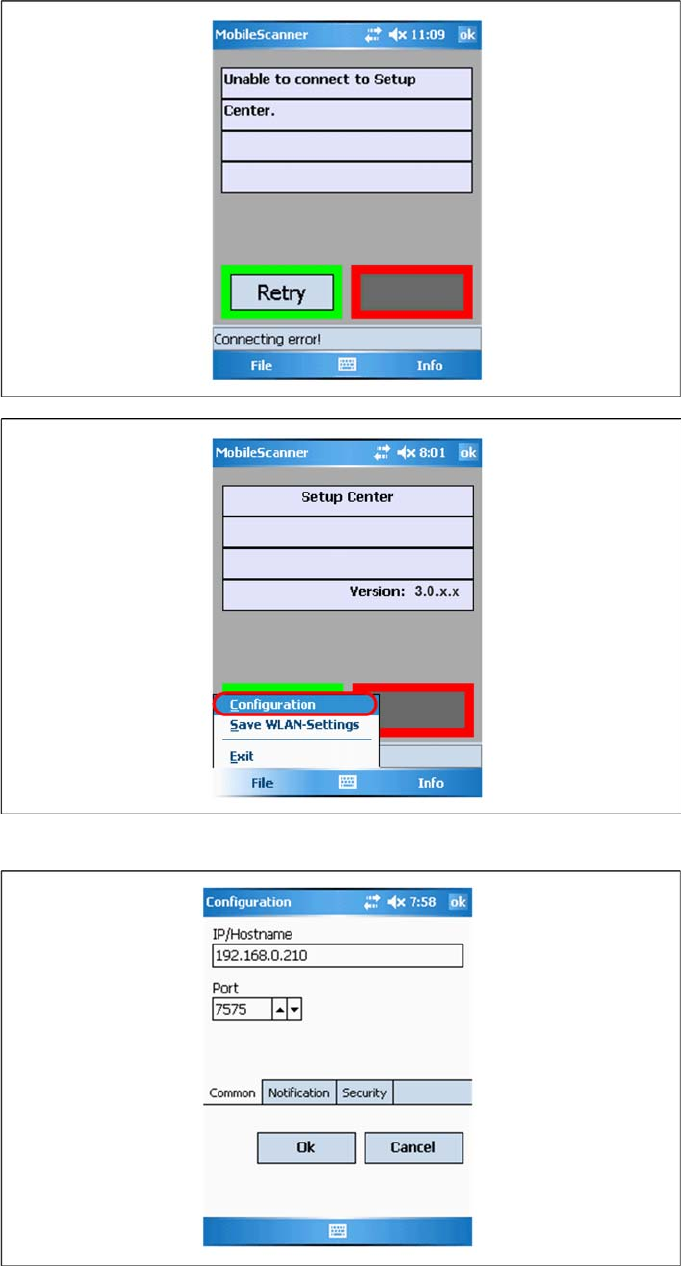
After the installation routine has restarted the scanner the Setup Center Client is started automatically.
X Open the configuration dialog via File->Settings.
X Type the IP-address/name of the PC where Setup Center is installed.
X Enter the port for which the scanner interface is configurated (default:7575).
Installation
Motorola / Symbol MC70 Scanner Configuration Steps to perform after Installation
Installation Manual SIPLACE Setup Center V3.0
79
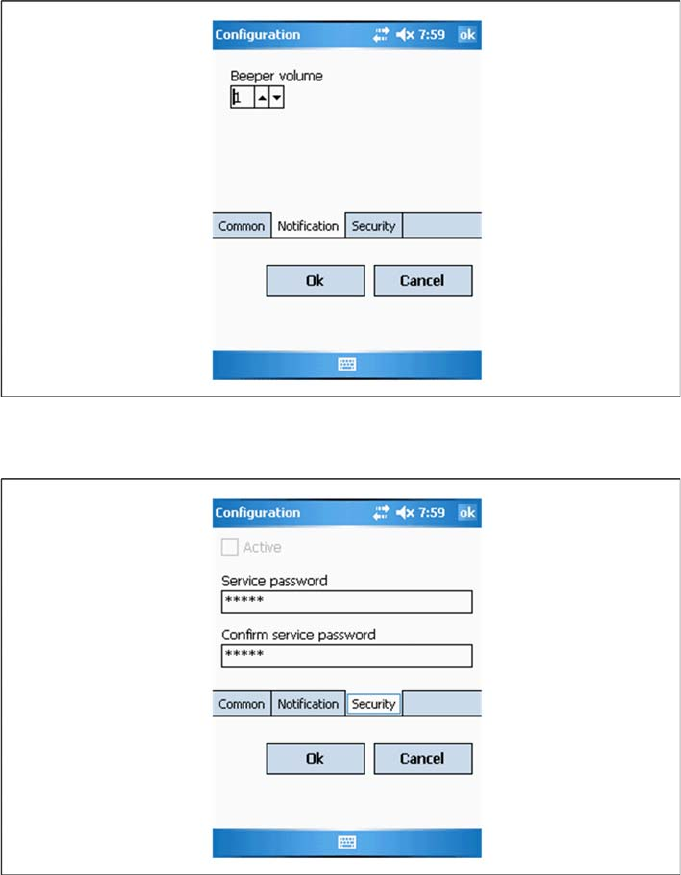
X Configurate the volume of the buzzer. The buzzer gives accustical feedback in operation mode of
Setup Center.
X Here you can set a password to prevent modification on the scanner configuration.
For the first editing of the configuration the password is empty. In this case safety is deactivated. You
can set a password now. By confirmation with "OK" all settings were saved.
Installation
Steps to perform after Installation Motorola / Symbol MC70 Scanner Configuration
80 Installation Manual SIPLACE Setup Center V3.0
6.4.4.3 Establishing Connection
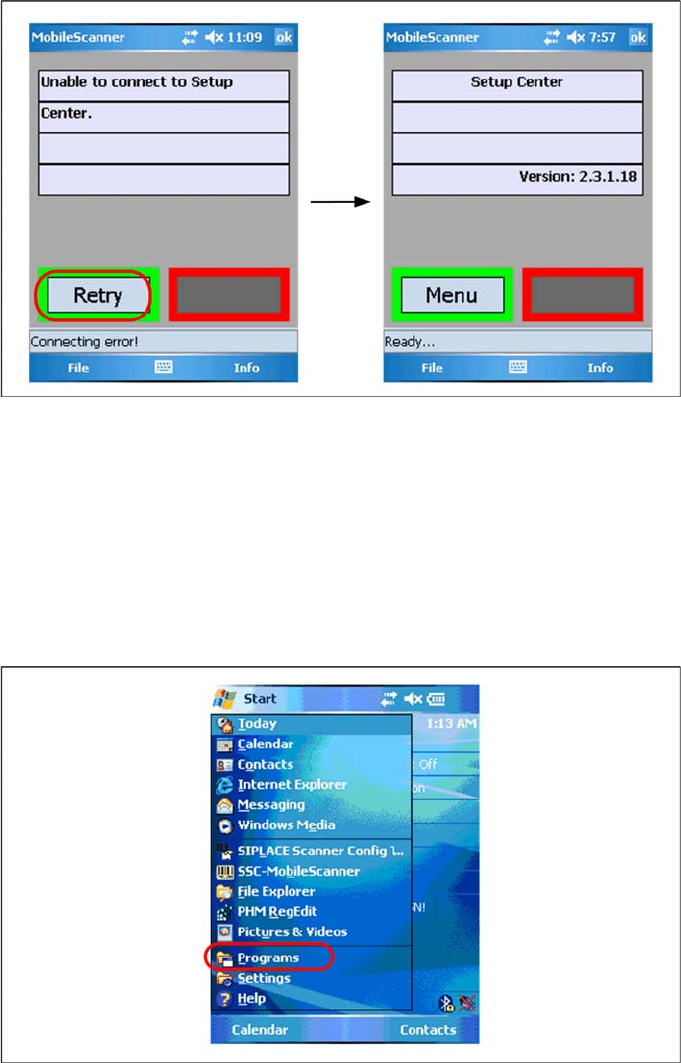
X Start Setup Center.
X Click on "Connect" to establish a connection to Setup Center.
In case the connection fails check the network settings again.
The software is now successfully configured.
6.4.4.4 SIPLACE Scanner Config Tool
Scanning problems with 1D barcodes
If the MC70 is unable to scan most of your 1D barcodes, use the following configuration utility, to resolve
the problems.
X Please exit all running applications on scanner and Symbol AppCenter to continue.
X Select Start->Programs to show present applications on scanner.