00192790-01.pdf - 第49页
User Manual SIPLAC E S-25 HM / HS-50 2 PCB Camera Mu lticolor (Option) Software Version SC.502.xx 11/00 Issue 2.5 SITEST: PCB Camera Multicolor (Option) 49 Å Click on th e CON "P CB camera func tions" . The fol…

2 PCB Camera Multicolor (Option) User Manual SIPLACE S-25 HM / HS-50
2.5 SITEST: PCB Camera Multicolor (Option) Software Version SC.502.xx 11/00 Issue
48
Å In the configuration menu of gantry 1, mark the option "Multicolor" and select "Accept" (button).
Å On HS-50: One after the other, select the remaining gantries 2, 3 and 4 as described above.
Å On SIPLACE S-25 HM: Select the PCB camera Multicolor for gantry 2 in the same manner as
described above for HS-50 and "Accept" this camera.
Å Conduct the illumination check on the PCB camera Multicolor as described below in Section
2.5.2.
Å Exit the menu "Machine configuration" by pressing "Accept".
Å Power down the machine and execute a new start so that the configuration will be accepted.
Å Next, return to the SITEST program.
Å In the main view, press the button "Total reference run".
Å Afterwards, conduct the calibration:
Whenever the PCB camera Multicolor is retrofitted, reinstalled or exchanged, all of the place-
ment heads and cameras must be calibrated - after the overall reference run - as described in
the User Manual SITEST SW V 502.xx.
LOOXPLQDWLRQ&KHFN
NOTE:
We recommend that the illumination check be performed after the PCB camera Multicolor is a ret-
rofitted, reinstalled or exchanged. By appropriately switching over the vision screen (see User
Manual SC 502.xx) it is possible to precisely check the function of the pertinent light level and, for
example, the change from full to one-half brightness.
Å In the SITEST program 502.xx select the ICON "Gantries" and then the "Gantry 1" .
User Manual SIPLACE S-25 HM / HS-50 2 PCB Camera Multicolor (Option)
Software Version SC.502.xx 11/00 Issue 2.5 SITEST: PCB Camera Multicolor (Option)
49
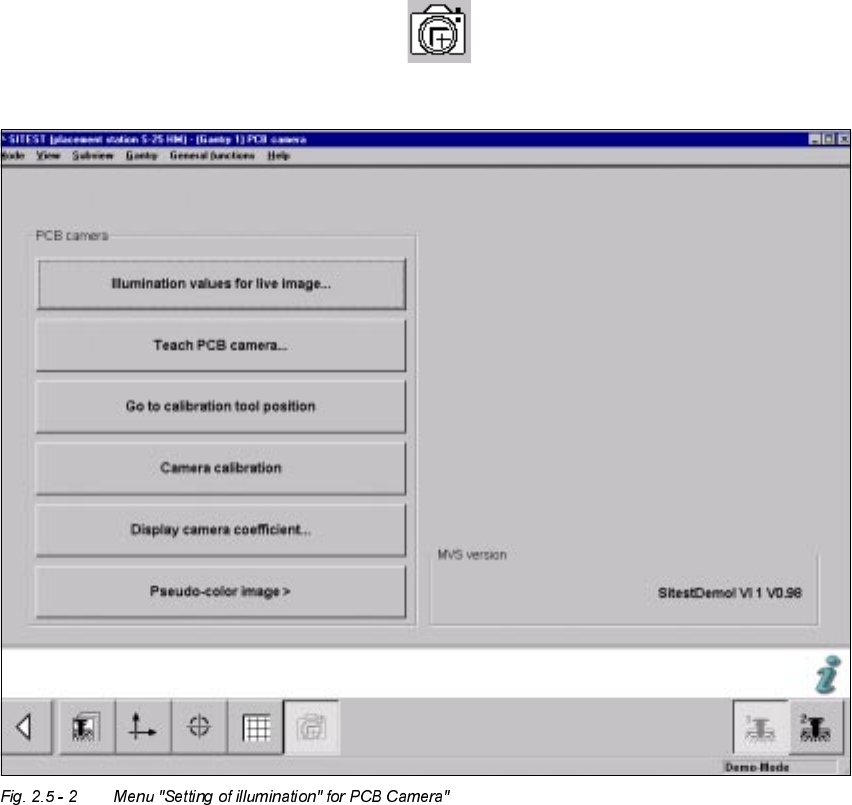
Å Click on the CON "PCB camera functions" .
The following screen is displayed (using S-25 HM as an example):
Å Click on the button "Illumination values for live image".
In principle, you can use this function to test whether the illumination of the PCB camera Mul-
ticolor is activated. The illumination levels "White" and "Blue" are visible; "IR" is not.
2 PCB Camera Multicolor (Option) User Manual SIPLACE S-25 HM / HS-50
2.5 SITEST: PCB Camera Multicolor (Option) Software Version SC.502.xx 11/00 Issue
50
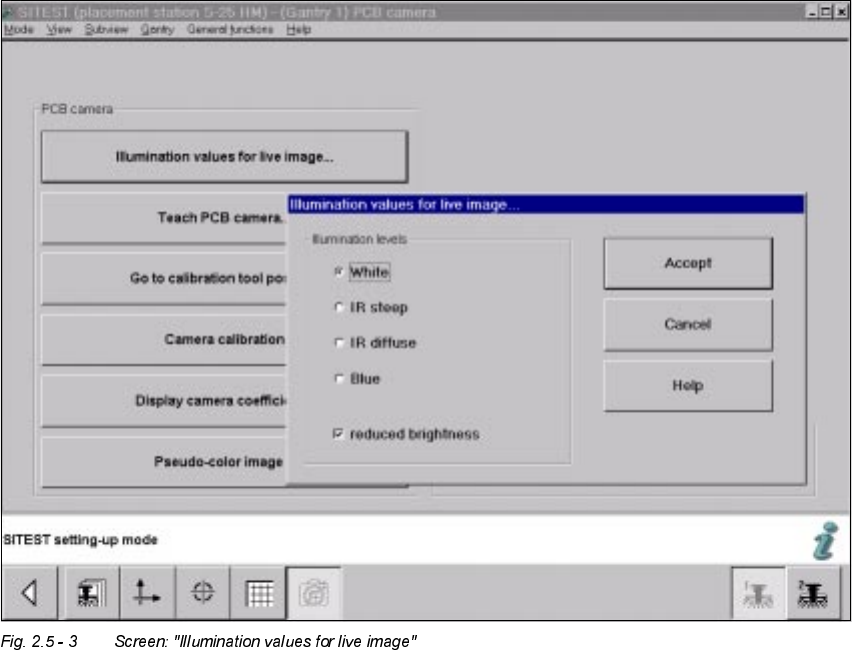
Å The screen "Illumination values for live image" is displayed (using S-25 HM as an example):
Å If the Multicolor camera(s) was (were) retrofitted, reinstalled or exchanged, you must test at
least the illumination levels "White" and "Blue" because their light is visible.
Å Click on the "Radio button" to select the illumination level "White".
Å Deactivate the button "Reduced brightness" and click on the button "Accept".
The complete illumination level is therefore activated at the outset.
Å Switch to the menu "Teach PCB camera" -> Click on the button "PCB camera":
Make a visual check (with safety hoods closed):
The camera’s white light must must flash.
Å Once again, press the button "Illumination values for live image".
Å Now activate the option "Reduce illumination".
This reduces the illumination level by one-half.
Å Click on the button "Accept" again.
Make a visual check (with the safety hoods closed):
The camera’s white light must must flash repeatedly but not as brightly as before.
Å Execute the above-described check for illumination level "blue" as well.
Å Exit the menu "(Gantry 1) PCB camera".