00196641-01_IM_OIS_SIS 8.0_DE EN.pdf - 第10页
Installation Manual OIS 8.0 Installationsanleitung OIS 8.0 When the setup program is started, the following dialog appears on the screen. ¾ Select the language you wish to use for the install ation and click OK . This se…
OIS 8.0 Installation Manual
OIS 8.0 Installationsanleitung
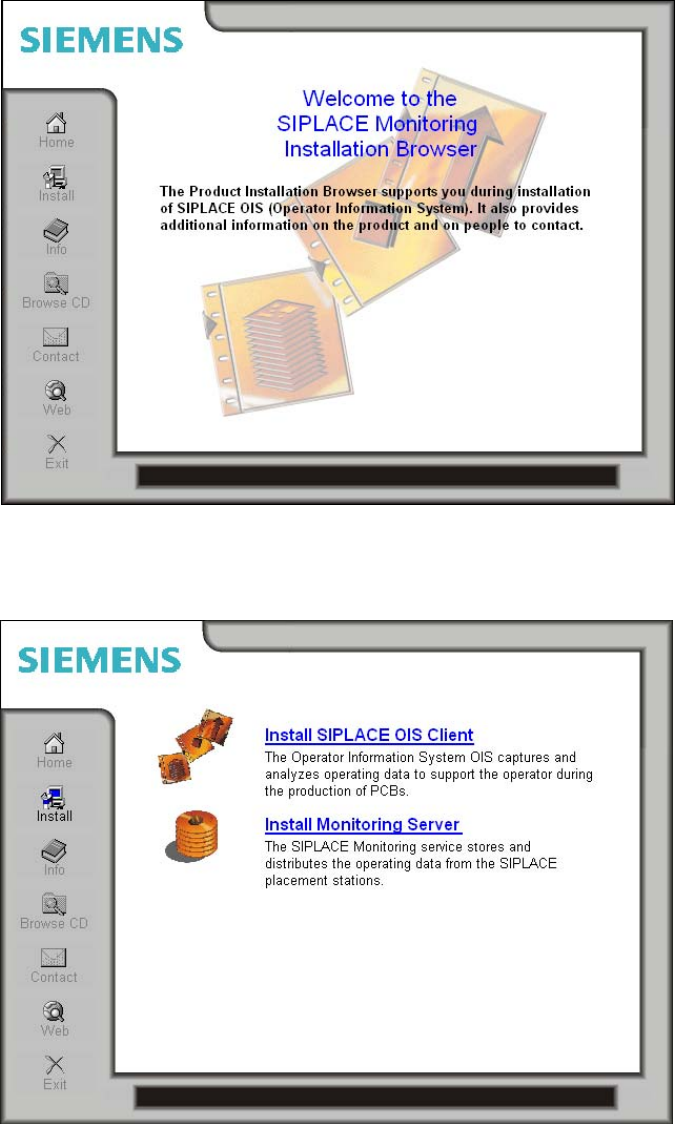
The following dialog is opened. Here you find additional menus that help you to complete the installation.
¾ Select e.g. Web to establish a connection to our Internet presence.
¾ Select Install to display the range of different setup programs.
¾ Select the program you want to install.
9 von 48
Installation Manual OIS 8.0
Installationsanleitung OIS 8.0
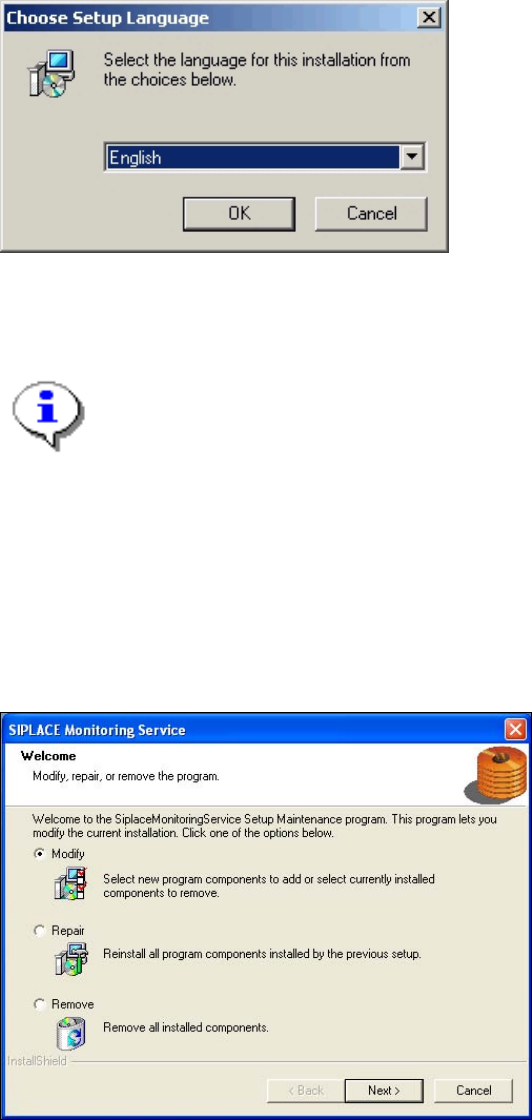
When the setup program is started, the following dialog appears on the screen.
¾ Select the language you wish to use for the installation and click OK.
This setting will only affect the language used in the setup dialogs.
Note:
You can use the buttons < Back and Next > to move backward and forward within the setup
program. You can exit the program at any time using the Cancel button. This exits the program
without making any changes to the system.
The installation program differentiates between New installation, see section 3.2 on page 11, or Update
installation. For an upgrade to a higher version, the old version has to be removed before the higher version
can be new installed.The setup program recognizes which type of installation is required, new or update.
If the setup program detects that an Update installation is required, the following dialog will appear first.
¾ Select one of the following options, to determine what you want to do with the existing installation.
Further information about these options can be found in the appropriate sections of this document.
o Modify (see section 3.3 on page 22)
o Repair (see section 3.4 on page 22)
o Remove (see section 3.5 on page 23)
10 von 48
OIS 8.0 Installation Manual
OIS 8.0 Installationsanleitung
3.2 New installation
3.2.1 Starting the installation
The following installation steps are similar for Monitoring Service and OIS Client. The figures apply to the
installation of Monitoring Service, but can be applied to the OIS Client, too.
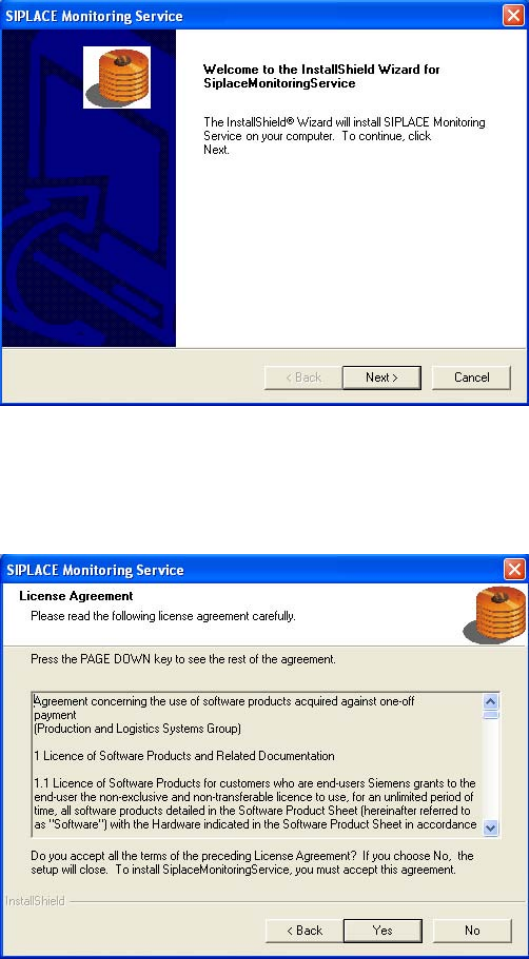
The following dialog is opened.
¾ Close all open applications.
¾ Continue by clicking the Next> button.
The software licensing contract is opened.
If you do not accept the licensing contract, the setup process is terminated.
¾ Accept the licensing conditions by clicking the Yes button.
11 von 48