00196641-01_IM_OIS_SIS 8.0_DE EN.pdf - 第15页
OIS 8.0 Installation Manual OIS 8.0 Installationsanleitung The installation routine must log in to the SQL-Server as system administrator (sa) in order to set up or update the database schema. ¾ Enter the system administ…
Installation Manual OIS 8.0
Installationsanleitung OIS 8.0
Only those users who are members of the relevant user group are permitted to switch to a given operating
level.
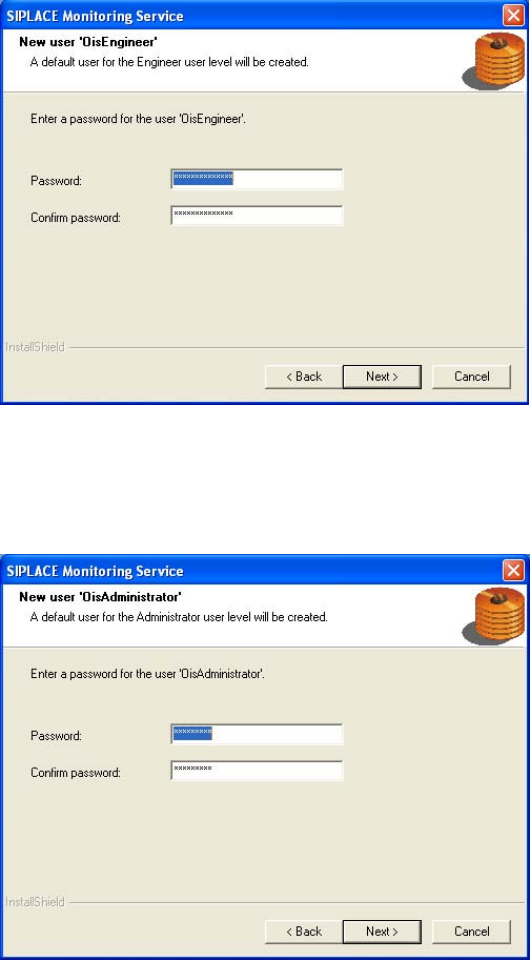
The following users are created and assigned to the user groups by default during installation:
• OisEngineer for the operating level Line engineer, is a member of the user group OisEngineers
• OisAdministrator for the operating level Administrator, is a member of the user group
OisAdministrators
The next two dialog boxes allow you to assign a password to each user.
¾ Enter the password for the OisEngineer. The default password is "SmallSiplace.1".
¾ Enter the password again to confirm.
¾ Continue by clicking the Next> button.
¾ Enter the password for the OisAdministrator. The default password is "Siplace.1".
¾ Enter the password again to confirm.
¾ Continue by clicking the Next> button.
14 von 48
OIS 8.0 Installation Manual
OIS 8.0 Installationsanleitung
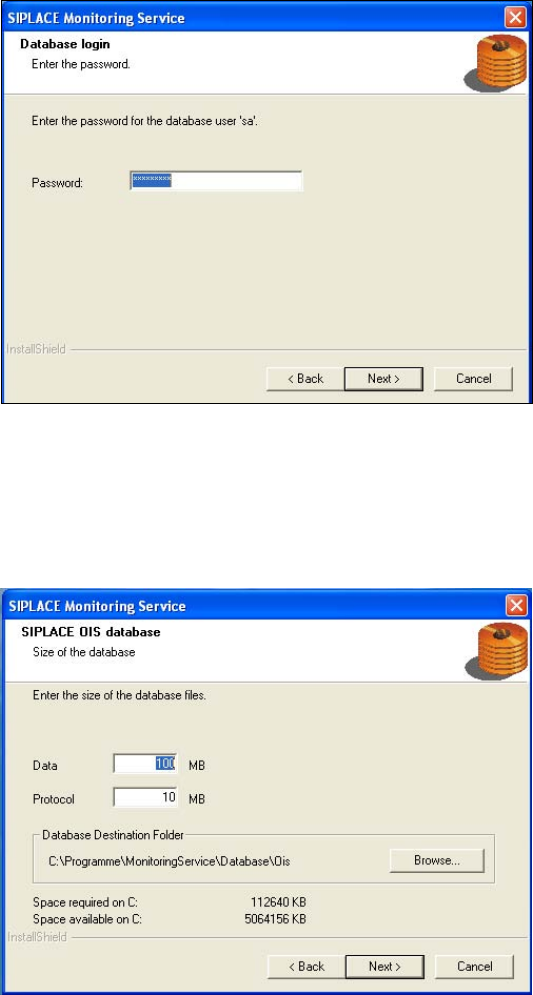
The installation routine must log in to the SQL-Server as system administrator (sa) in order to set up or
update the database schema.
¾ Enter the system administrator password.
¾ Continue by clicking the Next> button. If you don't yet have a database, you'll see the following
dialog:
¾ Click Browse... if you want to choose another installation directory for the database.
¾ Enter the starting file size for the database files. The default values are generally acceptable, and
the files are allowed to grow as your database expands.
¾ Continue by clicking the Next> button.
15 von 48
Installation Manual OIS 8.0
Installationsanleitung OIS 8.0
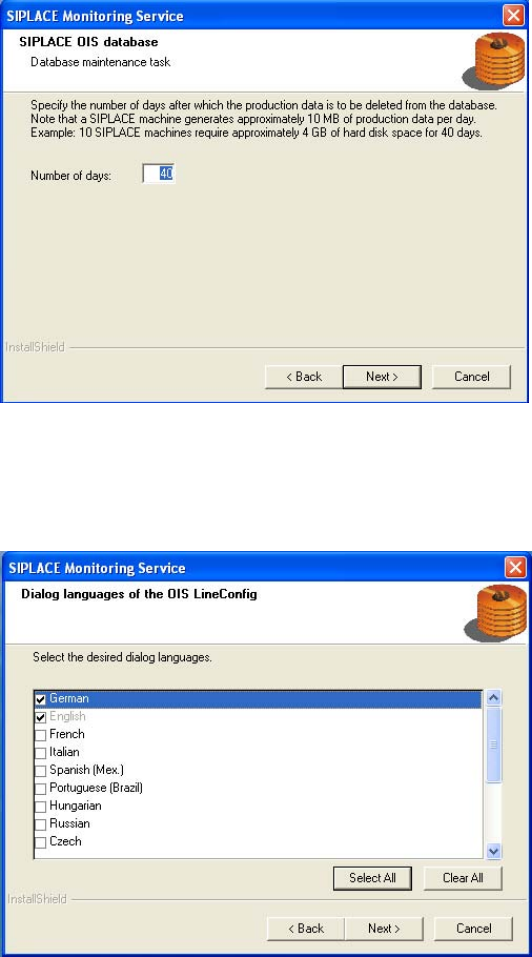
The production data is only saved in the database for a certain period.
¾ Specify the time for which the production data is to be retained in the database.
Values between 40 and 400 days are permitted.
¾ Select the desired languages. The languages are only relevant for the OIS Line Config dialog.
German and English are always installed.
¾ Continue by clicking the Next> button.
16 von 48