00196641-01_IM_OIS_SIS 8.0_DE EN.pdf - 第20页
Installation Manual OIS 8.0 Installationsanleitung OIS 8.0 ¾ When installing some language s, this notice is al so displayed. In this case, you must restart the computer after the installation then login again. This show…
OIS 8.0 Installation Manual
OIS 8.0 Installationsanleitung
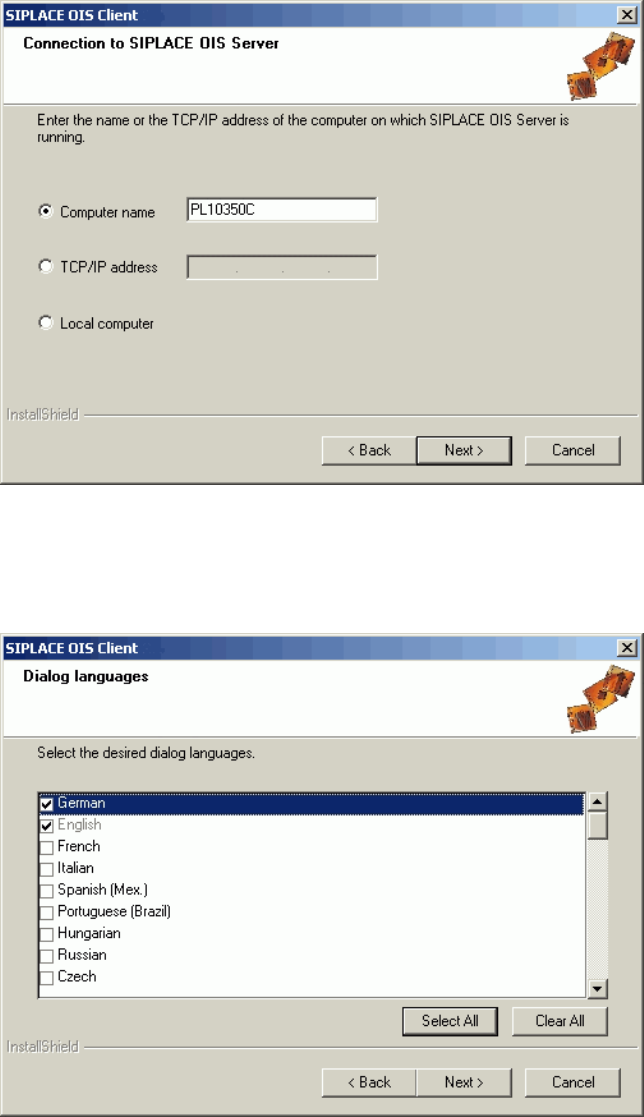
¾ Enter the TCP/IP address or the computer name of the OIS Server.
¾ If you are installing OIS client on the OIS Server computer, choose Local Computer.
¾ Continue by clicking the Next> button.
¾ Select the desired languages.
German and English are always installed.
¾ Continue by clicking the Next> button.
19 von 48
Installation Manual OIS 8.0
Installationsanleitung OIS 8.0
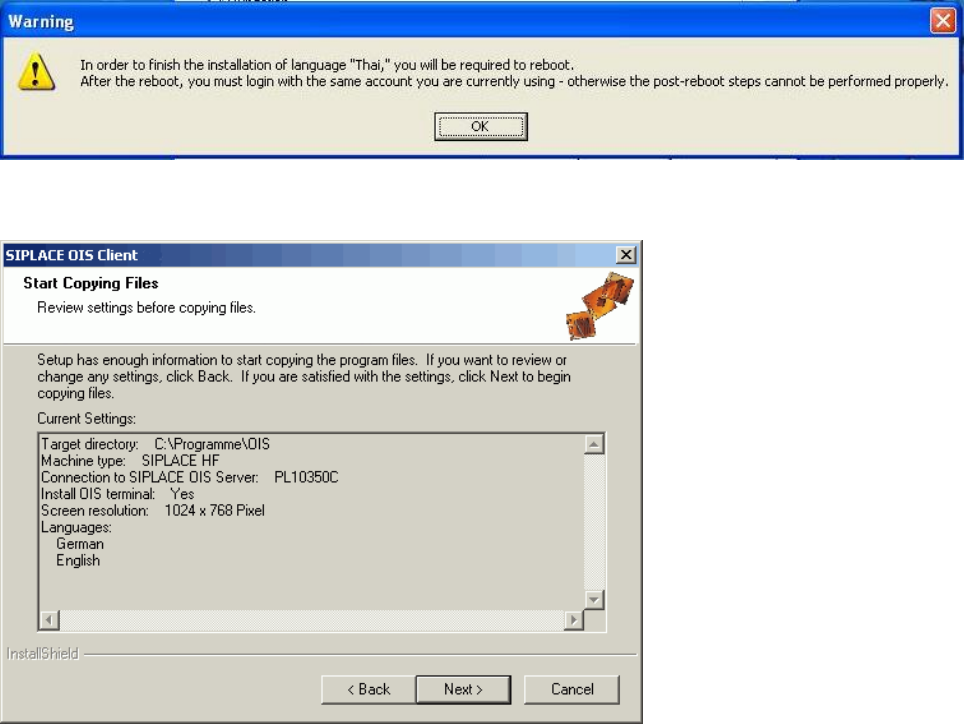
¾ When installing some languages, this notice is also displayed. In this case, you must restart the
computer after the installation then login again.
This shows a summary of the settings and entries you have made so far.
¾ Check the settings.
¾ Click Next > to start the actual installation process.
¾ If you wish to change your entries, click < Back to return to the appropriate dialog.
The software is then installed.
¾ Continue with section 3.2.4 on page 21.
¾ Continue by clicking the Next> button.
20 von 48
OIS 8.0 Installation Manual
OIS 8.0 Installationsanleitung
3.2.4 Finishing the installation
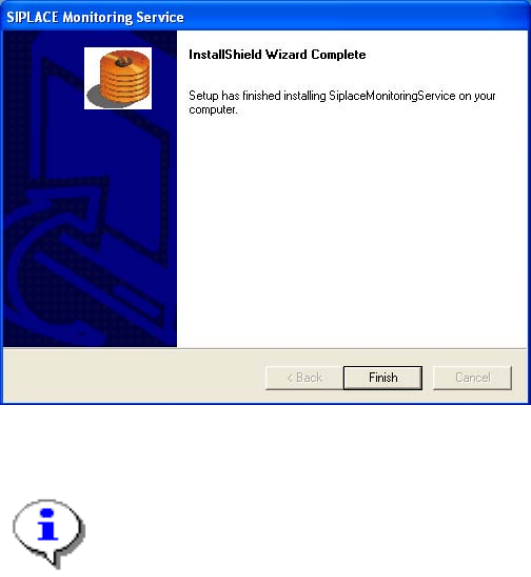
Once the installation process has been completed, the following dialog box appears.
¾ Click Finish to close the setup.
Note:
If this dialog box suggests rebooting the computer, you should do so, as the installation is only
completed after a reboot.
21 von 48