00196641-01_IM_OIS_SIS 8.0_DE EN.pdf - 第22页
Installation Manual OIS 8.0 Installationsanleitung OIS 8.0 22 von 48 3.3 Modifying the inst allation The Modify function allows you to cha nge the installation entries made to date. This allows y ou, for instance, to add…
OIS 8.0 Installation Manual
OIS 8.0 Installationsanleitung
3.2.4 Finishing the installation
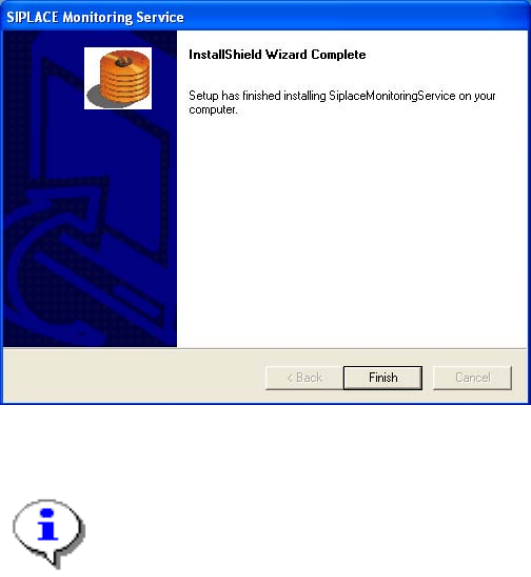
Once the installation process has been completed, the following dialog box appears.
¾ Click Finish to close the setup.
Note:
If this dialog box suggests rebooting the computer, you should do so, as the installation is only
completed after a reboot.
21 von 48
Installation Manual OIS 8.0
Installationsanleitung OIS 8.0
22 von 48
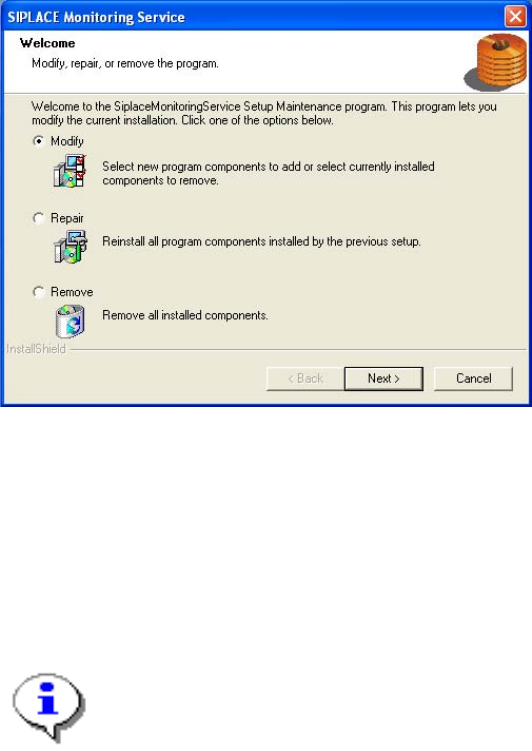
3.3 Modifying the installation
The Modify function allows you to change the installation entries made to date. This allows you, for instance,
to add or remove a language.
3.4 Repairing the installation
This function is used to repair an existing installation. The program is restored using the specifications and
entries originally specified.
OIS 8.0 Installation Manual
OIS 8.0 Installationsanleitung
3.5 Removing the program (Uninstallation)
This option removes all the installed components, including all the corresponding entries in the Registry.
You have the option to keep or remove the database.
¾ Click the Windows Start button and select Settings and then Control Panel.
¾ Start the Add/Remove Programs dialog, by double-clicking on Add/Remove Programs.
¾ Select the program from the list (SIPLACE OIS / SIPLACE Monitoring Service)and click on
Change/Remove.
The setup program will start and display the following dialog.
¾ Select Remove, and then click Next.
¾ Confirm the subsequent prompt with Yes.
The program is uninstalled. Follow the subsequent stages of the setup program.
Additional information for removing OIS/SIS Server:
¾ If you want to delete the OIS/SIS database also, respond to the confirmation request with Yes.
Note:
If you delete the database, all the recipe and setup data of the OIS/SIS system are lost.
23 von 48