4OM-1075-002.pdf - 第88页
T able 4B3-2 (12) Check how the last component was placed when the operation was interrupted. The last placement step is indicated in the "Last Placed Step Data" group box in the "OPN. MODE" window (s…
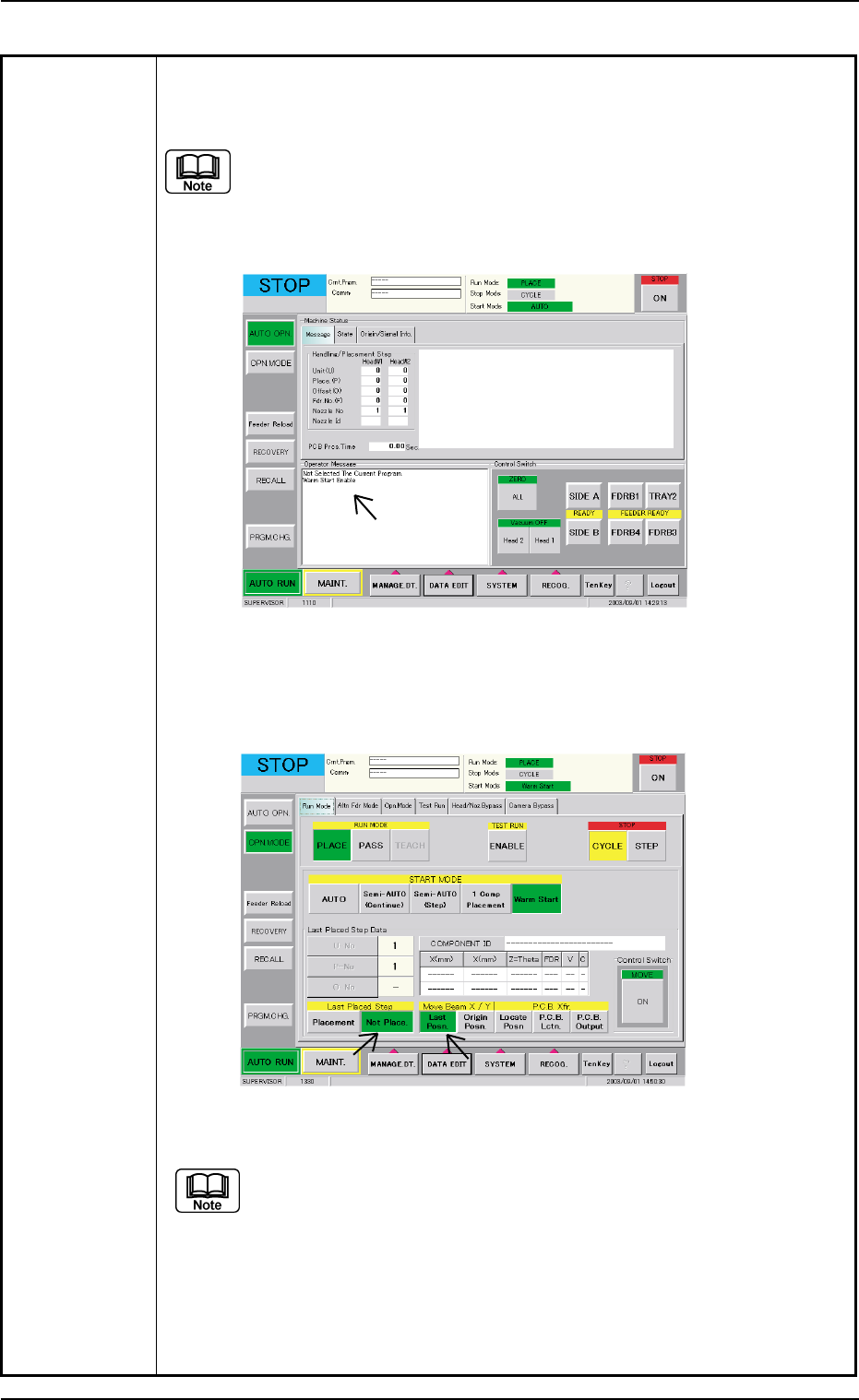
Table 4B3-1
(10) When the message "Warm Start Enable" is displayed in the "Operator
Message" pane in the "AUTO OPN." window, it means that the "Warm
Start" operation is feasible.
(a) "Warm Start Enable" means that the production is interrupted in
the middle of component placement.
(b) When the operation is interrupted without any component being
placed, "Warm Start" becomes impossible.
Fig. 4B7 "AUTO OPN." Window (Submenu)
(11) Press the [OPN. MODE] button on the submenu bar. The "OPN. MODE"
window (submenu) opens.
Fig. 4B8 "OPN. MODE" Window (Warm Start Available Mode)
(a) When the "Warm Start" operation is feasible, the [WARM] button
appears in the "OPN. MODE" window (submenu).
(b) When the [WARM] button is not displayed, it means that the "Warm
Start" operation is not feasible or there was a mistake in the re-
medial procedure after an error had occurred. In this case, per-
form the semi-automatic operation (step designation) to reset the
machine to its normal condition.
0308-003 2-8-1 AHB01ETRP
2.3 [EMERGENCY STOP] Button Pressed
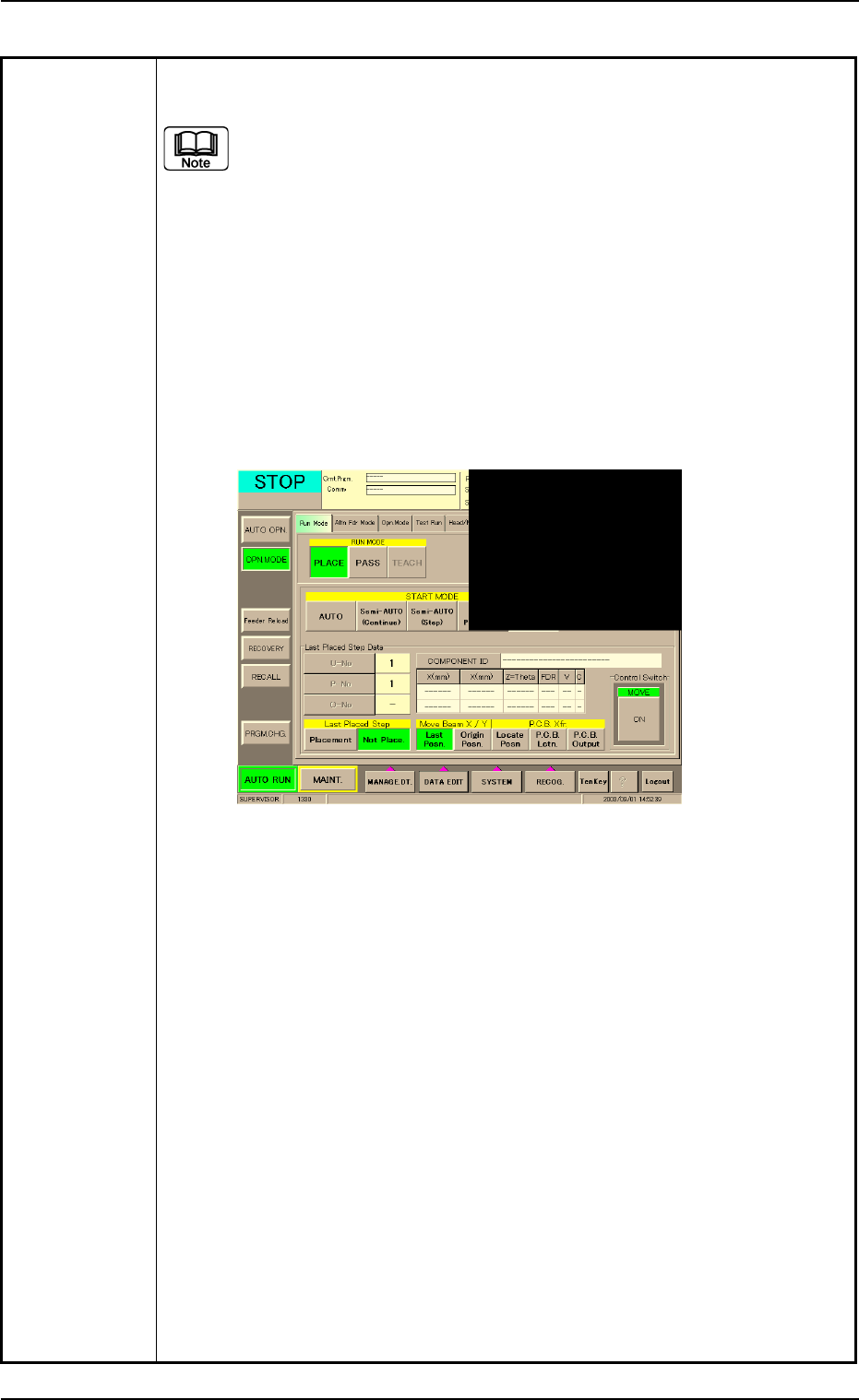
Table 4B3-2
(12) Check how the last component was placed when the operation was
interrupted.
The last placement step is indicated in the "Last Placed Step Data"
group box in the "OPN. MODE" window (submenu).
Check visually whether or not the relevant component is placed on
the P.C.B.
(13) Press the [Last Placed Pos.] button (entitled "Move Beam X/Y" in the
"OPN. MODE" window (submenu).
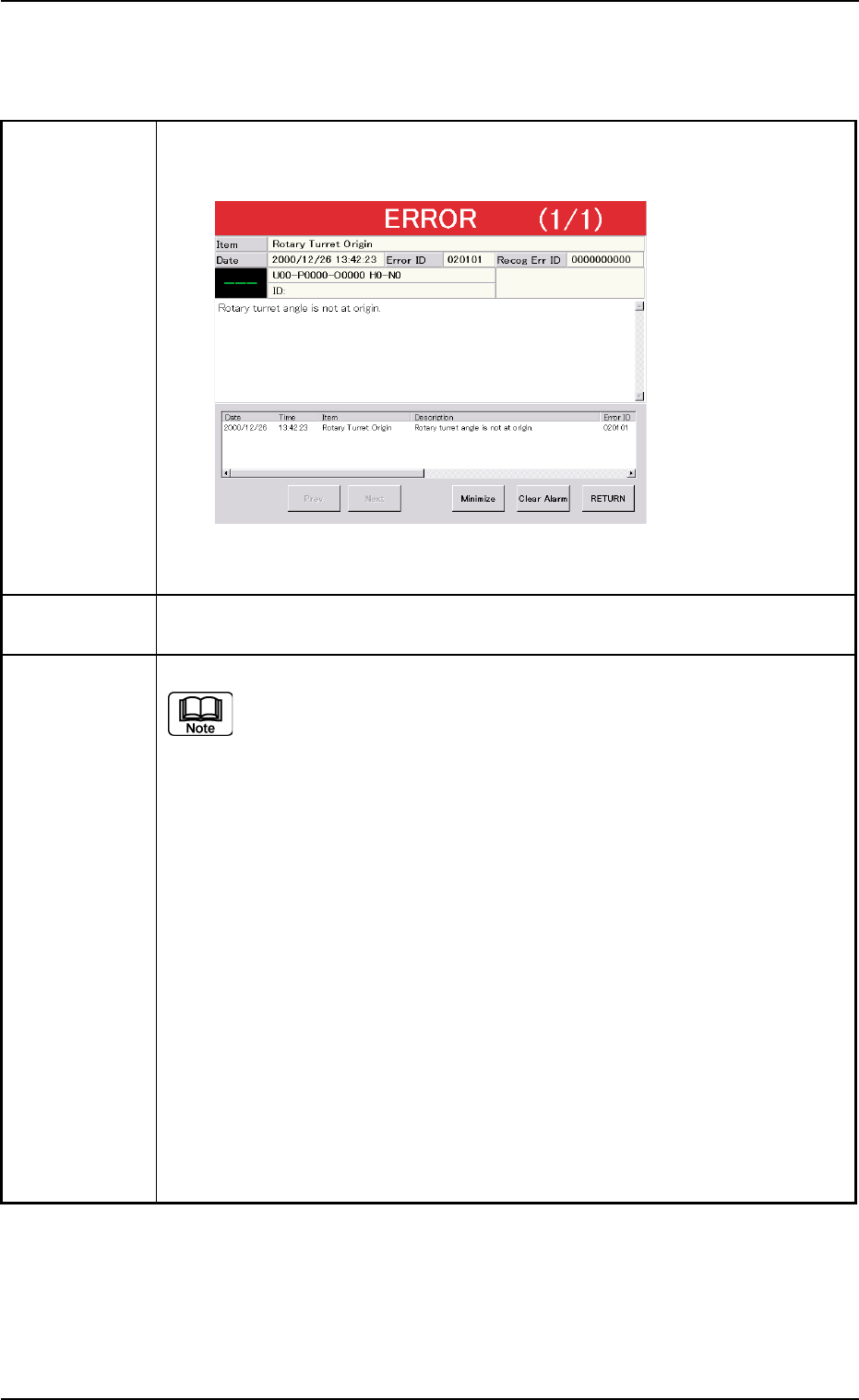
(14) Press the [RECOG.] button on the main menu bar and make the recog-
nition window (1/4 of the whole view at the upper right corner) appear.
(15) Press the [ON] button (entitled "MOVE"). In two seconds, press the [EN-
ABLE] button on the operation panel.
The last placement position is displayed as a recognition image.
Fig. 4B9 "OPN. MODE" Window (Last Step Confirmation)
(16) Check whether or not the component is placed. If not, select the [Place-
ment] button. If the component is already placed, select the [Not Place-
ment] button.
(17) Press the [ENABLE] button on the operation panel in 2 seconds after
the [Origin Pos.] and the [ON] button (entitled "MOVE"). The XY beam
returns to its origin.
(18) Press the [START] button on the operation panel. The "Warm Start"
operation is implemented.
(19) As for the P.C.B. produced through "Warm Start" operations, be sure to
confirm that all components are correctly placed.
0308-003 2-8-2 AHB01ETRP
2.3 [EMERGENCY STOP] Button Pressed
0206-002 2-8-3 AHB01ETRP
2.3.2 During Pass Operation
Table 4B3-3
Symptom (1) The LED of the [POWER ON] button illuminates in red and the following
window opens.
Fig. 4B9-1
Cause (1) An [EMERGENCY STOP] button was pressed.
Remedy (1) Press the [RETURN] button.
Remove the P.C.B. in the middle of passing inside the machine if any.
(2) Turn the [EMERGENCY STOP] button clockwise to release the locked
condition.
(3) Hold down the [POWER ON] button for more than 1 second to re-supply
power to the machine.
• When the LED of the [POWER ON] button illuminates in yellowish green,
it indicates that the power is supplied to the machine.
When the LED is kept red, re-check the cause and remove it.
(4) Press the [ALL] button (entitled "ZERO") in the "AUTO OPN." window. In 2
seconds, press the [ENABLE] button on the operation panel to zero all
devices.
2.3 [EMERGENCY STOP] Button Pressed