YesAX V3.1.2 - Software User Manual - 第139页
General Inspecti on Methodolo gy 10 - 45 Local Biasing group includes related functions and parameter adjustments for local biasing adjustment. Local Biasing is a technique that uses the background characteristic learnt …

10-44 General Inspection Methodology
Ball Pitch and Expected Diameter specify the pitch and ball diameter for current ball. Likely all
BGA balls belong to either same 2D package or same slice in 3D view will have the same pitch
number and ball diameter. The number of ball pitch also specifies the size of search window. The
size of search window is exactly the same as the pitch, not the size of the solder inspection box
as shown in screen.
Minimum Area for Presence specifies the minimum area percent parameter for detecting
missing defect. Off Position Percentage specifies the position off percent parameter for
detecting off position defect.
Binary (BGA ball) Threshold sets the binary threshold value which is used to convert gray
scale images into binary images. A good binary threshold value separates the majority of BGA
balls from their background and results in good measurement values.
Use Dynamic Thresholding checkbox if checked will apply dynamic threshold instead of binary
threshold which is specified by user for current inspection. The dynamic threshold method is
similar to the one in lead blob analysis algorithm. Bias (threshold bias) can be used to increase or
decrease the inspection sensitivity. Reducing the Bias e.g. – 10% will increase the sensitivity of
the detection. The Show Bin button displays the binary image.
Insufficient/Oversize Tolerance specifies the abnormal area percent parameter for detecting
insufficient and oversize defect.
Check Diameter checkbox if checked will apply Min D. and Max D. diameter threshold values
to the inspection results. A BGA ball with a diameter less than Min D. or greater than Max D.
will fail for size defect.
Check Circumference checkbox if checked will apply Min C. and Max C. circumference
threshold values to the inspection results. A BGA ball with a circumference less than Min C. or
greater than Max C. will fail for size defect.
Use Large ROI checkbox if checked will apply a larger ROI to current inspect box. This will
particularly help catching the bridge defect.
Check Void checkbox if checked will calculate void related measurements for current BGA ball.
Void Threshold sets the binary threshold value which is used to convert gray scale images into
binary images and perform void calculations. Moving the slider bar will change the threshold
value and display a binary image instead of the original gray scale image. Please make sure to
select void threshold number less than the ball threshold number. Moving the slider bar of void
threshold will display a binary image. In this binary image only pixels with gray scale between
void threshold and ball threshold will be displayed. To fine tune the shape of the void, user can
select a number different than 0 in Parameter drop down box. The available choices are 1 and 2.
Bigger number will get rid of small unwanted voids but in the mean time, change the shape of
voids slightly. If the parameter number is set to a number different than 0, the user can click the
Apply button and see the actual void been detected on the screen.
The Total Void Percent and Largest Void Percent threshold needs to be set by the user to pick
up void defects. These two parameters are similar to those in BGA Ball Analysis algorithms. The
default values for these two parameters are 25 and 10, respectfully.
General Inspection Methodology 10-45
Local Biasing group includes related functions and parameter adjustments for local biasing
adjustment. Local Biasing is a technique that uses the background characteristic learnt from a
good board to compensate the shadowing effect during inspection. In the learning phase a good
board is placed in the machine. Once the process starts, the software will run the board once and
adjust the threshold value for each ball until the area measured is equal (or as close as it can be)
to the expected area. The adjusted value of the threshold (called Local Bias) is stored on a per
ball basis (i.e. not part of the library update).
Steps to setup Local Biasing:
A. Enter the correct expected diameter
Expected diameter is used to determine expected area. So it is very important to set it
right before the learning process.
1. Disable local biasing, Click Reset Statistics
button to clear statistics for each ball.
2. Run the inspection once.
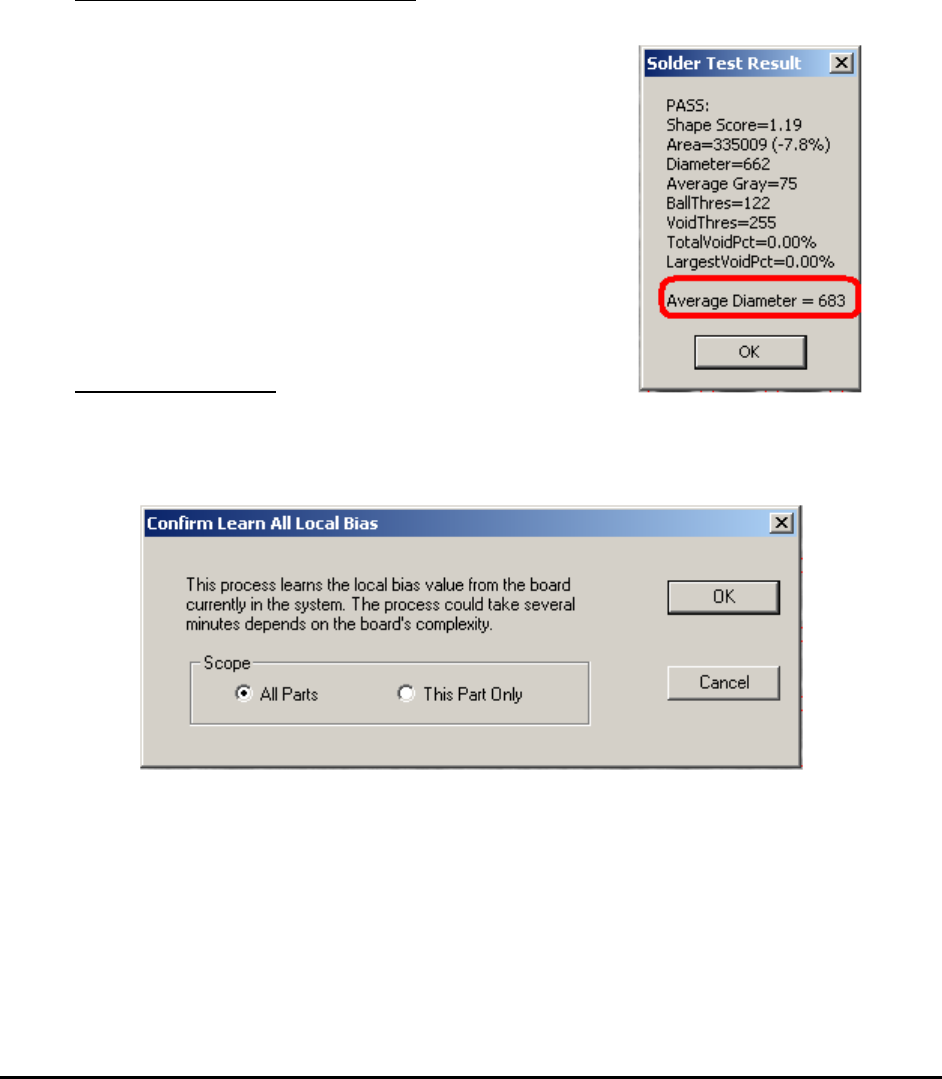
3. Look at the average diameter statistics by doing a
test on one of the inspection box on each part
(package).
4. Set the expected diameter parameter.
5. Do “Update Solder” to set the expected diameter
for all inspection boxes for this package.
B. Learn the Local Bias
6. Enable local biasing, and then press the Learn
All Values button.
7. Select the scope of the learning from the prompt dialog.
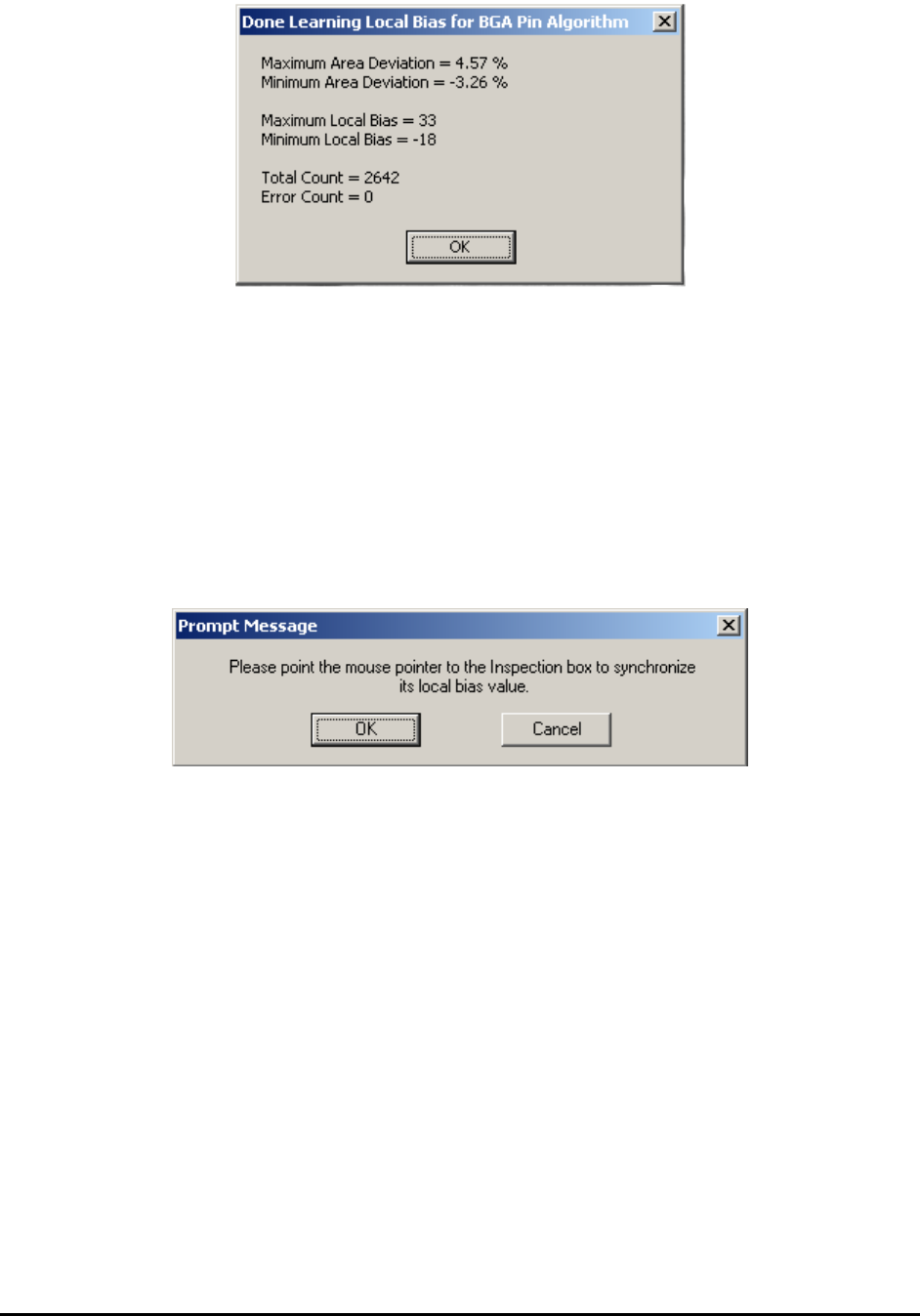
8. Press Start button from the Run dialog. The inspection could take many minutes
depends on the board’s complexity. At the end of the process a summary statistic is
displayed.
10-46 General Inspection Methodology
9. Run the inspection.
10. If necessary, repeat step B one more time. The learn local bias process will perform
one more time based on the current local bias number. Please be noticed that the
lower limit and upper limit for local bias is -50 and 50, respectively.
11. If possible, the user can manually type in the local biasing number for each
individual ball. To apply the same local biasing number to other balls, the user
needs to click the .. button first to dismiss the dialog. The following dialog will
show up. Then the user can follow the instruction and click any BGA ball which he
likes to put the same local biasing number on and click OK to dismiss this message
box and apply the changes.
10.5.4 Steps to Create a New BGA Package
There are times when you may need to create a new BGA package from scratch. Creating new
packages for different BGA devices is not difficult. Below is the general procedure:
1. Create the part body in vision or X-ray view; enter the Reference ID, part number and
package.
2. Turn on the X-ray and switch to X-ray view, experiment with different FOVs and Power
levels to find out the desirable FOV and power level. Make the selection in your mind;
you will need to enter them later.
3. Move to a large field of view and try to have the entire BGA in one view. Count the
number of balls by row and column. Measure the pitch of balls by the measurement
function. As for the pitch of BGA, most BGA devices will have one of the following
numbers: 0.5mm, 0.75mm, 0.8mm, 1.0mm, 1.27mm and 1.5mm.
4. You will need all the information later.
5. For full array BGA train a lead bank that includes all the balls. For perimeter array BGA
train a lead bank that includes all the balls for one direction.