YesAX V3.1.2 - Software User Manual - 第161页
3D X-Ray Inspection Methodolo gy 11 - 17 Create Area Array will prompt user to define an area first and then automatically create an array of 3D Sites within the defined area. Re -Capture All Sites will capture one angle…
11-16 3D X-Ray Inspection Methodology
Clicking the Height Ref. button will launch the Slice’s Height Reference dialog and the user can
type in the force reference ID in the field. Up to two force references can be added for each 3D
site. When finish all the changes the user still needs to go through all 3D sites’ been modified
and then maximize the map view window to see the updated map. Software will always include
the force references inside the list and pick two or one other height references which are nearest
to the center of current 3D site for height map construction purpose.
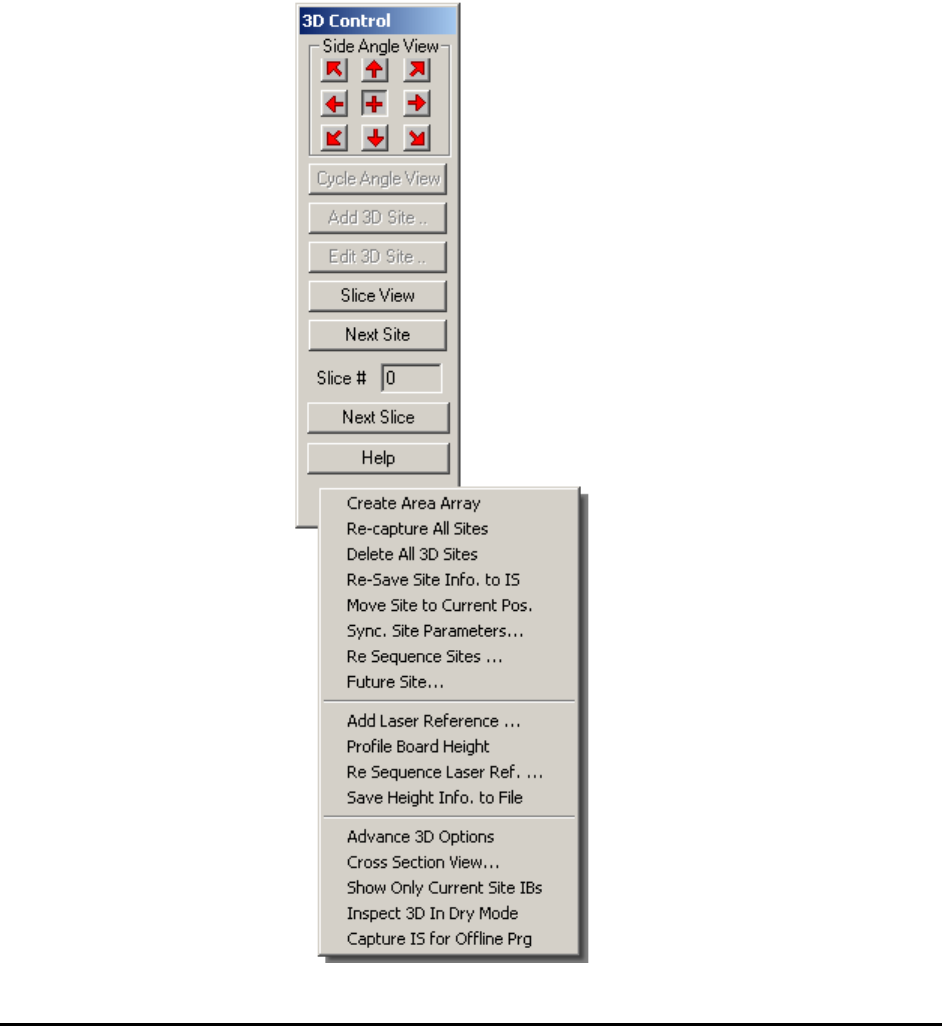
11.6 3D Inspection Pop-up Menu
Right click on the open area of the 3D control window will launch the advance 3D site
management menu. All items in this menu are either belongs to 3D site management or other
related operations.

3D X-Ray Inspection Methodology 11-17
Create Area Array will prompt user to define an area first and then automatically create an
array of 3D Sites within the defined area.
Re-Capture All Sites will capture one angle image set for each 3D sites within the list. This
image set will be saved in ImageSet\X3D folder inside the recipe folder. All 3D related images
can be loaded at any time for offline review and other analysis purpose. After capture the future
3D sites will become current 3D sites automatically.
Delete All 3D Sites will prompt user to delete all 3D sites been previously added for current
inspection. After that the 3D site list will be empty.
Re-Save Site Info. to IS function is designed for offline review. If user loads an image set and
modifies some settings of certain 3D site, he can launch this function and follow the prompt to
save all these changes to the IS file so next time when the same image set’s been loaded, the
modified settings of 3D sites will take effect immediately.
Move Site to Current Pos. allows user to modify the location of a 3D site. To do this, first the
user needs to switch to X-ray view and go to current 3D site, then move stage to the desired new
position. Launch this function from menu and follow the procedure will change the position of
current 3D site to its new position.
Sync. Site Parameters function will allow user to update other 3D sites in the same Z level with
the same site offset number as the current 3D site has.
Re Sequence Sites … allows user to re-adjust the running sequences of all 3D site within the list.
During recipe programming, the 3D sites can be added at any place with any order. During 3D
inspection, the software will go through all 3D sites in the same order in which these sites were
created. To speed up inspection, it is preferable to run 3D sites with one field of view followed
by another field of view (i.e. 1 inch, then .5 inch). Within the same field of view it is preferable
to run all 3D sites in a zigzag order to have minimum travel distance and hence reduce inspection
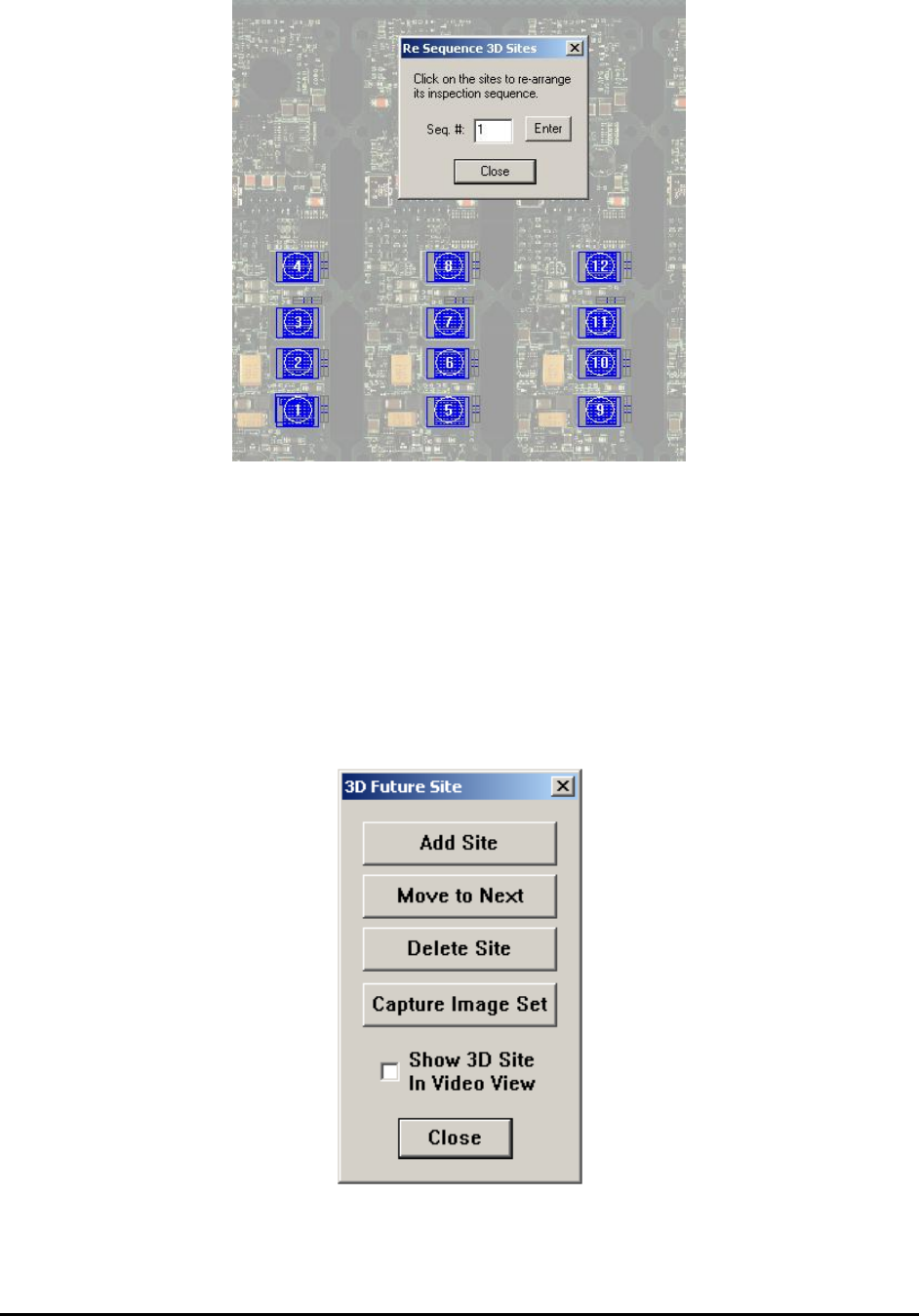
time. The re-sequence 3D sites function is designed to re-arrange the order of all 3D sites. To
begin the process the user maximizes the map view window first and then clicks this function to
launch the Re-sequence 3D sites dialog.
11-18 3D X-Ray Inspection Methodology
The current sequence of each 3D site is represented by the number inside the site. To change the
order of the whole list, the user can begin with sequence # 1, one single click within the range of
any 3D site will make that site No. 1 and the order of the rest will be pushed back by 1. The next
3D site being clicked will be site No. 2. Each click of 3D site will automatically increase the seq.
# by 1, which represents the current 3D site. In this way the user can re sequence the whole 3D
site list and change the order of 3D inspection. If the user only wants to change certain sites’
order and not all of them, all he needs to do is to enter the number in the box and click Enter to
let software remember and then click on that 3D site which will be run in that specific order.
Future Sites… is useful for offline programming or online programming. Click the Future
Sites… menu item will launch the 3D Future Site dialog.