YesAX V3.1.2 - Software User Manual - 第182页
13 -4 Part List and Part Libra ries 13.4 Central Library The central library allows part inspection parameters to be shared across inspection rec ipes of different board assemblies and across multiple AOI/AXI machines. E…
Part List and Part Libraries 13-3
13.3 Part Number Library
In addition to a part’s Reference ID, it usually has a part number. Part numbers identify unique
parts. For example, a part number may identify a 100 Ohm 0603 resistor. The resistors are used
in multiple locations (e.g. R1, R13, R27, etc) on the board but they are all 100 Ohm 0603
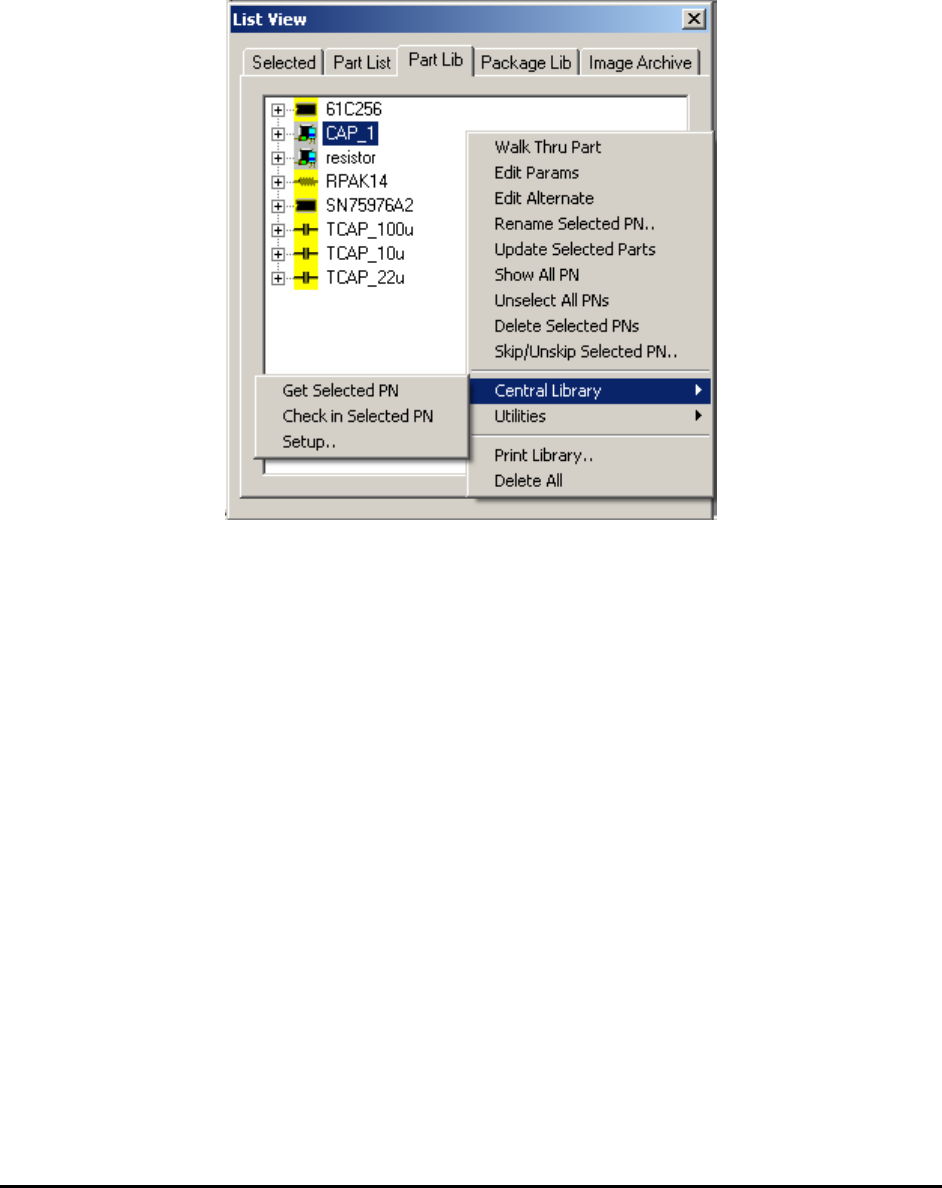
resistors. The Part Lib page lists the unique part numbers in the recipe.
Part marking templates are unique per part number. Whenever, a part number is selected in the
Part Lib page its marking templates are displayed.
On the Part Lib page it is possible to select multiple part numbers using a combination of the
mouse and the Shift- Ctrl keys.
The Part Lib page also has its own local pop-up menu. Compared to the part list, the part library
is always a smaller list for any given board. However, it is possible to have a part library that is
shared between many boards. This can allow the part library to grow quite large.
The Show All PN menu selection toggles between showing only the part numbers used by the
current recipe and all the part numbers in the library.
The Skip/Unskip Selected PN..menu selection gives you an option to either skip or unskip parts
with the specified part number during inspection.
13-4 Part List and Part Libraries
13.4 Central Library
The central library allows part inspection parameters to be shared across inspection recipes of
different board assemblies and across multiple AOI/AXI machines. Each inspection recipe can
have a central library in addition to its “local” part library. A central part library serves as a
backup information repository for inspection recipes. The central library is accessed only when
the requested information is not found in the local library. For example, when a part needs to be
added during CAD import, the software first searches the local library for the part’s information.
If the part is not found, the software searches the corresponding central library. If the information
is found it is copied from the central library to the recipe’s local library. With the central library
connected, the software will only prompt the user to train a new part if the part cannot be found
in either local nor central library.
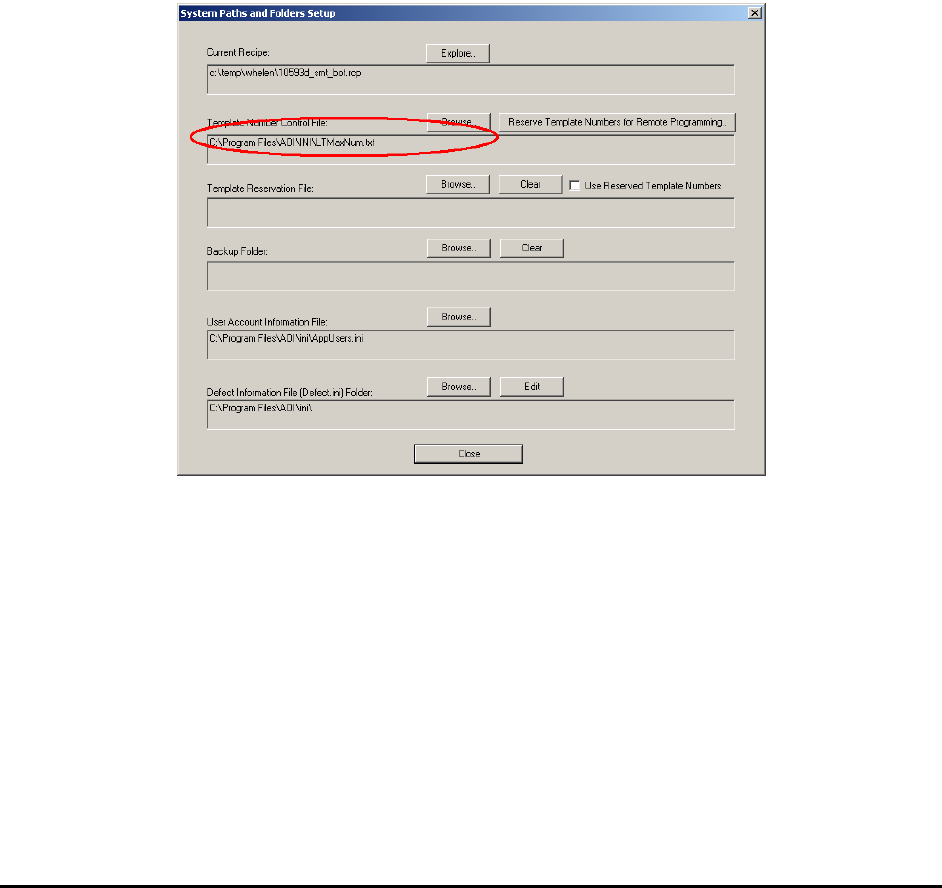
Before using the central library it is important to setup the logical template number control file.
A logical template number uniquely identifies a template in an AXI network.
To define the location of the logical template number control file, select System>
Options>System Path from the Main Menu and click on the Folder Setup button.
On an AXI network with multiple AXI machines and offline programming stations it is
important to ensure the logical template number is unique and never repeated regardless of its
origin. The Nordson YESTECH AXI uses a file named LTMaxNum.txt for the purpose of
controlling the logical template number. There can be only one LTMaxNum.txt file on any AXI
network. For example, if there are 2 AXI machines, 1 offline programming station and two
offline review stations on an AXI network that share inspection recipes, all the stations have to
share one LTMaxNum.txt file. The LTMaxNum.txt file is setup from the System Options
dialog. LTMaxNum.txt file controls templates in both local and central libraries.
To use the central library, in addition to controlling the logical template number, you must also
make sure the part rotation information is consistent across the entire environment. Failure to do
so may cause recipe corruption when the part data is merged from the central library to the recipe.
Part List and Part Libraries 13-5
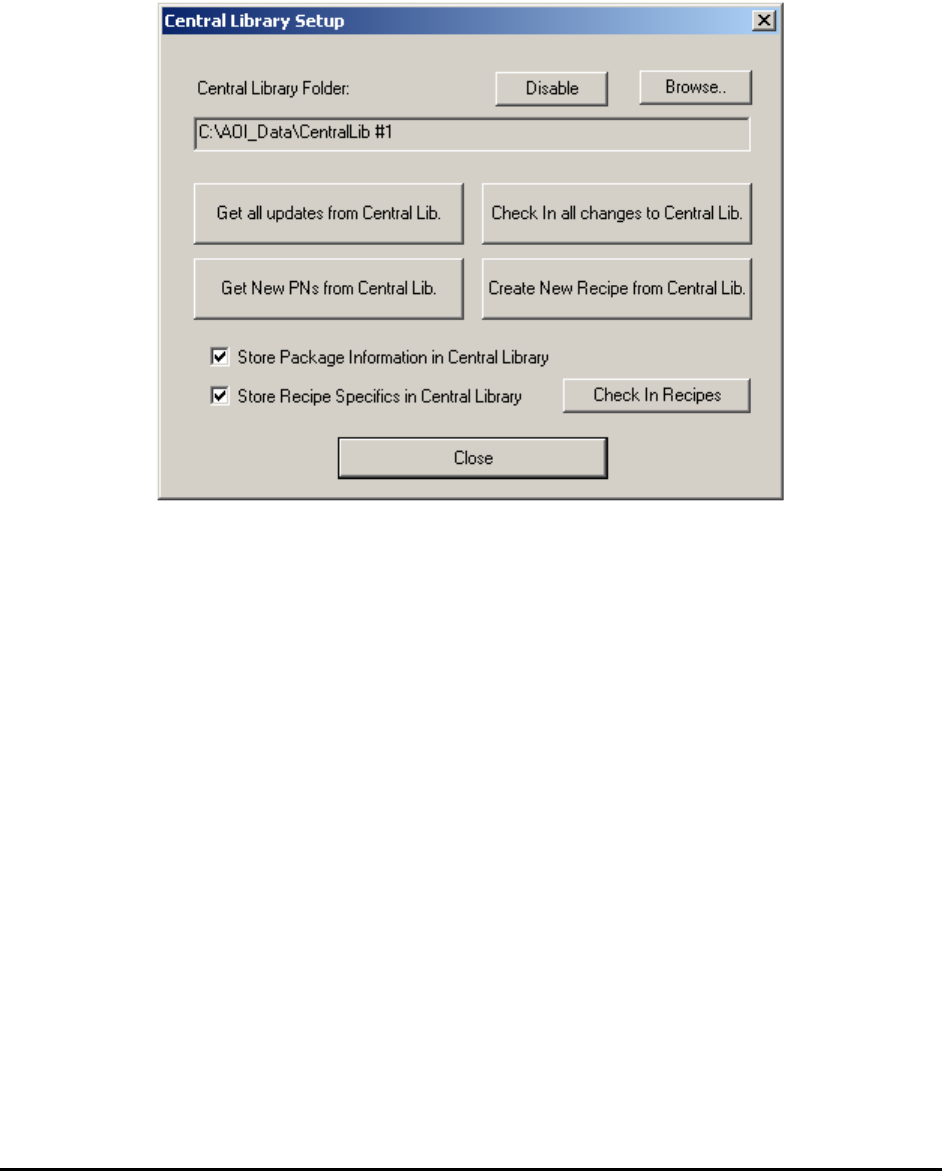
Here are the two simple steps to setup a new Central library:
1. Create a folder for the central library e.g. Central Lib#1.
2. In the YesAX software set the central library path to the folder just created by selecting
Central Library, Setup Parameters from the Part library pop-up menu.
(Central library path can also be setup from the New Recipe dialog, or using the YCD file
header)
After setting up the central library folder, the user can save and retrieve part information with the
central library. The operation that retrieves part data from the central library is called “Get” and
the operation that saves part data to the central library is called “Check In”. Part data is time
stamped whenever a modification is made to the part. Both “Get” and “Check In” operations rely
on the time stamp to ensure no inadvertent data overwrite.