YesAX V3.1.2 - Software User Manual - 第194页
14 -8 A dvance Inspection Feature s Anchors are normally Mark inspection boxes. The changes in the Mark inspection boxes propagate via part number during a library update. Sometimes it is advantageous to have anchor func…
Advance Inspection Features 14-7
9 - Used for block fiducials and local fiducials
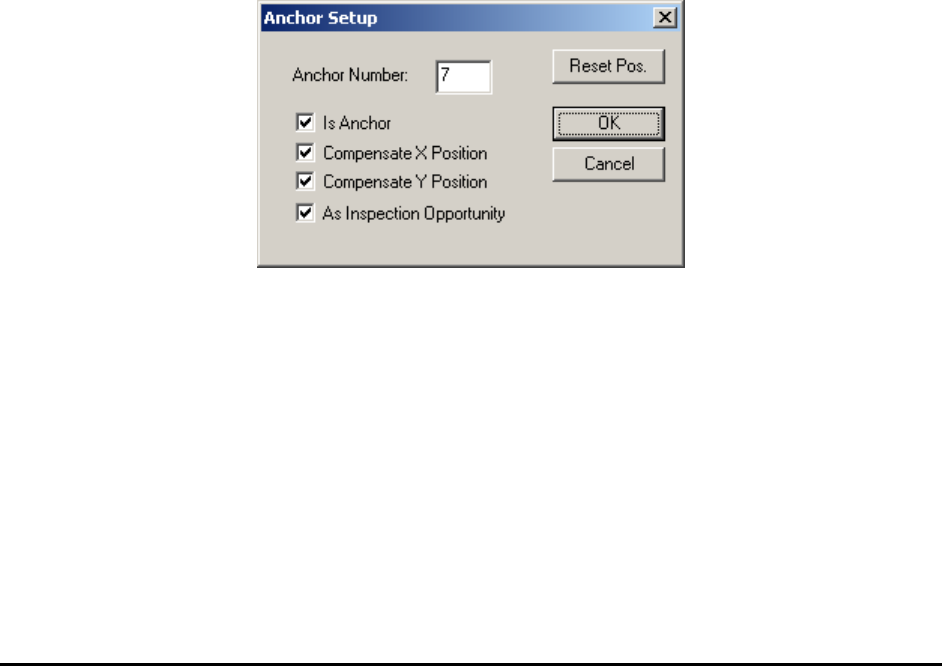
Part Anchor adjusts position for all inspection boxes of one part. Part anchor use an anchor
number of 7. When rotation compensation is needed user can use anchor number 7 and 8. When
anchor 7 is assigned to a part, the individual inspection boxes do not need to assign specific
anchor number to receive the positional adjustments; all inspection boxes on that part will
automatically receive the same adjustment from one anchor.
To have the part anchor inspected in the same frame as all the inspection boxes of that part, the
“PartAnchorMode” parameter inside YesAX.ini file, [OperationOptions] session needs to be set
to 1. When set this parameter to 1 instead of its default number 0, please make sure that the part
is actually bigger than the frame size.
Block Fiducial adjusts position for all parts of the block. That can be exactly one block fiducial
per block. To create a block fiducial, create a part with reference ID BLKFIDU and add a
marking inspection block for it. You can use the Update Block feature to populate the Block
fiducial to all blocks. It is possible to have 2 block fiducial for each block if we also want to
compensate for rotational discrepancy from block to block. The second block fiducial must have
a Reference ID of BLKFID2. A line draw from BLKFIDU to BLKFID2 should pass close to the
center of the block area. Block fiducials work best for recipes with small numerous blocks, for
recipe with 2 or 3 large blocks it may be better to use another feature called “Per Block
Alignment Marks”.
Local fiducial adjusts part positions in nearby inspection frames after the frame containing the
local fiducial. Its effective range is around 50 mm. The range of multiple fiducial can overlap. To
create a local fiducial, create a part and give it a reference ID like LOCALFIDUx where x can
be a number to identify multiple local fiducials.
All the fiducial’s effectiveness can be interactively verified by doing a Test for the marking
inspection. The affected inspection boxes and parts will move to adjusted positions. To reset the
anchor effect, press the Reset Pos. button on the Anchor dialog. The Is Anchor check mark in
the Anchor Setup dialog helps distinguish an anchor inspection box from an inspection box being
anchored. With it you can setup a marking box to anchor another marking box.
14-8 Advance Inspection Features
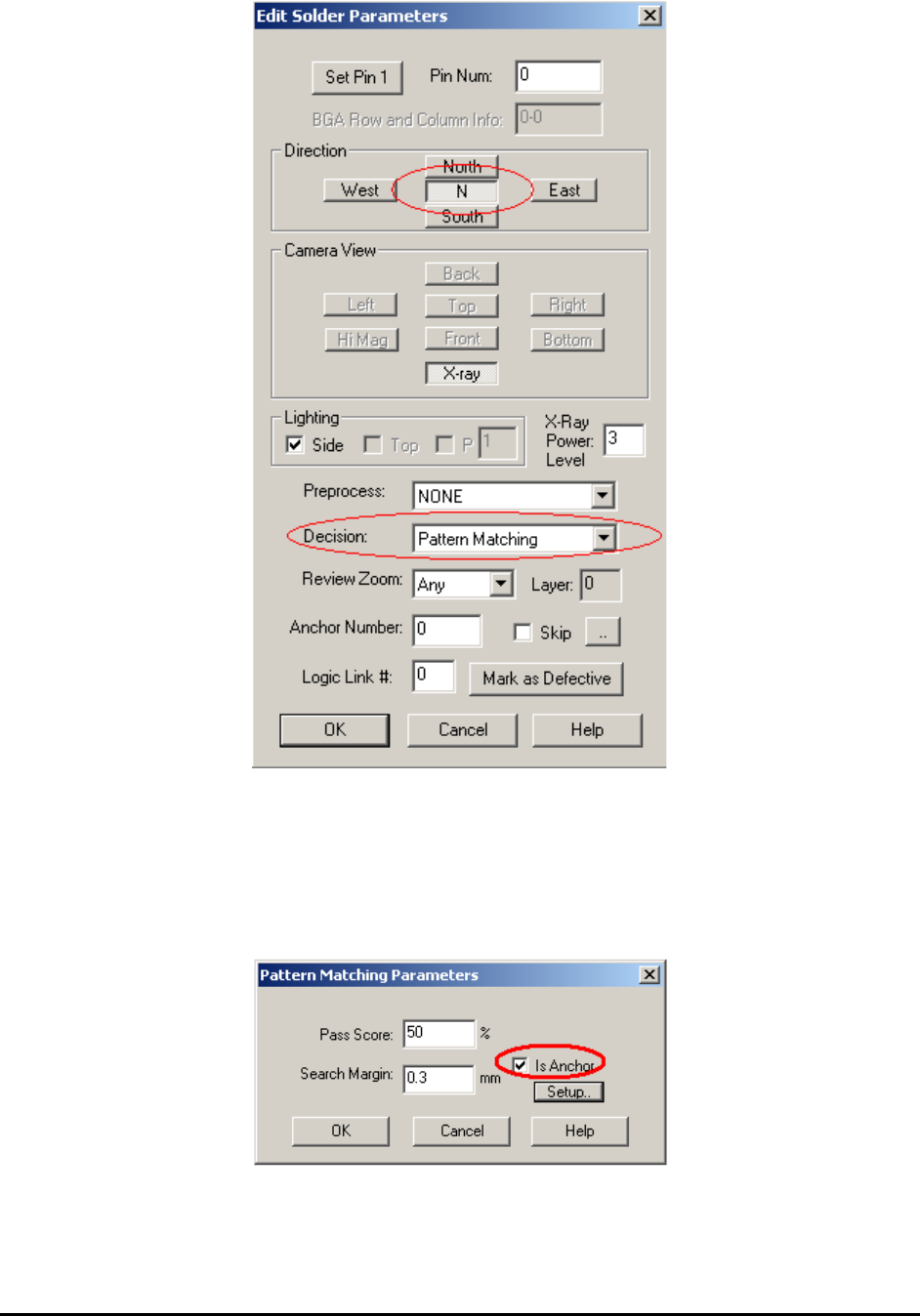
Anchors are normally Mark inspection boxes. The changes in the Mark inspection boxes
propagate via part number during a library update. Sometimes it is advantageous to have anchor
functions propagate via package as opposed to part number. YesAX software allows solder
inspection boxes to also be used as an anchor. To do so, select Pattern Matching as the decision
algorithm for the inspection box and select direction N in the Edit Solder Parameters dialog. Also
in the Pattern Matching Parameters dialog, select Is Anchor.
Advance Inspection Features 14-9
14.5 Layers
Layers are used to inspect the same area (e.g. same solder joint) with multiple inspection boxes.
The individual layer can use different inspection algorithms. All the inspection boxes have layer
parameter, by default they are all set to layer zero. The software maintains a current display layer.
When YesAX starts, the display layer is set to zero.
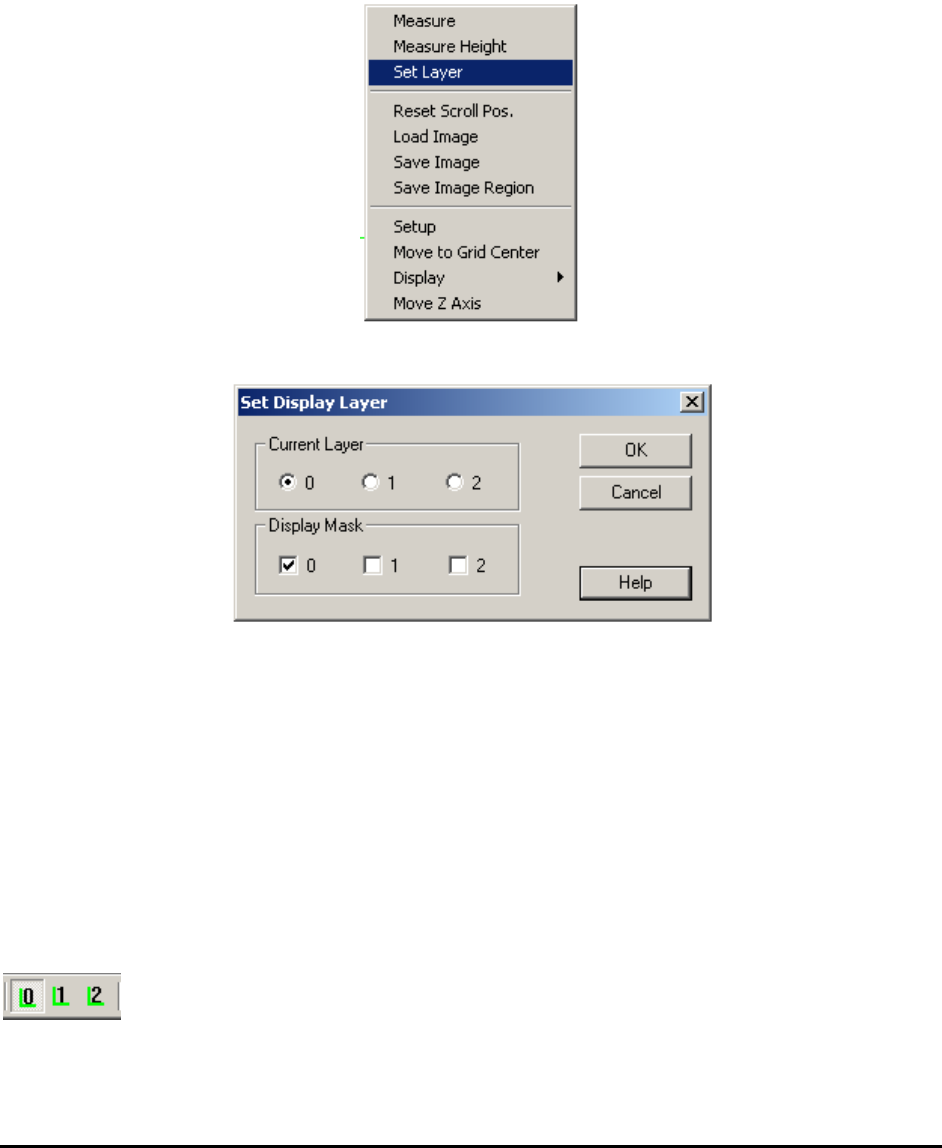
To change the display layer setting, select Set Layer from the video pop-up menu.
The Set Display Layer dialog displays.
Only the inspection boxes with layer matches of the display layer are displayed. Newly created
inspection boxes have the layer parameter set to the current display layer.
For inspection programs use multiple layers, it will be convenient to click layer buttons inside
toolbar so that switching between different layers is easy. To turn on the feature, close YesAX
software first then edit the YesAX.ini file and change:
[MainFrame]
..
ShowLayerButtons=1
..
Open YesAX software again the three layer buttons will show up in toolbar.