YesAX V3.1.2 - Software User Manual - 第217页
Panelized Board Inspection 16-3 Position the overlay to match the destination block circuitry, then press OK on the R OI box. 16.1.4 Rotating Blocks The Yes AX software also handles rotated blocks, as long as they are ro…
16-2 Panelized Board Inspection
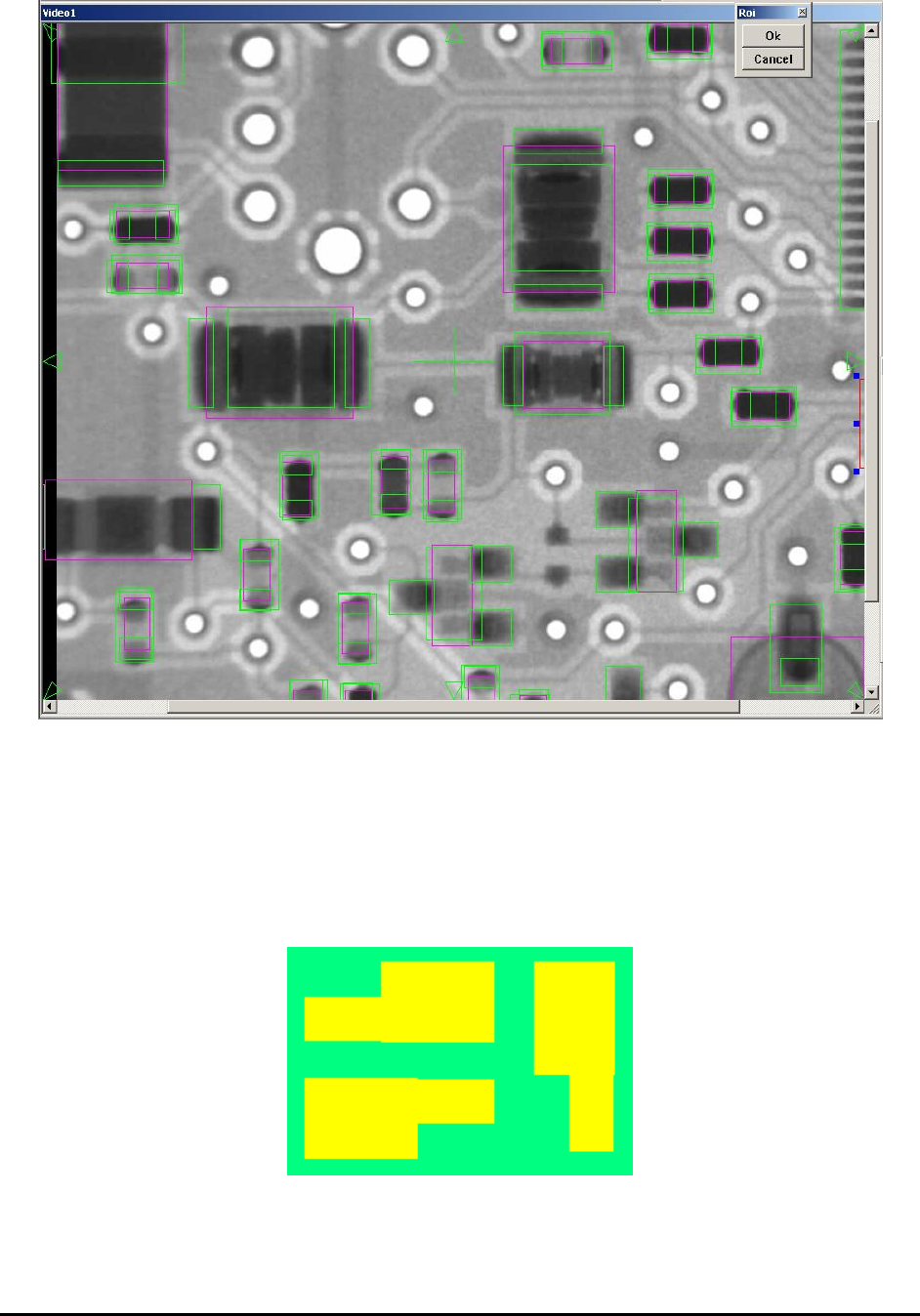
The selection box can be much larger than the block area you want to copy, because the software
will automatically trim down the area to fit around the parts. After enclosing all the parts you
want to copy, click Ok on the ROI box.
16.1.2 Paste Block
The Paste Block selection in the Edit menu is grayed out until a block is copied. To paste a
block, first move the camera so that the top left corner of the destination block is in the field of
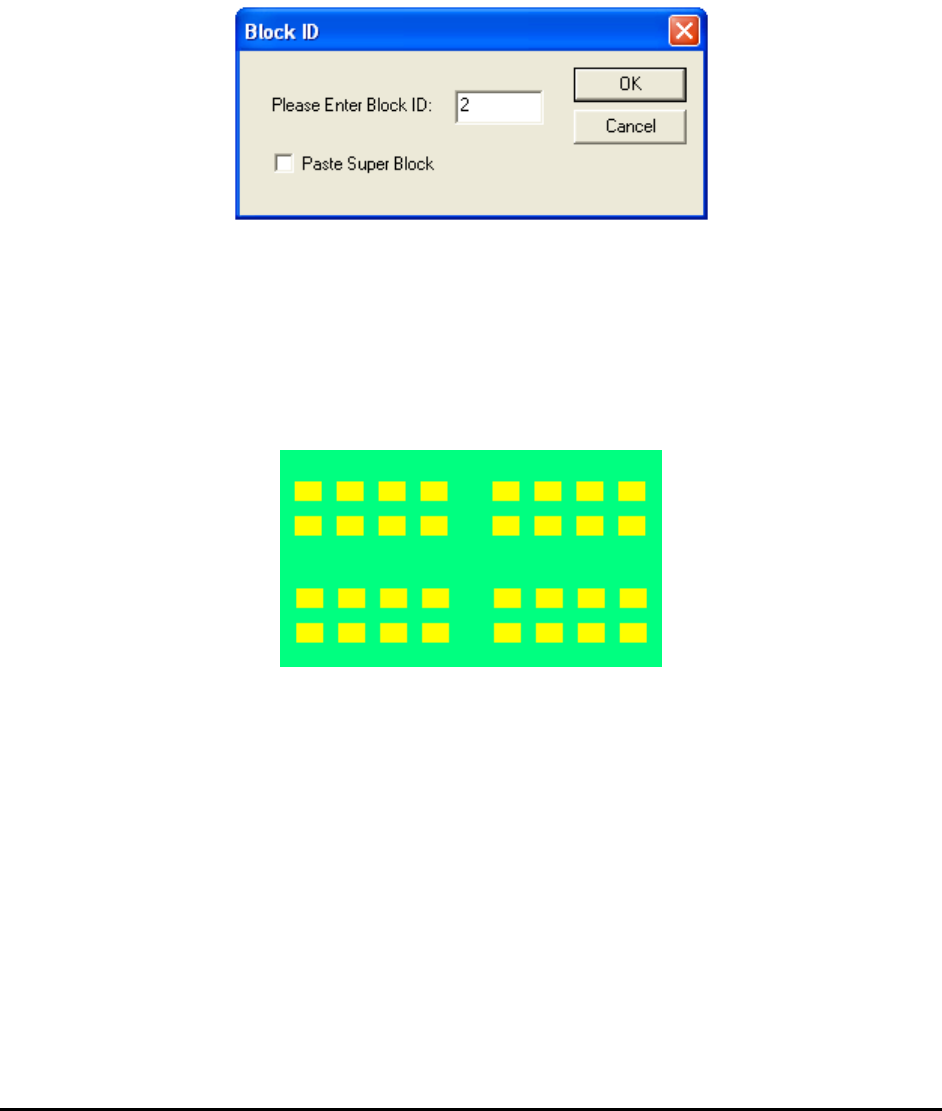
view, then select Paste Block from the Edit menu. The Block ID dialog displays.
Enter a block ID. The block ID should start from 2 because the master block is block 1.
The Paste Super Block checkbox should be checked if the block you are going to paste contains
more than one block. The definition for a Super block is a block that contains more than one
smaller block. The super block feature is very useful for creating board recipes for boards with
small blocks clustered into several regions.
16.1.3 Create Block Array
On this board you can use the block array feature to create the first 8 blocks, then copy and paste
a super block to create the other 24 blocks.
Panelized Board Inspection 16-3
Position the overlay to match the destination block circuitry, then press OK on the ROI box.
16.1.4 Rotating Blocks
The YesAX software also handles rotated blocks, as long as they are rotated in 90 degree
increments. You can have 90, 180, and 270 degree rotated blocks.
To paste a rotated board, copy the block and rotate it (if you need to rotate 180 select Rotate
Block 90 twice), then paste it.
16-4 Panelized Board Inspection
16.1.5 Update Block
The Update Block command propagates any changes made to the master block through the rest
of the blocks.
16.1.6 Rename Block
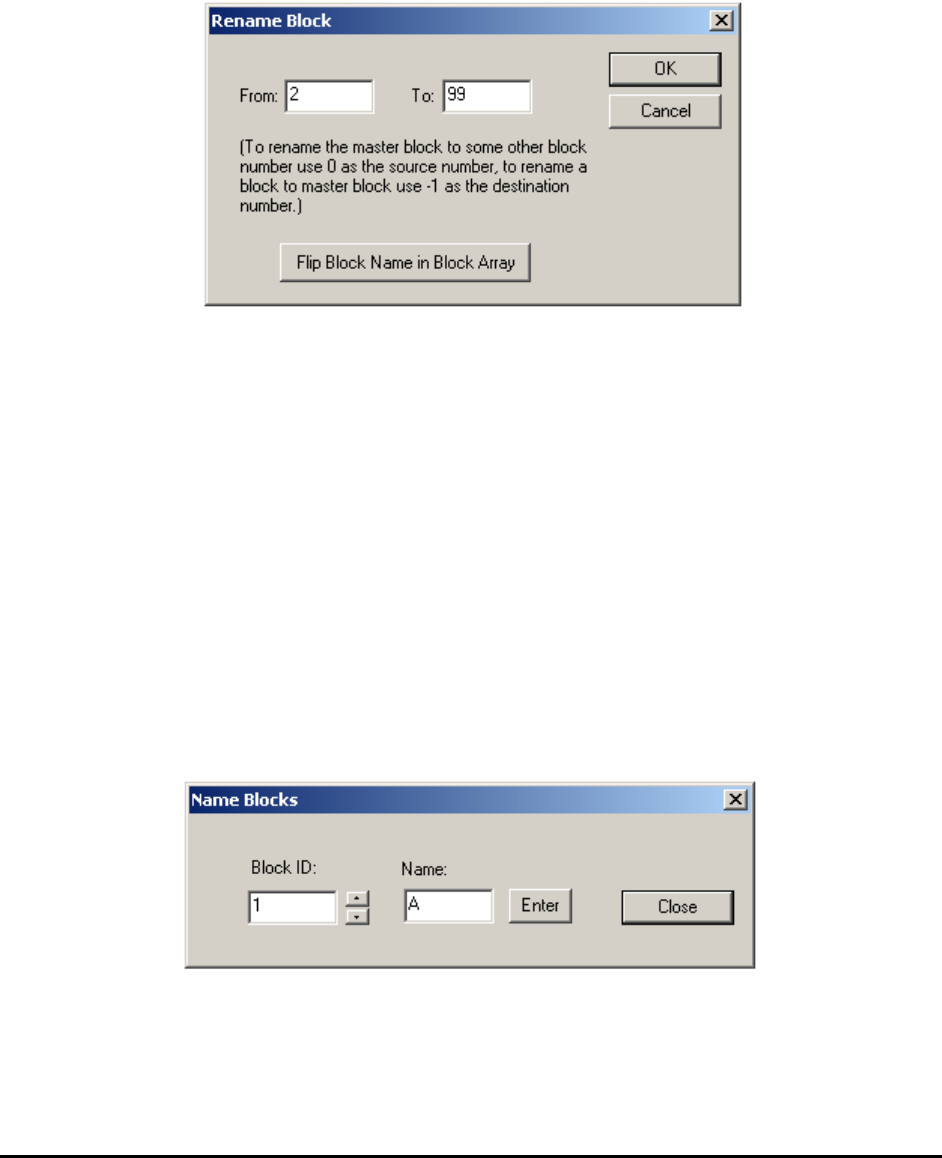
The Rename Block function renames the block ID.
If you need to swap the position of block 2 and 3, you can:
1. Rename block 2 to 99.
2. Rename block 3 to 2.
3. Rename block 99 to 3.
The Flip Block Name in Block Array function renames all the blocks on the selected side of the
recipe. You can rename the block IDs for the bottom side of a board to match that of the top side.
16.1.7 Move Block
The Move Block function moves one block at a time to fine adjust the positions.
16.1.8 Name Block
The Name Block function assigns alphanumerical names to each block; rather than block 1,2,3,4
you could have block names such as A,B,C,D. The block name affects the SPC data log names.
The intended usage for this function is to allow you to rename the blocks to match their specific
naming convention.
16.1.9 Delete Block
The Delete Block function can delete any region on the board. This function operates on either
the Map View or Video View, depending on which is currently in the active state.