YesAX V3.1.2 - Software User Manual - 第230页
18 -4 Defect and Board Docu mentation
Defect and Board Documentation 18-3
18.3 Board Image
The Stitch Board Image option creates a complete board image by stitching up the individual
frames from an Image Set captured by the top camera. Users can select the size and the format of
this board image, as well as the destination file name.
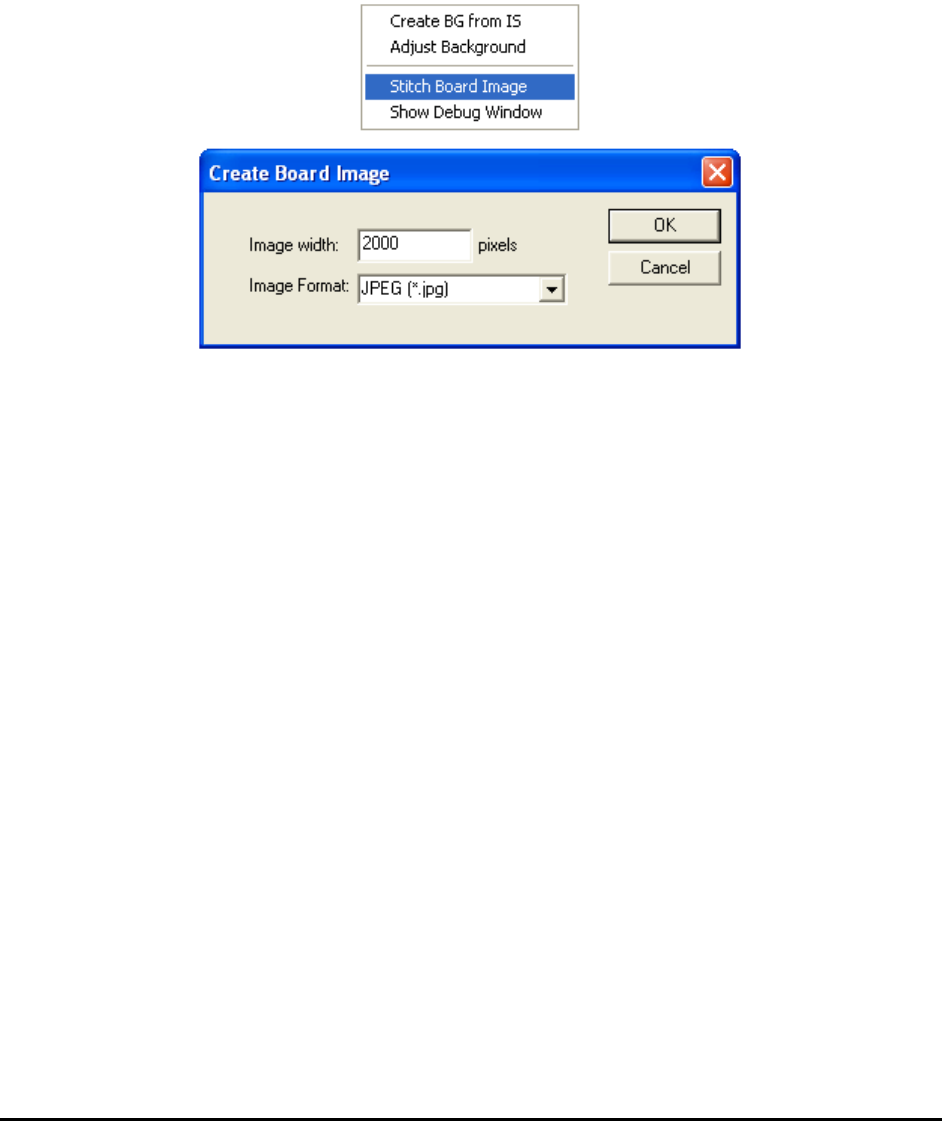
To create the board image, open the Map View menu and select Stitch Board Image. The
Create Board Image dialog opens. Specify the image width in the Image width field. Select the
image format from the Image Format drop-down list. Select OK.
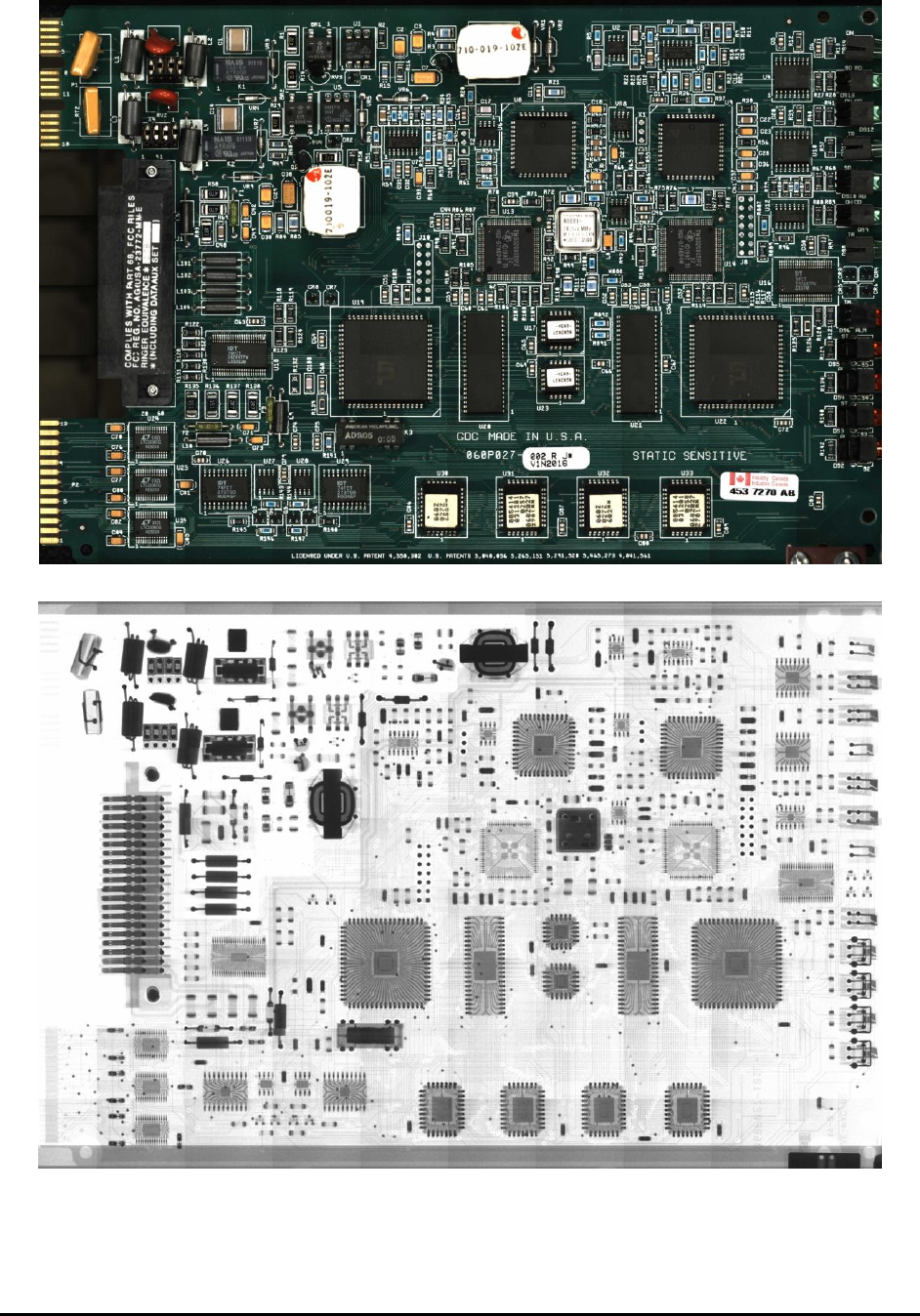
The X2/X3 AXI system can also stitch together a complete X-ray image of the board from an X-
ray Image Set in Grid format.
To create an x-ray image of the board, load the Image Set, then switch the camera to X-ray view,
then select Stitch Board Image from the Map View.
18-4 Defect and Board Documentation
Optional Accessories 19-1
19 - Optional Accessories
To satisfy the needs of different customers Nordson YESTECH offers optional accessories for
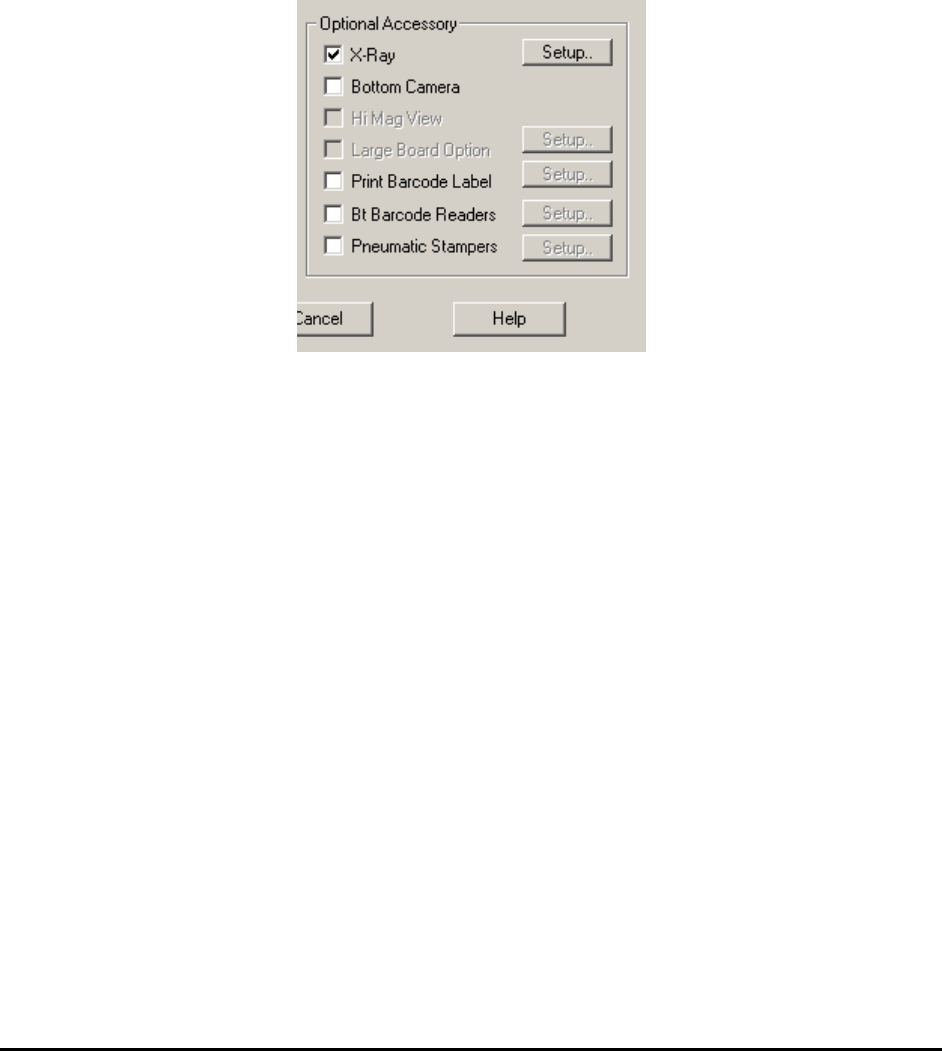
purchase to enhance the capabilities of the inspection machines. After installing an option, you
need to enable the software interface from the System Options dialog, accessible by selecting
System>Options from the main menu in Recipe Programmer mode.
19.1 X-Ray
The X-ray option should always be enabled for X2/X3 AXI system.
Click the Setup button right next to the X-Ray checkbox in the System Options dialog to launch
the X-Ray Control dialog.