YesAX V3.1.2 - Software User Manual - 第245页
Image Set and Image A rchive 21 -7 21.5 Board Comparato r Before the invention of AXI, the comparator system was used to improve the effectiveness of human inspection. The comparator system consists of alternating the di…
21-6 Image Set and Image Archive
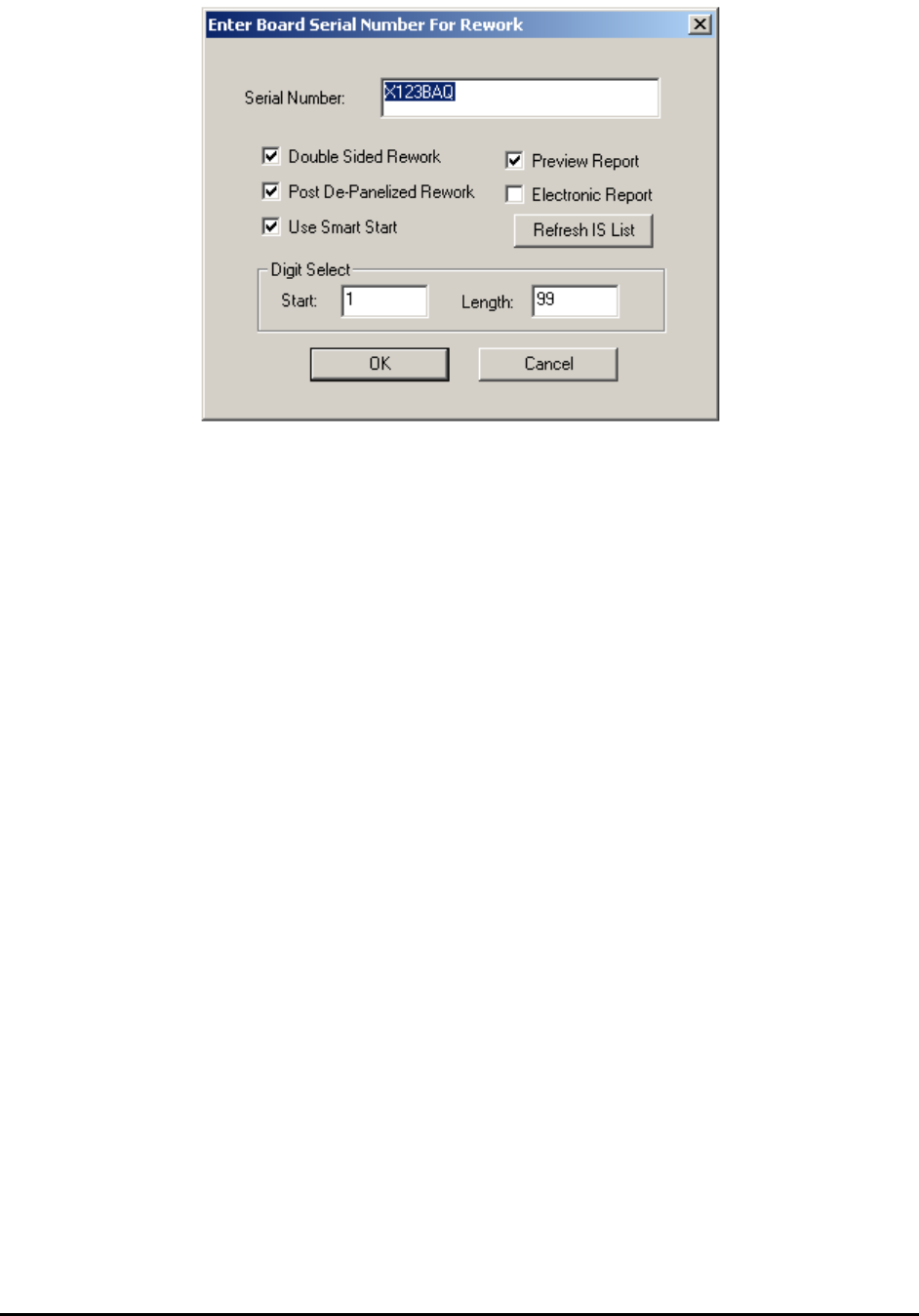
The Double Sided Rework checkbox enables double sided rework mode. The software
automatically switches to the side that the defect is on, and guides the rework process. If there
are defects on both sides of the board, then top side rework will be followed by bottom side
rework processes. All the rework operator needs to do is to scan the barcode for the board to be
reworked. The software identifies which side of the board the defect is located and its position.
The Use Smart Start checkbox enables the SmartStart feature for rework. The SmartStart
feature loads the recipe based on the barcode of the board and starts the rework process. The
Post De-Panelized Rework checkbox indicates to the software that the rework (or
Review/Rework) is performed after the circuit had been separated in the depanelizing process.
The software will only show the defects associated with the barcode entered, even though the
original board inspected by the AXI is a multi-up board with multiple barcodes. The Preview
Report and Electronic Report options control report generation after the Review/Rework. The
Digit Select option is used when a barcode reader is used for data entry but not all characters of
the barcode are the serial number. Digit Select allows you to select a segment of the code as the
board’s serial number. The Refresh IS List button refreshes the image set list to include the
latest image set created.
The SPC data logging function for offline stations is controlled from the System Options dialog.
After you finish reworking the board, press the Next button on the Result dialog to repeat the
rework process for another board.
21.4 Review and Rework
For environments where the False Call rate is very low, such as a high volume OEM
manufacturing environment, it would make sense to do the defect review and rework together.
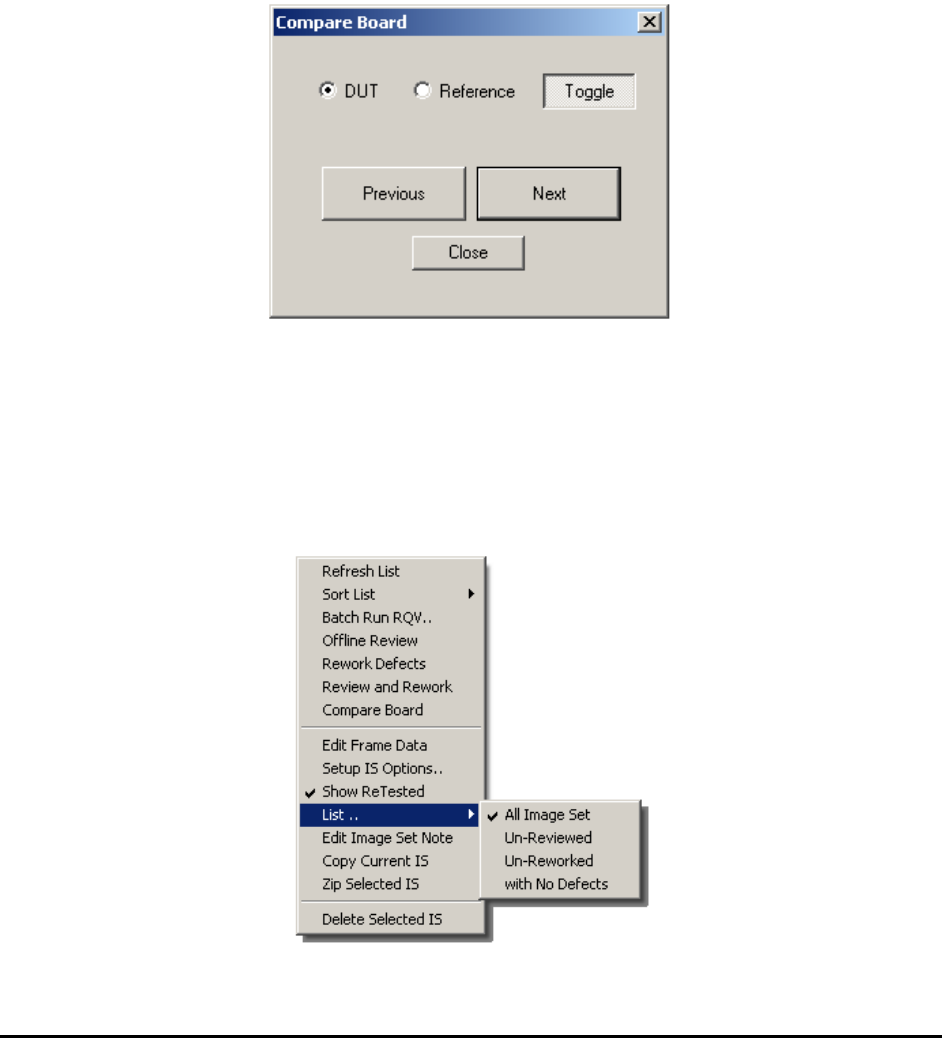
Image Set and Image Archive 21-7
21.5 Board Comparator
Before the invention of AXI, the comparator system was used to improve the effectiveness of
human inspection. The comparator system consists of alternating the displays of a reference
board and the board under inspection where the operator picks out the defect on the board by
comparing the image of the reference board to the board under inspection. YesAX can also
provide this capability for users who want to do a quick comparison of boards without recreating
a recipe.
To use the feature, capture a grid image set of the reference board, put a board into the system,
load the grid image set into the software, and then select Compare Board from the Image
Archive Pop-up menu. The Compare Board dialog opens to guide the user.
Using the Previous and Next button, move across the board. If a defect is spotted on the video
window, press the right mouse button to pull down a menu, select Draw Defect and draw on the
video window for the defect location. If a defect is drawn, a defect report will display at the end
of the inspection.
21.6 Pop-up Menu for Image Archive
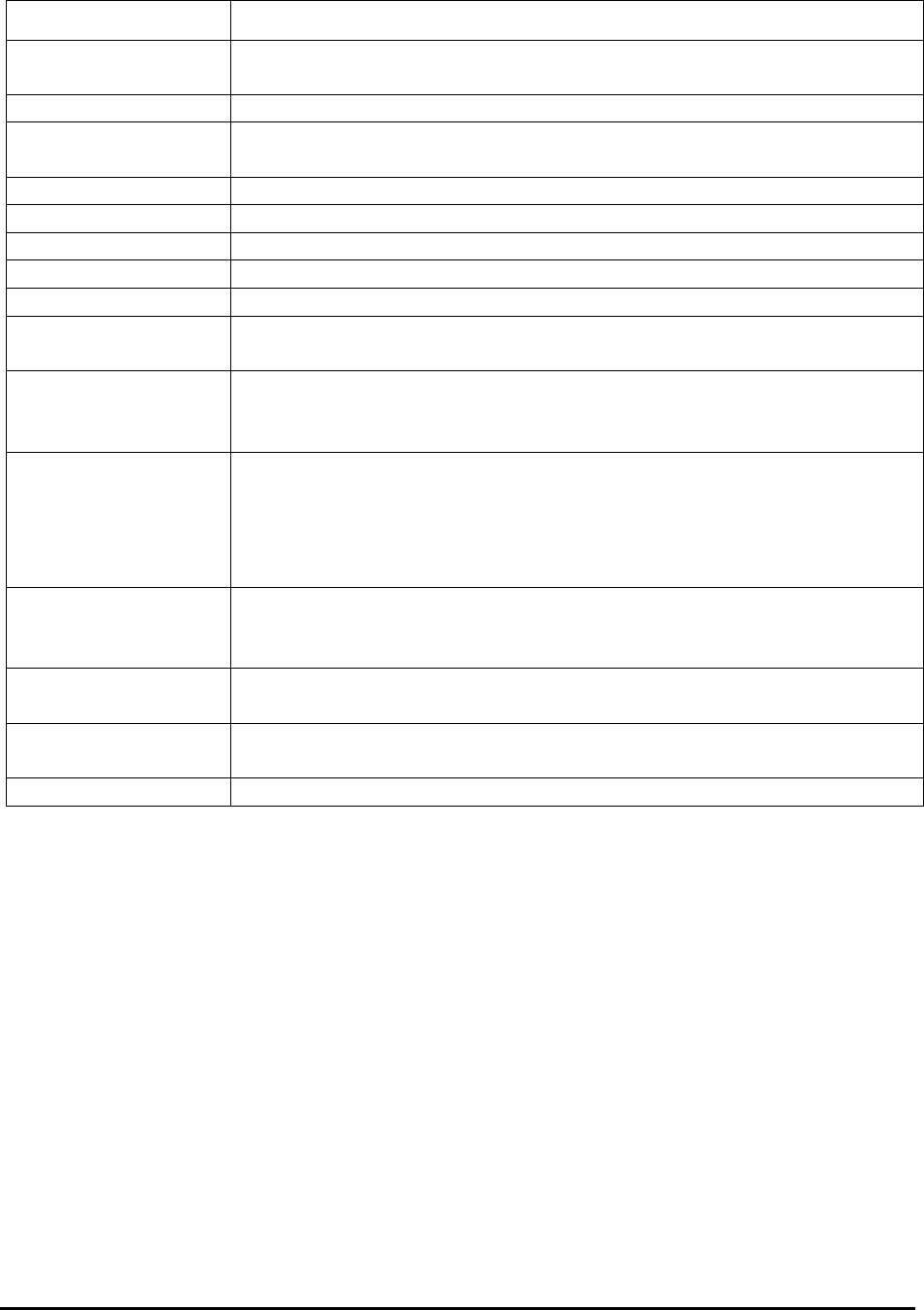
This section details the pop-up menu for the Image Archive window in the List View dialog.
21-8 Image Set and Image Archive
OPTION
DESCRIPTION
Refresh List
Checks the recipe’s folder to ensure newly created Image Sets are listed
in this page.
Sort IS List
Sorts the Image Set list in ascending chronological order.
Batch Run RQV
Launches a dialog to setup or start the Recipe Quality Validation
process. See 21.8 Recipe Quality Validator (RQV).
Offline Review
Starts the offline review process.
Rework Defect
Starts the defect rework process.
Review and Rework
Starts the Review and Rework process.
Compare Board
Starts the board comparator feature.
Edit Frame Data
Launches a dialog on the currently loaded frame.
Setup IS Options..
Launches a dialog to setup the period for auto delete and other Image
Set options. See 21.6.1 Set Image Set Options.
Show ReTested
If the Retest Failed Part option is turned on the software will retest all
the parts that failed. The image frame from the original test and re-test
will both be captured. This menu selects which of the frames to display.
List
All Image Set
Un-Reviewed
Un-Reworked
With No Defects
Lists all image sets.
Lists only the image set that has not been reviewed.
Lists only the image set that has not been reworked.
Lists only the image set that has been reviewed and has no defects.
Edit Image Set Note
The Image Set Note is a text file that is attached to an image set. Users
at the rework station can record information such as any special
comments or notes, who performed the rework at what time, etc.
Copy Current IS
Copy Current IS copies the loaded Image Set into the current recipe.
You can load an Image Set from another recipe using the File menu.
Zip Selected IS
Launches the Set Image Set Options dialog. See 21.6.2 Zip Selected
Image Set.
Delete Selected IS
Deletes one or more selected Image Sets.
21.6.1 Set Image Set Options
The Set Image Set Options dialog sets up the period for auto delete and other Image Set options.