YesAX V3.1.2 - Software User Manual - 第269页
Design for Manufacturing 26 -3 26.8 Disable Moto r The Disable Motor option disables the holding torque on the servo motors so you can push the stage to a desired position. The next move command automatically re -enables…
26-2 Design for Manufacturing
26.3 Initialize Top Stage
For X3 AXI system, the X-ray detector is driven by a TOP XY Stage. The Top stage will
initialize (or home) if the software is being started for the first time since the servo controller was
powered on. During initialization, the stage travels to the back right position, then returns to the
middle of the track. This menu selection forces the software to start the initialization routine
regardless of the servo control status. It is useful when adjusting the top back and right limit
switch positions.
26.4 Find Top Stage Travels
The Find Top Stage Travels option is for the X3 AXI system only. The function is similar to
that of the Find Travel Limits function.
26.5 Move Stage
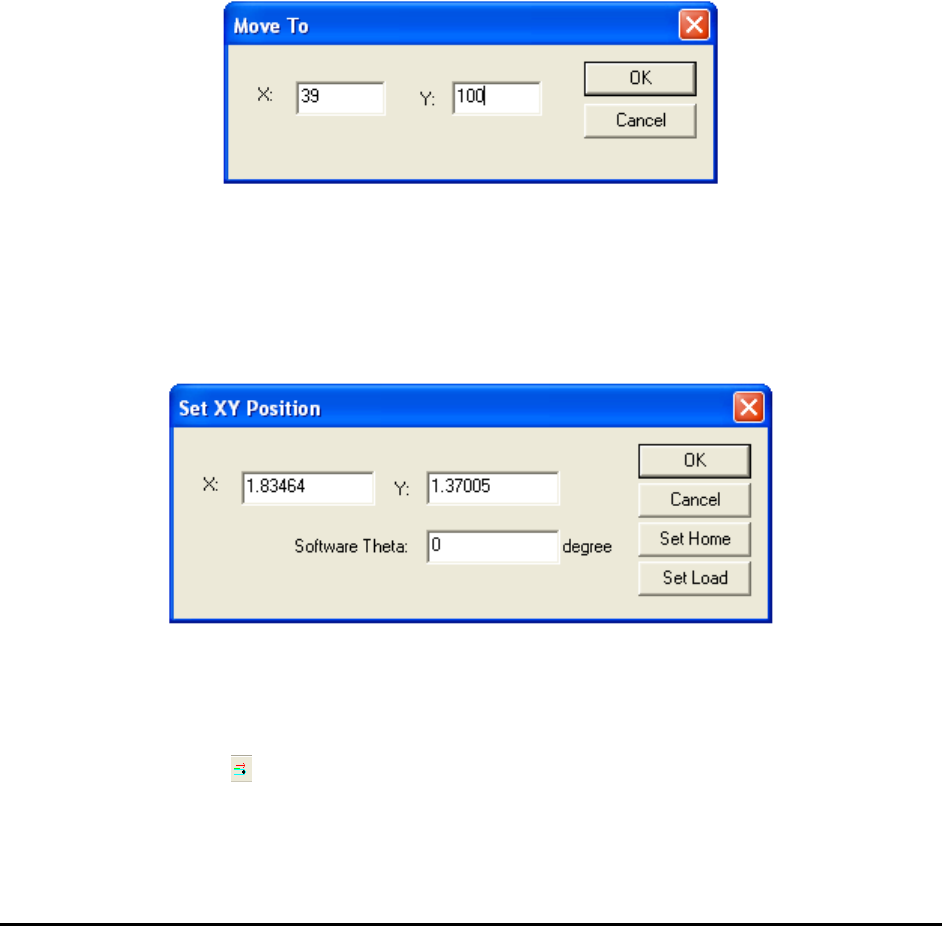
This Move Stage option launches the Move To dialog to move to an absolute stage position.
26.6 Jog Stage
The Jog Stage option launches the ControlPoint utility program to exercise the XY Stage.
26.7 Set Position
The Set Position option sets stage position to the specified values.
You can also use this dialog to set the Home and Load positions. The Home position should
always be the bottom right corner of the PCB being inspected. The Home position is recipe
dependent. The Load position is not recipe dependent. It is the position the stage moves to when
loading or unloading a PCB. If the lighting fixture is close to the conveyor’s middle sensor, press
the Feed Board button on the toolbar to move it to the load position set by this dialog.
Design for Manufacturing 26-3
26.8 Disable Motor
The Disable Motor option disables the holding torque on the servo motors so you can push the
stage to a desired position. The next move command automatically re-enables the motor.
26.9 Conveyor Setup
The Conveyor Setup option launches the Conveyor Setup dialog. Refer to Section 9 - SMEMA
Conveyor Setup for details.
26.10 Test Shutter Doors
Every X2/X3 AXI system is equipped with both left and right shutter doors. It is very important
to make sure that both doors function normally. The Test Shutter Door option allows you to test
both doors.
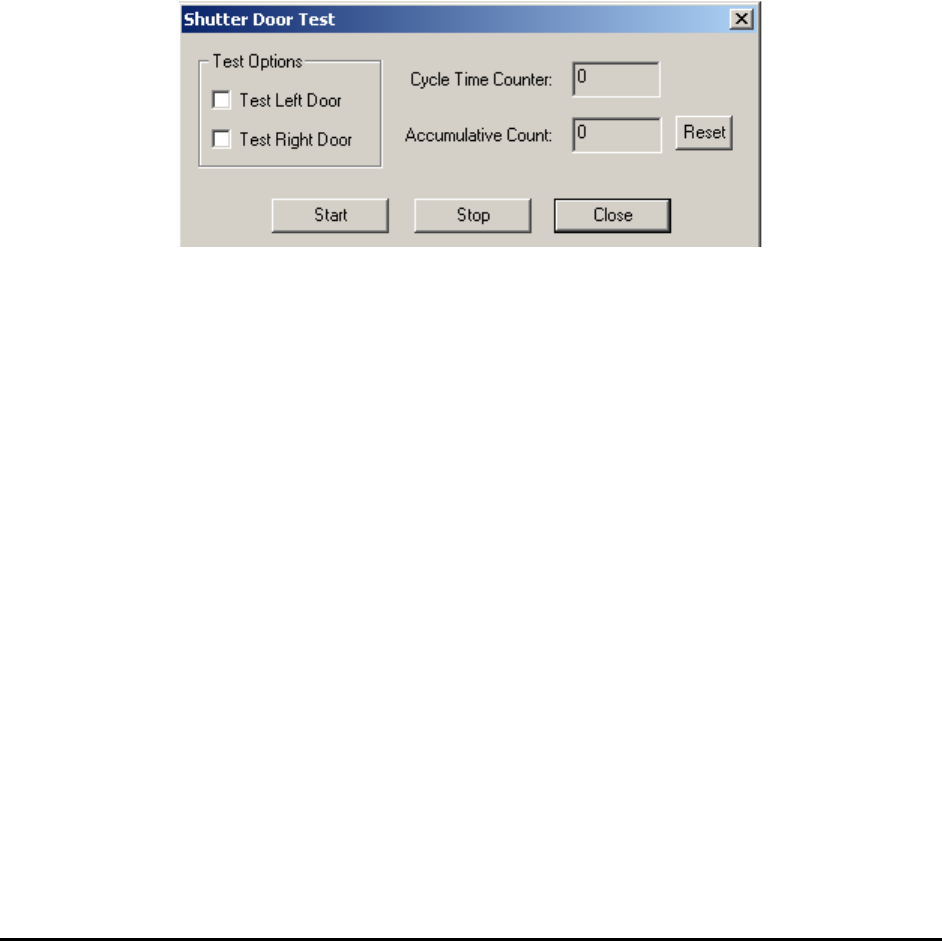
Select Test Shutter Doors from the Test menu to launch the Shutter Door Test dialog.
Select to test either left door or right door only, or test both doors. Click the Start button to start
the test and click the Stop button to stop the test. The Cycle Time Counter field displays the
current cycle time count and the Accumulative Count field displays the total/accumulated cycle
count. Click the Reset button to reset the accumulative test count to zero. If several errors have
occurred, the Shutter Door Test will stop running and a error message will show on screen and
remind you to check for potential problems.
26.11 Test Z Axis
For X2/X3 AXI systems, the X-ray tube is driven by the Z Axis motor and moves up and down.
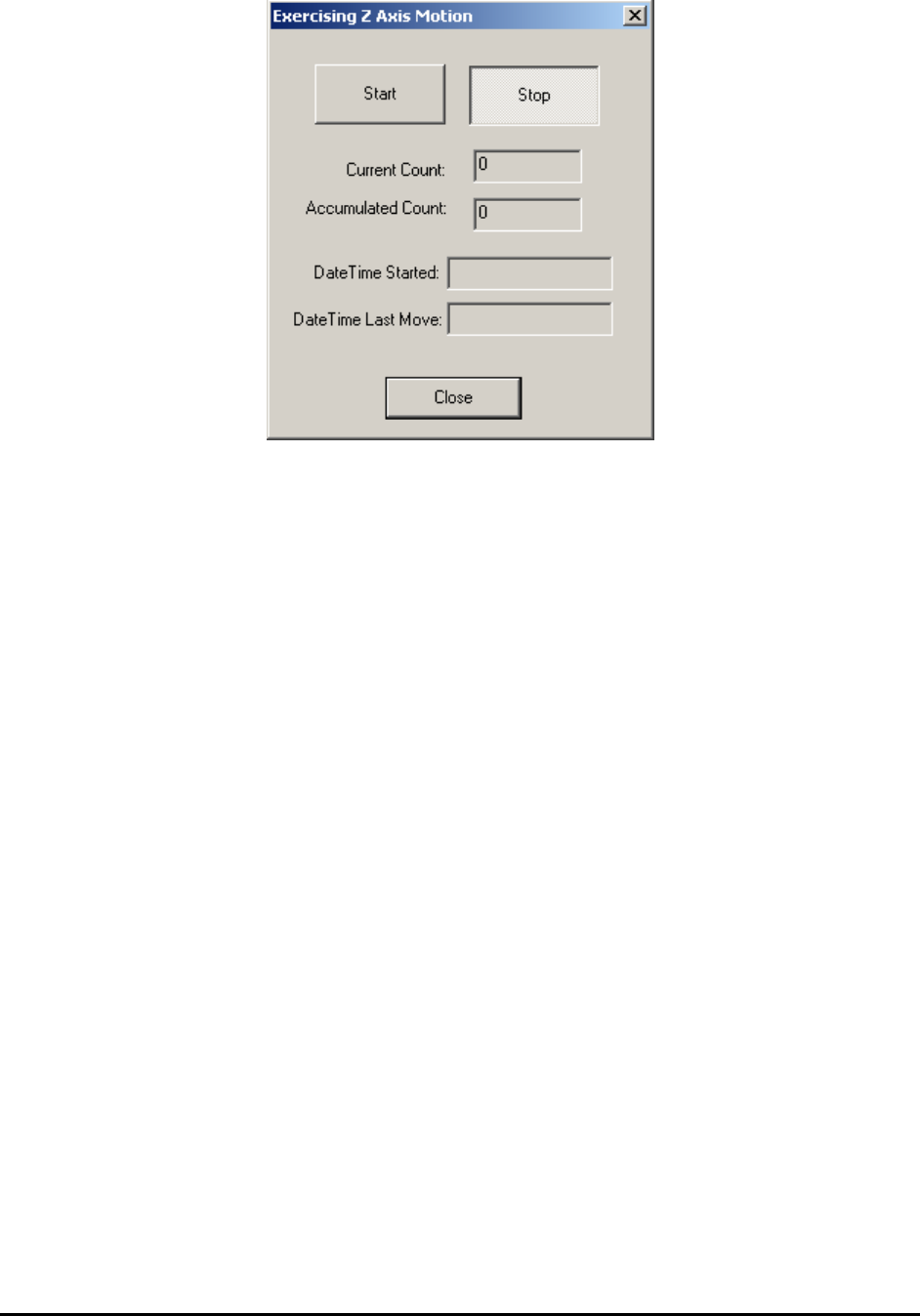
It is important to make sure that the Z Axis functions normally. The Test Z Axis dialog provides
a tool to test the Z Axis by moving it up and down.
26-4 Design for Manufacturing
The test is very simple. Click the Start button to start the test and click the Stop button to stop
the test. Current test counts and total/accumulated test counts are shown in real time. The Date
Time Started and Date Time Last Move fields provide the time related information.
26.12 Test TTL I/O Board 1&2
This Test TTL I/O Board 1&2 options launch the utility dialogs shown below. You can toggle
individual TTL outputs and watch the state of individual TTL inputs.