YesAX V3.1.2 - Software User Manual - 第282页
28 -4 Trouble Shoot ing 3. Check the Allow Width to be Saved in Recipe c heckbox. 4. Click OK to save the recipe. To verify whether the problem is fixed: 1. Feed out and remove the board that was on the conveyor. 2. Adju…

Trouble Shooting 28-3
During software start the software will try to connect to an ODBC database for storing the SPC
data. If it cannot connect to a database it will try to create a new one in the default location
C:\AOI_Data\SPC_DataLog. The software will display the above error if it cannot create the
database. To resolve this problem user need to make sure the ODBC connection is good (section
14), if it is make sure the SPC_DataLog folder exist in the right place.
28.2 During Recipe Loading
Error Message: Unable to own LTMaxNum.txt
The LTMaxNum.txt file maintains the integrity of the logical template number to make sure
that it is unique. Refer to 13.4 Central Library for an explanation of the LTMaxNum.txt file.
All software stations (on and offline) need to have full access (read/write) to the
LTMaxNum.txt file in order to train new templates. This error message indicates the system
was not able to have full access to the LTMaxNum.txt. Seeing this error means that the user
must investigate and resolve the problem before training any new template.
Error Message: Unable to take Ownership
When a new recipe is loaded the software will try to determine if it can write to the part list and
the local part library files. The software then claims ownership of those files by writing its
computer ID into the Owner.txt file, located in the recipe’s folder. The above error will display
if the software is unable to write to the owner.txt file. There could be two reasons for the error
message:
1. The software does not have full access to the recipe’s folder.
2. Other AXI software is claiming control of the recipe. (e.g. when the recipe is opened on
an AXI machine, an offline programming station trying to load the recipe will get the
above error message.)
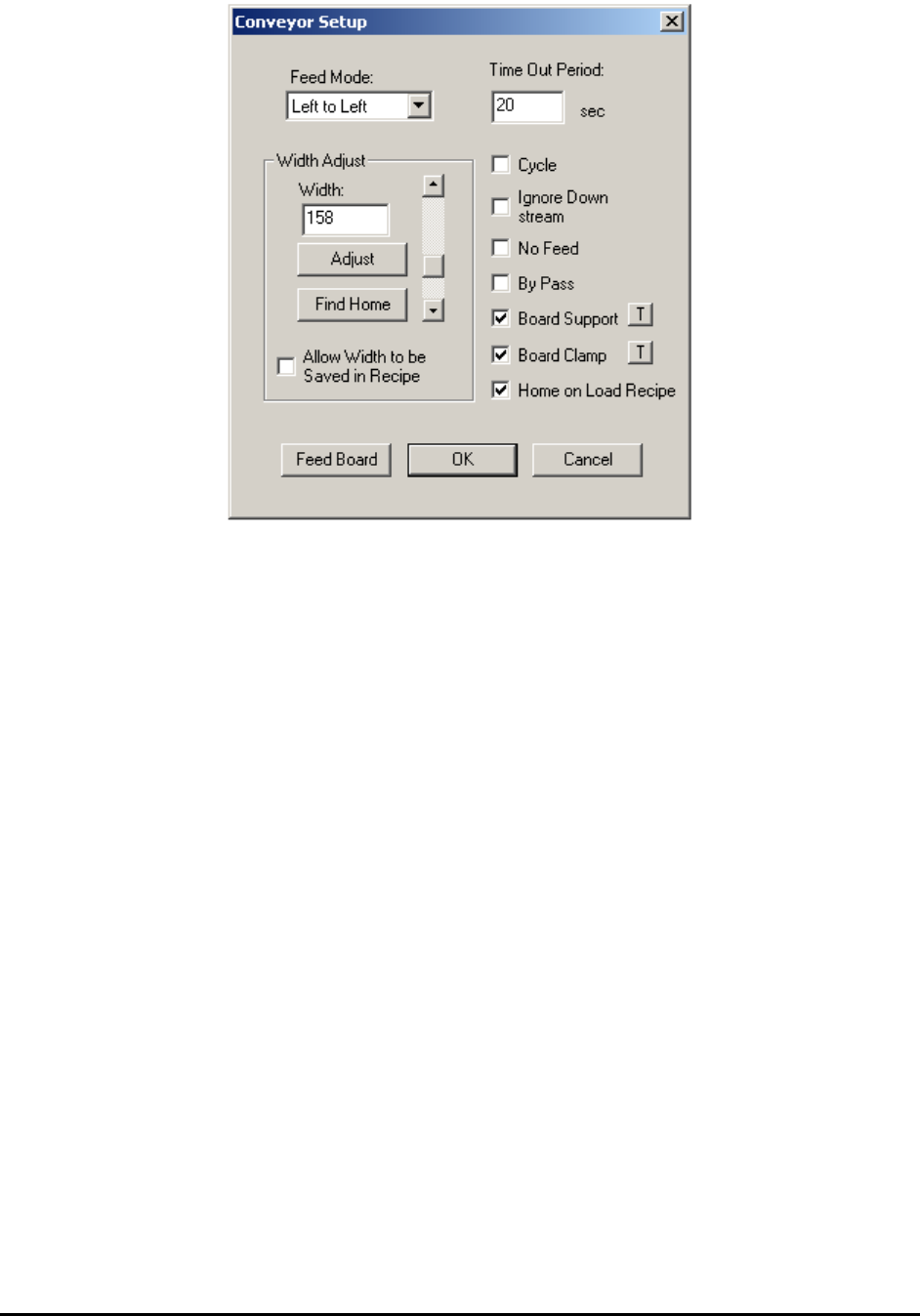
Conveyor Does not open to the Right Width
When a recipe is loaded the software will automatically try to adjust the conveyor width
according to the width specified in the recipe. Width adjust will be deferred to a later time if
there is a board on the conveyor during recipe loading. In this case, the width adjusts will happen
as soon as the board is removed. If the conveyor adjusts to a width that is not the correct width
for the board, the user should perform the following steps:
1. Home the conveyor.
2. Adjust the conveyor to the right width for the board.
28-4 Trouble Shooting
3. Check the Allow Width to be Saved in Recipe checkbox.
4. Click OK to save the recipe.
To verify whether the problem is fixed:
1. Feed out and remove the board that was on the conveyor.
2. Adjust conveyor width using the Conveyor Setup dialog to any width other than the
width for the board.
3. Load the Recipe.
If the conveyor adjusts to the right width the problem is fixed. If not there may be a hardware
problem with the conveyor adjustment mechanism.
28.3 Trying to Run a Recipe
Error Message: Unable to fit the ROI of xxx in Inspection Frame
When the user tries to run a recipe by pressing the Run button the software first executes the
alignment routine. After that the software will create a camera move path for inspecting all the
regions of interest (ROI) in the recipe. The process of creating the inspection path involves trying
to fit all the ROIs into a minimum number of camera frames. This error message will display if
one of the ROIs cannot fit into any frame. If there is more than one ROI that can’t fit into a frame
only the ROI first encountered will be identified in the error message. The user must fix the
problem before inspection begins.
A lead bank longer than the field of view of the camera will generate this error. To fix the
problem the user can break the lead bank into smaller sectors.
Trouble Shooting 28-5
Error Message: XMax (YMax) Soft Limit Exceeded
In addition to hard stops (rubber bumpers) and hardware limit switches (optical sensors), the
AXI system also has software limits for XY stage travel. Software limits when triggered will not
allow any attempted move that is outside the travel limits. Hardware limit switches will cause the
stage to stop abruptly at the limit, soft limits on the other hand will have the stage smoothly
decelerate to the limit position. The above error message will display to inform the user that the
software limit has been reached and the move has not been completed.
For soft limits to work properly travel ranges must be determined. If the above error message is
displayed when the stage is not at the limit, then it is possible that the stage travel range is
incorrectly set. To set up travel range, the user can enter the builder mode of the software. From
the Test menu, select Initialize XY Stage. The stage will move to the front left position then
return to the middle position. Initializing the XY stage establishes the front left limit positions.
To determine travel range we also need the back right positions. This is done by selecting Find
Travel Limits from the Test menu.
28.4 While Running a Recipe
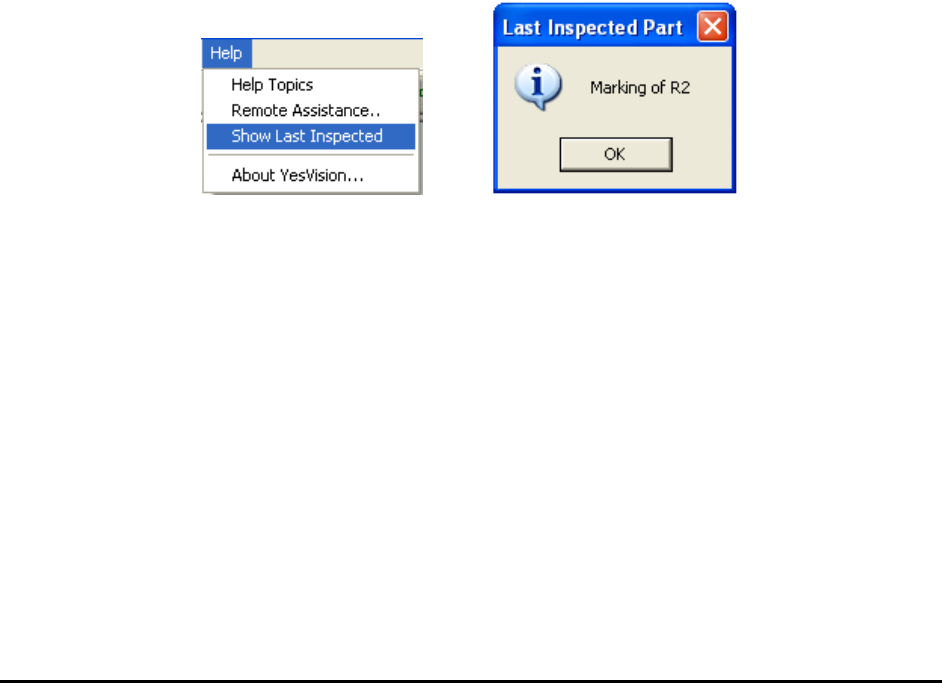
An error messages during inspection is caused by the software having problems with the current
inspection box. The error messages may be “Cannot load template #xx” or “MbufCopyColor…”
etc. Identifying the inspection box giving the error message is the first step towards fixing the
problem. The software has a feature to help the user identify the troublesome inspection box. The
feature is called “Show Last Inspected” and is located in the Help menu.
28.5 At the End of a Inspection
Displaying Defect Report
There are several things the software must do at the end of an inspection. One of that is to
display a defect report for user to preview. The preview function requires a Printer Driver to be
correctly installed. If the user only needs to use the preview function and never need to print out
a hardcopy of a defect report, then a printer is NOT needed. Even without the printer, make sure
a printer driver is properly installed for the preview function to work.
Software hang-up may occur at the end of inspection, if on the AXI computer the default printer
is setup as a network printer, and that printer became un-available.