00191025-01.pdf - 第81页
SIPLACE 80S/F/G User’s Manual 5 Placement Edition 12/96 from S oftware Version SR.009.xx 5.2 Loading Cluster Data 5 - 5 5.2 Loa ding Clus ter Data NOTE The men us and activ ities des cribed in this section a re only need…
5 Placement SIPLACE 80S/F/G User’s Manual
5.1 Introduction: Placement Edition 12/96 from Software Version SR.009.xx
5 - 4
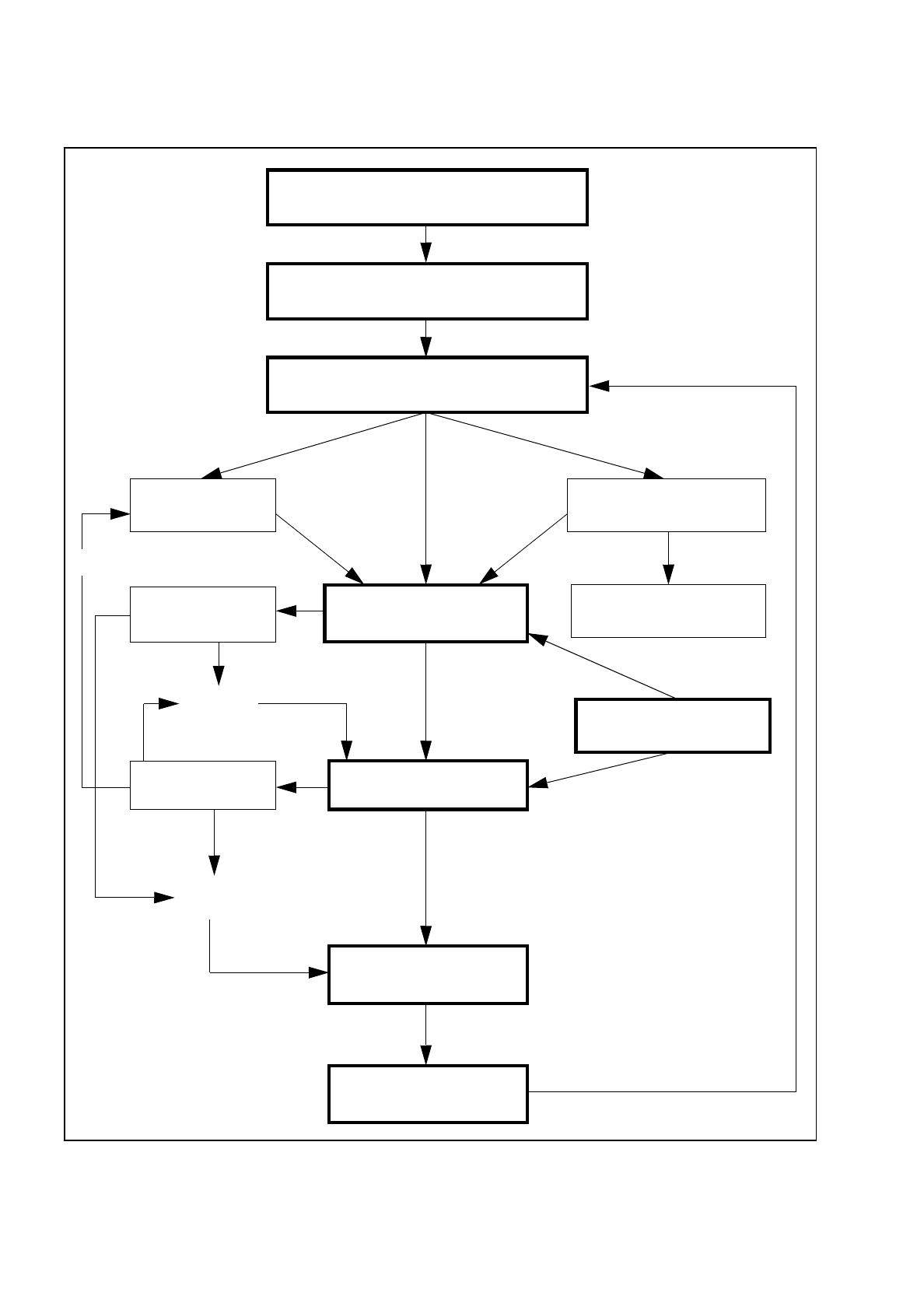
Fig. 5.1.1 Flowchart: Placement
Switch on - see Chapter 3
Loading cluster data
Setting up the machine according
to the placement program
Nozzle configuration
Component supply
(track assignment)
PCB handling
Changing nozzles
Fiducial error
Placement options
Placement
Track error
Machine error
Continue
placement
Track empty
Abort
placement
PCB to output conveyor
New cluster
SIPLACE 80S/F/G User’s Manual 5 Placement
Edition 12/96 from Software Version SR.009.xx 5.2 Loading Cluster Data
5 - 5
5.2 Loading Cluster Data
NOTE
The menus and activities described in this section are only needed and enabled when no line computer is
connected and when the function "without LC" has been selected in the selection menu "LC mode." If a line
computer is connected, cluster control is effected via the line computer.
5.2.1 Initial Loading of Cluster Data after Switching On the Machine
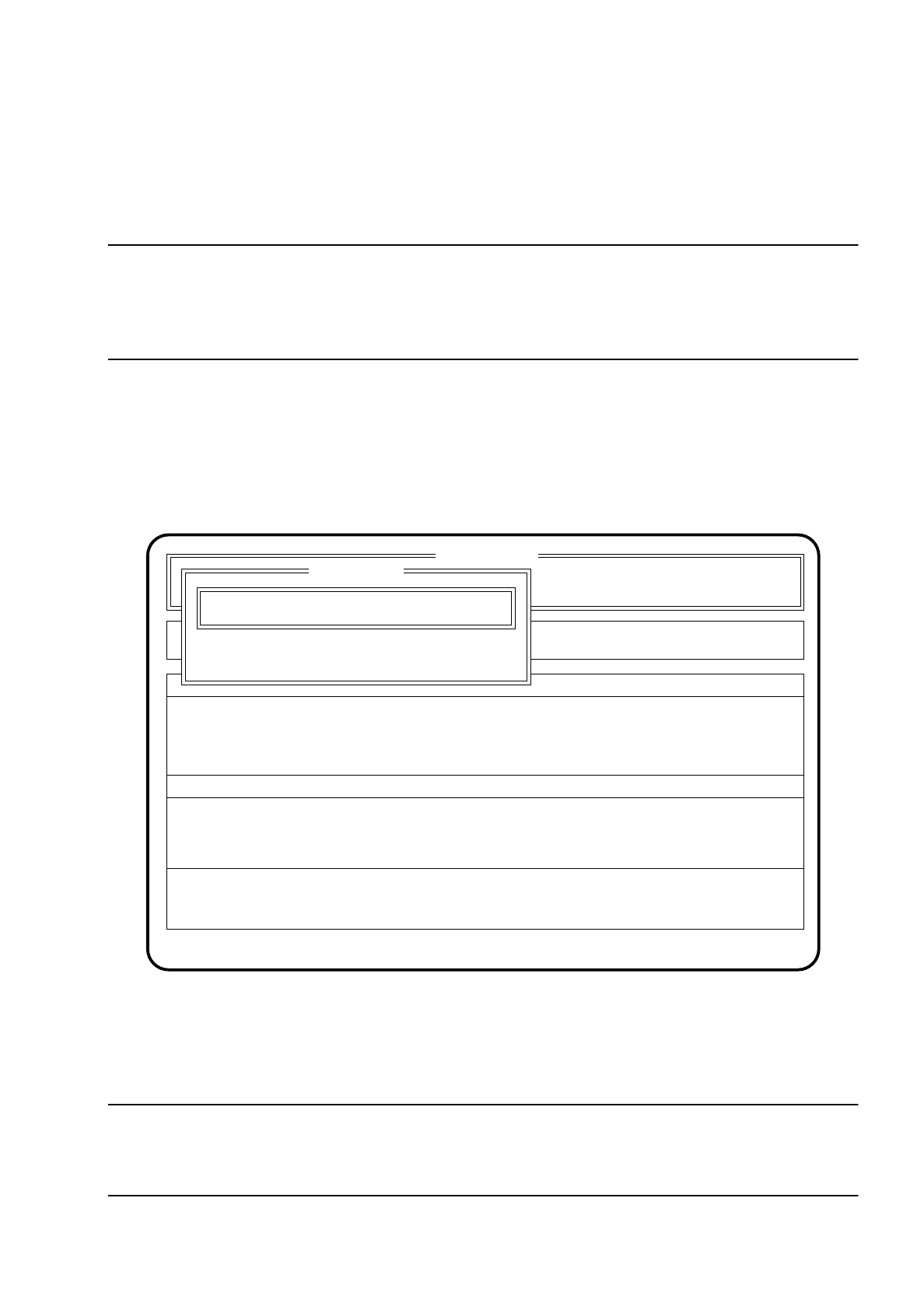
After the machine has started, the menu "New cluster" appears automatically.
Fig. 5.2.1
●
Using the keyboard, enter the name of the cluster which is to be processed.
●
Confirm the input using the
Return key
("State:" Wait for data).
NOTE
Set-up and cluster have to be present on the hard disk together with the corresponding package form and
fiducial data.
SI 80 V 9.x
Rüstung :
Machine options
Software options
Single functions
Vision system
Error
State
Action
:
:
:
Visionsystem
Neuer Nutzen...
Schnittst. GESP.
Cluster name: TEST
Esc: abort Ret: input
New cluster
New cluster ...
Wait for data
5 Placement SIPLACE 80S/F/G User’s Manual
5.2 Loading Cluster Data Edition 12/96 from Software Version SR.009.xx
5 - 6
The data are now loaded and the main menu appears. In the second box of the main menu the name of the
cluster and of the set-up are displayed.
●
Press the
Esc key
if you wish to quit the menu without executing an input.
5.2.2 Changing Clusters
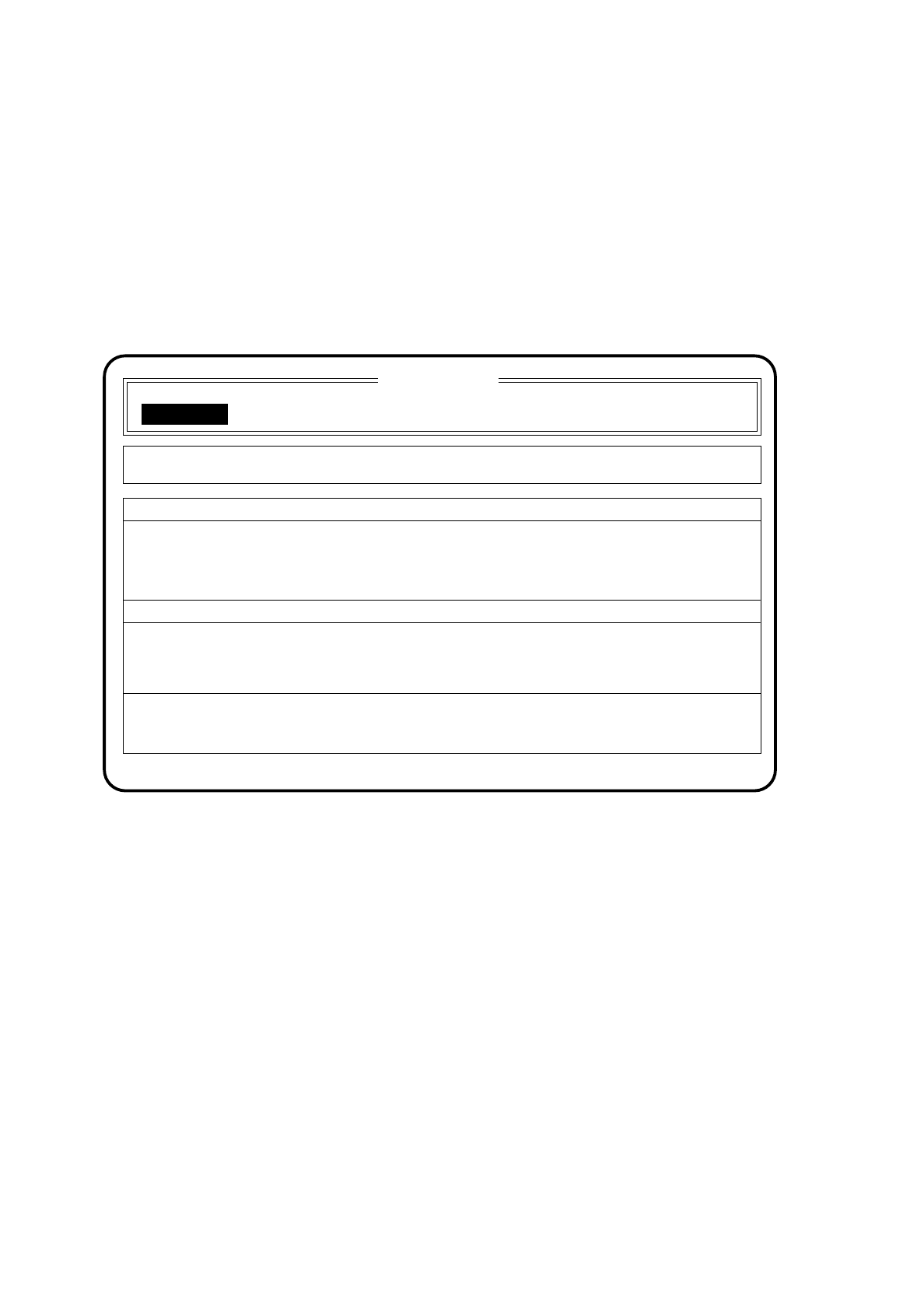
Fig. 5.2.2
●
If you wish to change the cluster, use the
cursor keys
to position the cursor bar over the menu item "New
cluster".
●
When the menu item "New cluster" is shown in inverse video, press the
Return key
.
The menu "New cluster" appears on the screen, as shown in Section 5.2.1.
●
Using the keyboard, enter the name of the new cluster.
●
Confirm the input using the
Return key
("State" Wait for data).
The data are loaded and the main menu appears on the screen. The name of the new cluster is shown in
the second box of the main menu.
SI 80 V9.x
Cluster:
Set-up :
Component feeding Display errors
Confirm errors
Machine options
Software options
Single functions
Vision system
Error
State
Action
:
:
: New cluster ...
New cluster
Wait for data
TEST
TEST