00191025-01.pdf - 第87页
SIPLACE 80S/F/G User’s Manual 5 Placement Edition 12/96 from S oftware Version SR.009.xx 5.4 Com ponent Handling 5 - 11 5.4 Component Handling All inpu ts which are c onnected with c omponents su pply are list ed in the …

5 Placement SIPLACE 80S/F/G User’s Manual
5.3 Options Edition 12/96 from Software Version SR.009.xx
5 - 10

SIPLACE 80S/F/G User’s Manual 5 Placement
Edition 12/96 from Software Version SR.009.xx 5.4 Component Handling
5 - 11
5.4 Component Handling
All inputs which are connected with components supply are listed in the menu "Component feeding". When a
cluster is started for the first time, the machine assumes that all tracks have been filled with components. If,
after three pick-up errors, the track is regarded by the machine as empty, the track should be set full, once it
has been charged with components.
5.4.1 Component Barcode (Option)
The SIPLACE 80 S placement machine includes an option for checking track assignment for agreement using
a barcode reader.
For this purpose, black plates with four-position barcode strips are fitted to the safety side panels. The first
position identifies the components table (1 or 2), while the remaining three positions give the track number.
Each end of the plate includes
return barcodes
, which have the same function as the
Return key
on the key-
board.
These barcode strips are continuously numbered in steps of two (1, 3, 5, 7......), and apply to 2 tracks in each
case (barcode 1 = tracks 1 and 2).
The barcodes are read in using a pen reader connected to the keyboard.
NOTE
When reading in the barcode do not hold the barcode pen vertical, but at a slight angle to the barcode.
NOTE
If the barcode option is not installed, all inputs have to be made using the keyboard.
NOTE
Barcodes which begin with the numeral 1 or 2 and have a length of 4 characters are interpreted as track
barcodes. All other barcodes, that is, those which do not begin with a numeral, are interpreted as component
barcodes.
5 Placement SIPLACE 80S/F/G User’s Manual
5.4 Component Handling Edition 12/96 from Software Version SR.009.xx
5 - 12
NOTE
If refill check has been set in the machine options, only then will it be possible to refill and reset using bar-
codes.
If refill check has not been set in the machine options, it is possible to choose whether to use the barcode
function. It is however still possible to perform a manual reset.
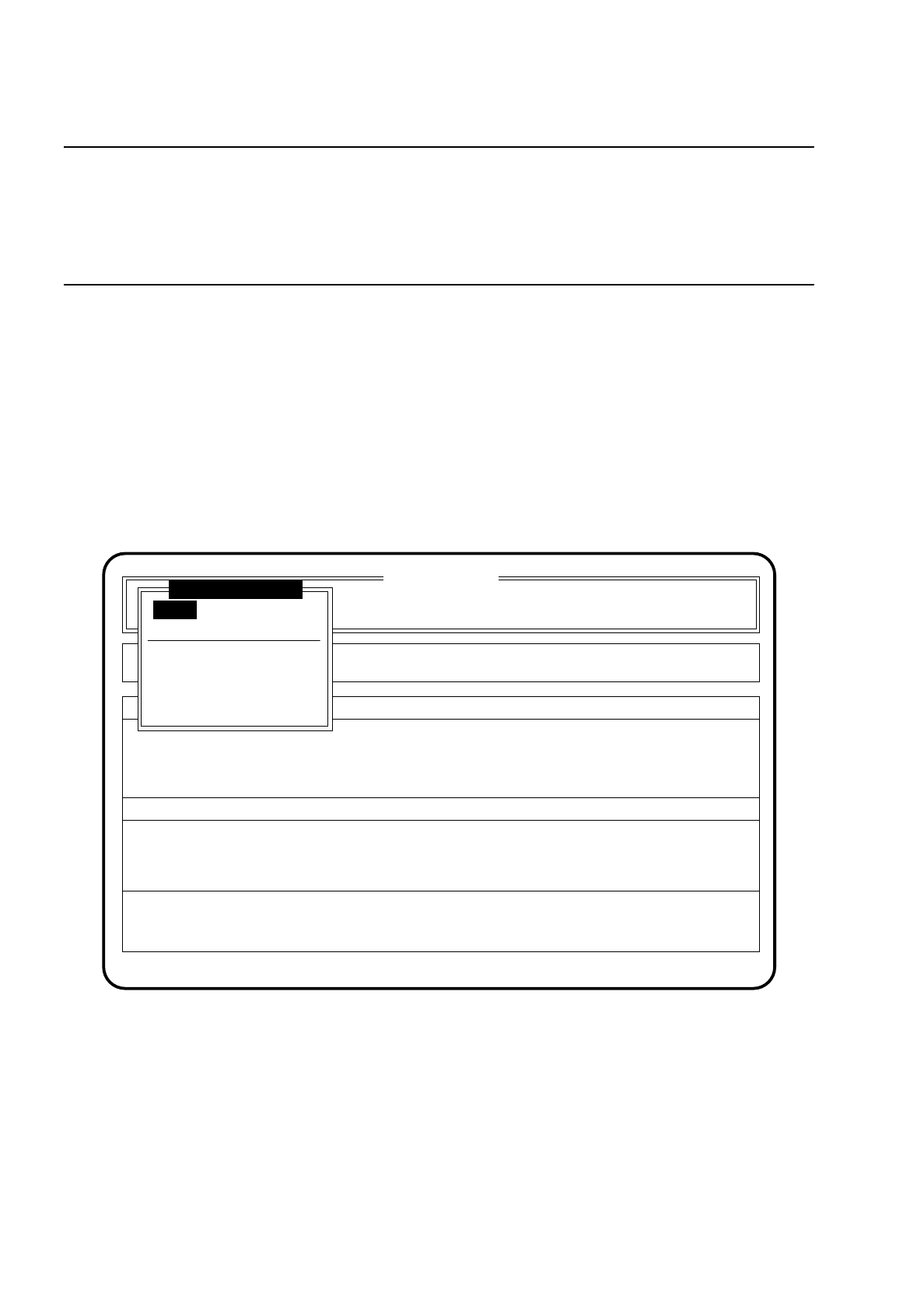
5.4.2 Menu "Component Feeding"
●
In the main menu use the
cursor keys
to select the menu item "Component feeding" . The menu "Compo-
nent feeding" is displayed on the screen.
●
Press the
Esc key
to return to the main menu.
●
If you wish to make any inputs (eg setting tracks to full), use the
cursor keys
to select a menu item and
press the
Return key
.
Fig. 5.4.1
5.4.3 Function "Fill all"
After entering the
line engineer password
the function "Fill all" is shown in the menu "Component feeding".
After selecting this function using the
cursor keys
and calling using the
Return key
, all empty tracks are set to
full and the relevant track errors cancelled. To enable this function to be performed, the refill test in the
machine options menu must be disabled (see Section 5.3.1).
SI 80 V 9.x
Cluster:
BE - Zuführung
Neuer Nutzen
Display errors
Confirm errors
Machine options Single functions
Error
State
Action
:
:
:
Softwareoptionen
Masch.Fehler anz.
Spurfehler anz.
Refill
Location 1
Location 2
Location 3
Location 4
Component feeding
Fill all
Fill empty tracks separately and continue