00194614-08 Trainingsdoku. SG X-Serie_X4i SW70x (AL2)_EN.pdf - 第498页
MTC2 Downloading Parameter Sets Masterdrives Student Guide SIPLACE X-Serie and X4I SW70x (AL2) 498 ► Select , to return to the parameter n umbers. You will see P918 . ► Step with , until you reach the number P060 . Now y…
MTC2
Masterdrives Setting the CAN bus address at the master drive PMU
497 Student Guide SIPLACE X-Serie and X4I SW70x (AL2)
These brief instructions show how to enter the address for the Masterdrive of the lifting axis for tower 1.
For more detailed information, see the chapter "Parameterization" in the user manual for "SIMOVERT
MASTERDRIVES".
The following addresses are provided for the lifting and feed axes:
► Select , to go to the parameter numbers.
► Step with , until you reach the seven segment number P060 . This is the menu selection.
► Select . A number will appear on the display. This is the Parameter menu.
► Step with , until you reach the number 4 . ("4" means "module configuration").
► Select . You will see 004 on the display. This is the status indicator for Module
configuration.
► Select , to go to the parameter numbers. You will see P060.
► Step with , until you reach the seven segment number P918 . This is the parameter number for
the bus address.
► Select , to go to the parameter index. You will see 001 , which is index 1. (an index is always
indicated by a small line).
► Select , to go to the parameter value. You will see 1 . This is the address of the lifting axis for
tower 1.
NOTICE
For setting the CAN Bus address you could use the software "Drive Monitor". For manual
adjustment of the CAN bus address, see "13.3 MTC2 Calibration and Settings" [ ➙ 464].
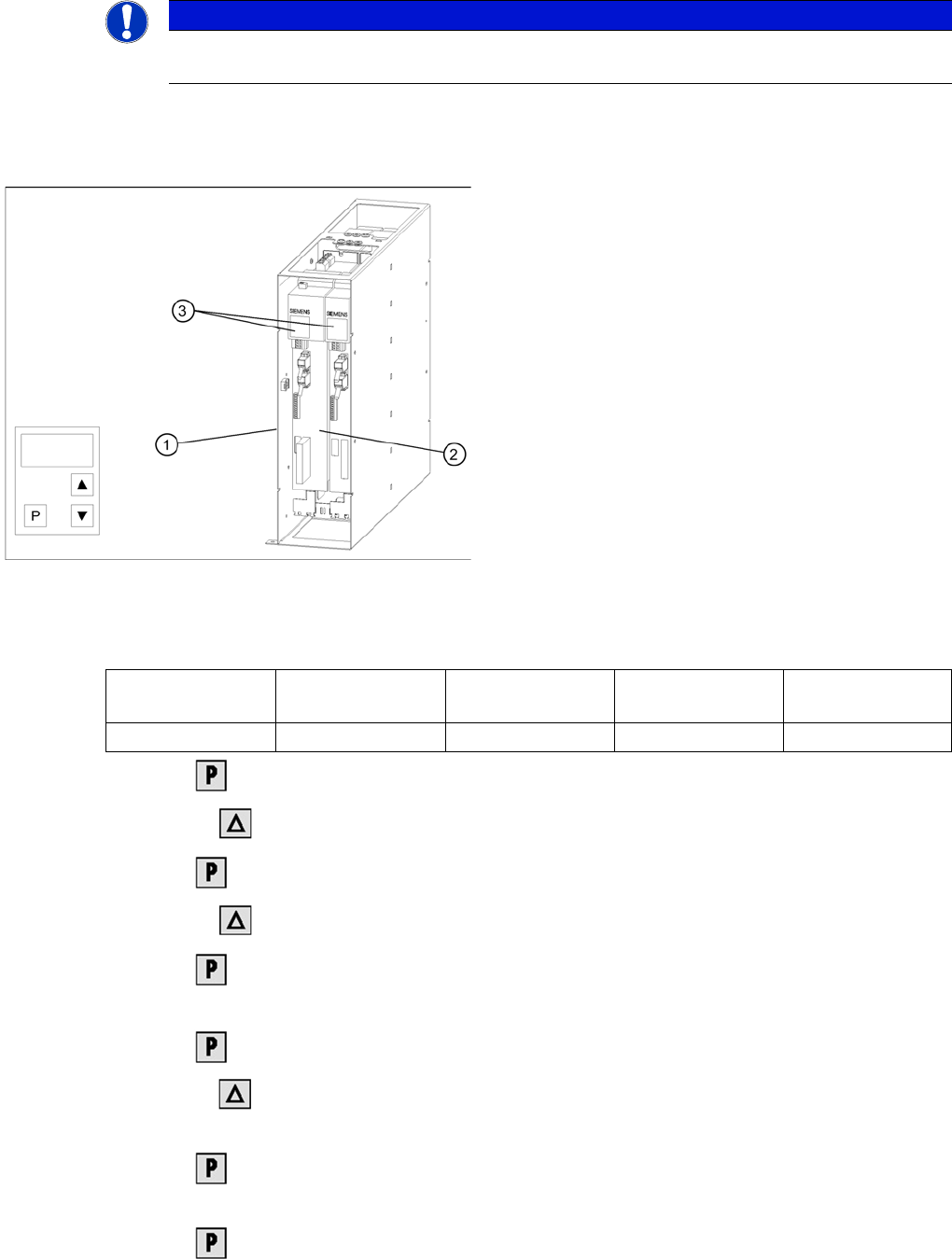
Masterdrives of the lifting and feed axes (shown here for
tower 1)
Legend:
1. Masterdrive of the lifting axis for tower 1
2. Masterdrive of the feed axis for tower 1
3. Masterdrive of the lifting axis for tower 2
4. Masterdrive of the feed axis for tower 2
5. Control panels
Lifting axis 1
(PMU 1)
Feed axis 1
(PMU 2)
Lifting axis 2
(PMU 3)
Feed axis 2
(PMU 4)
Address 1 2 3 4
MTC2
Downloading Parameter Sets Masterdrives
Student Guide SIPLACE X-Serie and X4I SW70x (AL2) 498
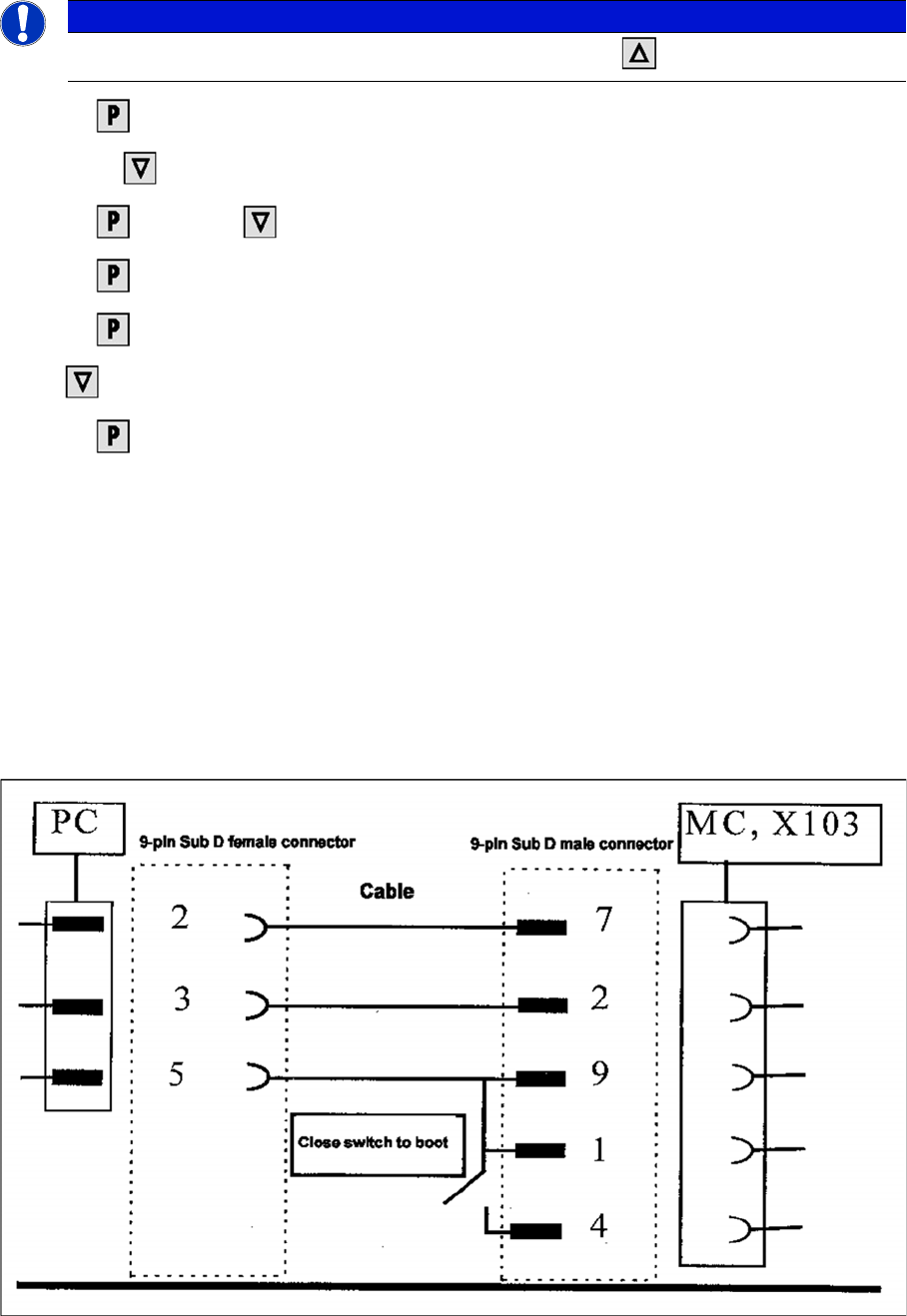
► Select , to return to the parameter numbers. You will see P918.
► Step with , until you reach the number P060 . Now you are back in the menu selection.
► Select and set with 1 . You will be taken back to the Parameter menu .
► Select . You will see 009.
► Select . You will see P60.
► Set r000 .
► Select . The initial state will be restored.
Downloading Parameter Sets
13.4.5 Downloading Parameter Sets
Requirem ents
13.4.5.1 Requirements
▪ CD ROM Drive Monitor
▪ Cables for laptop and master drives (03021720-01)
▪ Parameter set for lifting axis Tower 1 and Tower 2
▪ Parameter set for feed axis Tower 1 and Tower 2
▪ Simovert Masterdrive for the Lifting axis (00354979-01)
▪ Simovert Masterdrive for the Feed axis (00354980-01)
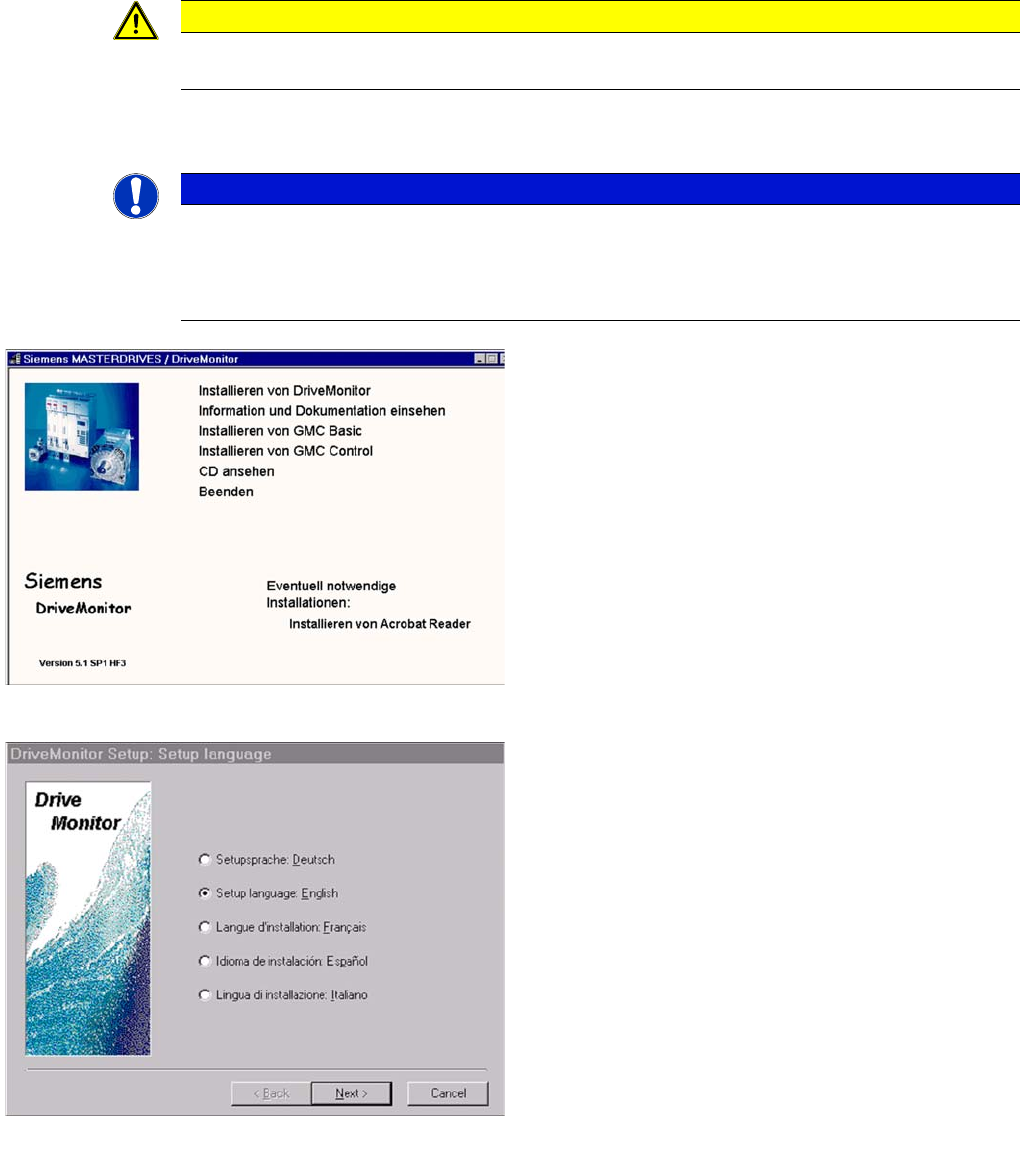
Cable configuration for the connection between the laptop and the master drive
NOTICE
For the PMU 2 (feed axis 1) setting, you will need to step with until you reach 2 .
MTC2
Masterdrives Downloading Parameter Sets
499 Student Guide SIPLACE X-Serie and X4I SW70x (AL2)
Installati on Drive Mon itor
13.4.5.2 Installation Drive Monitor
CAUTION
Do not forget the jumper between pin 9 and 1. The switch is not necessary for downloading the
parameter sets.
NOTICE
The Drive Monitor software can also be used for the MTC1. The softwareversion on the
MTC 1 is 1.5.
Installation can only be carried out with administrator rights.
Prior to installation, it may be necessary to create a directory with the name Parameter sets .
Installation Drive Monitor
► When you insert the CD-ROM , the installation
window will be automatically opened
or start the install.bat file from the Drive Monitor
folder.
► Installation Drive Monitor .
► After installation has been completed successfully, a
shortcut appears on the desktop.
select language
► Select language (D, E, F, I, S)
► Select Next.
► Select Next.
► Agree to the software license with YES .