00194614-08 Trainingsdoku. SG X-Serie_X4i SW70x (AL2)_EN.pdf - 第499页
MTC2 Masterdrives Downloading Parameter Sets 499 Student Guide SIPLACE X-Serie and X4I SW70x (AL2) Installati on Drive Mon itor 13.4.5.2 Installation Drive Monitor CAUTION Do not forget the jumper between pin 9 and 1. Th…
MTC2
Downloading Parameter Sets Masterdrives
Student Guide SIPLACE X-Serie and X4I SW70x (AL2) 498
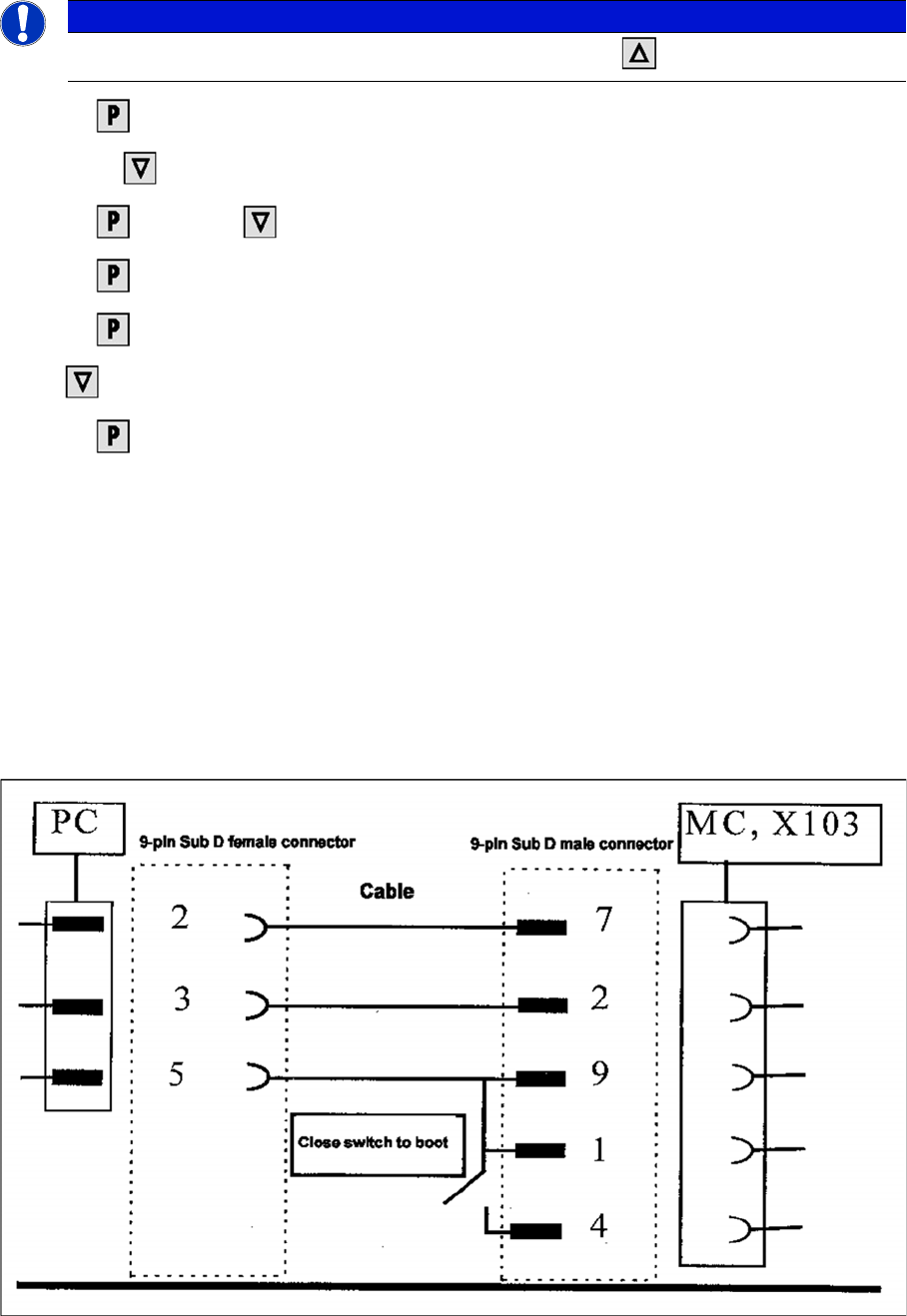
► Select , to return to the parameter numbers. You will see P918.
► Step with , until you reach the number P060 . Now you are back in the menu selection.
► Select and set with 1 . You will be taken back to the Parameter menu .
► Select . You will see 009.
► Select . You will see P60.
► Set r000 .
► Select . The initial state will be restored.
Downloading Parameter Sets
13.4.5 Downloading Parameter Sets
Requirem ents
13.4.5.1 Requirements
▪ CD ROM Drive Monitor
▪ Cables for laptop and master drives (03021720-01)
▪ Parameter set for lifting axis Tower 1 and Tower 2
▪ Parameter set for feed axis Tower 1 and Tower 2
▪ Simovert Masterdrive for the Lifting axis (00354979-01)
▪ Simovert Masterdrive for the Feed axis (00354980-01)
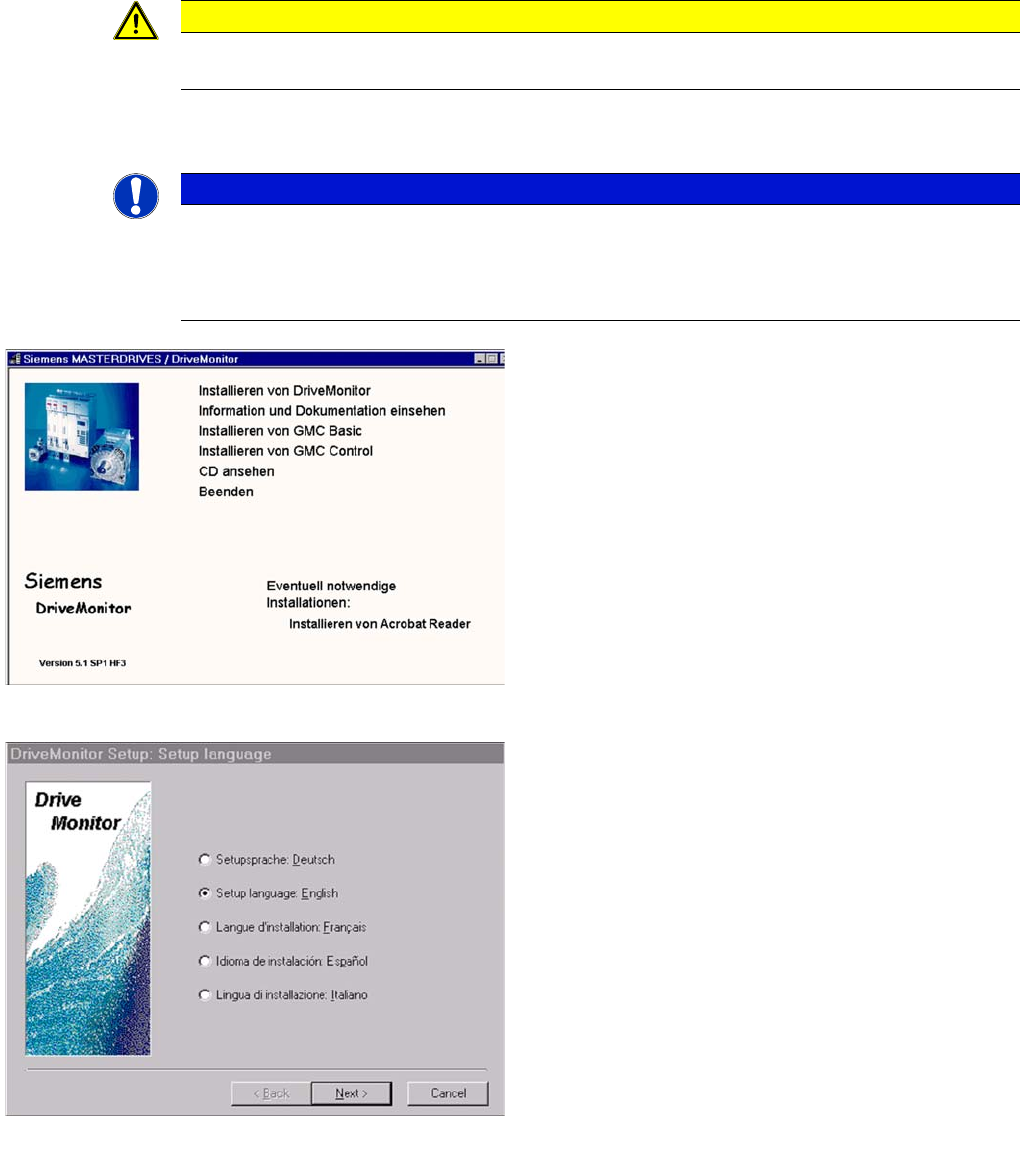
Cable configuration for the connection between the laptop and the master drive
NOTICE
For the PMU 2 (feed axis 1) setting, you will need to step with until you reach 2 .
MTC2
Masterdrives Downloading Parameter Sets
499 Student Guide SIPLACE X-Serie and X4I SW70x (AL2)
Installati on Drive Mon itor
13.4.5.2 Installation Drive Monitor
CAUTION
Do not forget the jumper between pin 9 and 1. The switch is not necessary for downloading the
parameter sets.
NOTICE
The Drive Monitor software can also be used for the MTC1. The softwareversion on the
MTC 1 is 1.5.
Installation can only be carried out with administrator rights.
Prior to installation, it may be necessary to create a directory with the name Parameter sets .
Installation Drive Monitor
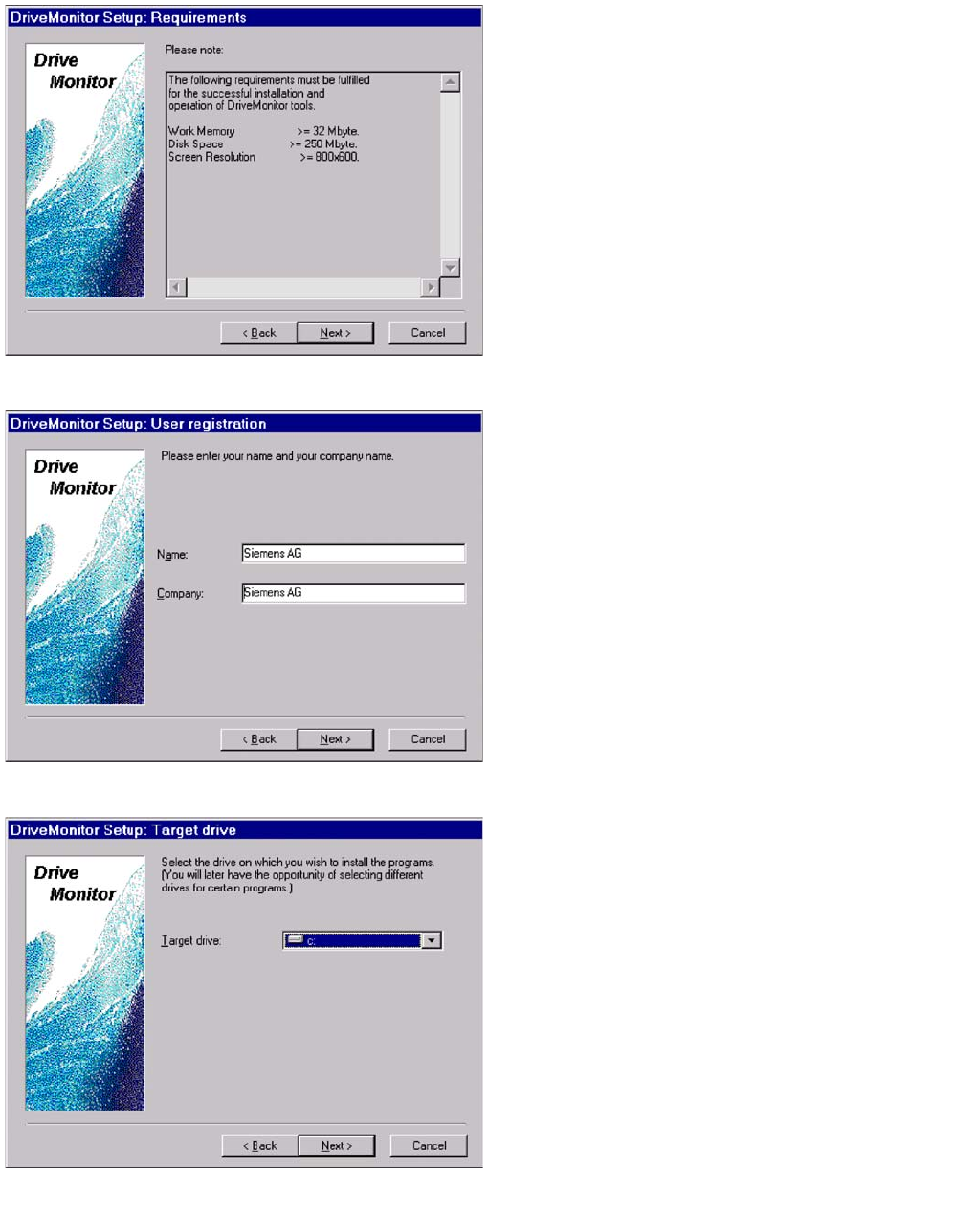
► When you insert the CD-ROM , the installation
window will be automatically opened
or start the install.bat file from the Drive Monitor
folder.
► Installation Drive Monitor .
► After installation has been completed successfully, a
shortcut appears on the desktop.
select language
► Select language (D, E, F, I, S)
► Select Next.
► Select Next.
► Agree to the software license with YES .
MTC2
Downloading Parameter Sets Masterdrives
Student Guide SIPLACE X-Serie and X4I SW70x (AL2) 500
Computer requirements
► Select Next.
User registration
► Select Next.
Select the target drive, on which you wish to install the
program.
► Select Next.