00194614-08 Trainingsdoku. SG X-Serie_X4i SW70x (AL2)_EN.pdf - 第85页
Communication and Control Networking Address Checking the Network Addresses 85 Student Guide SIPLACE X-Serie and X4I SW70x (AL2) ▪ S e l e c t TCP/IP and --> Select Properties (see below) Network card 2 "connecti…
Communication and Control
Networking Overview Networking Address
Student Guide SIPLACE X-Serie and X4I SW70x (AL2) 84
Networking O verview
4.1.1 Networking Overview
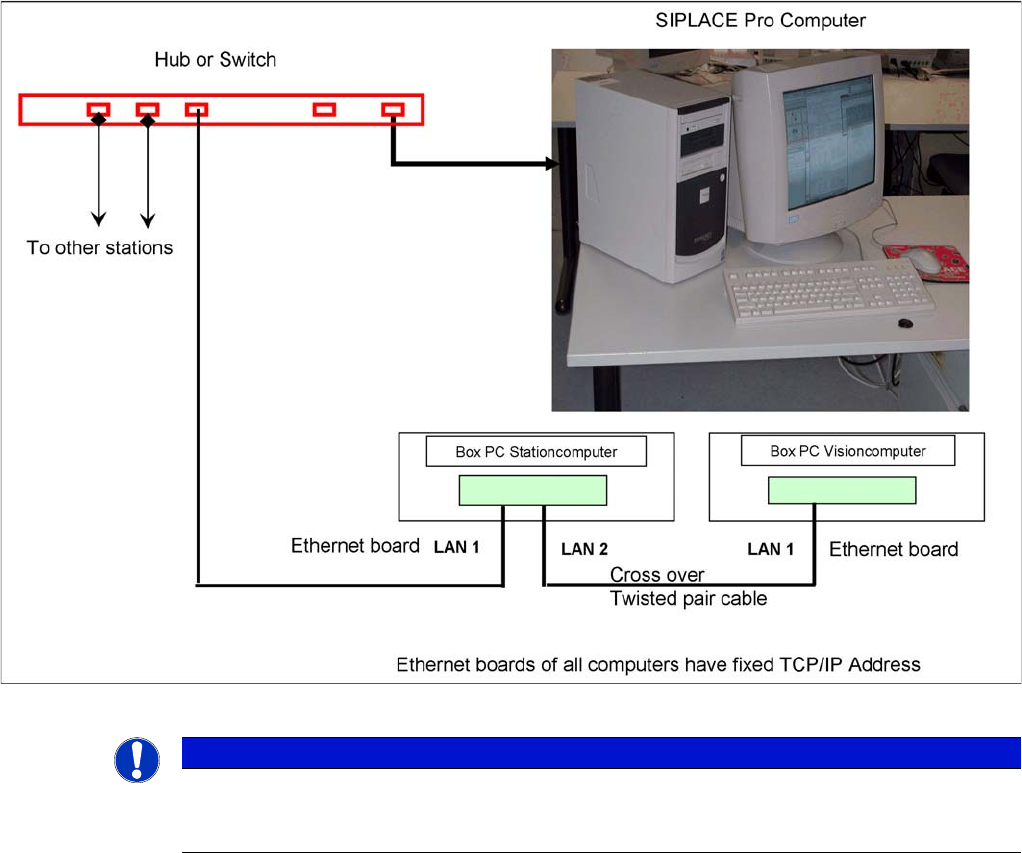
Overview of communication with the box PC
The fixed TCP/IP addresses of the computers may not be changed and are the same at all
machines.
▪ Overview network addresses:
Station computer: 192.168.255.249
Vision computer: 192.168.255.252
Networking Address
4.2 Networking Address
Checking the Network Addr esses
4.2.1 Checking the Network Addresses
Station Computer Box PC
4.2.1.1 Station Computer Box PC
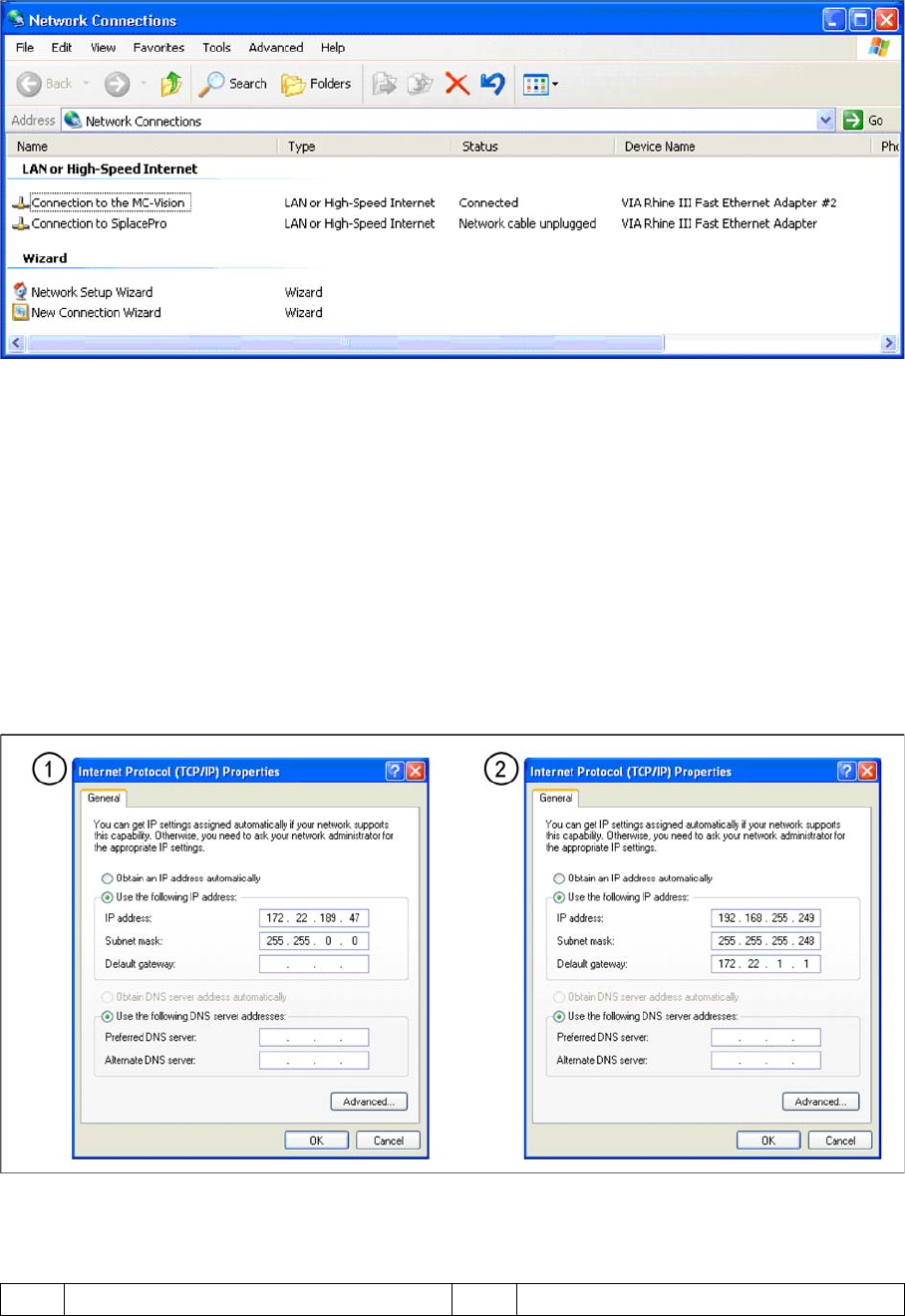
The station computer has two network cards, which can be directly set in Windows:
Windows XP main view:
▪ Start --> Settings --> Network connections
▪ Select one of the two network cards (see below)
▪ Right-click Select Properties with the mouse.
NOTICE
With the SW 70x.xx system, the station computer software runs on one box PC and the Vision
software on a second box PC.
This means that there is no longer an independent machine controller.
Communication and Control
Networking Address Checking the Network Addresses
85 Student Guide SIPLACE X-Serie and X4I SW70x (AL2)
▪ Select TCP/IP and --> Select Properties (see below)
Network card 2 "connection to SIPLACE Pro":
The network connection between the station computer and SIPLACE Pro is realized via the LAN 2
connection of the dual LAN unit in the station computer. The network address is not fixed and can be
defined individually for each customer.
▪ Example of a LAN IP address: 172.22.208.181
This TCP/IP ADDRESS must be typed in, during the configuration of the station in SIPLACE Pro.
Network card 1 "connection to the MC Vision":
The internal network address for the station computer is a fixed local area network address, which must
not be changed.
▪ Station computer: 192.168.255.249
Network cards in the station computer
Legend
1 External IP address for SC 2 Internal IP address for SC
Communication and Control
Checking the Network Addresses Networking Address
Student Guide SIPLACE X-Serie and X4I SW70x (AL2) 86
Vision Computer Box PC
4.2.1.2 Vision Computer Box PC
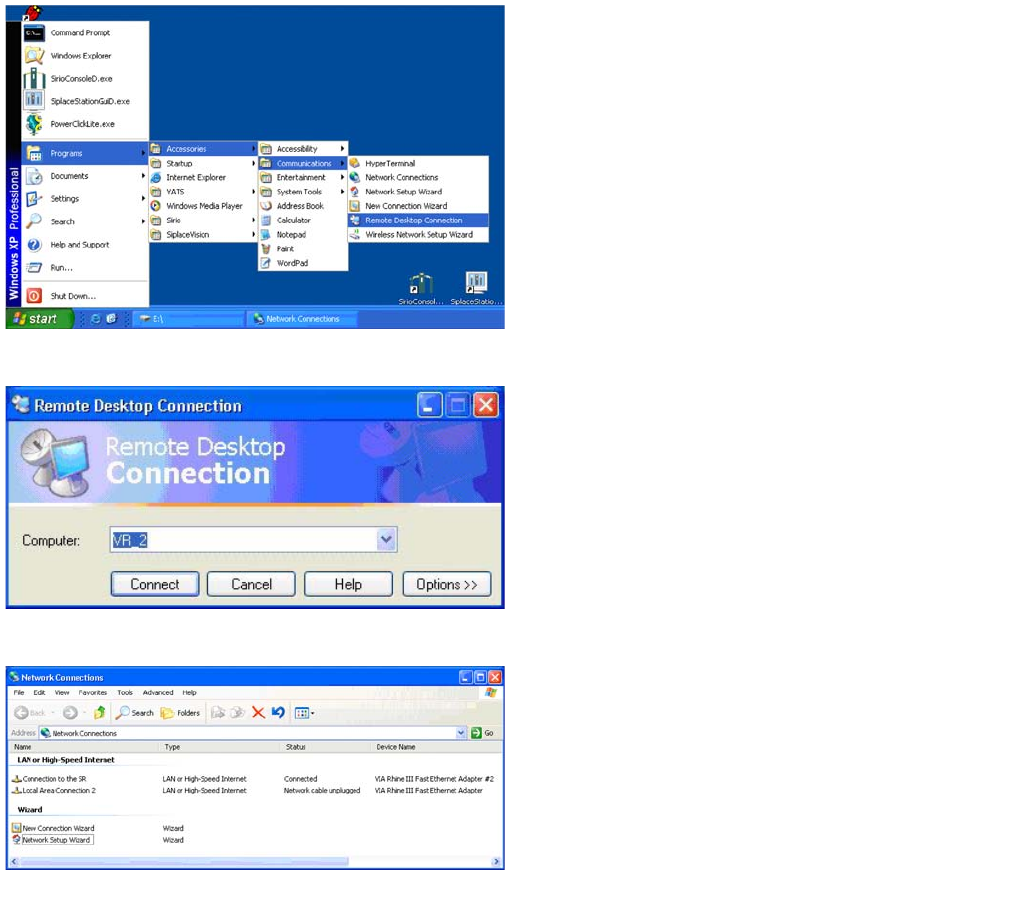
Remote desktop connection
The Vision computer has two network cards, which can
be directly set in Windows:
Access to the Vision computer is possible via a Remote
desktop connection .
► For this, select Start – Programs –
Accessories – Communications – Remote
Desktop Connection.
Remote desktop connection
► Enter the computer name VR_2 and select Connect.
You will now see the Windows XP basic view for the
Vision computer.
► Select Start --> Settings --> Network
connections.
Network connections
► Right-click with the mouse on the network card
Connection to the SR and select Select
Properties .