CollectPS-LogsFiles_983-5044-001B
Data I/O Corporation • Redmond, WA USA 98052 1 Fax (425 ) 867 - 6972 • e - mail support@dataio.co m • USA Tel (800) 33 2 - 8246 • Tel +1 - 425 - 881 - 6444 Figure 1 : The Collect Logs button starts the Colle ct PS Logs a…
Data I/O Corporation • Redmond, WA USA 98052 1
Fax (425) 867-6972 • e-mail support@dataio.com • USA Tel (800) 332-8246 • Tel +1-425-881-6444
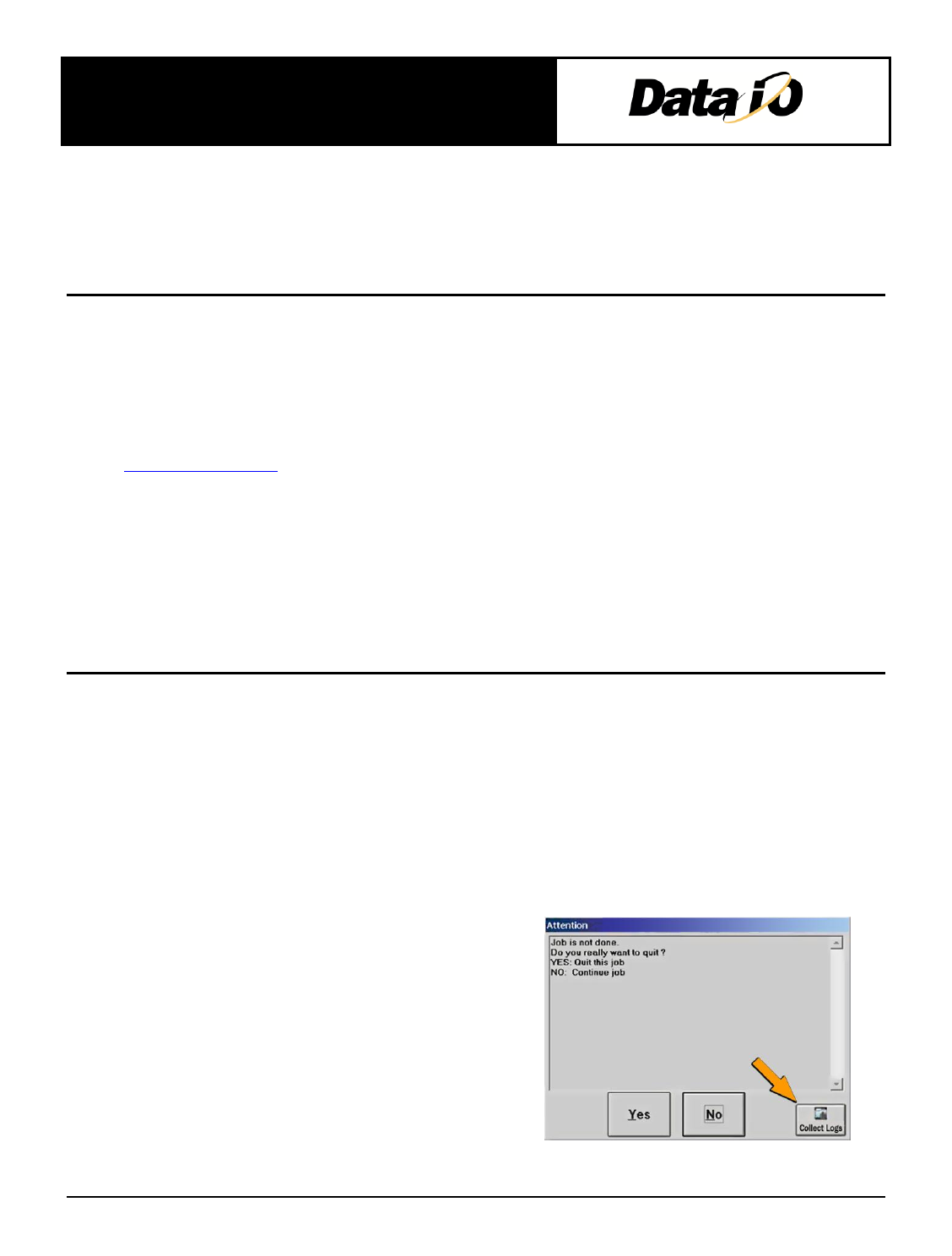
Figure 1: The Collect Logs button starts
the Collect PS Logs appliction.
Customer Service Letter
To: Collect PS Logs Customers
Date: Nov-11
Subject: Introduction to Collect PS Logs
Document #: 983-5044-001B
Product: Collect PS Logs for PS Systems
Dear Customer,
Collect PS Logs is a software utility that collects all log files from the PS Machine. It creates a ZIP file
containing all the information that Data I/O, or trained service technicians, need to evaluate your PS Machine
status. Collect PS Logs can be installed by Data I/O or a trained service technician. For more information
e-mail support@dataio.com.
NOTE: Some log files have a limited life; that is, they get written over by newer files after a specific time period. For
best results capturing information, the Collect PS Logs application must be used very soon after a
problem has been detected.
How to use Collect PS Logs
When you experience a programmer related problem, you should:
1. Force the error to re-appear by running a job, or performing the same steps that led to the trouble.
2. Close all Data I/O software like TaskLink, AH500. (Close AH500 the usual way: click Finish to stop a
job, Exit the Run Window, Exit the program.)
3. Start Collect PS Logs.
For all other problems you can run the Collect PS Logs application anytime after the problem has been seen,
even when the PS Handler SW (AH500) is still active.
Starting Collect PS Logs
There are two methods to start the Collect PS Logs
application.
1. The AH500 Software displays a button in each
message box that allows you to start the Collect PS
Logs application in AUTO Mode. AUTO Mode
uses default settings.
2. The other method is to navigate to the Start menu
and locate Collect PS Logs. By default the installer
will create an icon in Start > All Programs > AH500
> Collect PS Logs.
Data I/O Corporation • Redmond, WA USA 98052 2
Fax (425) 867-6972 • e-mail support@dataio.com • USA Tel (800) 332-8246 • Tel +1-425-881-6444
Starting Up from the Start Menu
After starting Collect PS Logs from the Start menu, the main window appears which allows you to select
items you wish to collect.
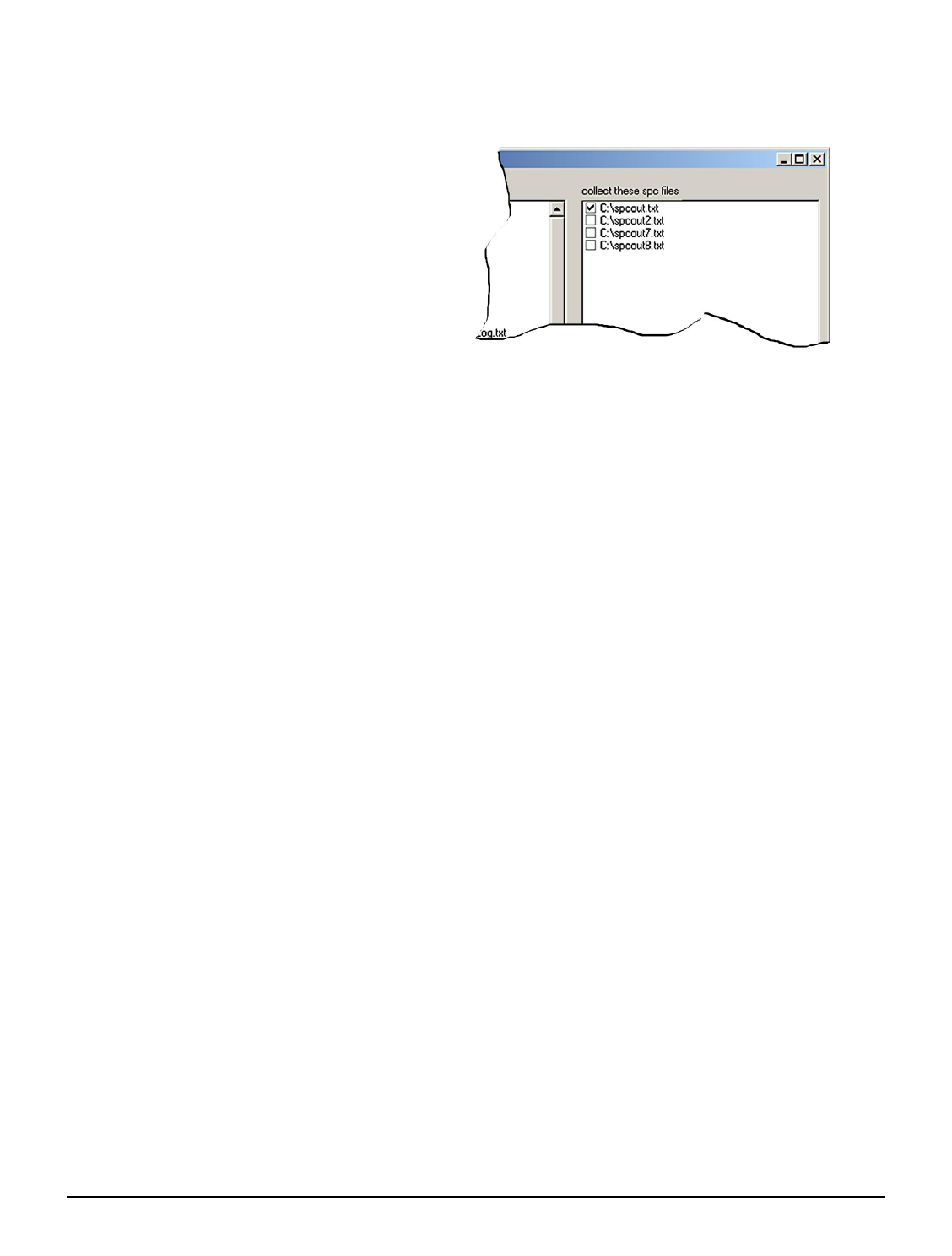
1. (Optional) Check additional SPC files if
the error rarely appears or appeared a
long time ago. Ref: Figure 2.
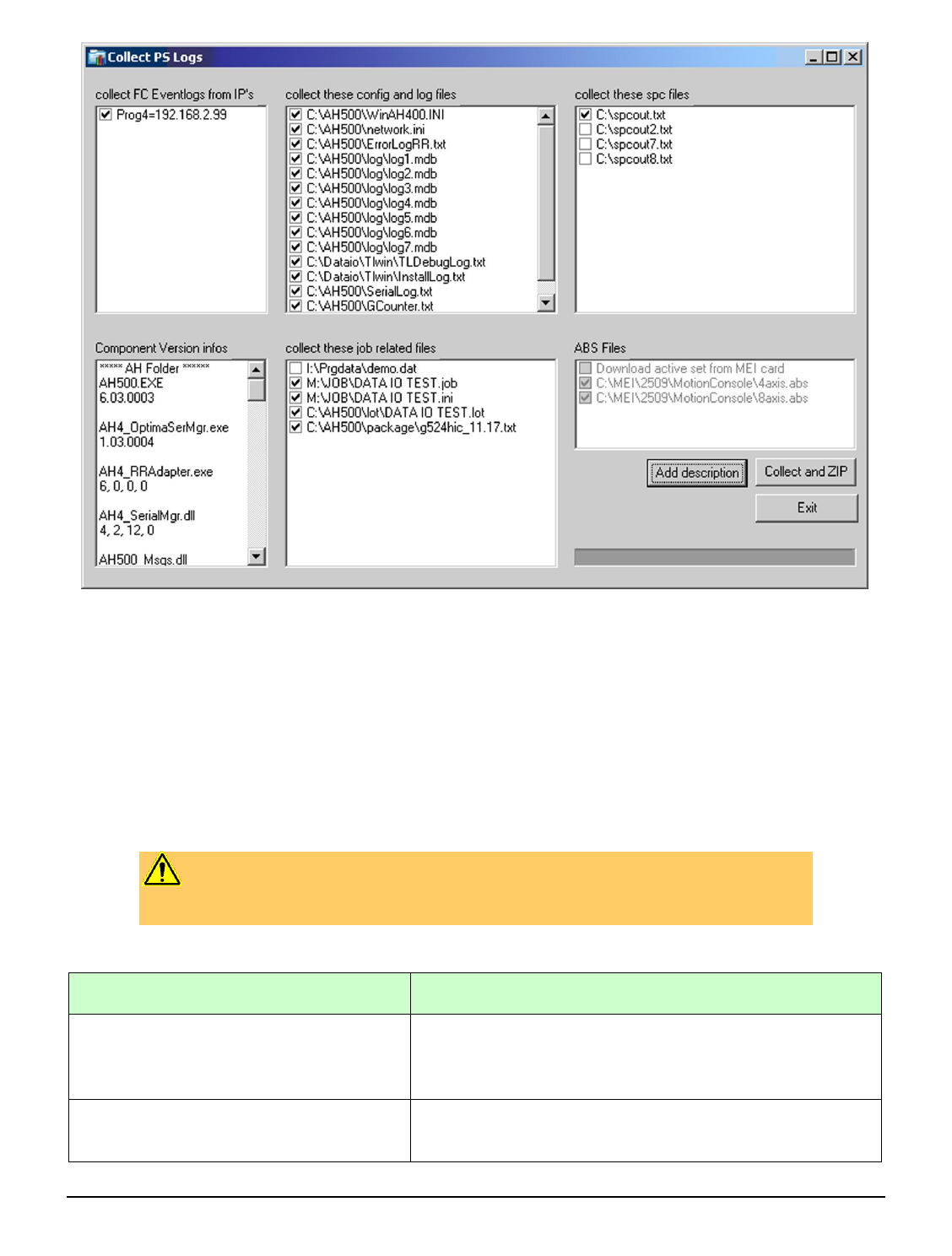
NOTE: The ABS files (lower right corner in
Figure 3) are collected only when the
AH500 is not active. This ABS file field is
disabled (dimmed as shown in figure 3)
when an active handler is detected.
2. (Optional) To enter a text description to
the Zip file:
a. Click Add description.
b. Type a description into the field available. In addition to what you type, the description will
include the Date and Time the log was captured and the serial number information from the
winah400.ini file.
NOTE: If the AH500 handler SW is detected running, the application adds a screen-capture of the AH500 to the Zip
file.
3. Click Collect and ZIP.
A ZIP file is created in the MyDocuments folder. The ZIP file remains there even after exiting the
Collect PS Logs application. It is also copied to the Windows Clipboard.
4. Click OK to the message about pasting the ZIP file to another desired folder.
Starting in AUTO Mode
When starting Collect PS Logs from a Message box (AUTO Mode), only a progress screen is shown on the
lower left corner of the screen. (All defaults are used and no user action is required.)
Files Collected
Only files with checked boxes are collected. The Collect PS Logs Application automatically detects the name
of the last job run. It then identifies job-related files, including the data file used and serial number
configurations (if present). By default, the data file is not checked and therefore, will not be collected into the ZIP file.
See Figure 3 on the next page.
Figure 2: SPC Files are optional.
Data I/O Corporation • Redmond, WA USA 98052 3
Fax (425) 867-6972 • e-mail support@dataio.com • USA Tel (800) 332-8246 • Tel +1-425-881-6444
Command Line Support
When the command line parameter [auto] is passed to the application, no screen is displayed and all
defaults are used. A file with date/time stamp is created. The naming format is
LogFiles_DD_MM_YYYY_HH_MM_SS.zip ; for example: LogFiles_13_09_2010_16_20_07.zip.
Optionally, you can pass a second parameter [myfile.zip] as shown below which determines the zip file
name.
CAUTION: These command-line commands overwrite existing files (if they
exist) without warning.
Examples:
Code
Description
Collect_ps_logs auto myfile.zip
The application runs automatically and creates a myfile.zip
output file (where myfile.zip is the name you typed in the
command line).
Collect_ps_logs auto
The application runs automatically creating a date/time
stamped output file.
Figure 3: The Main Window lists job-related files in the lower center field. The data file is unchecked
by default. Command buttons are in the lower right corner.