TR7500_Series_Software_v29_En - 第103页
Test Research Inc. TR7500 Series User Guide – Software v.2.9.0 81 Figure 138 : Set Theta Data When Using Bo x Tool Select a [Theta] field and select an an g le to chan ge the data directly . Figure 139 : Edit Theta Ang l…
Test Research Inc.
80 TR7500 Series User Guide –Software v.2.9.0
[Delete] - Select a component on the component list first and press [Delete] to
delete it.
[View] - Select a component at component list first and press [View] . Then the
camera will move to the location of the component.
[TB Select] - Select whether the component is on top or bottom side.
[Arrowhead button] - Select a component first, then press up or down arrow to
move its sequence.
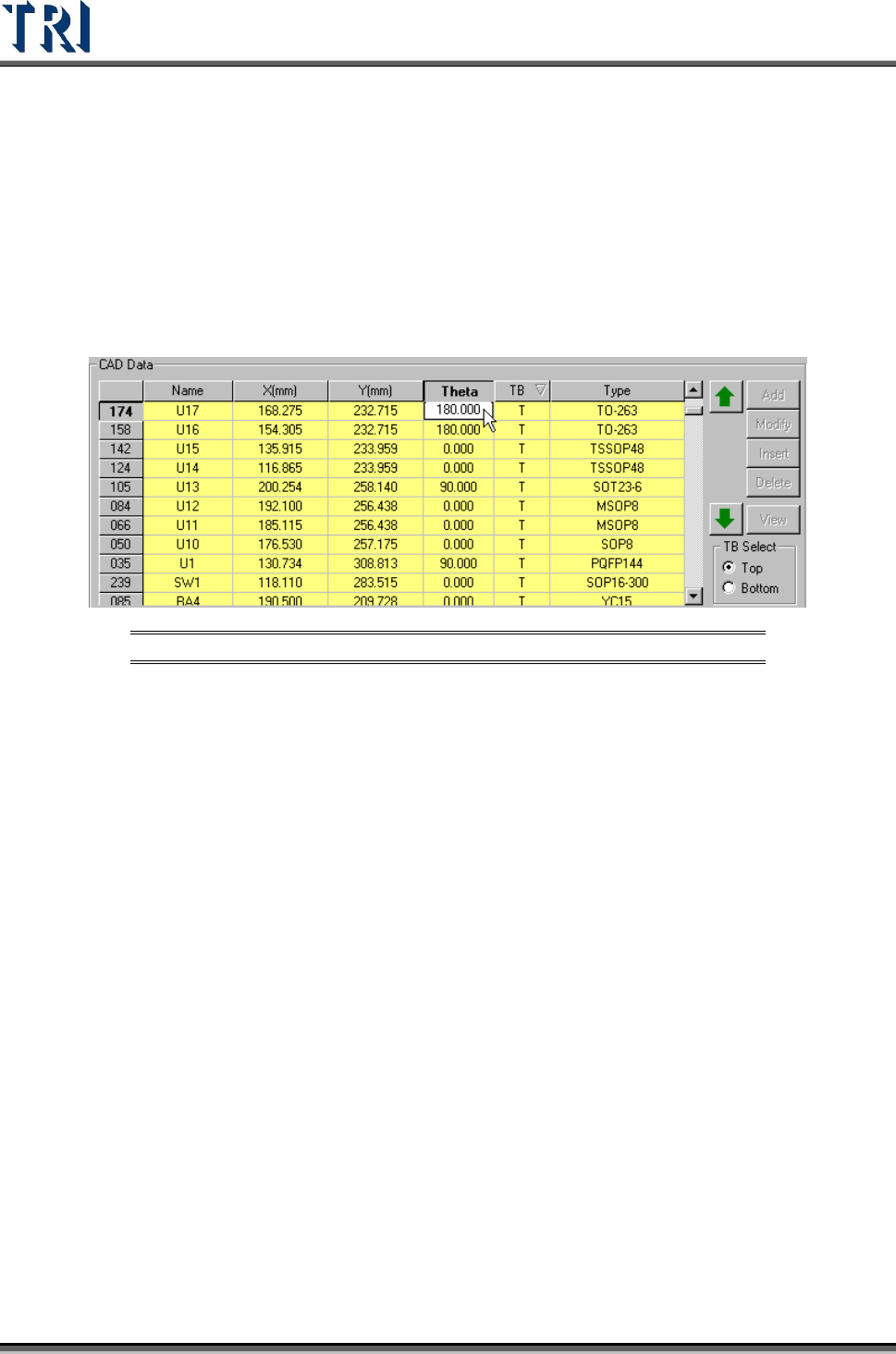
[CAD table] - Double click on a field and edit data directly.
Figure 137: Theta Data Field
(9) [Theta] - A tool to define the angle of components.
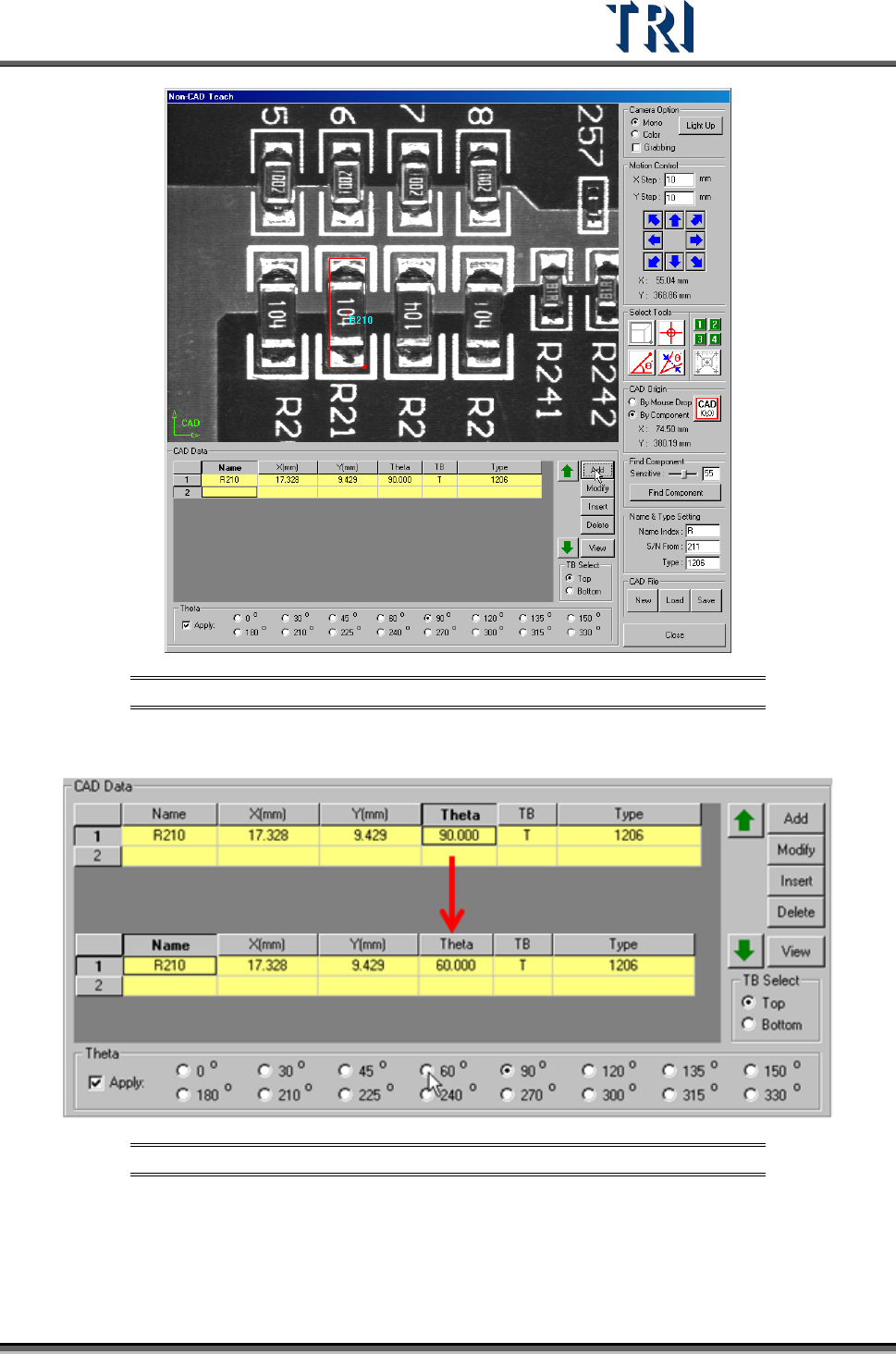
When using the box tool to create a component, check [Apply] and select an angle to add
[Theta] data at one time. If [Apply] is not checked, the default of [Theta] is zero.
Test Research Inc.
TR7500 Series User Guide –Software v.2.9.0 81
Figure 138: Set Theta Data When Using Box Tool
Select a [Theta] field and select an angle to change the data directly.
Figure 139: Edit Theta Angle Directly
Test Research Inc.
82 TR7500 Series User Guide –Software v.2.9.0
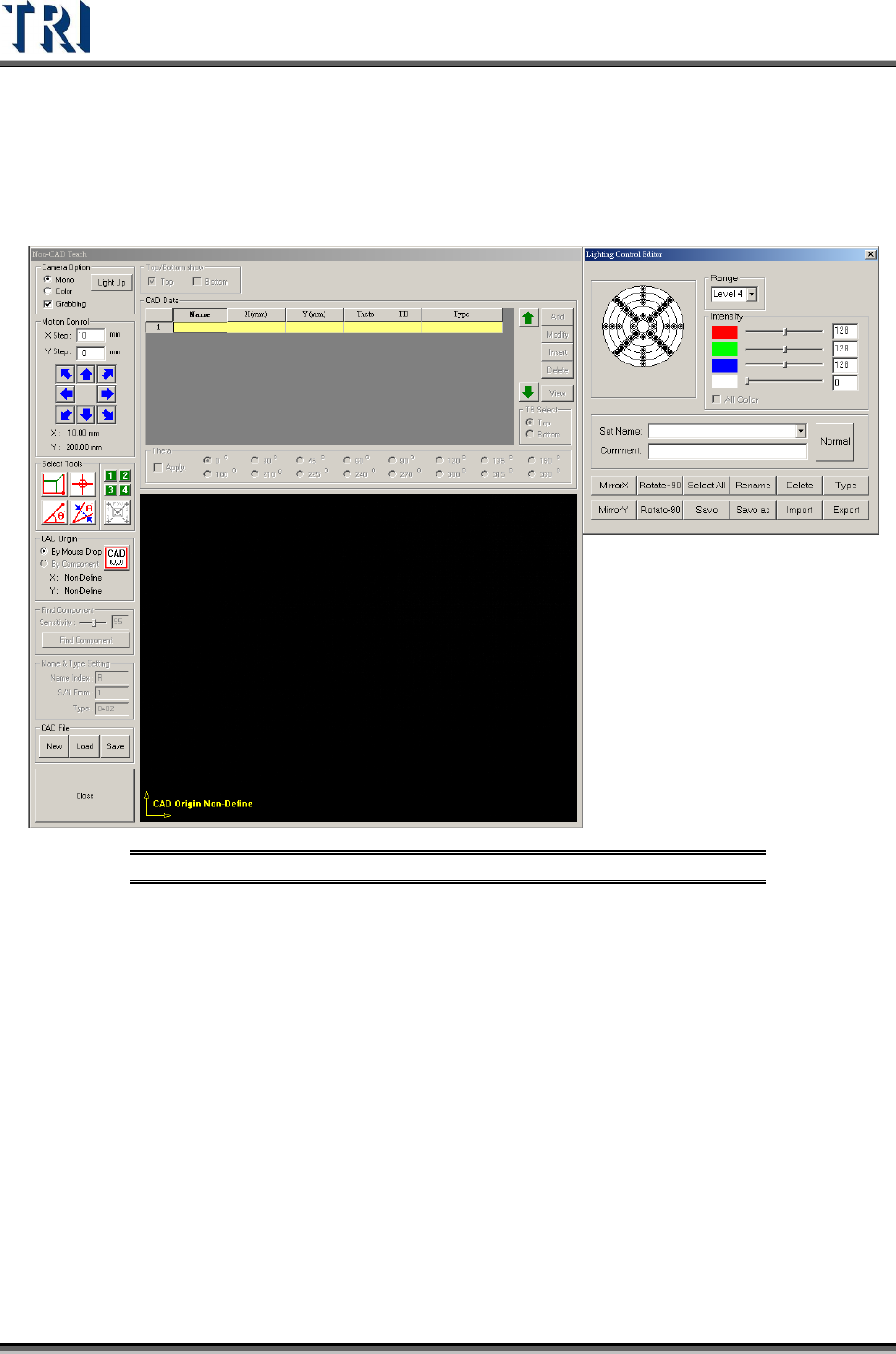
3.4.9 Non CAD Interface Update for v.2.4
In v.2.4, the interface has been changed to the following figure. All commands and functions
are the same as in previous versions unless otherwise noted.
Figure 140: Non-CAD Teach v.2.4 Interface
3.4.10 Multi Panel Alignment Setting
If it is necessary to inspect more than one panel at a time, this function can be
enabled. Under [Auto Mode], the system will inspect all panels in sequence then
send all panels out. Under [Confirm Mode], after finishing inspecting one panel, the
operator has to confirm the panel before the system will inspect the next panel. The
panels will be sent to exit after all they are all tested.
It is important to avoid the variation of gap between panels. If necessary, enlarge
the search range of the fiducial marks.
The detailed settings are shown in the following figure.