TR7500_Series_Software_v29_En - 第106页
Test Research Inc. 84 TR7500 Series User Guide – Software v.2.9.0 3.4.12 AOI Check Load the .AOI file that includes at least the f ive mandatory f ields, then the sy stem will compare the component inf ormation in t he .…
Test Research Inc.
TR7500 Series User Guide –Software v.2.9.0 83
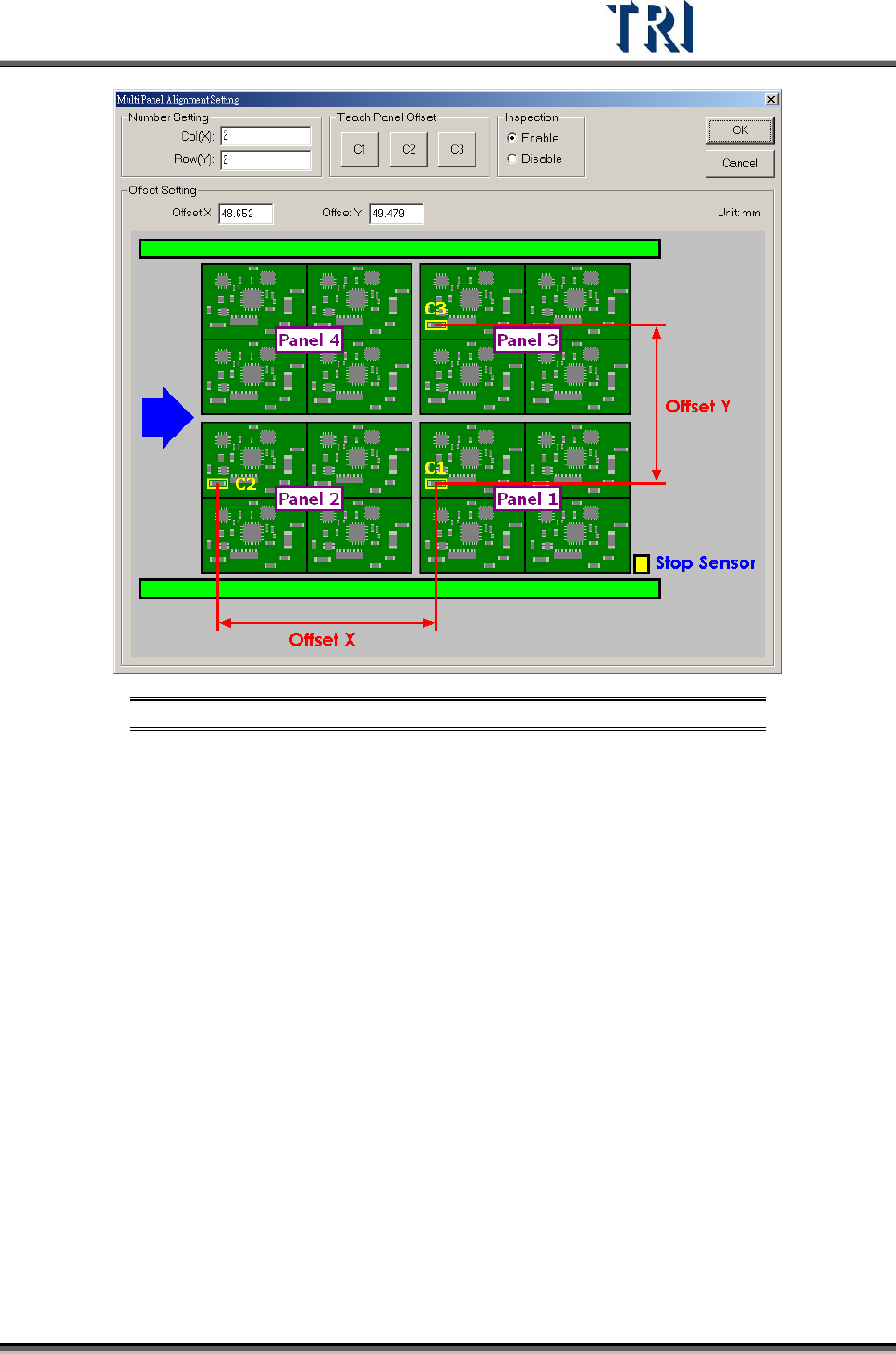
Figure 141: Multi-Panel Algorithm Setting
[Col(X)] – Set the number of columns of X-axis boards.
[Row(Y)] – Set the number of rows of Y-axis boards.
[Teach Panel Offset] – This function helps to calculate the [Offset X] and [Offset Y].
C1, C2 and C3 must be the same component. After clicking on [C1], a training
window is presented. Move the cross or box tool to get the C1 location then press
[OK] to finish finding C1. Then press [C2] and [C3] in sequence to find the position
of C2 and C3. When finishing, the system will calculate the value and input the
[Offset X] and [Offset Y] automatically.
[Inspection] – Selecting [Enable] will start this function.
[Offset Setting] – Input the Offset of X axis and Y axis directly instead of using the
teaching operation.
3.4.11 Placer Check
Load the .AOI file that includes the placer information, then the system will compare the
component information in the .PRE with the data in the .AOI file. System will replace the
placer information of the components in the .PRE file only.
Test Research Inc.
84 TR7500 Series User Guide –Software v.2.9.0
3.4.12 AOI Check
Load the .AOI file that includes at least the five mandatory fields, then the system will
compare the component information in the .PRE file with the data in the .AOI file. System will
add the components that are only listed in the .AOI file.
The new components have to be merged using the [Train] dialog first then capture the FOV
images again to do fine tuning.
Test Research Inc.
TR7500 Series User Guide –Software v.2.9.0 85
3.5 Procedure: Create a New CAD File
Click on [CAD File/New] to create a new file.
Figure 142: Select New CAD File
Move the camera and use the selection tool then press to set the origin.
Input data at [Name&Type Setting] field
Figure 143: Name & Type Setting Dialog
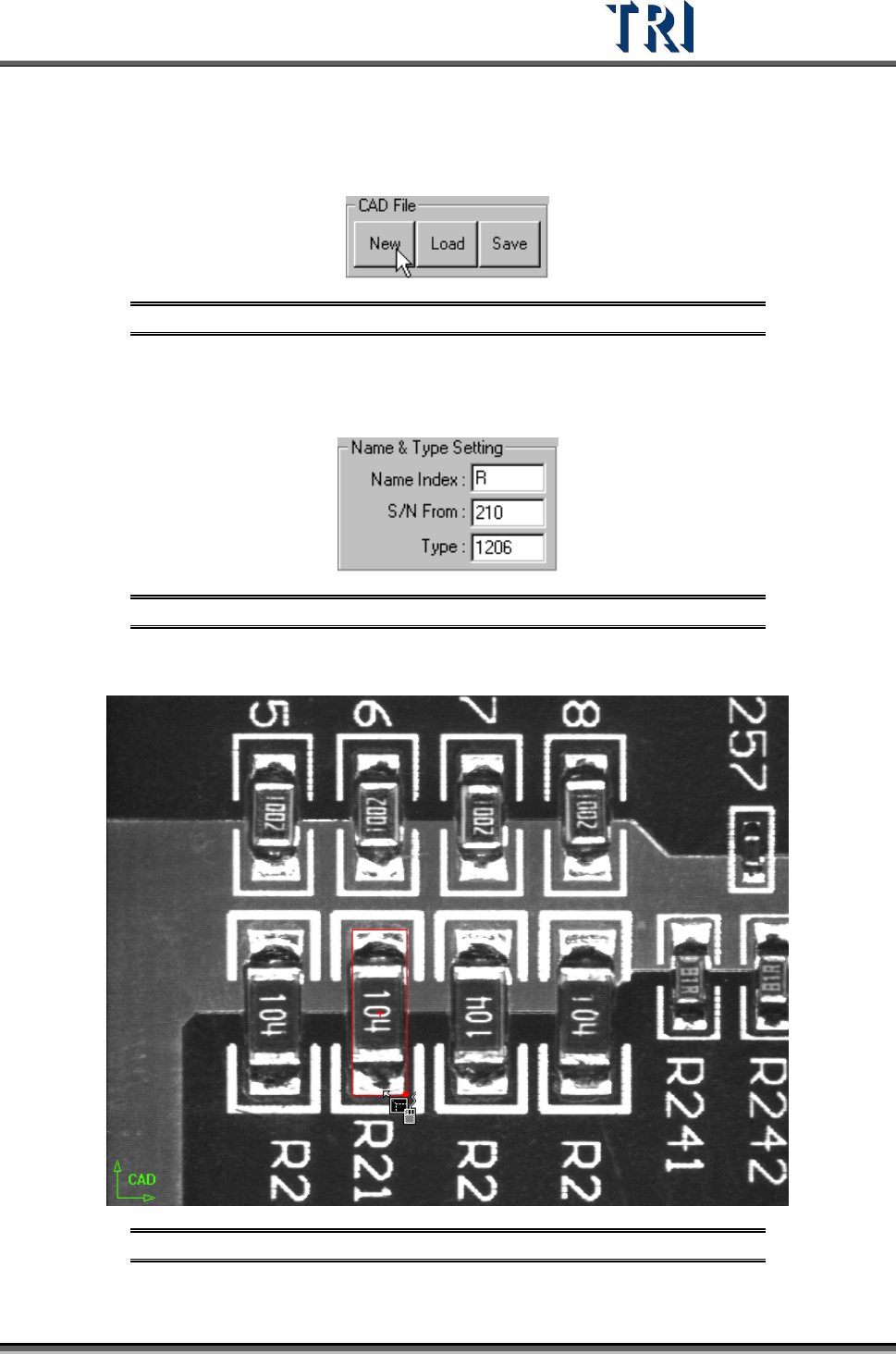
Move selection tools to the component center.
Figure 144: Use the Selection Tool
Check [Apply] and select an angle.