TR7500_Series_Software_v29_En - 第133页
Test Research Inc. TR7500 Series User Guide – Software v.2.9.0 111 Figure 181 : User Manager Dialog The User M anager can use this function to classify all users. Users have to input their name and password be f ore they…
Test Research Inc.
110 TR7500 Series User Guide –Software v.2.9.0
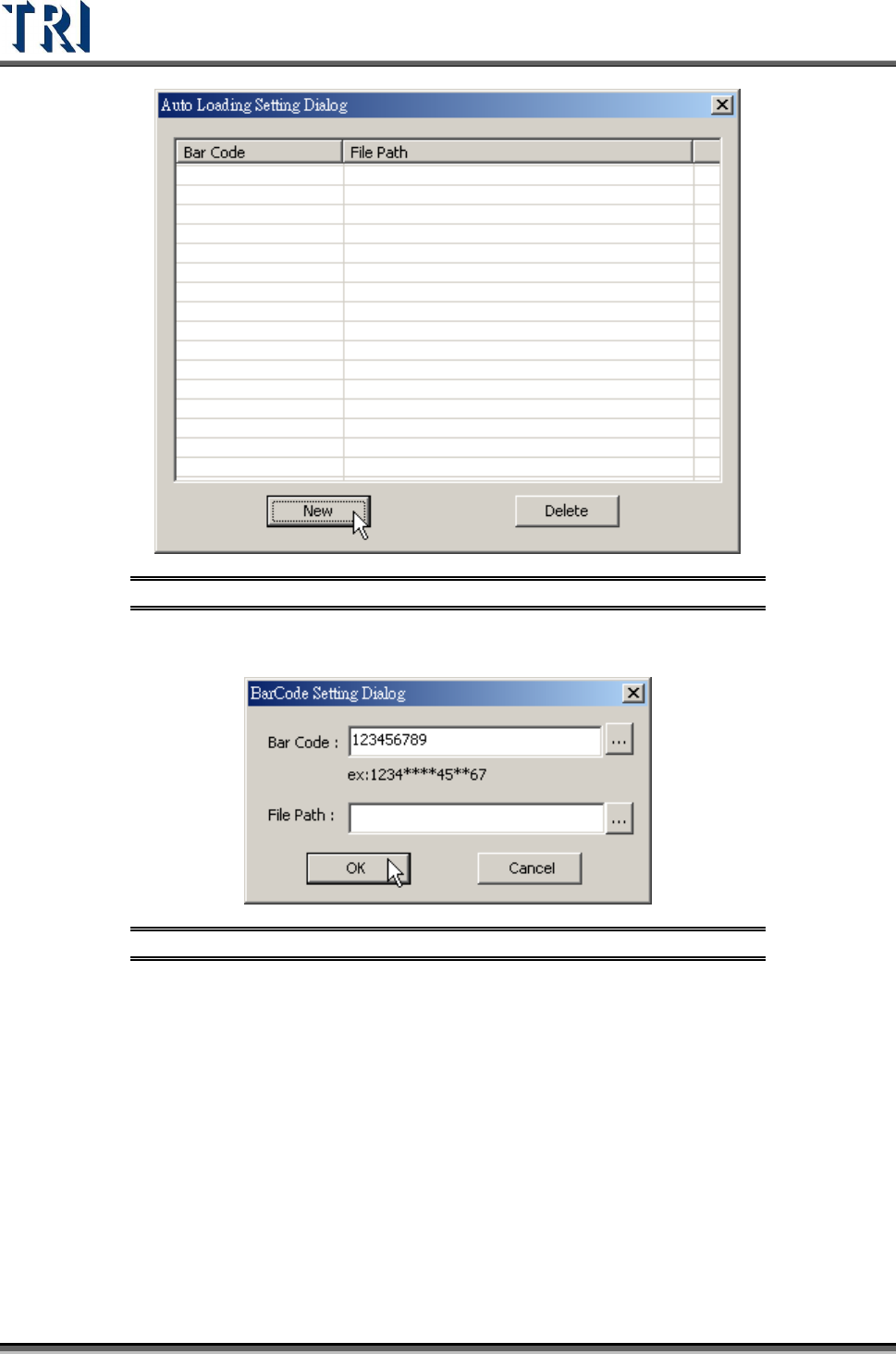
Figure 179: Auto-Loading Setting Dialog
Press [New] to add a new entry.
Figure 180: Auto-Load Barcode Setting Dialog
Input the barcode pattern in the [Barcode] field and specify the program path
according to this specific pattern. [*] means any number.
After [Enabled Auto Loading] is activated, the system will always ask for the barcode
when a user loads a program. If the barcode does not match the saved barcode
pattern, the system will require a file path. Users can use the browse function to
redirect the path of the program file.
3.10.23 User Manager
This function works only if there is a DWORD, [LoginFlag], and the value in registry is [1].
Test Research Inc.
TR7500 Series User Guide –Software v.2.9.0 111
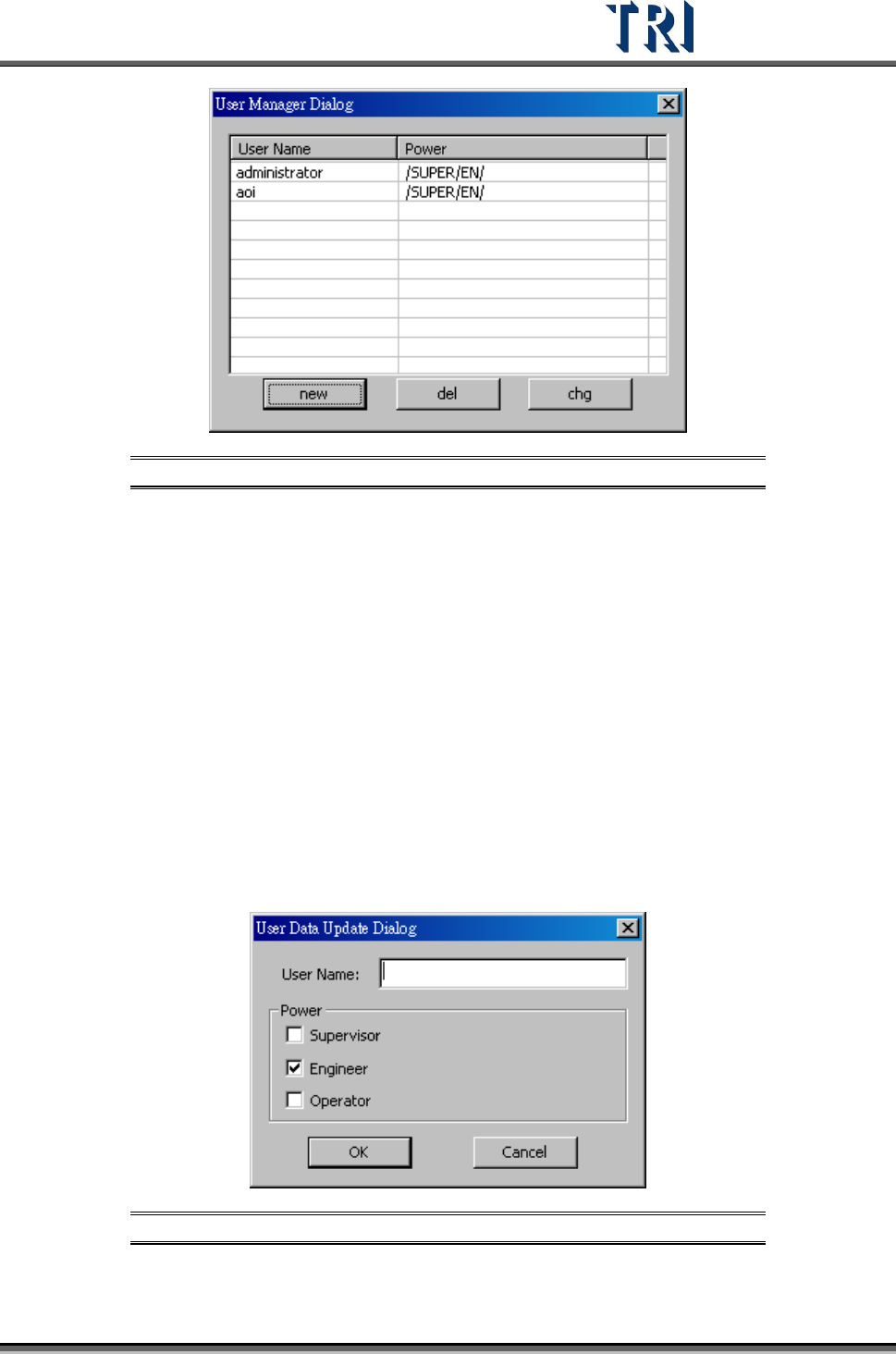
Figure 181: User Manager Dialog
The User Manager can use this function to classify all users. Users have to input their name
and password before they can enter the program. The time of login and logout will be
recorded in [login.txt] file under [C:\WINDOWS\system32].
The default user name is [administrator] and password is [1234]. Only the user with power of
Supervisor can use this function to Add, Delete or Modify other users.
3.10.23.1 New
Input [User Name] and select the power level for that user. Press [OK] to add a new user.
The password for a new user is [1234]. A new user can change this password by the
[Change Password] function after logging in. The explanation for each power level is below:
[Supervisor] – User can do perform all functions.
[Engineer] – User can perform all functions except [User Manager].
[Operator] – User can inspect only and cannot modify the project.
Figure 182: User Update Dialog
Test Research Inc.
112 TR7500 Series User Guide –Software v.2.9.0
3.10.23.2 Del
Select a user, and press [Del] to delete the user.
3.10.23.3 Chg
Select a user, and press [Chg] to modify the power of the user.
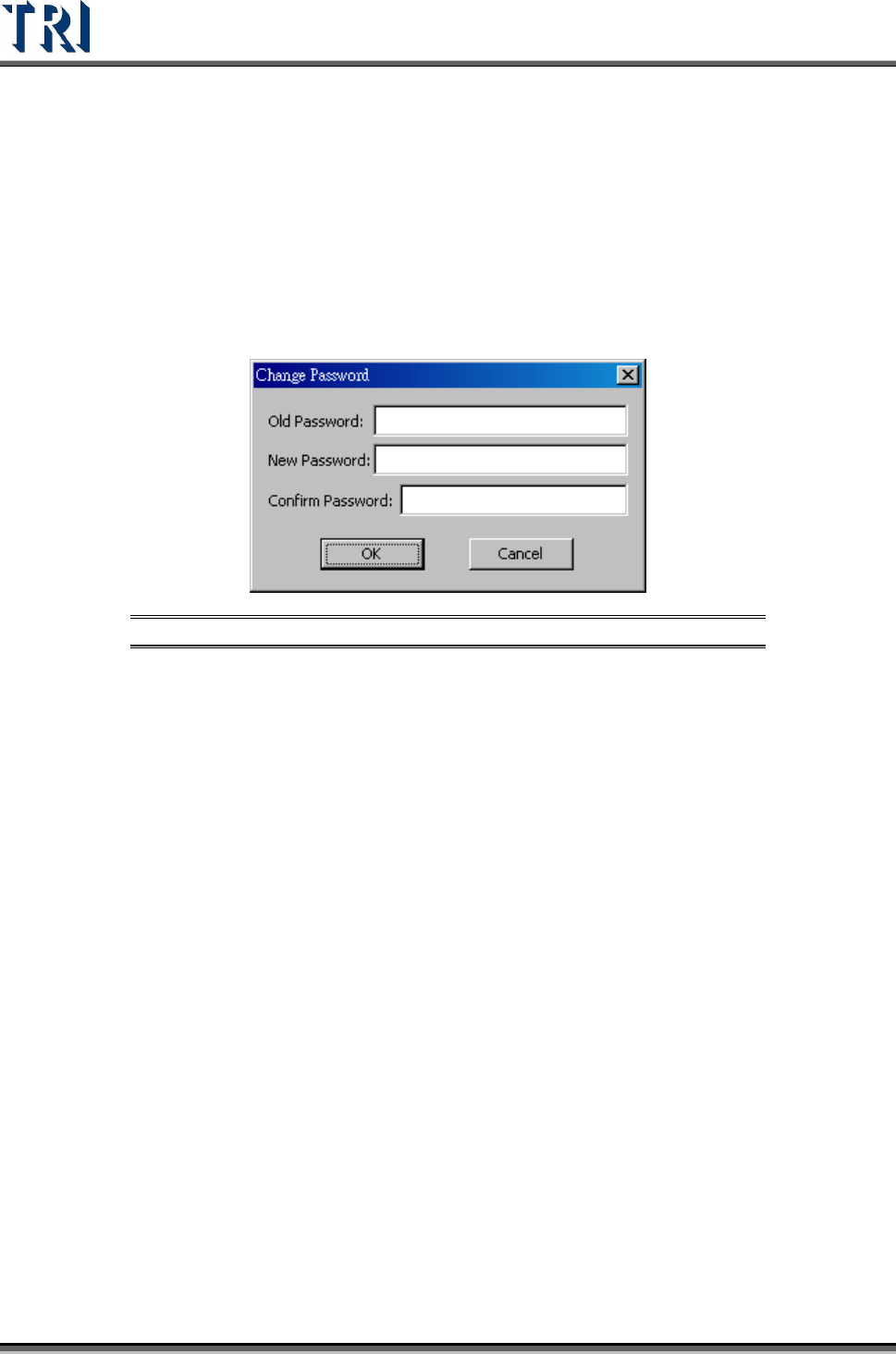
3.10.24 Change Password
Use this function to change the password for the current user.
Figure 183: Change Password Dialog
3.10.25 Coverage Report
Shows the report for coverage (see the following figure). The system calculates the coverage
for components and pads automatically. The report displays the components without
[Missing] box, components that are with an untested pad and the components that were not
tested.