TR7500_Series_Software_v29_En - 第136页
Test Research Inc. 114 TR7500 Series User Guid e –Softwa re v.2.9.0 [Cancel] – Cl ose the dialog. 3.10.26 Auto Conveyor Wid th Setting This dialog is to read the convey or width from PLC to the project or send the conv…
Test Research Inc.
TR7500 Series User Guide –Software v.2.9.0 113
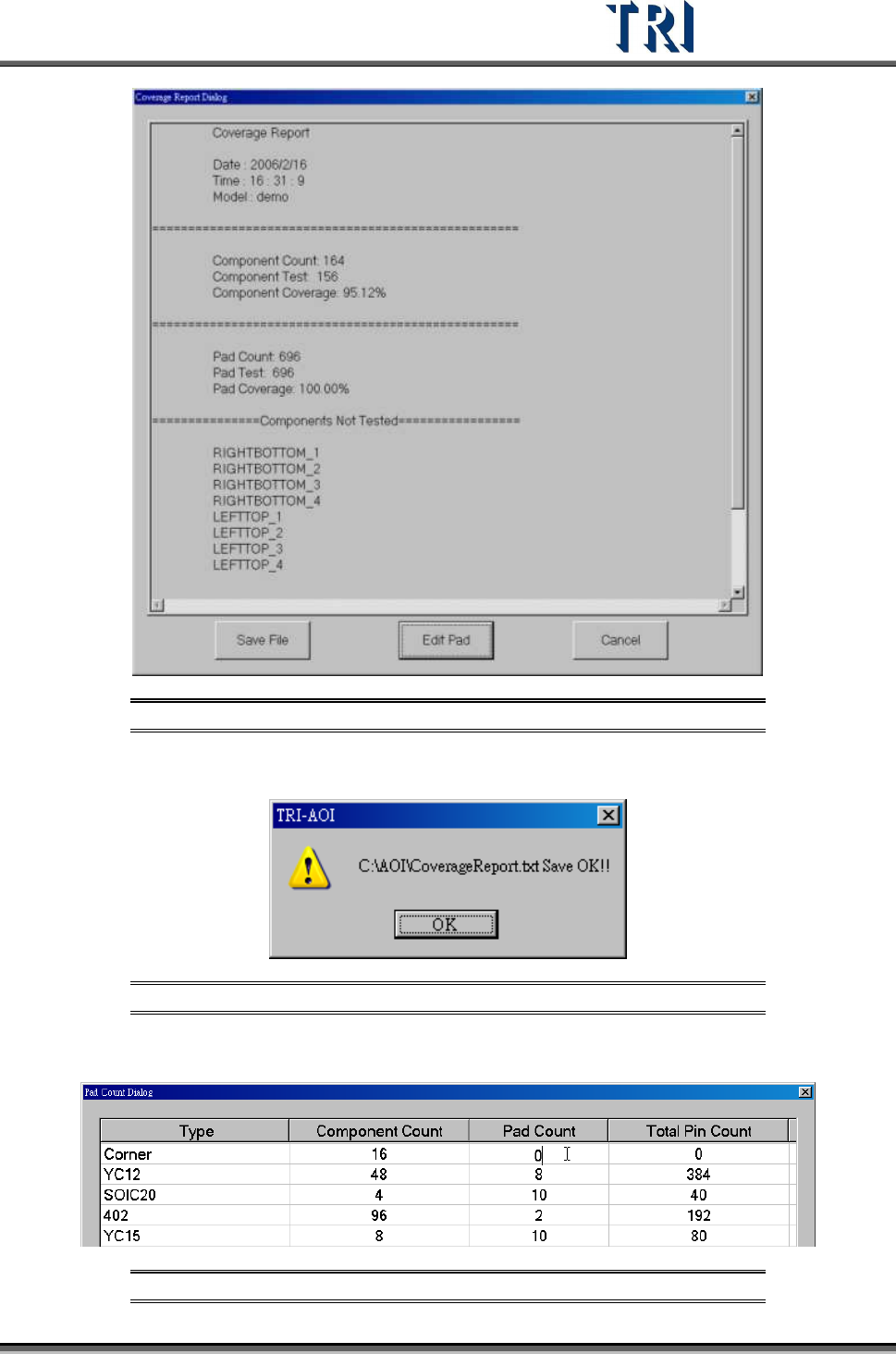
Figure 184: Coverage Report Screen
[Save File] – Exports the report to a text file.
Figure 185: Coverage Report Saved Screen
[Edit Pad] –Edit the number of PAD.
Figure 186: Pad Count Dialog
Test Research Inc.
114 TR7500 Series User Guide –Software v.2.9.0
[Cancel] – Close the dialog.
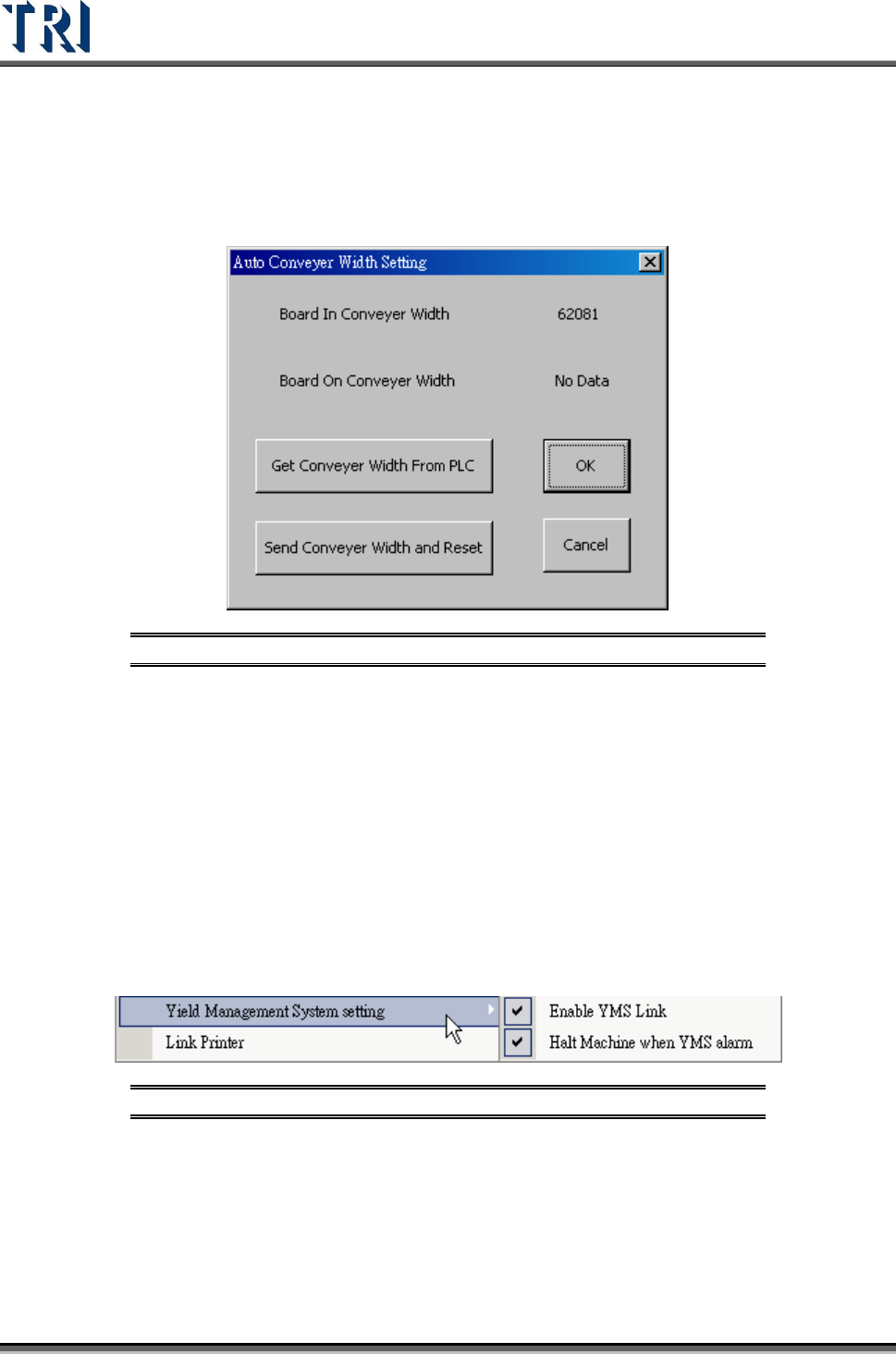
3.10.26 Auto Conveyor Width Setting
This dialog is to read the conveyor width from PLC to the project or send the conveyor width
to PLC to adjust the conveyor width instantly.
Figure 187: Auto Conveyor Width Setting
[Board In Conveyor] Width – Display the board-in conveyor width.
[Board On Conveyor Width] – Display the board-on conveyor width. This field displays
data only when the parameter [AutoConveyorWidth] in registry is 2 and the width is set
in PLC.
[Get Conveyor Width From PLC] –Save the current conveyor width to the project.
[Send Conveyor Width and Reset] –Send the conveyor width to PLC then the
conveyor will start to set the new width.
3.10.27 Yield Management System Setting
Link to the YMS system.
Figure 188: Yield Management System Setting
3.10.28 Link Printer
Selecting this links the system with the small printer. Then, after inspection, it can print the
defective components.
Test Research Inc.
TR7500 Series User Guide –Software v.2.9.0 115
3.10.29 First Board Check
The function is divided into [CAD] and [Polarity] checking.
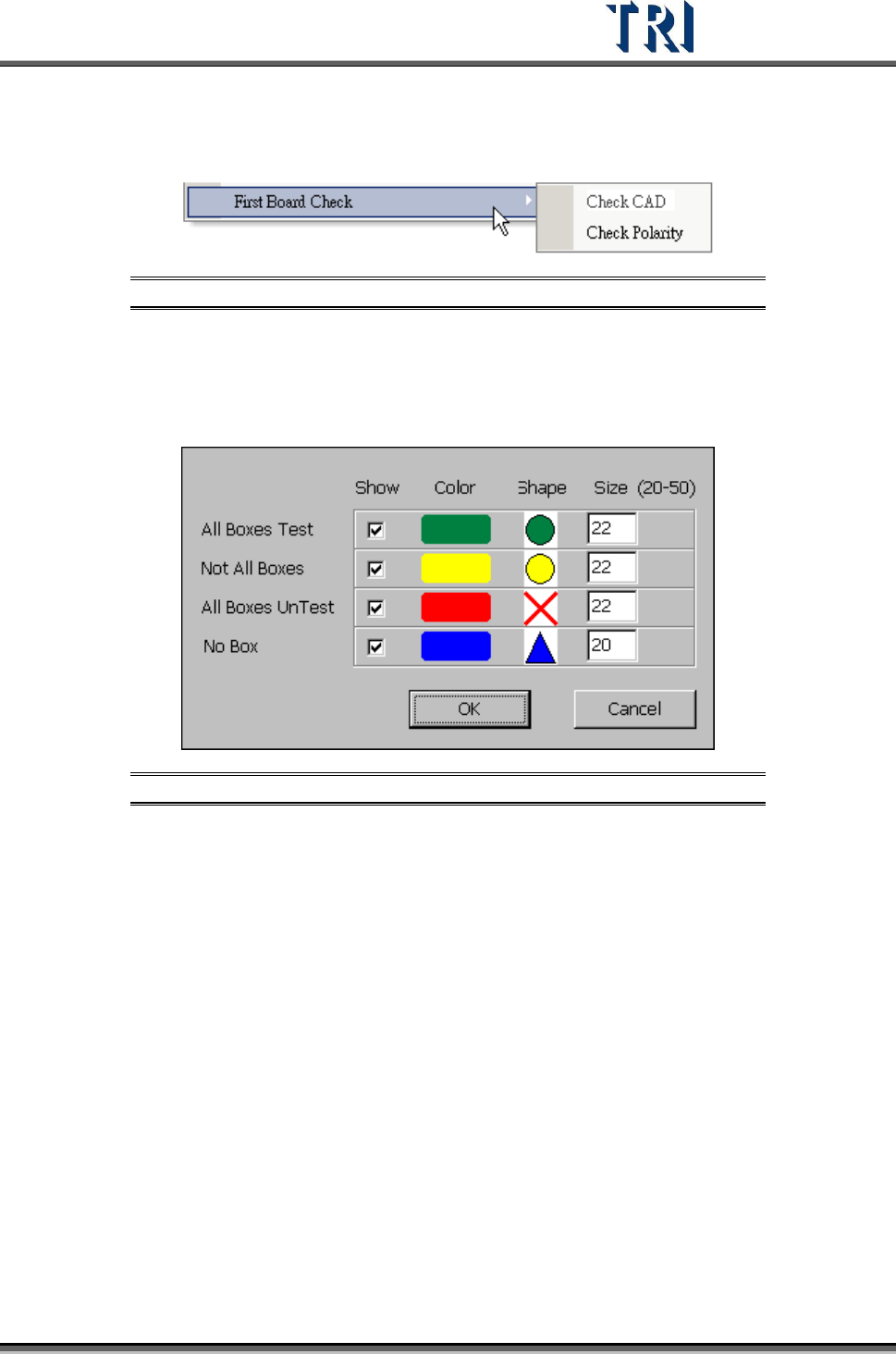
Figure 189: First Board Check Menu
[Check CAD] – Users can find components without being detected and inspected
1. Select [U
TILITIES
>
F
IRST
B
OARD
C
HECK
>
C
HECK
CAD]
2. Adjust the appearance of mark in color, shape and size
Figure 190: Check CAD Dialog
[All Boxes Test] – Component with all inspection boxes are being tested
[Not All Boxes] – Component with one or more than one inspection boxes are
not being tested
All Boxes UnTest – Component with all inspection boxes are not being tested
No Box – Component with no inspection box
3. System will show the result with panel map as in the following figure.