TR7500_Series_Software_v29_En - 第155页
Test Research Inc. TR7500 Series User Guide – Software v.2.9.0 133 5.3 Find (Next F3) Search for the speci f ied component da ta.. Figure 216 : Select Find Co mmand Input the component name for the sear ch and click [OK]…
Test Research Inc.
132 TR7500 Series User Guide –Software v.2.9.0
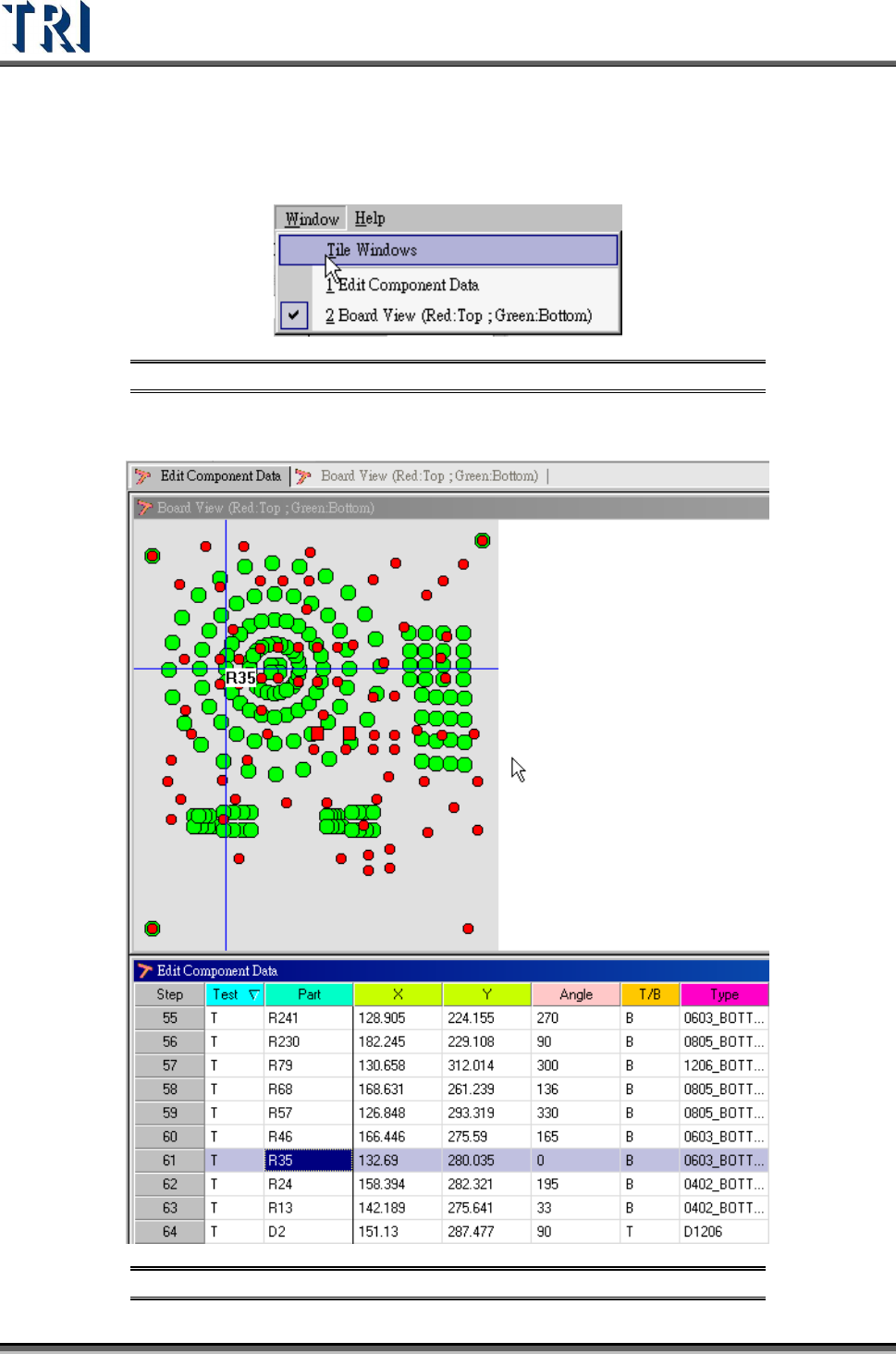
In order to find the mapping of components easily, select [Tile Windows] on the main tool bar.
This function puts the [Board View] and [Edit Component Data] windows together. Select a
component on the [Board View] window to show its information on the corresponding
[Component Data] window and vice versa.
Figure 214: Tile Windows Command
After selecting [W
INDOW
>
T
ILE
W
INDOW
] the screen will look like the figure below.
Figure 215: Tile Windows Result -- Board View (top) & Component Data
Test Research Inc.
TR7500 Series User Guide –Software v.2.9.0 133
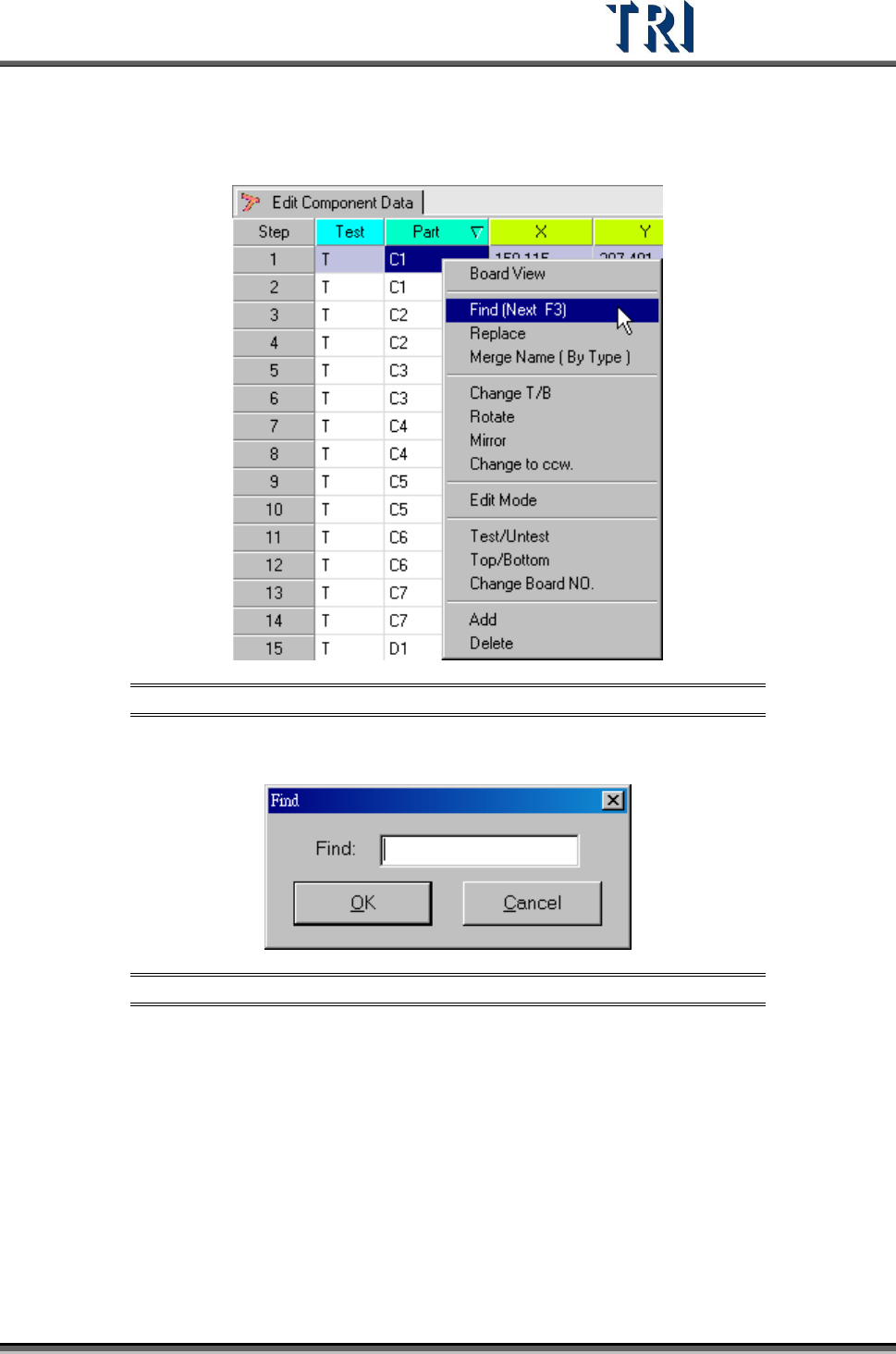
5.3 Find (Next F3)
Search for the specified component data..
Figure 216: Select Find Command
Input the component name for the search and click [OK]. Press [F3] to find the next one.
Figure 217: Find Command Dialog Box
Test Research Inc.
134 TR7500 Series User Guide –Software v.2.9.0
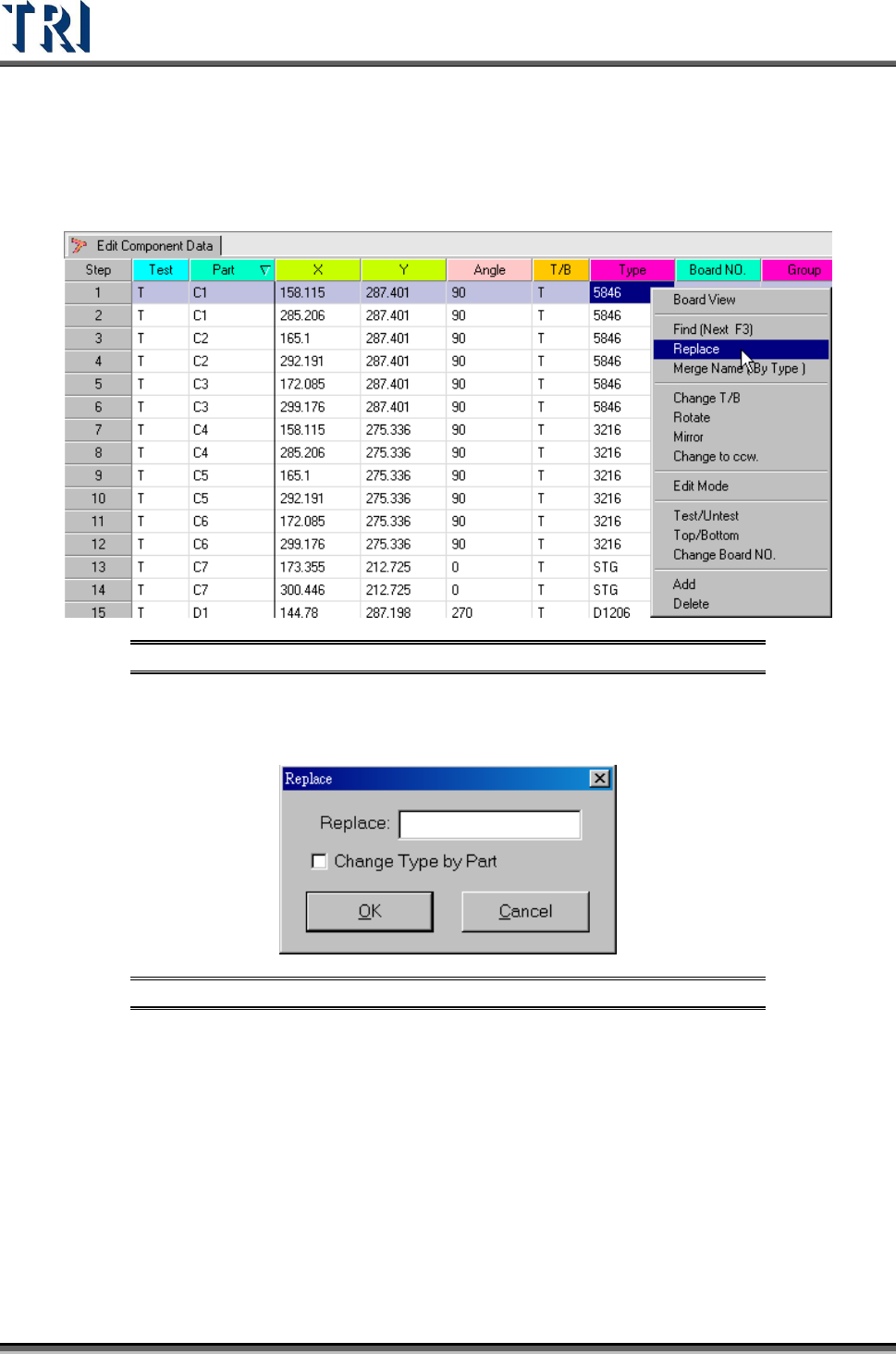
5.4 Replace
Use the [Replace] function to edit all data fields except [Test], [Part], [T/B] or [Board NO.]
Figure 218: Select Replace Command
Select the column to change, click the right mouse button, then choose [Replace] to edit the
column.
Figure 219: Replace Dialog
The function [Change Type by Part] is used for changing the [Type] field only. If data is input
in the [Replace] box and this function is checked, the system will combine the characters of
the [Part] field and the [Replace] input to create a new type. The following figure illustrates
this process.