TR7500_Series_Software_v29_En - 第157页
Test Research Inc. TR7500 Series User Guide – Software v.2.9.0 135 Figure 220 : Replace/Chang e Type by P art Input & R esult 5.5 Mer ge Name (B y Type ) W he n one compone nt is selected for the [Merge N am e] funct…
Test Research Inc.
134 TR7500 Series User Guide –Software v.2.9.0
5.4 Replace
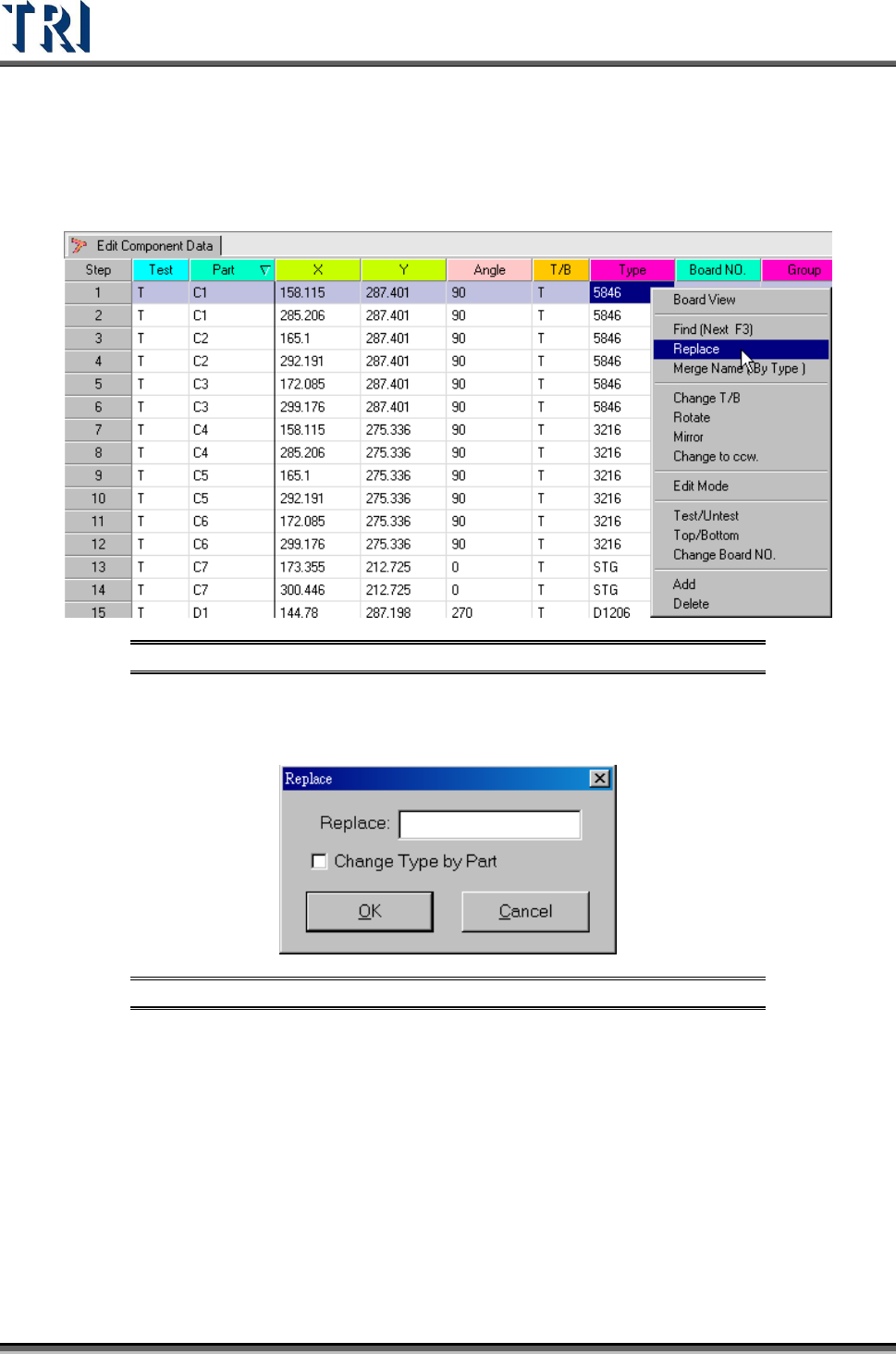
Use the [Replace] function to edit all data fields except [Test], [Part], [T/B] or [Board NO.]
Figure 218: Select Replace Command
Select the column to change, click the right mouse button, then choose [Replace] to edit the
column.
Figure 219: Replace Dialog
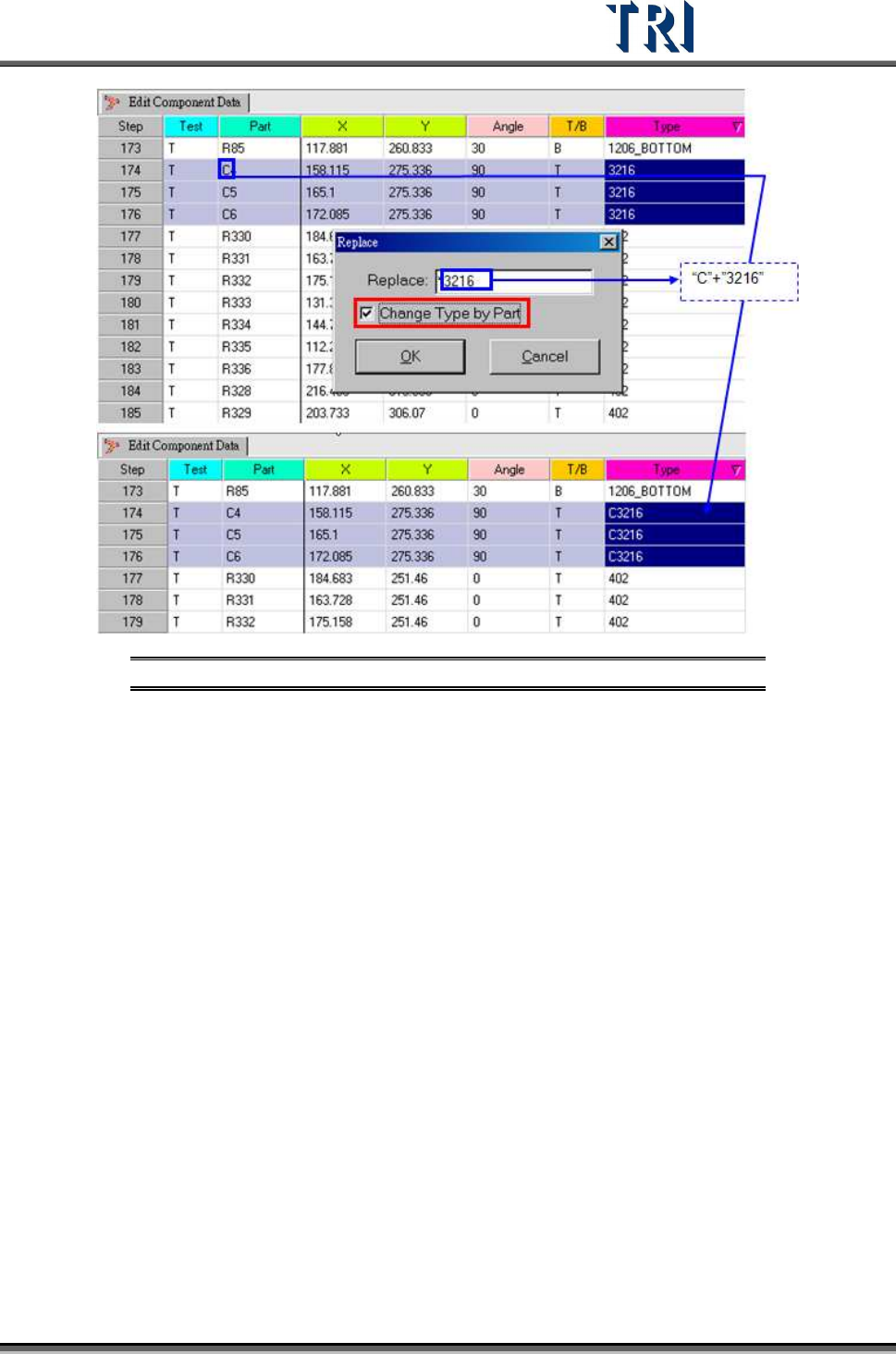
The function [Change Type by Part] is used for changing the [Type] field only. If data is input
in the [Replace] box and this function is checked, the system will combine the characters of
the [Part] field and the [Replace] input to create a new type. The following figure illustrates
this process.
Test Research Inc.
TR7500 Series User Guide –Software v.2.9.0 135
Figure 220: Replace/Change Type by Part Input & Result
5.5 Merge Name (By Type)
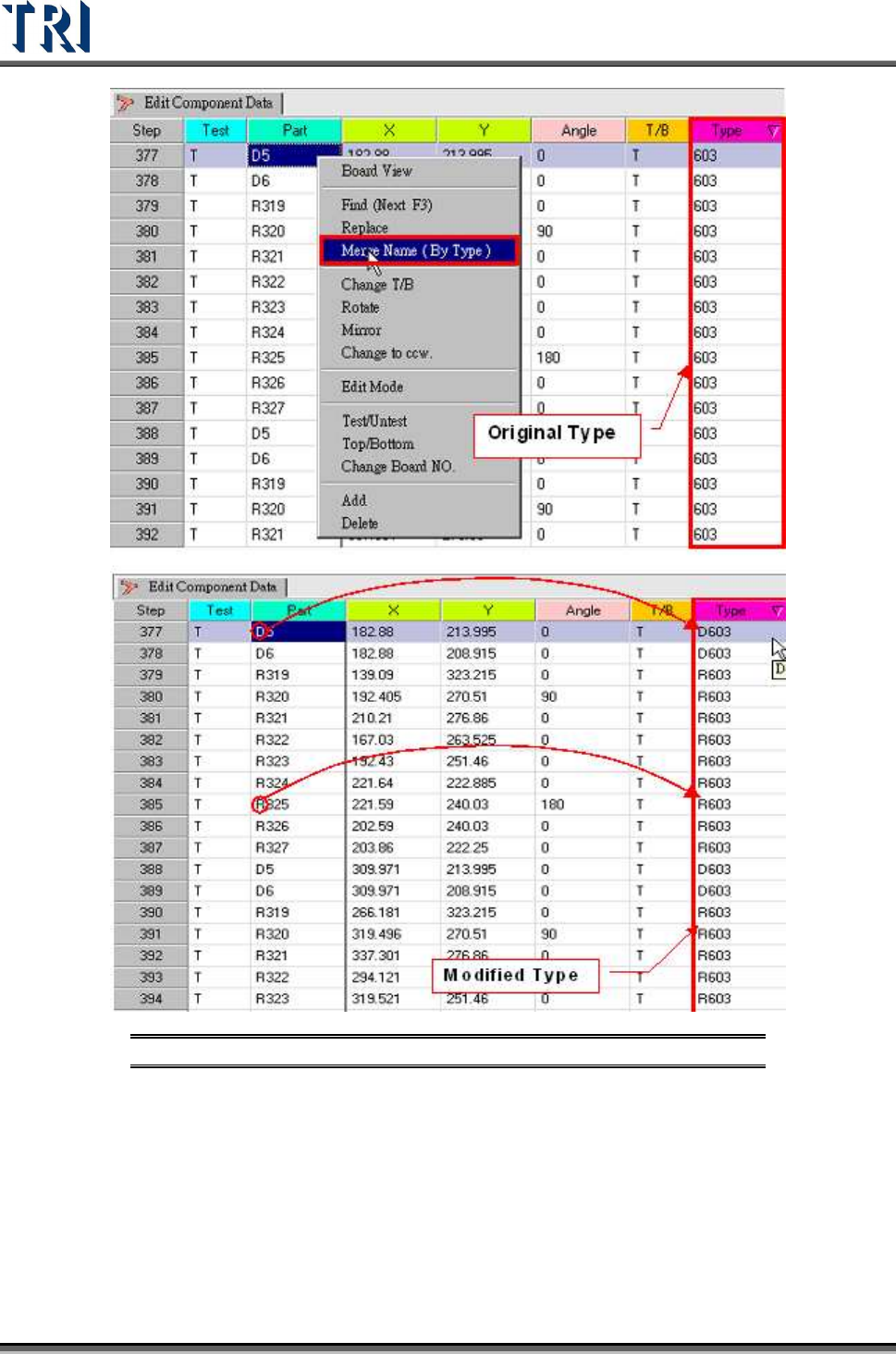
When one component is selected for the [Merge Name] function, the other components in
same type will be merged at the same time.
Merge one type: Select the object component, right-click the mouse then press [Merge Name
(By Type)]. The initial character(s) will be merged into the [Type] name.
Test Research Inc.
136 TR7500 Series User Guide –Software v.2.9.0
Figure 221: Merge Name By Type Process & Result
Merge several types: Select more than one component by holding down the [Ctrl] key to
merge names.