TR7500_Series_Software_v29_En - 第172页
Test Research Inc. 150 TR7500 Series User Guid e –Softwa re v.2.9.0 6 G ENERATE M ULTI -B OARD CAD D ATA 6.1 Se t Figure 247 : Set Command 6.1.1 Board Featu re Set the number o f Columns and Row s here. Figure 248 : Mult…
Test Research Inc.
TR7500 Series User Guide –Software v.2.9.0 149
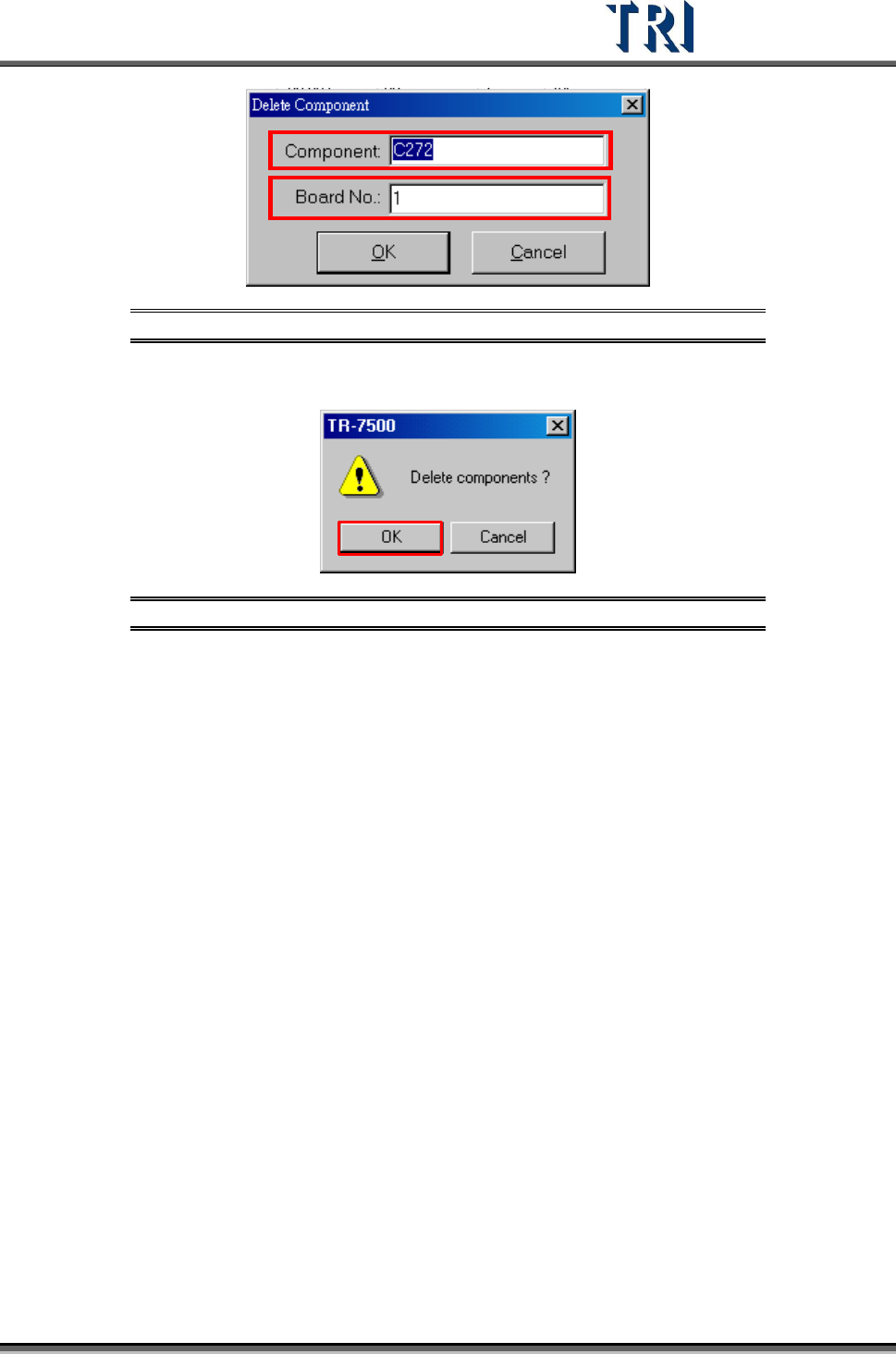
Figure 245: Delete Component Dialog
If there are several components selected, the system will show the confirmed dialog.
Figure 246: Confirm Delete Components Window
Test Research Inc.
150 TR7500 Series User Guide –Software v.2.9.0
6 G
ENERATE
M
ULTI
-B
OARD
CAD
D
ATA
6.1 Set
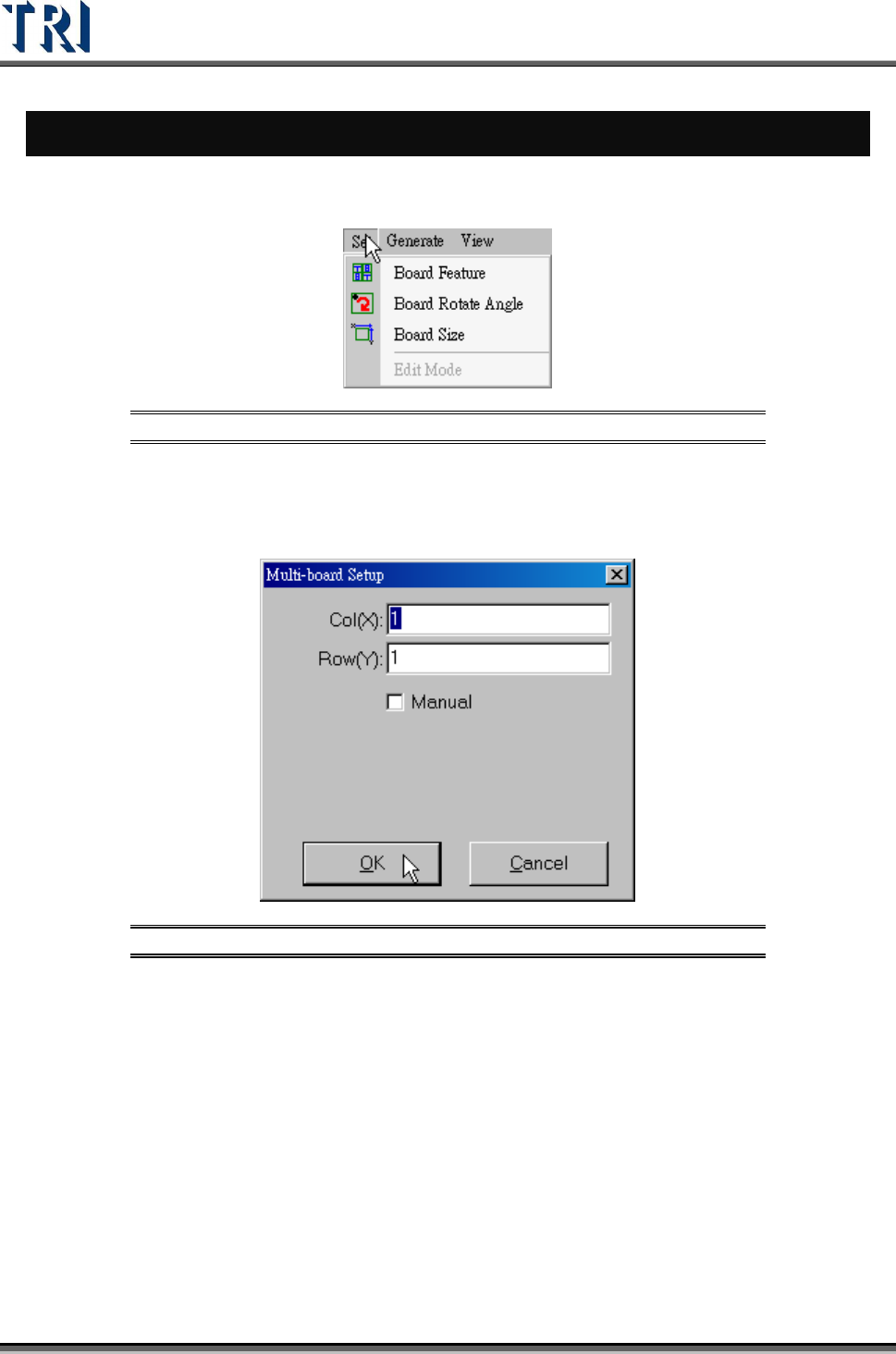
Figure 247: Set Command
6.1.1 Board Feature
Set the number of Columns and Rows here.
Figure 248: Multi-Board Setup Dialog
6.1.2 Board Rotate Angle
Calculate the board rotate angle again here.
6.1.3 Board Size
Set the board size again.
6.1.4 Edit Mode
After user modifies the multi-board layout, he has to select [Edit Mode] first. It only can be
changed under regular board and under an existing project.
Test Research Inc.
TR7500 Series User Guide –Software v.2.9.0 151
6.2 Generate
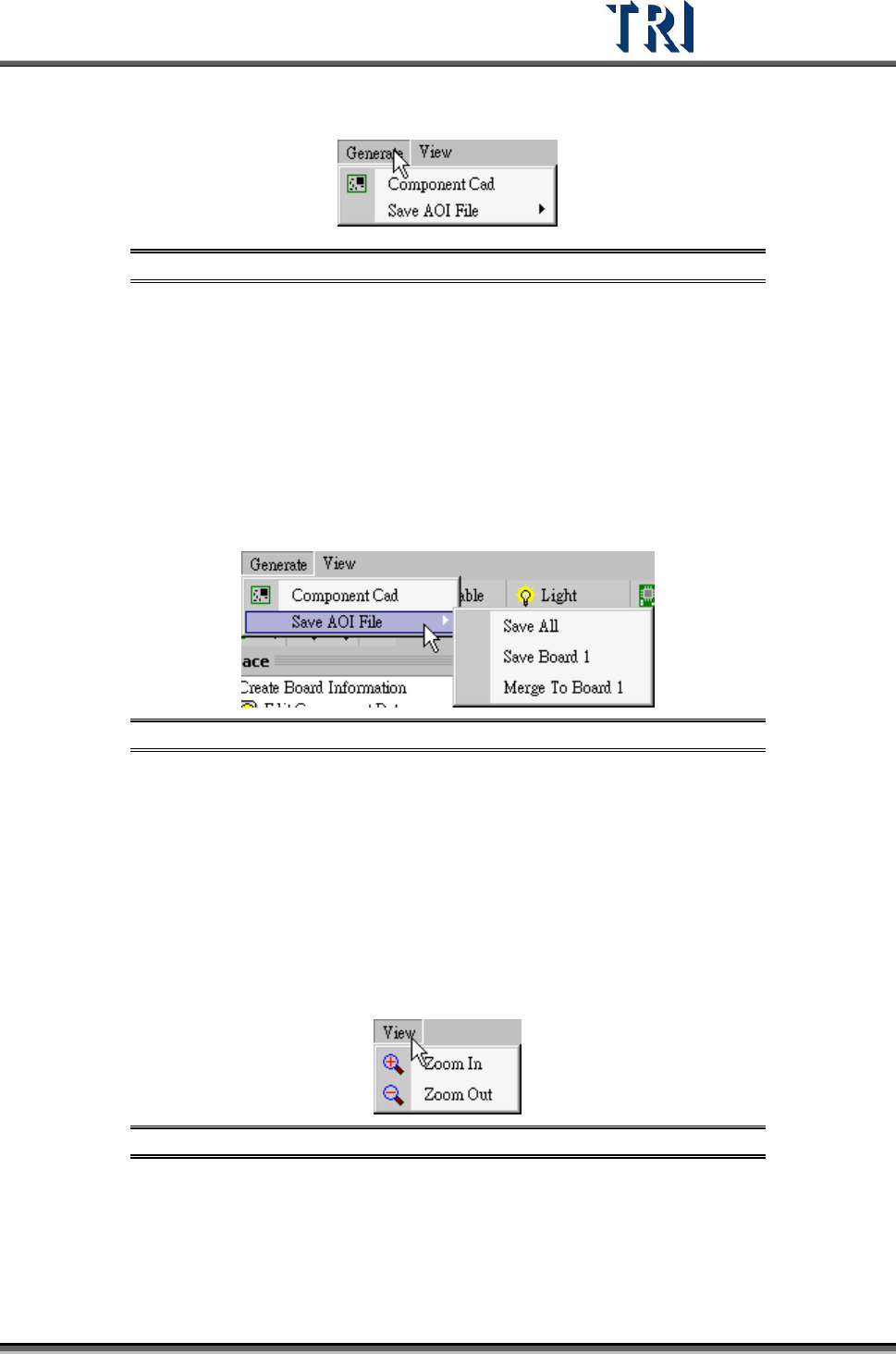
Figure 249: Generate
6.2.1 Com ponent Cad
Select this item to generate multi-board data after finishing finding dummy components for
every board. The data also can generate automatically when [Next] is chosen.
6.2.2 Save AOI File
Figure 250: Save AOI File
Save All-Save multi-board CAD data to a new file.
Save Board 1-Only save CAD file of Board.
Merge To Board 1-Save all CAD data to a new file, and change the board number of
all components to 1.
6.3 Veiw
Figure 251: View
Zoom In
Zoom Out