TR7500_Series_Software_v29_En - 第197页
Test Research Inc. TR7500 Series User Guide – Software v.2.9.0 175 8.1.4 Save As.. Save the component to specified path or type. Figure 288 : Save As Dialog 8.1.5 Close All Press [Close All] then all the pages that are b…
Test Research Inc.
174 TR7500 Series User Guide –Software v.2.9.0
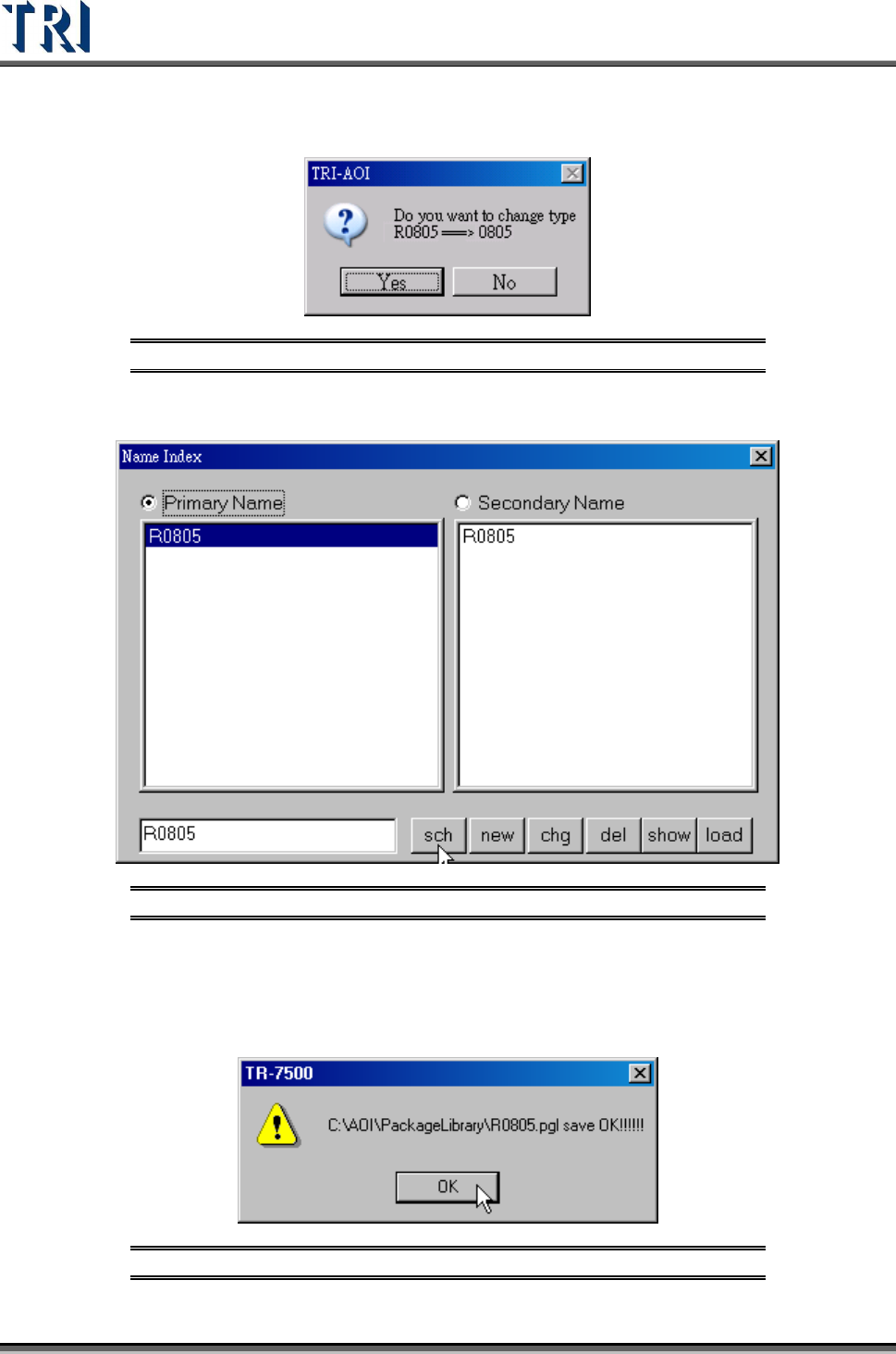
The system will then ask if you want to change the type name from [R0805] to
[0805].
Figure 285: Confirm Change Component Type Window
Select NO: R0805 will be saved as a new type R0805.pgl.
Figure 286: New Primary Component Type
8.1.3 Save
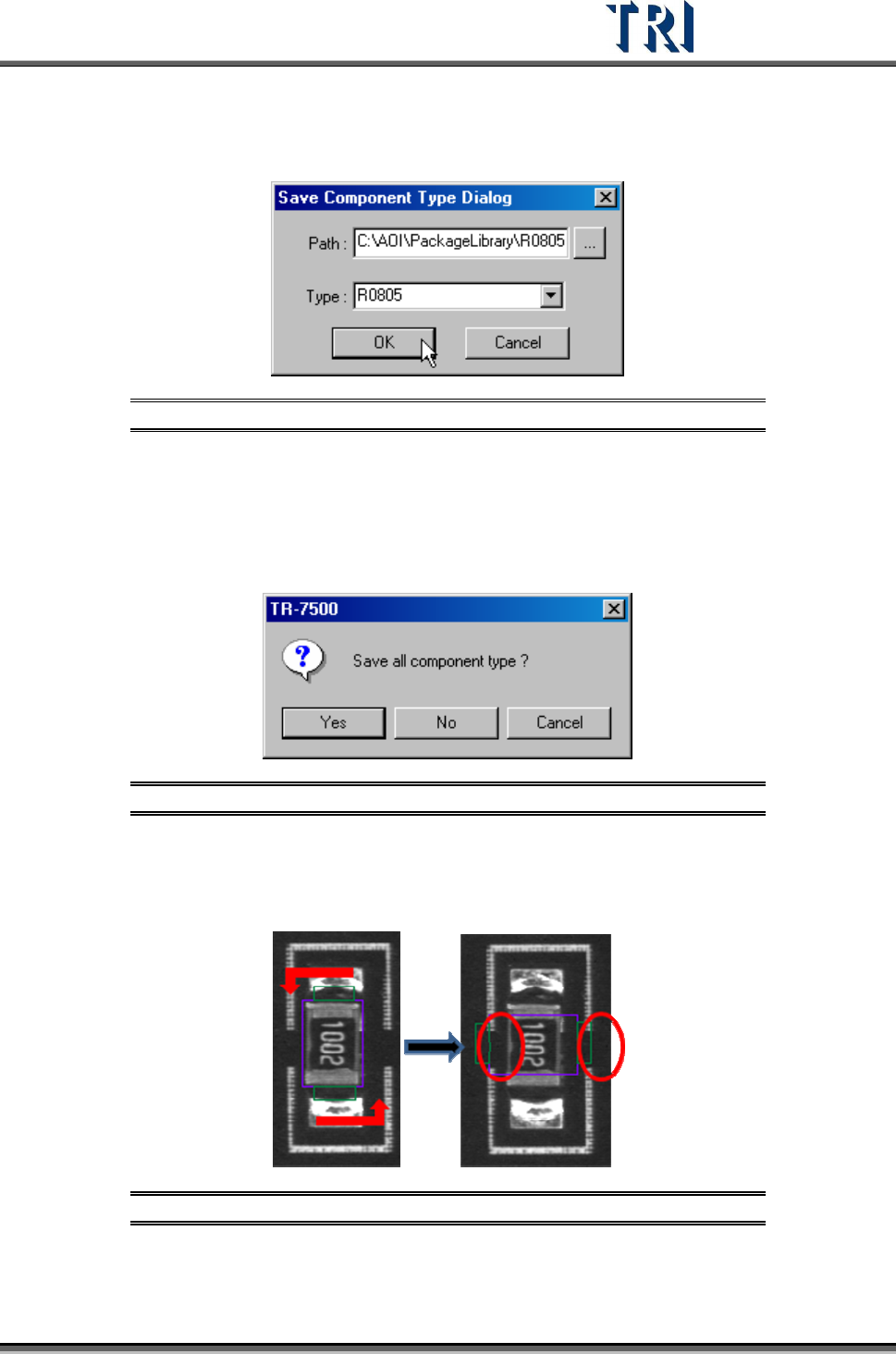
Save the type that is being edited now to the library. Press [Save] and the following window
will show. Confirm the path then press [OK] to save.
Figure 287: Confirm Save Window
Test Research Inc.
TR7500 Series User Guide –Software v.2.9.0 175
8.1.4 Save As..
Save the component to specified path or type.
Figure 288: Save As Dialog
8.1.5 Close All
Press [Close All] then all the pages that are being edited in the library will be closed. This
saves time compared to closing pages separately. For the following window, press [Yes] to
save all library pages that will be closed, [No] not to save, [Cancel] to cancel the close action.
Figure 289: Close All/Save All Confirm Window
8.1.6 Rotate
Press [Rotate] once and all windows will rotate counterclockwise to 90 degrees.
Figure 290: Rotate Command Result
Test Research Inc.
176 TR7500 Series User Guide –Software v.2.9.0
8.2 Edit Command
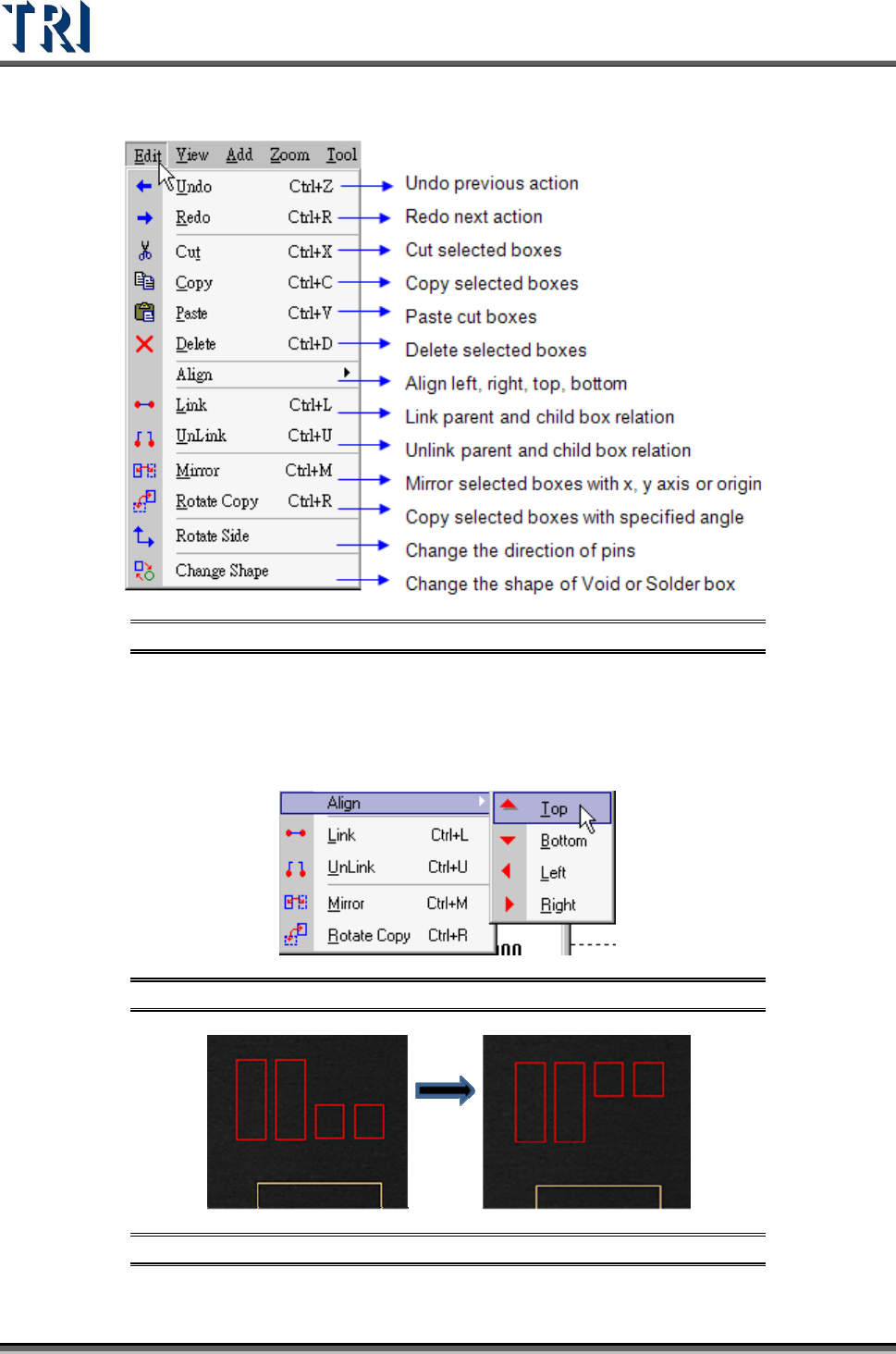
Figure 291: Edit Command Menu
8.2.1 Align
The function can align all selected boxes by assigned direction. [Align Top] for example,
Press [Top] then all selected boxes will align at the top edge of all boxes.
Figure 292: Align Selected Boxes Command
Figure 293: Align Selected Boxes Result