TR7500_Series_Software_v29_En - 第198页
Test Research Inc. 176 TR7500 Series User Guid e –Softwa re v.2.9.0 8.2 Ed it Command Figure 291 : Edit Command Menu 8.2.1 Align The function can ali g n all selected box es by assigned direction. [Align Top] f or exampl…
Test Research Inc.
TR7500 Series User Guide –Software v.2.9.0 175
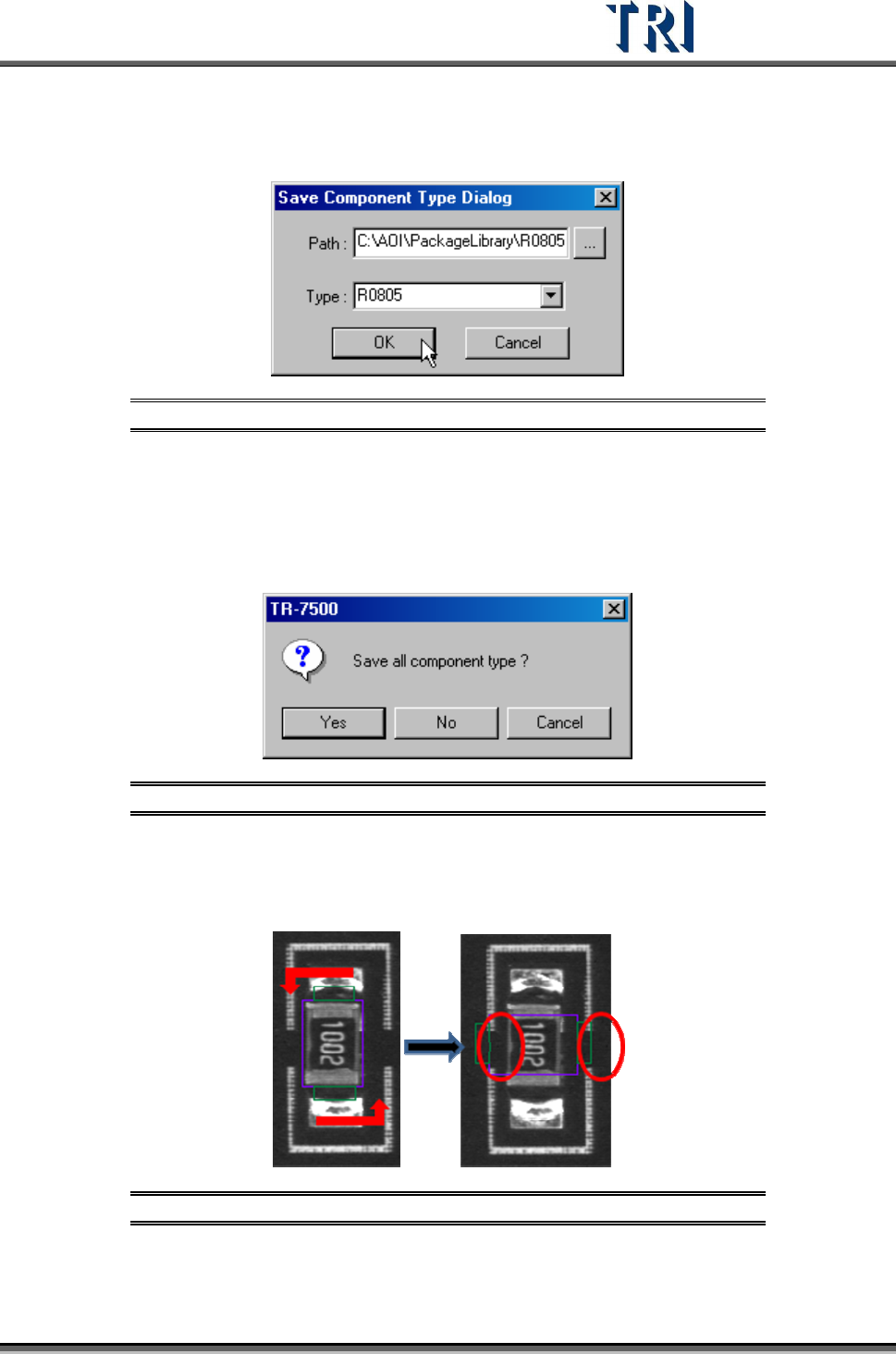
8.1.4 Save As..
Save the component to specified path or type.
Figure 288: Save As Dialog
8.1.5 Close All
Press [Close All] then all the pages that are being edited in the library will be closed. This
saves time compared to closing pages separately. For the following window, press [Yes] to
save all library pages that will be closed, [No] not to save, [Cancel] to cancel the close action.
Figure 289: Close All/Save All Confirm Window
8.1.6 Rotate
Press [Rotate] once and all windows will rotate counterclockwise to 90 degrees.
Figure 290: Rotate Command Result
Test Research Inc.
176 TR7500 Series User Guide –Software v.2.9.0
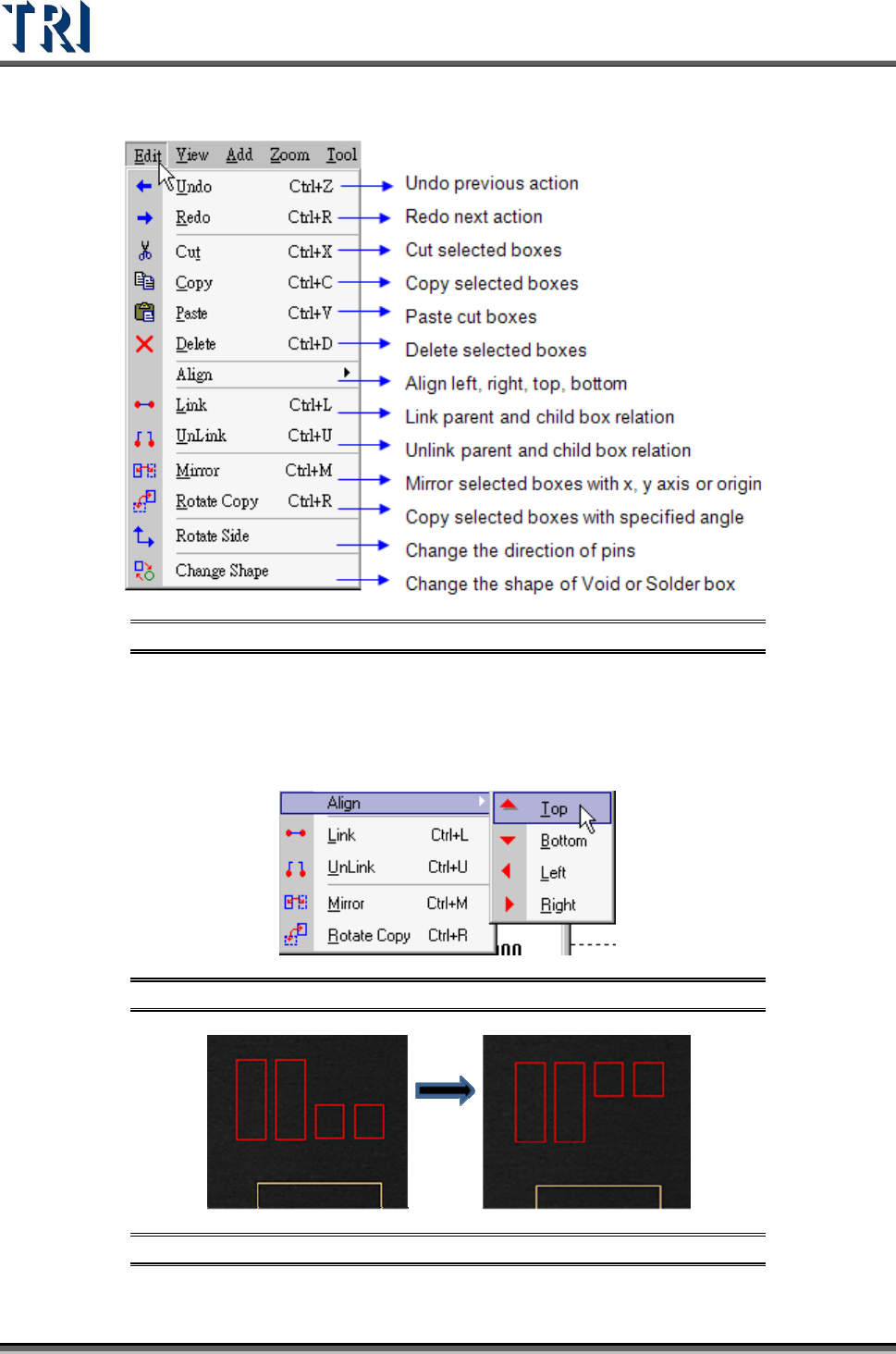
8.2 Edit Command
Figure 291: Edit Command Menu
8.2.1 Align
The function can align all selected boxes by assigned direction. [Align Top] for example,
Press [Top] then all selected boxes will align at the top edge of all boxes.
Figure 292: Align Selected Boxes Command
Figure 293: Align Selected Boxes Result
Test Research Inc.
TR7500 Series User Guide –Software v.2.9.0 177
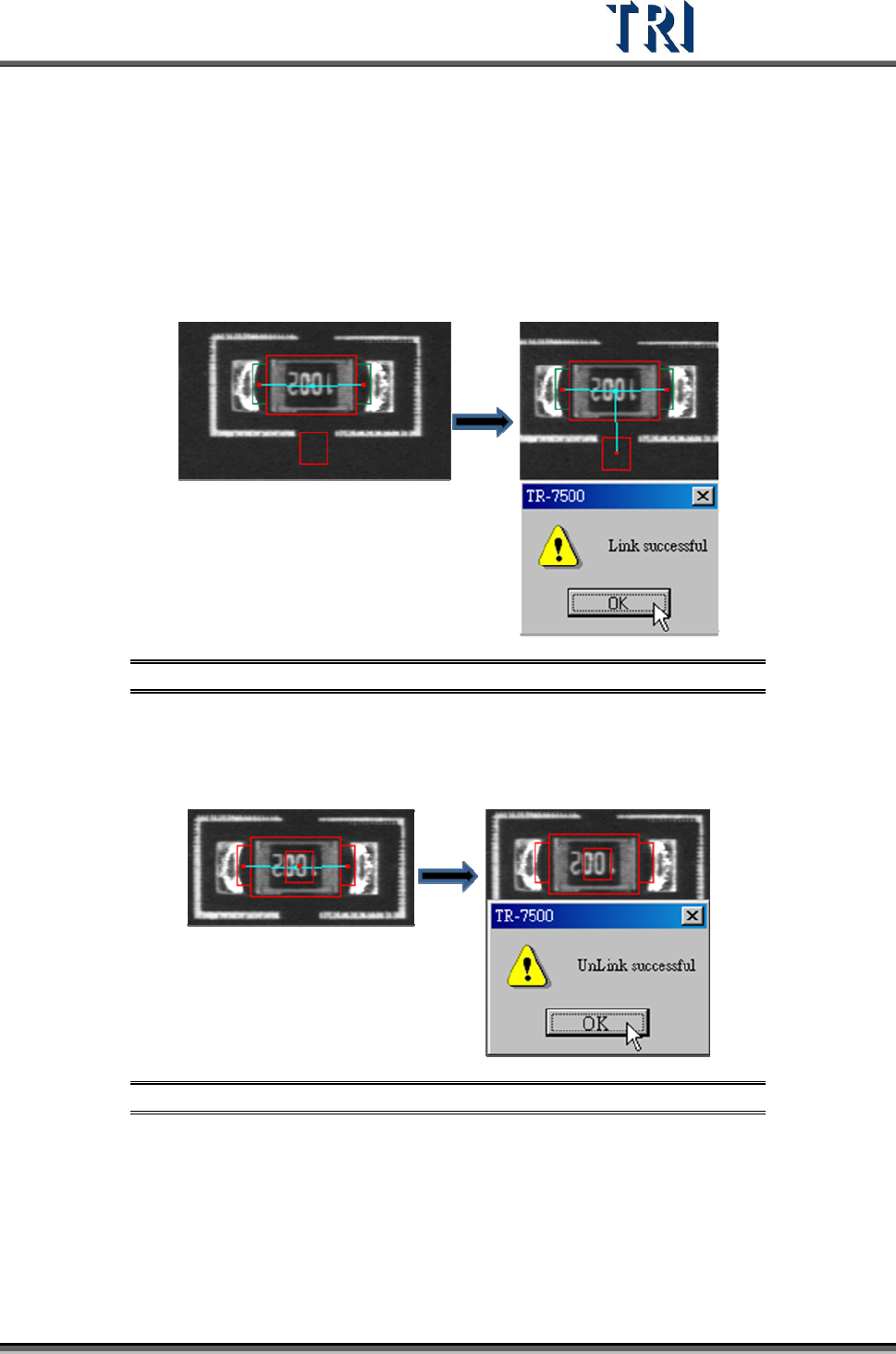
8.2.2 Link
Assign windows that are parents and children to link. Since some kinds of inspection
windows don’t have the ability to position such as [Void] and [Pin] windows, they have to link
with other windows that have the ability to position such as [Missing], [Lead] and [Align].
Subsidiary windows linked with parents will move with parents in inspection.
The system automatically links windows that should be linked together when they are
created at the same time with the [Add All Windows] function.
Figure 294: Link Command Result
8.2.3 Unlink
Choose [Unlink] to break the link between windows.
Figure 295: Unlink Command Result