TR7500_Series_Software_v29_En - 第199页
Test Research Inc. TR7500 Series User Guide – Software v.2.9.0 177 8.2.2 Link Assign window s t hat are parents and ch ildren to link. Since so me kinds of in spection windows don’t hav e the abil ity to position such as…
Test Research Inc.
176 TR7500 Series User Guide –Software v.2.9.0
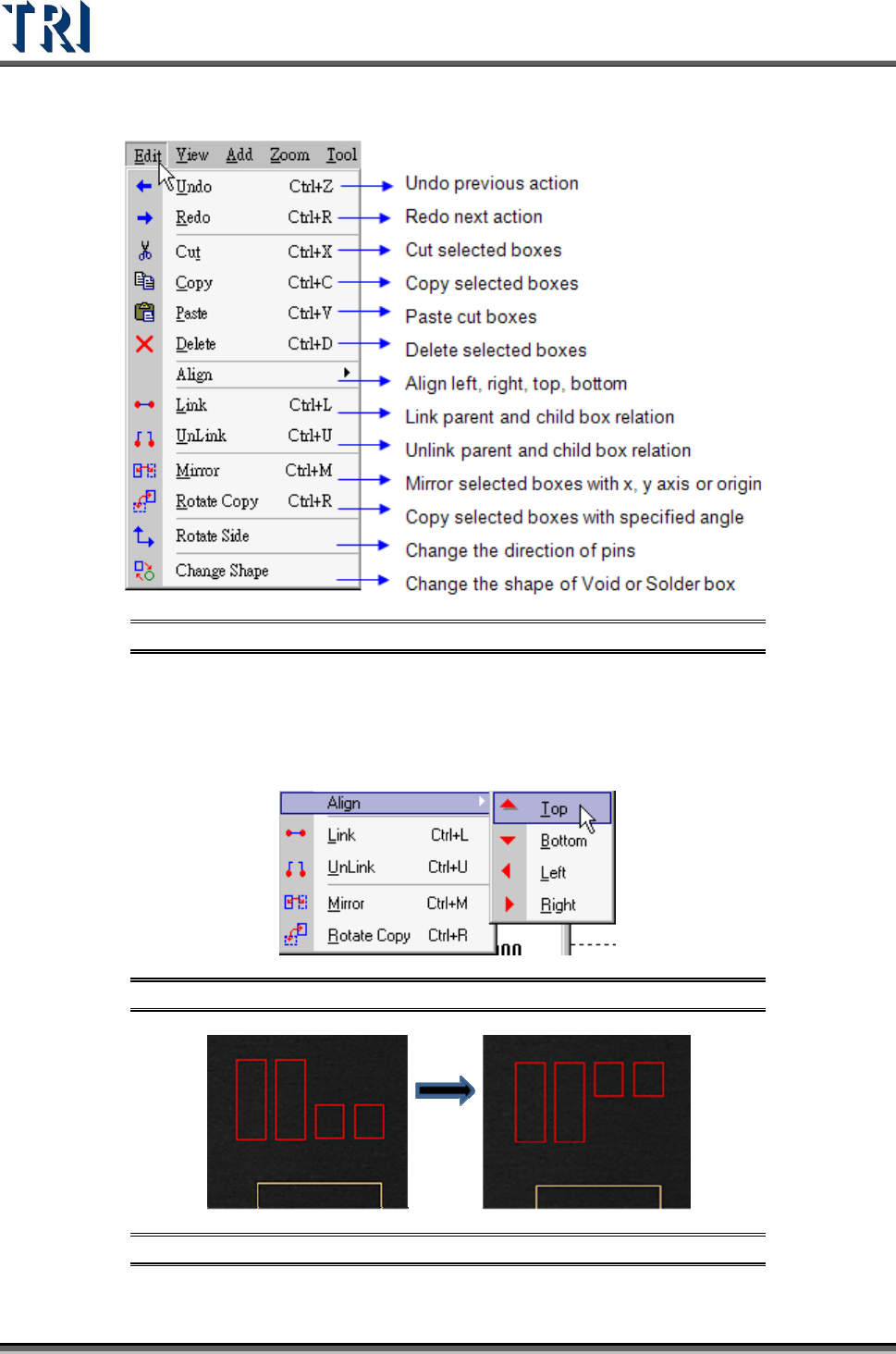
8.2 Edit Command
Figure 291: Edit Command Menu
8.2.1 Align
The function can align all selected boxes by assigned direction. [Align Top] for example,
Press [Top] then all selected boxes will align at the top edge of all boxes.
Figure 292: Align Selected Boxes Command
Figure 293: Align Selected Boxes Result
Test Research Inc.
TR7500 Series User Guide –Software v.2.9.0 177
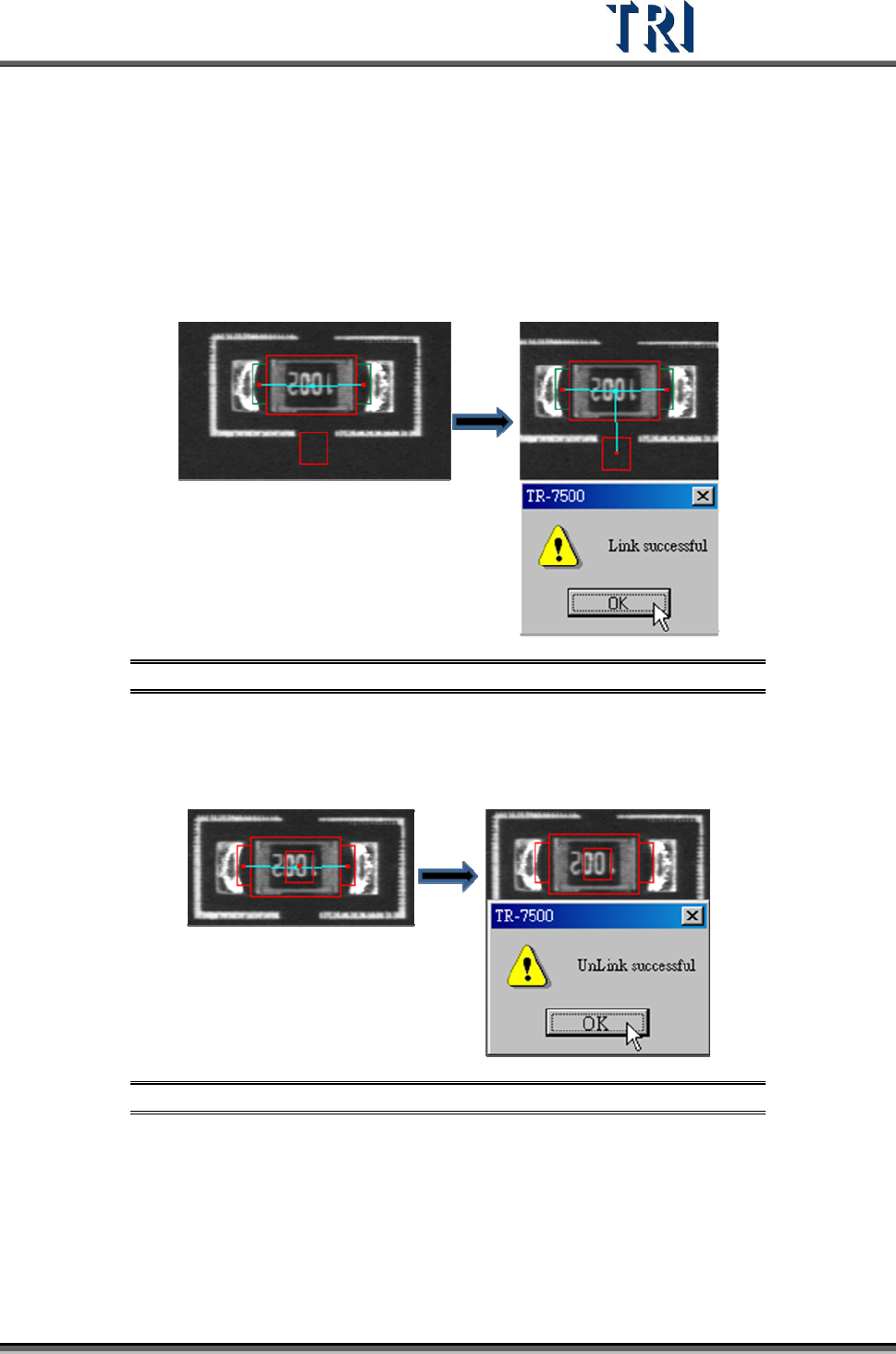
8.2.2 Link
Assign windows that are parents and children to link. Since some kinds of inspection
windows don’t have the ability to position such as [Void] and [Pin] windows, they have to link
with other windows that have the ability to position such as [Missing], [Lead] and [Align].
Subsidiary windows linked with parents will move with parents in inspection.
The system automatically links windows that should be linked together when they are
created at the same time with the [Add All Windows] function.
Figure 294: Link Command Result
8.2.3 Unlink
Choose [Unlink] to break the link between windows.
Figure 295: Unlink Command Result
Test Research Inc.
178 TR7500 Series User Guide –Software v.2.9.0
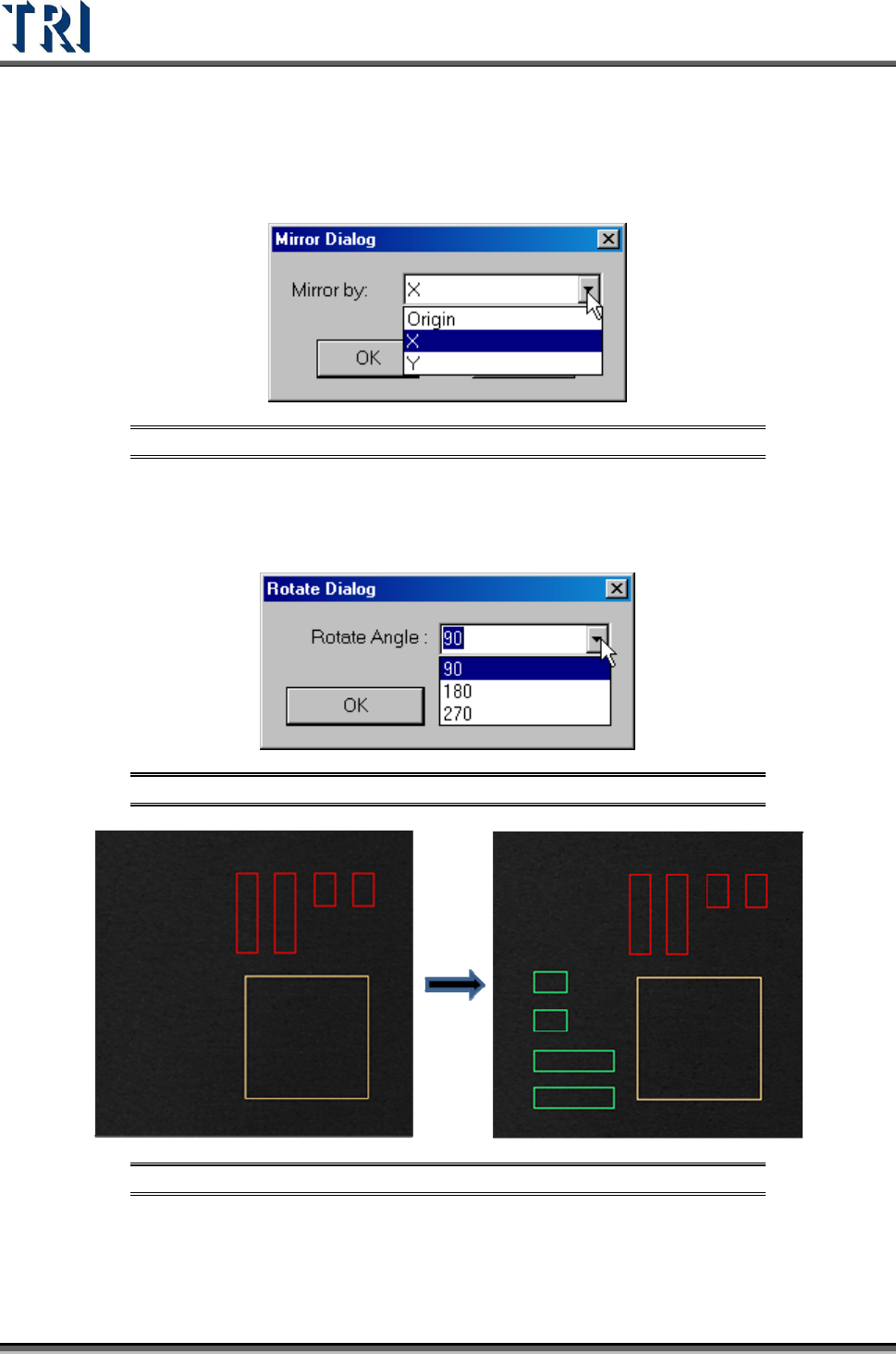
8.2.4 Mirror
Map and copy the inspection boxes by X direction, Y direction or the origin.
Figure 296: Mirror Command Dialog
8.2.5 Rotate Copy
Rotate and copy the inspection boxes by assigned degree.
Figure 297: Rotate Copy Command Dialog
Figure 298: Rotate Copy Command Result