TR7500_Series_Software_v29_En - 第231页
Test Research Inc. TR7500 Series User Guide – Software v.2.9.0 209 [M ask ] – Masks the co mponent image with a non-inspection area or non-r egular area for pattern search . A green frame appears i f a mask is set for …
Test Research Inc.
208 TR7500 Series User Guide –Software v.2.9.0
[Camera] – Select Top or Angle Camera view.
[Lighting] – Select Light type.
[Method] – Select the inspection windows for property change.
[Fail String] – Users can separate the same method into different fail strings
under [Library]. Each [Void] under the same component may have different [Fail
String] and will be labeled and sent to [Repair Station] as the changed one. Also,
changing the variables under the same algorithm will not affect the different [Fail
String]. The [Fail String] will remain default if the user decides not to change it.
[Inverse] – Turn on [Inverse] by selecting [True]. This will invert all the inspection
results. The inspection result of [Pass] will become to [Fail], and [Fail] to [Pass]
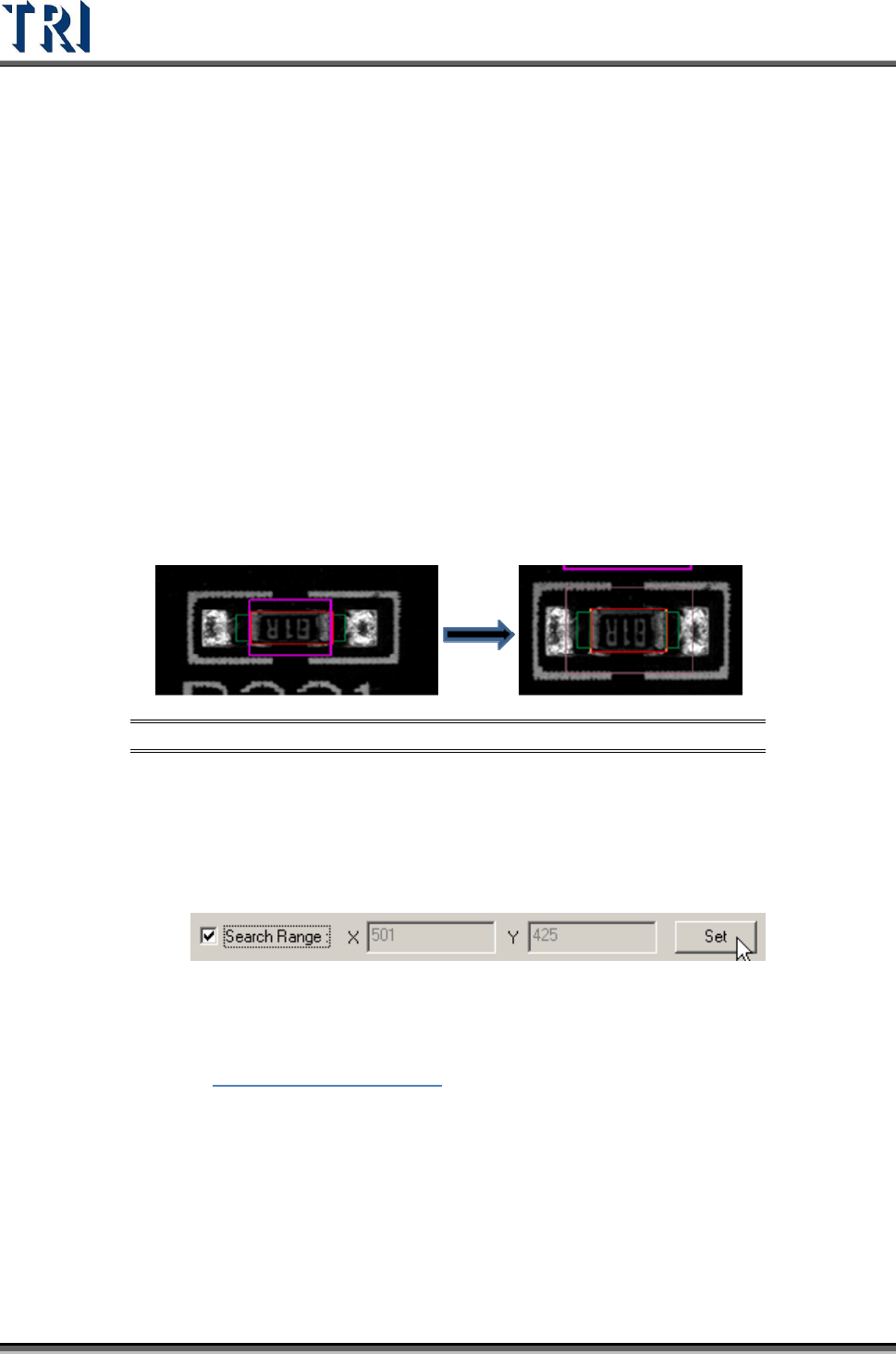
[Search Range] – Select this item to set the search range for [Missing] or [Lead]
box manually. After it is set, the latter X and Y fields display the range (unit: um).
The X and Y fields are just for review and cannot be filled. If the range is not set,
the X and Y field display “0” and the system sets the range automatically.
Step1. Open [Property] dialog and check [Search Range]. A thick line and purple
frame appear on the painted area.
Figure 351: Select & Display [Search Range]
Step2. Click on the box to set and then adjust the purple frame to suit the search
range. The search range cannot be smaller than the inspection box.
Step3. Press [Set] then the setting is finished. The X and Y field display the length
and width of the search range.
Step4. The search range is displayed by a thin line and purple frame.
[Image Group] – When the components have the same type but are in different
groups, the image must be set for different groups. See more about groups in
Chapter
5 Edit Component Data
[No Image Group] – After choosing this, users may select [Group] which
contains only those without image taken. For example, if there are two groups of
C and R under Type 0402, and C already has an image taken, but R does not.
The user may only see R under [Group] if the [No Image Group] is selected.
[ADD] – Add image to component image library from missing or lead inspection
windows.
[Remove] – Remove the select image to component image library.
Test Research Inc.
TR7500 Series User Guide –Software v.2.9.0 209
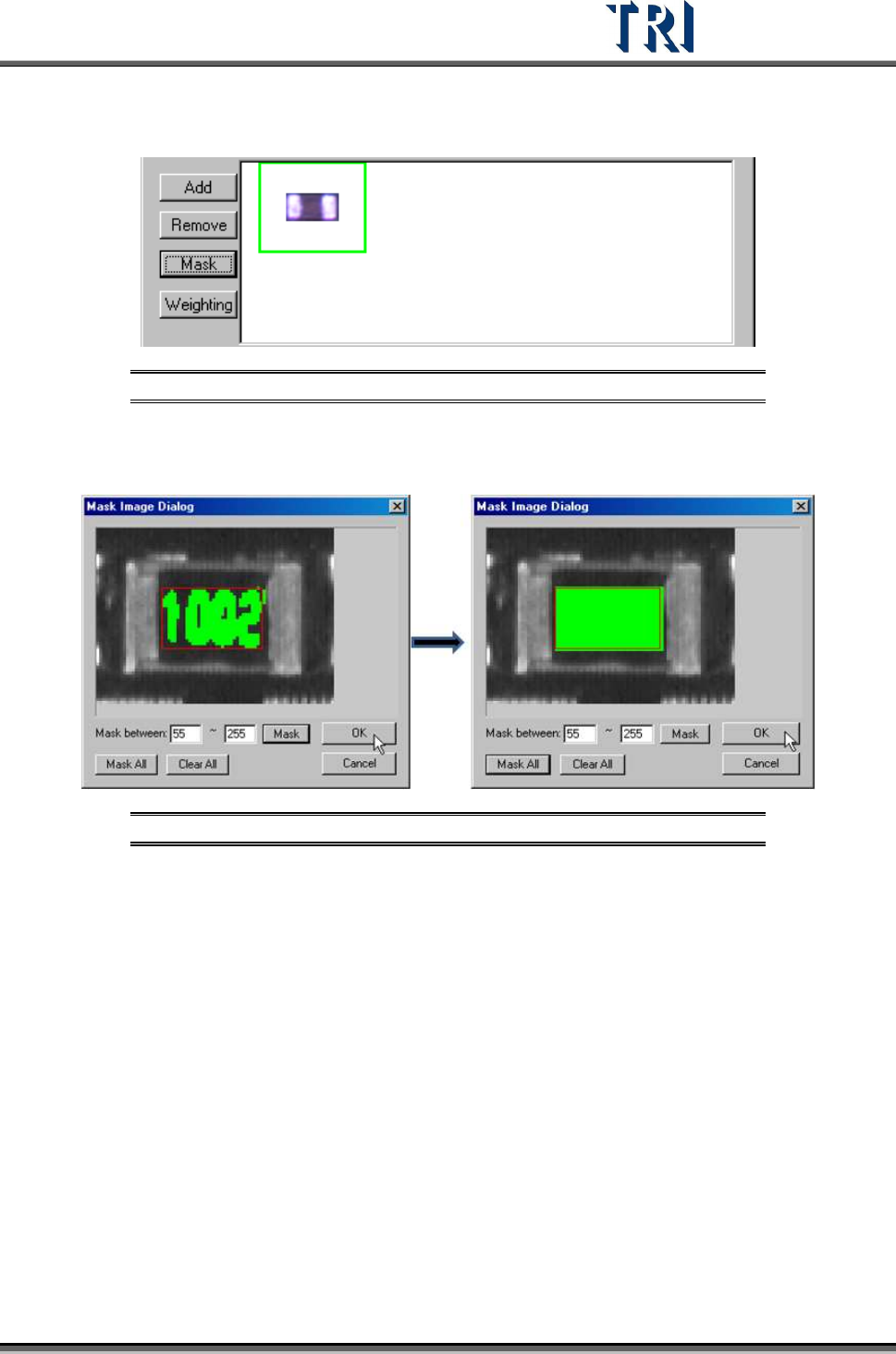
[Mask] – Masks the component image with a non-inspection area or non-regular
area for pattern search. A green frame appears if a mask is set for the image.
Figure 352: Image with Mask Set
[Mask between] – Sets mark range gray level between 0~255 depending on
the character. The mask mode has good tolerance for pattern searching.
Figure 353: [Mask Between] (left) & [Mask All]
[Mask All] – Mask all area in the red window.
[Clear All] – Clear all mask settings.
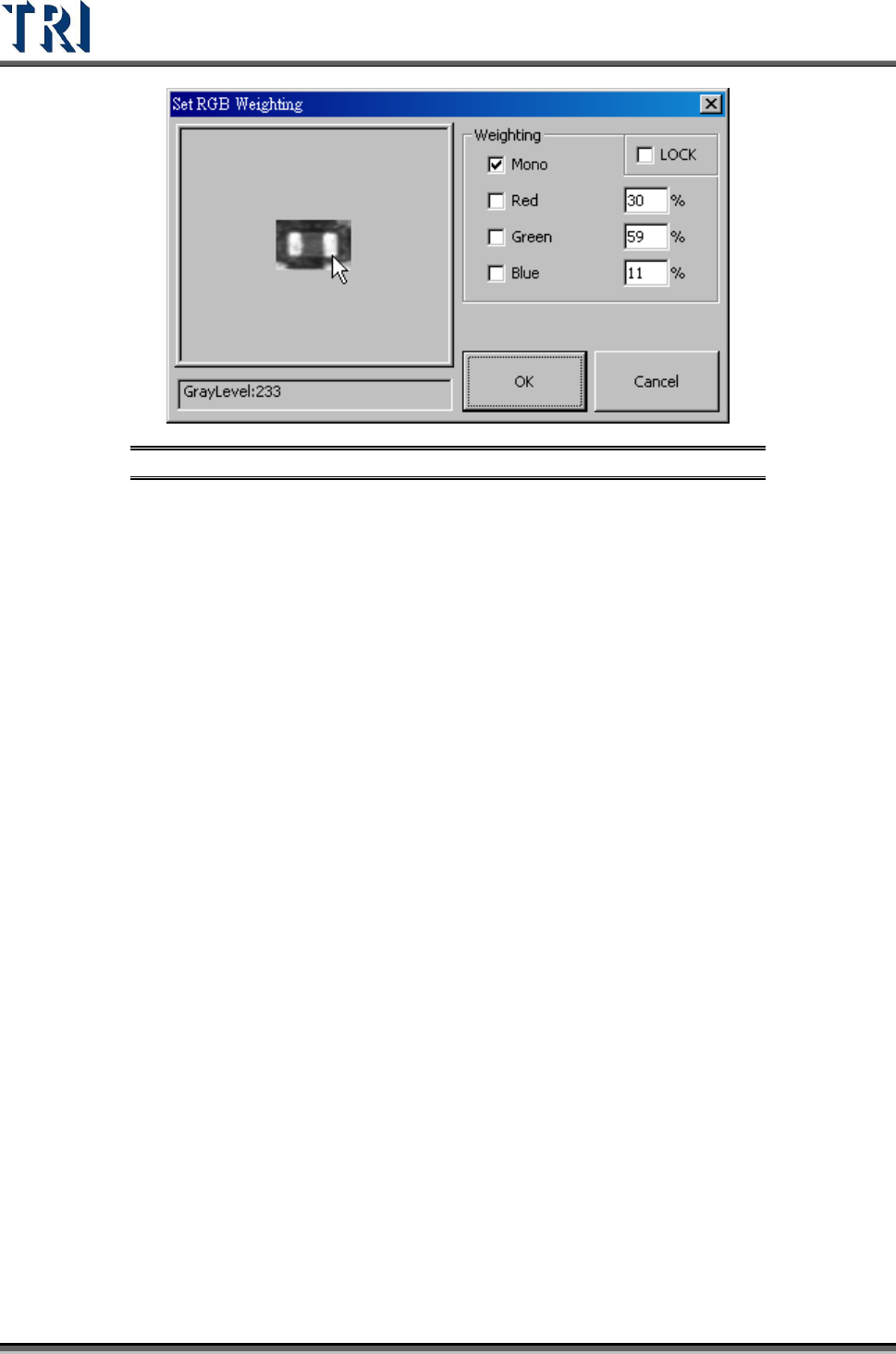
[Weighting] – Set the weighting for the image that is selected. The setting will be
used for all standard images of this type.
Test Research Inc.
210 TR7500 Series User Guide –Software v.2.9.0
Figure 354: Set RGB Weighting