TR7500_Series_Software_v29_En - 第232页
Test Research Inc. 210 TR7500 Series User Guid e –Softwa re v.2.9.0 Figure 354 : Set RGB Weigh ting
Test Research Inc.
TR7500 Series User Guide –Software v.2.9.0 209
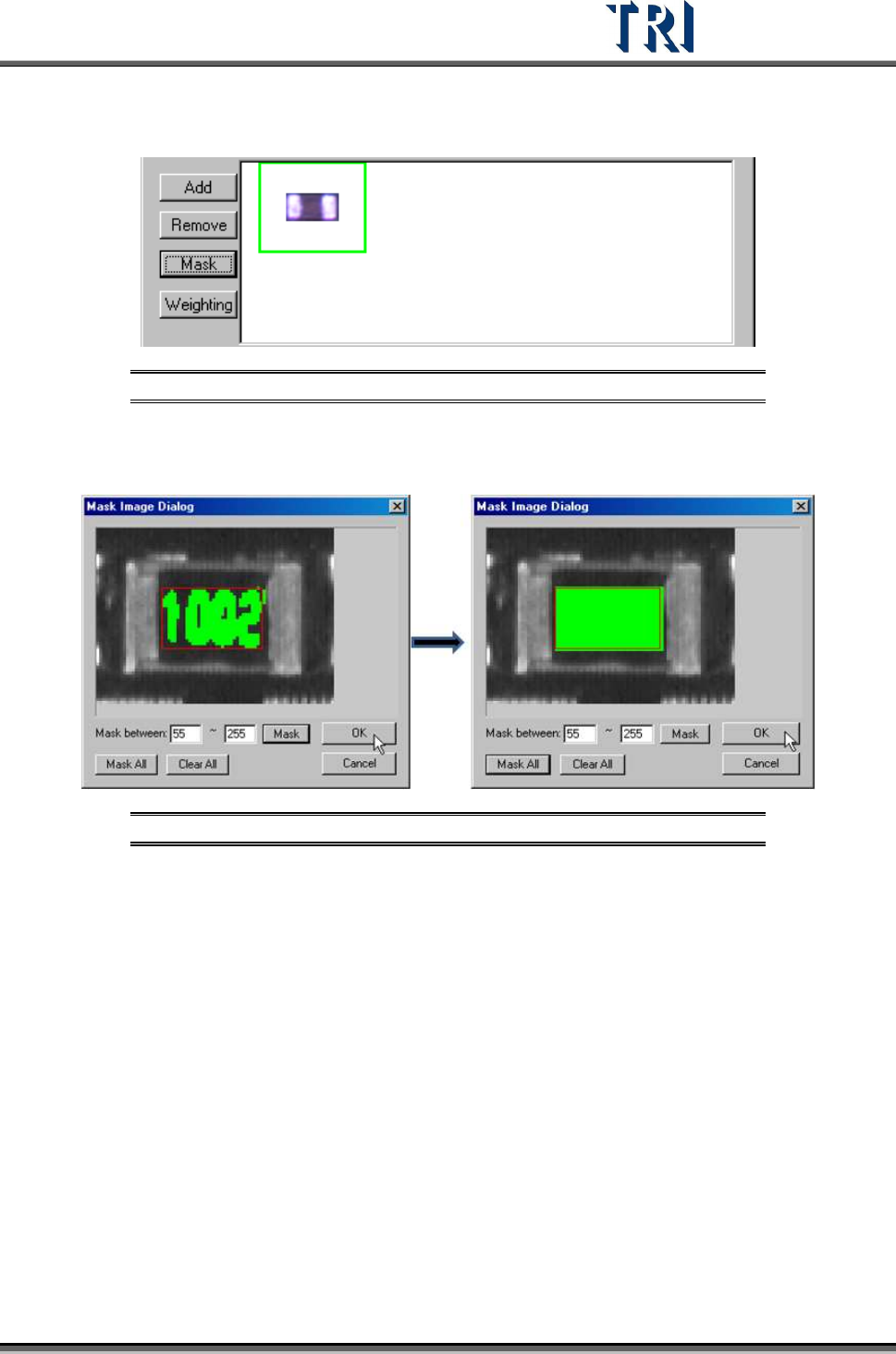
[Mask] – Masks the component image with a non-inspection area or non-regular
area for pattern search. A green frame appears if a mask is set for the image.
Figure 352: Image with Mask Set
[Mask between] – Sets mark range gray level between 0~255 depending on
the character. The mask mode has good tolerance for pattern searching.
Figure 353: [Mask Between] (left) & [Mask All]
[Mask All] – Mask all area in the red window.
[Clear All] – Clear all mask settings.
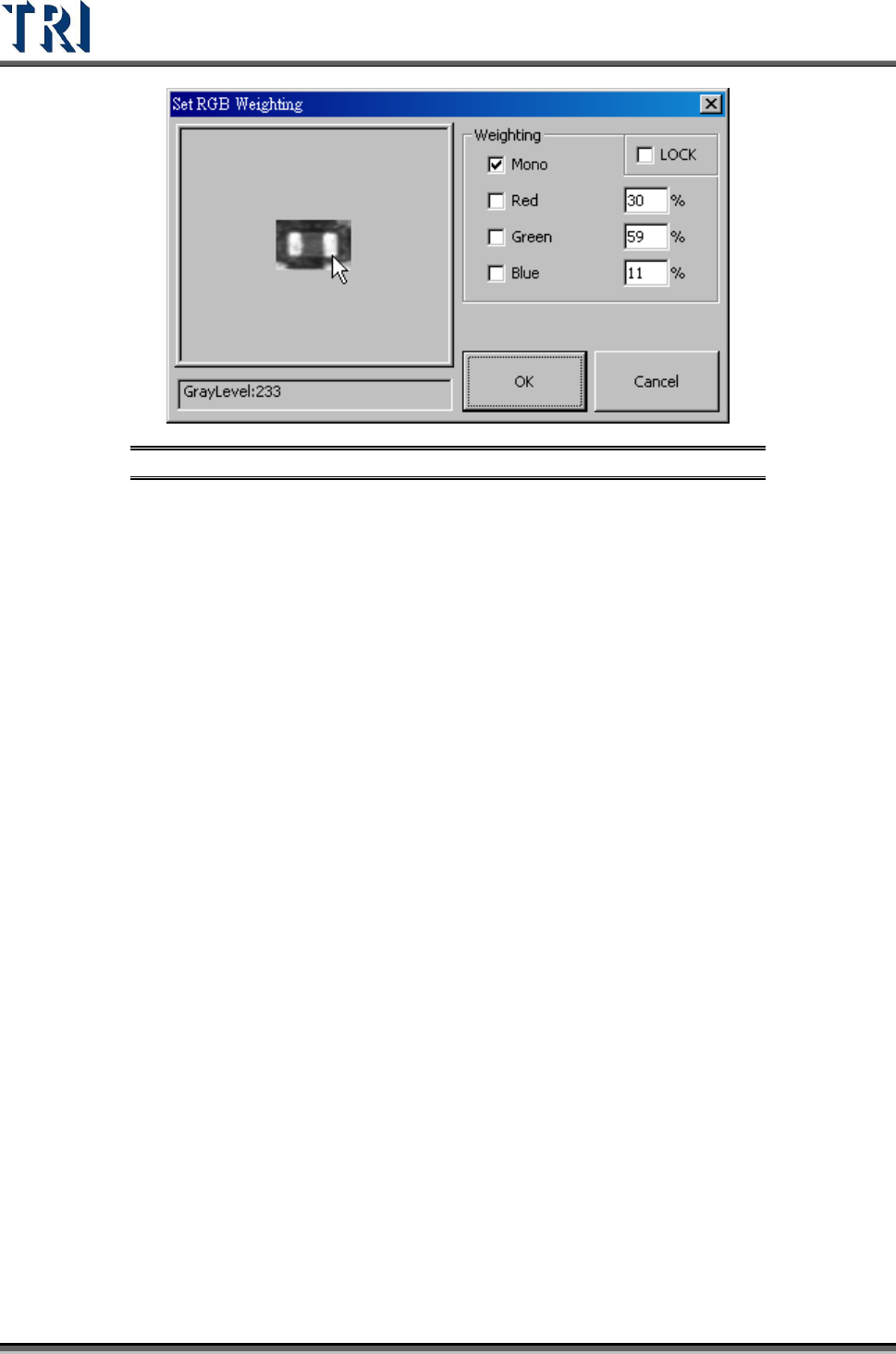
[Weighting] – Set the weighting for the image that is selected. The setting will be
used for all standard images of this type.
Test Research Inc.
210 TR7500 Series User Guide –Software v.2.9.0
Figure 354: Set RGB Weighting
Test Research Inc.
TR7500 Series User Guide –Software v.2.9.0 211
8.7.4 Pass Level
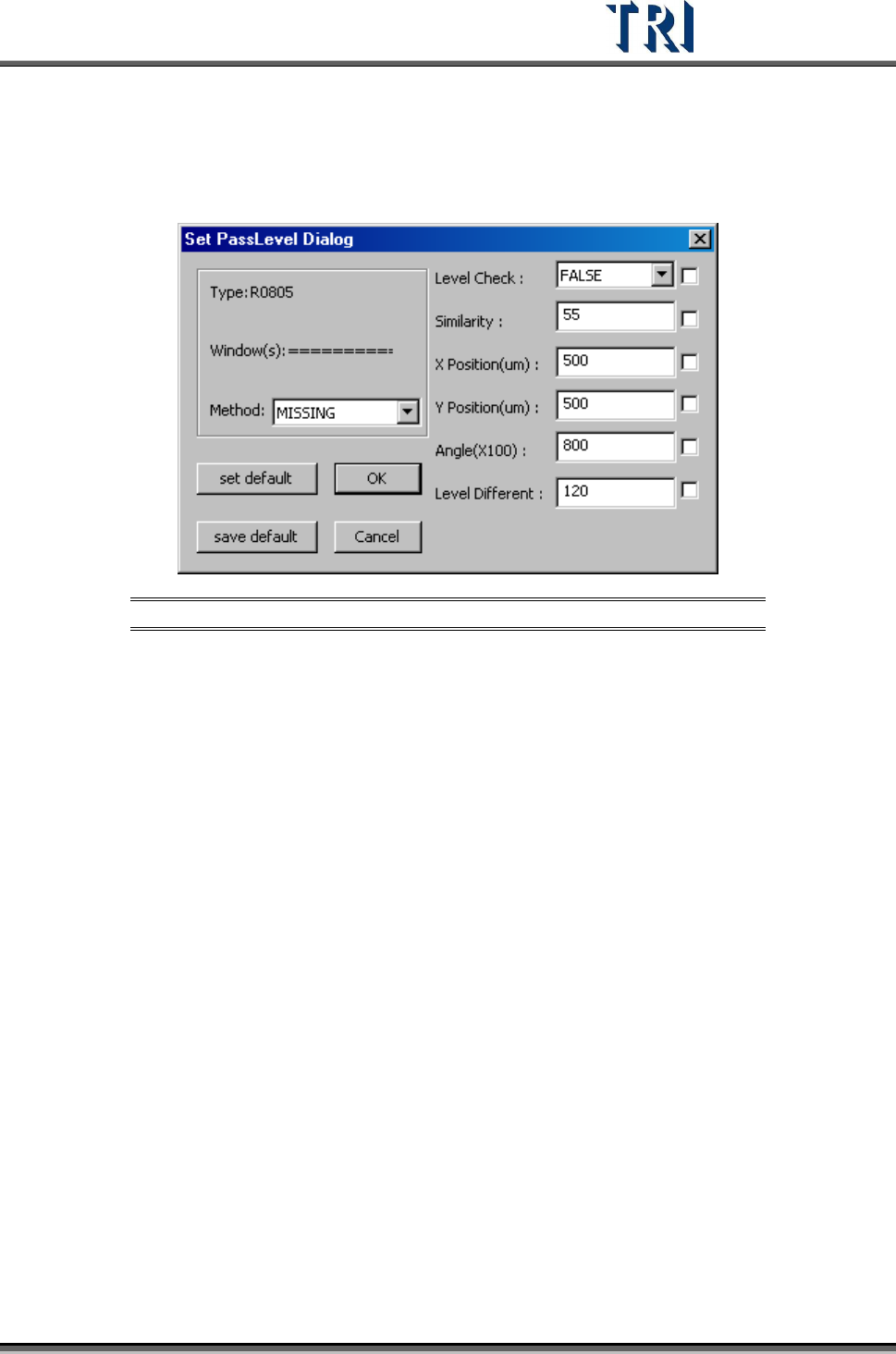
Set pass level for the selected box.
Figure 355: [Set Pass Level] Dialog
[Method] – Select the inspection box of property.
[Level Check] – Set to enable gray level check or not.
[Similarity] – Set the similar to the original pass level.
[X Position (um)] – Set the check window x position offset tolerance.
[Y Position (um)] –Set the check window y position offset tolerance.
[Angle (X100)] – Set the check window rotation angle offset tolerance.
[Level Different] – Set percentage of different gray level to the original.
[Set Default] – Notify the system to set default
[Save Default] – Save the current settings as default.
[OK ]– Save the current settings to the selected windows.
[Cancel] – Close the dialog.