TR7500_Series_Software_v29_En - 第239页
Test Research Inc. TR7500 Series User Guide – Software v.2.9.0 217 8.9 Exampl e: Edit C omponent L ibrar y 8.9.1 Example 1 – Chip (1) Choose a componen t that is not shi f ted or skewed and has a clear, clean shape. (2) …
Test Research Inc.
216 TR7500 Series User Guide –Software v.2.9.0
8.8.7 Angle
Display the angle of the current component. Change the value to see the rotation of
inspection boxes, but the real angle can’t be changed here:
8.8.8 % (Percent)
Change the value to reduce or enlarge the size of all boxes. When the library is saved, the
current size will be saved:
Test Research Inc.
TR7500 Series User Guide –Software v.2.9.0 217
8.9 Example: Edit Component Library
8.9.1 Example 1 – Chip
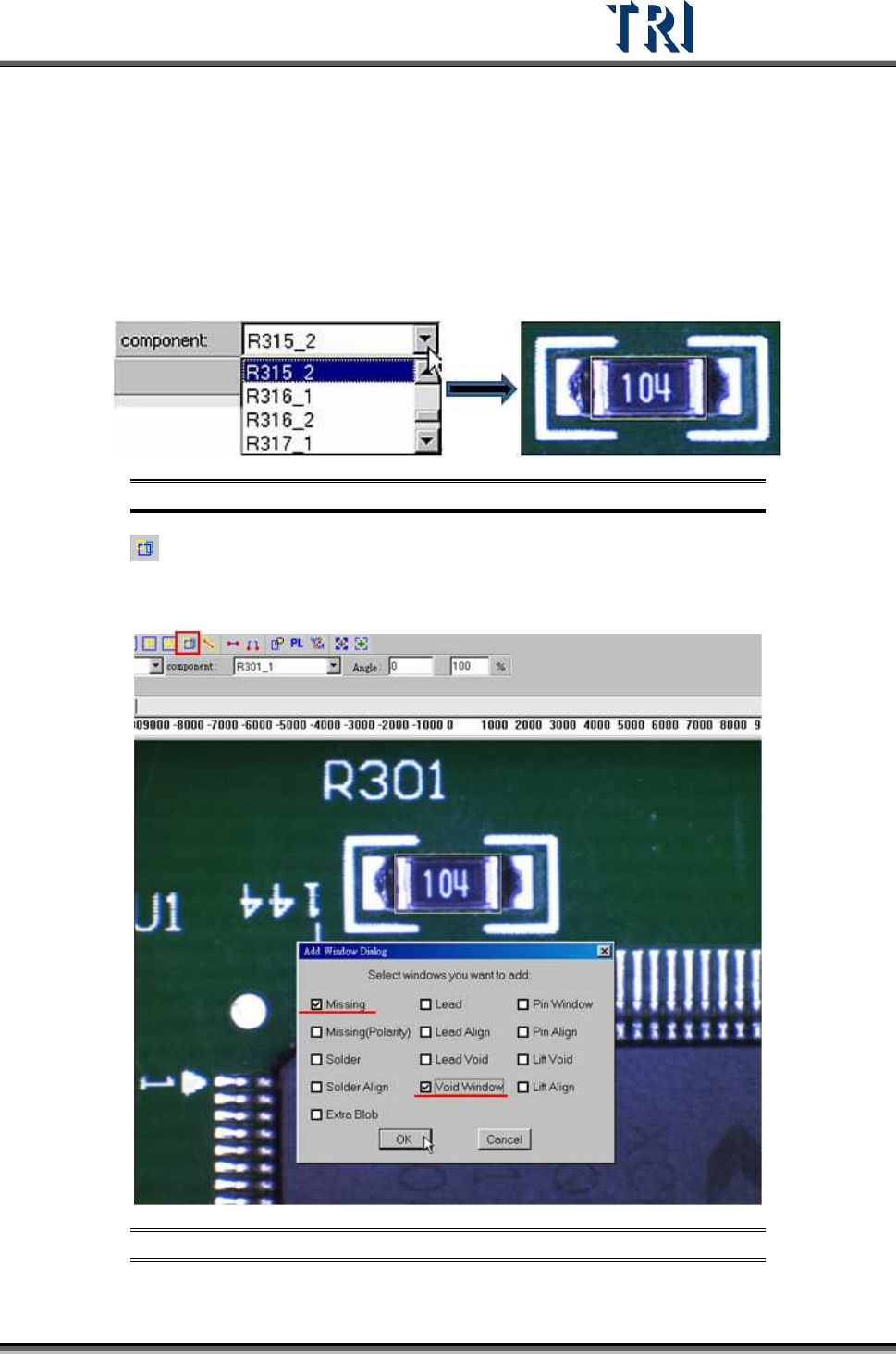
(1) Choose a component that is not shifted or skewed and has a clear, clean shape.
(2) Then resize the [Body] window to match the component area.
Figure 364: Choose a Component, Resize Body Window
(3) Press [Add all] to add [Missing] and [Void] windows. The system will create one
[Missing] window on the [Body] window and two [Void] windows, one on each of the two
short sides of the [Missing] window.
Figure 365: Add Missing & Void Windows
Test Research Inc.
218 TR7500 Series User Guide –Software v.2.9.0
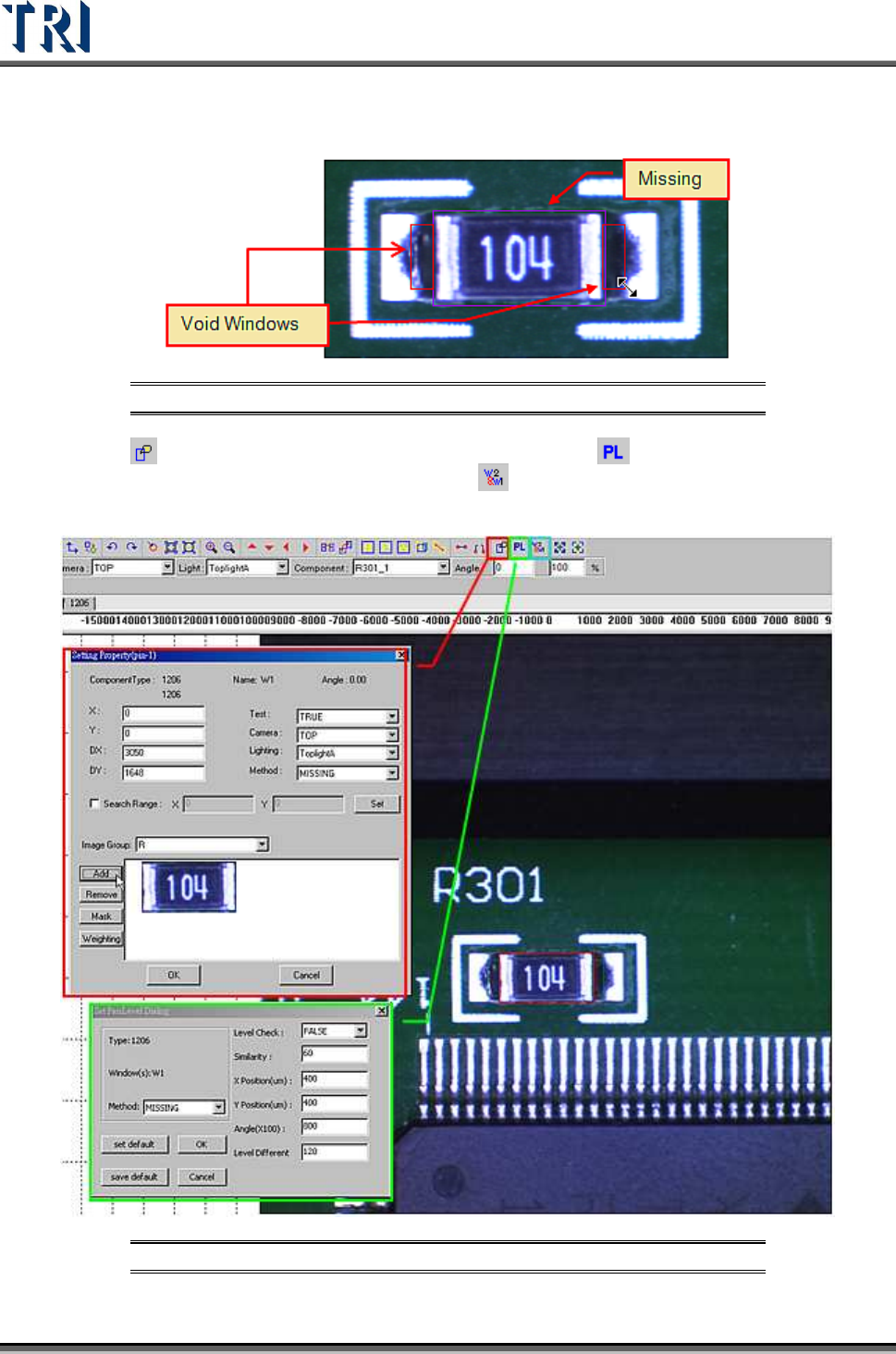
(4) Adjust the size of [Void] windows to contain black area.
Figure 366: Adjust Void Windows
(5) Press [Set Property] to add the image of [Missing] and [Pass Level] to set the
parameters of [Pass Level]. If needed, press
[Set Algorithm] to set the logic of the
windows.
Figure 367: Set Property, Pass Level, & Set Algorithm Icons