TR7500_Series_Software_v29_En - 第270页
Test Research Inc. 248 TR7500 Series User Guid e –Softwa re v.2.9.0 11.6 Tools Right click on the i mage to show the tools . Figure 413 : Tools Menu Comm ands
Test Research Inc.
TR7500 Series User Guide –Software v.2.9.0 247
11.5 Capture FOV
Select [Capture FOV] page then it displays the FOV image that the system captured before.
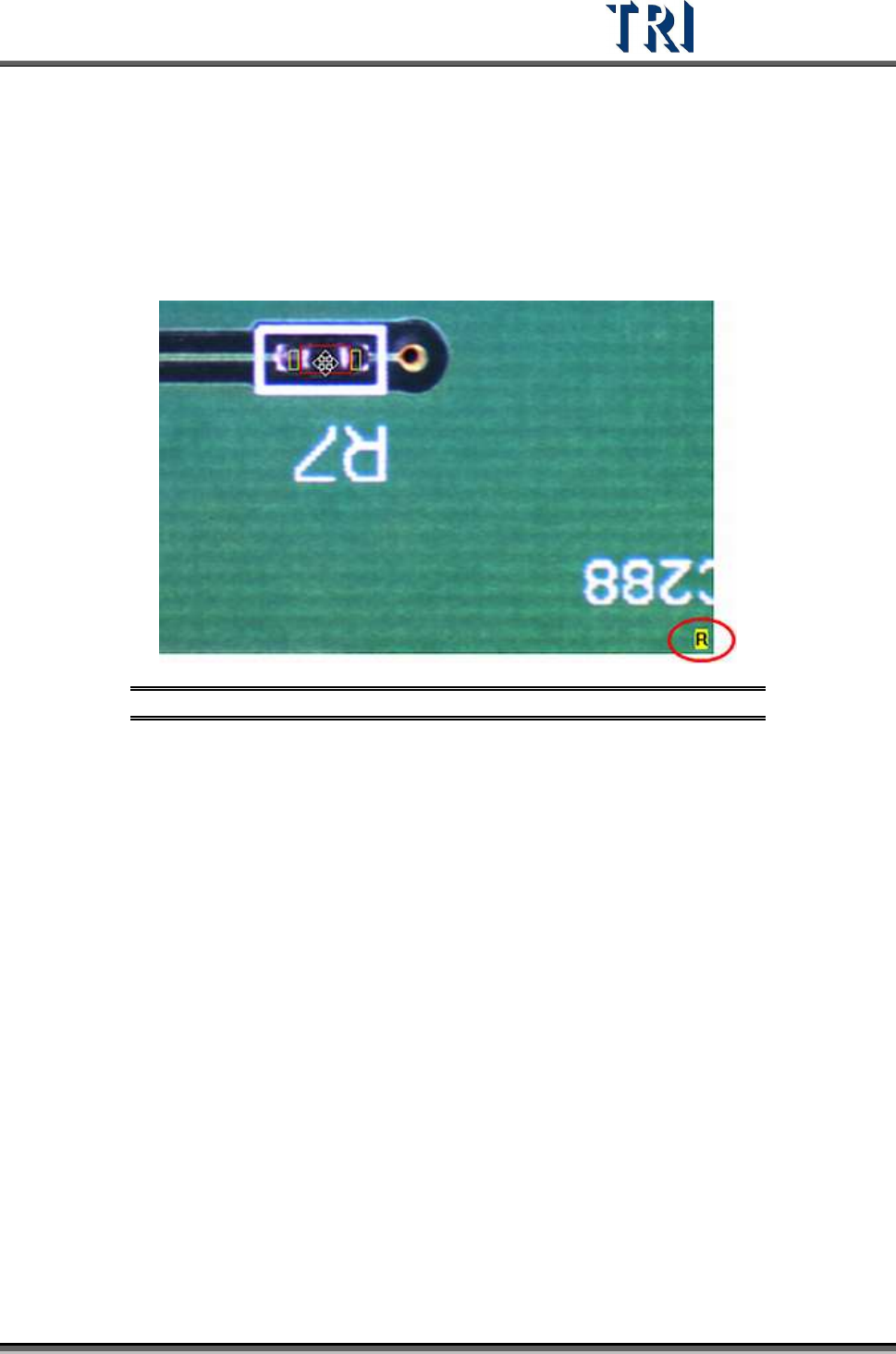
If the chosen component type has different groups, the group of the component that is
chosen will be shown at the lower right corner.
Figure 412: Component Groups Shown in Bottom Right
Test Research Inc.
248 TR7500 Series User Guide –Software v.2.9.0
11.6 Tools
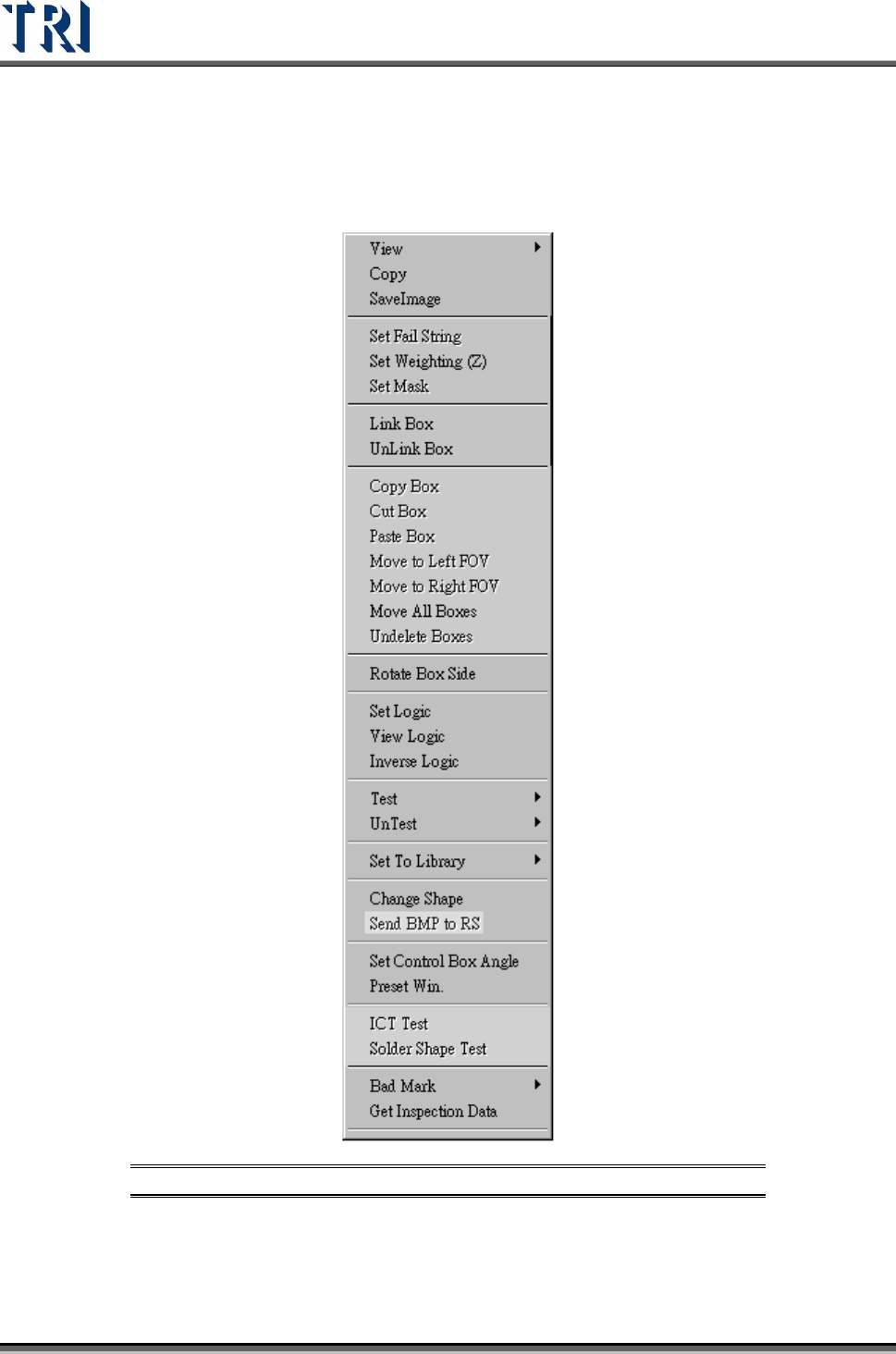
Right click on the image to show the tools.
Figure 413: Tools Menu Commands
Test Research Inc.
TR7500 Series User Guide –Software v.2.9.0 249
11.6.1 View
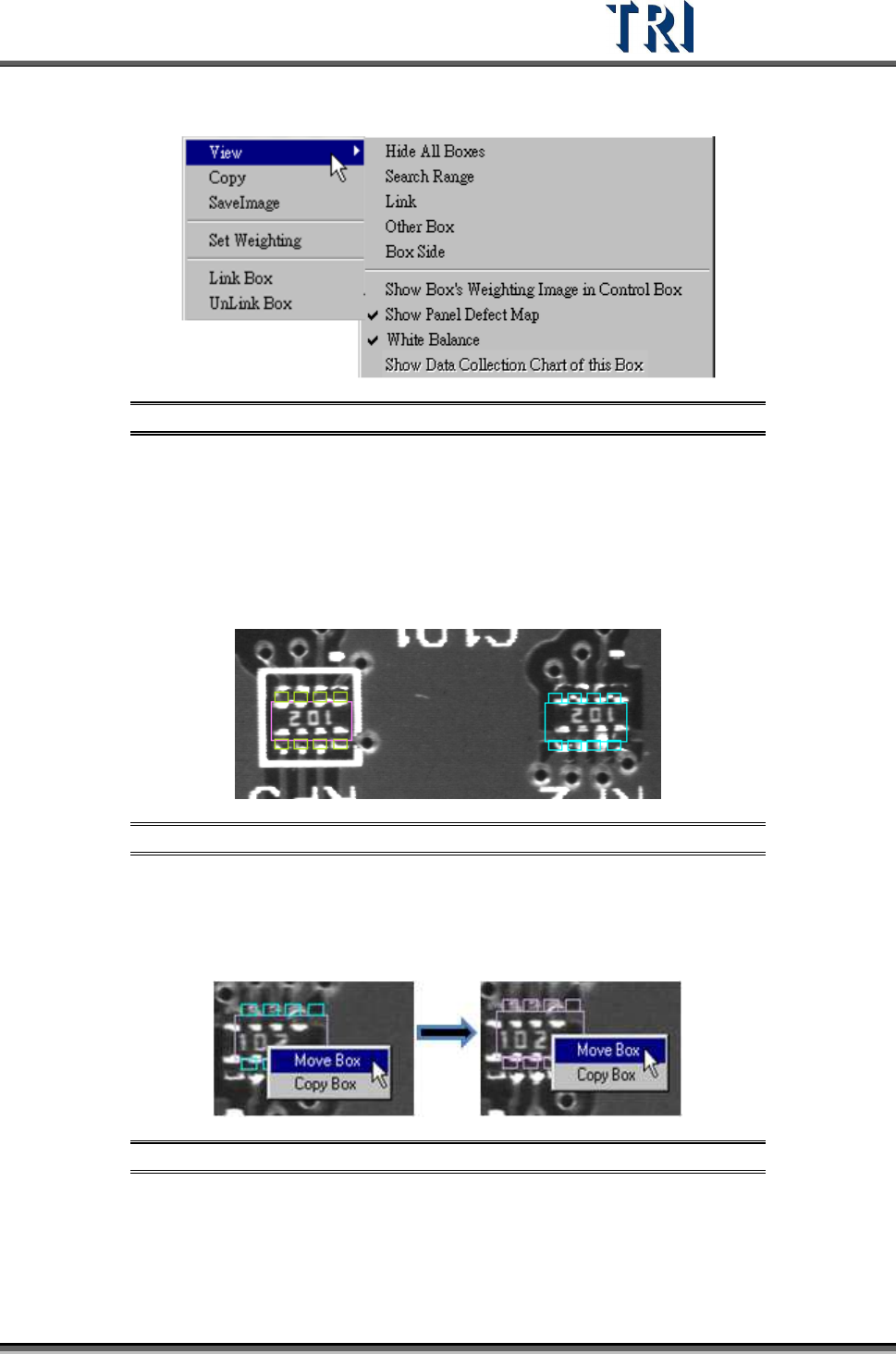
Figure 414: View Menu
[Hide All Boxes] – Select this to hide all boxes in an FOV image.
[Search Range] – Select to show the search range of an inspection box that is a
kind of model image box.
[Link] – Select to show the links between inspection boxes.
[Other Box] – Select to see the inspection boxes which are in other FOVs to inspect.
Figure 415: View Other Boxes
Right click on the blue box to move the inspection box to the current FOV.
Click both right and left mouse buttons at the same time on the object
component to move all inspection boxes of the component to the FOV.
Figure 416: Move Inspection Boxes
[Box Side] – Show directionality of the pins with small circles. The correct direction
is shown in the following figure. If the direction is wrong, select [Edit/Rotate Side] to
change the direction.