TR7500_Series_Software_v29_En - 第276页
Test Research Inc. 254 TR7500 Series User Guid e –Softwa re v.2.9.0 Figure 423 : Train Dialog -- Test Function Options 11.6.21 Untest Set the selected inspec t ion box as [UnTe st Box] or [UnTe st Component]. [UnTest Box…
Test Research Inc.
TR7500 Series User Guide –Software v.2.9.0 253
11.6.12 Move to Left FOV
Move the selected box to the left FOV.
11.6.13 Move to Right FOV
Move the selected box to the right FOV..
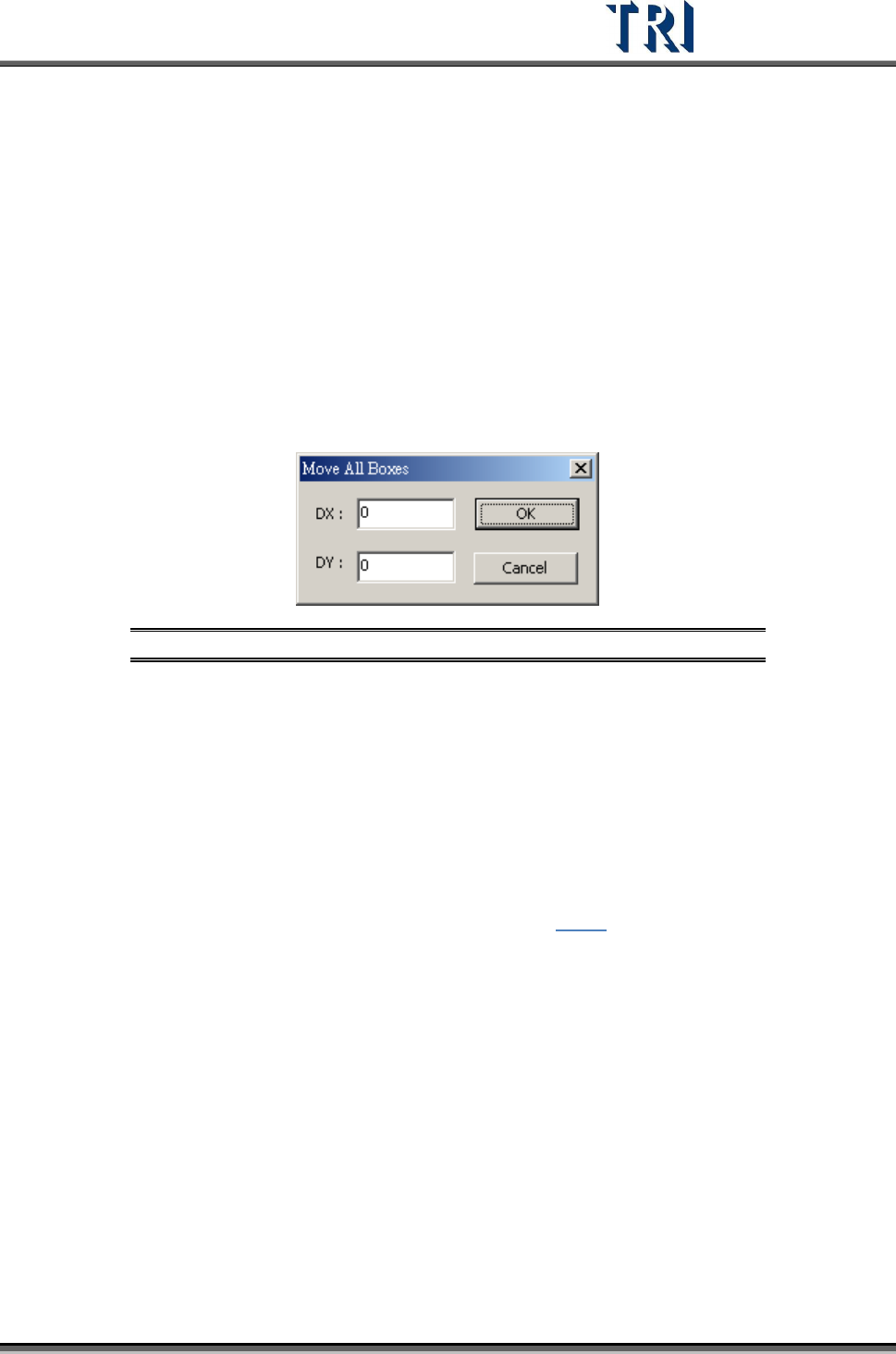
11.6.14 Move All Boxes
Users may move all the inspection boxes which are under the same camera at the same
time. The [Move All Boxes] dialog will appear (see following figure). Enter a positive value in
[DX] will send the camera to move right. Enter a positive value in [DY] will move the camera
down. However, some boxes will not move if they are about to be moved out of the FOV or
are on the edge of FOV within 8 pixels.
Figure 422: Move All Boxes Dialog
11.6.15 Undelete Box
Undelete the last deleted box by clicking this function.
11.6.16 Rotate Box Side
Each mouse click rotates the pin direction 90 degrees counterclockwise.
11.6.17 Set Logic
Set the [Logic] between windows. See more about logic in 8.7.1.
11.6.18 View Logic
11.6.19 Inverse Logic
Selecting this item starts the Inverse Logic function. After selecting this function, the system
regards a box that is passing the pass level as failed and a box that is not passing the pass
level as passed.
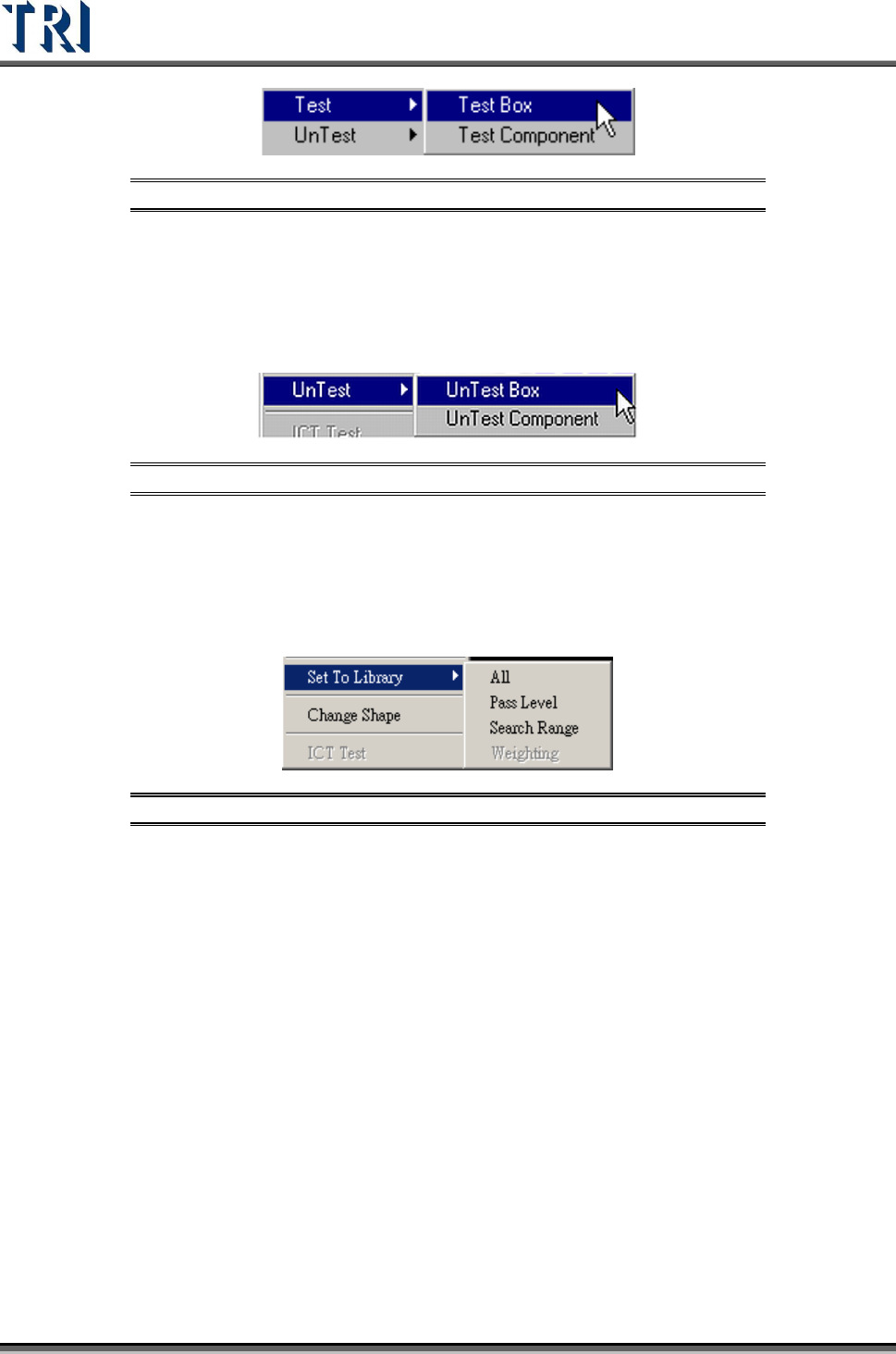
11.6.20 Test
Set the selected inspection box as [Test Box] or [Test Component].
Test Research Inc.
254 TR7500 Series User Guide –Software v.2.9.0
Figure 423: Train Dialog -- Test Function Options
11.6.21 Untest
Set the selected inspection box as [UnTest Box] or [UnTest Component]. [UnTest Box]
means only set the selected box as untested and the box become blue; [UnTest Component]
means set all the boxes of the selected component as untested and the boxes become gray.
Figure 424: Train Dialog -- UnTest Function Options
11.6.22 Set to Library
Send the selected box’s information of [Pass Level] or [Search Range] to the [Library]. Select
only the inspection boxes that belong to a single component. [Weighting] is only for TR7500
series.
Figure 425: Set to Library Menu
11.6.23 Change Shape
The function is to change the window shape from square to circle or from circle to square. It
only works for [Void] or [Solder] windows.
11.6.24 Send .BMP to Repair Station
Send the alternative .BMP image from the selected [Missing] box to [Repair Station]. The
purpose is to preserve a better image of small components.
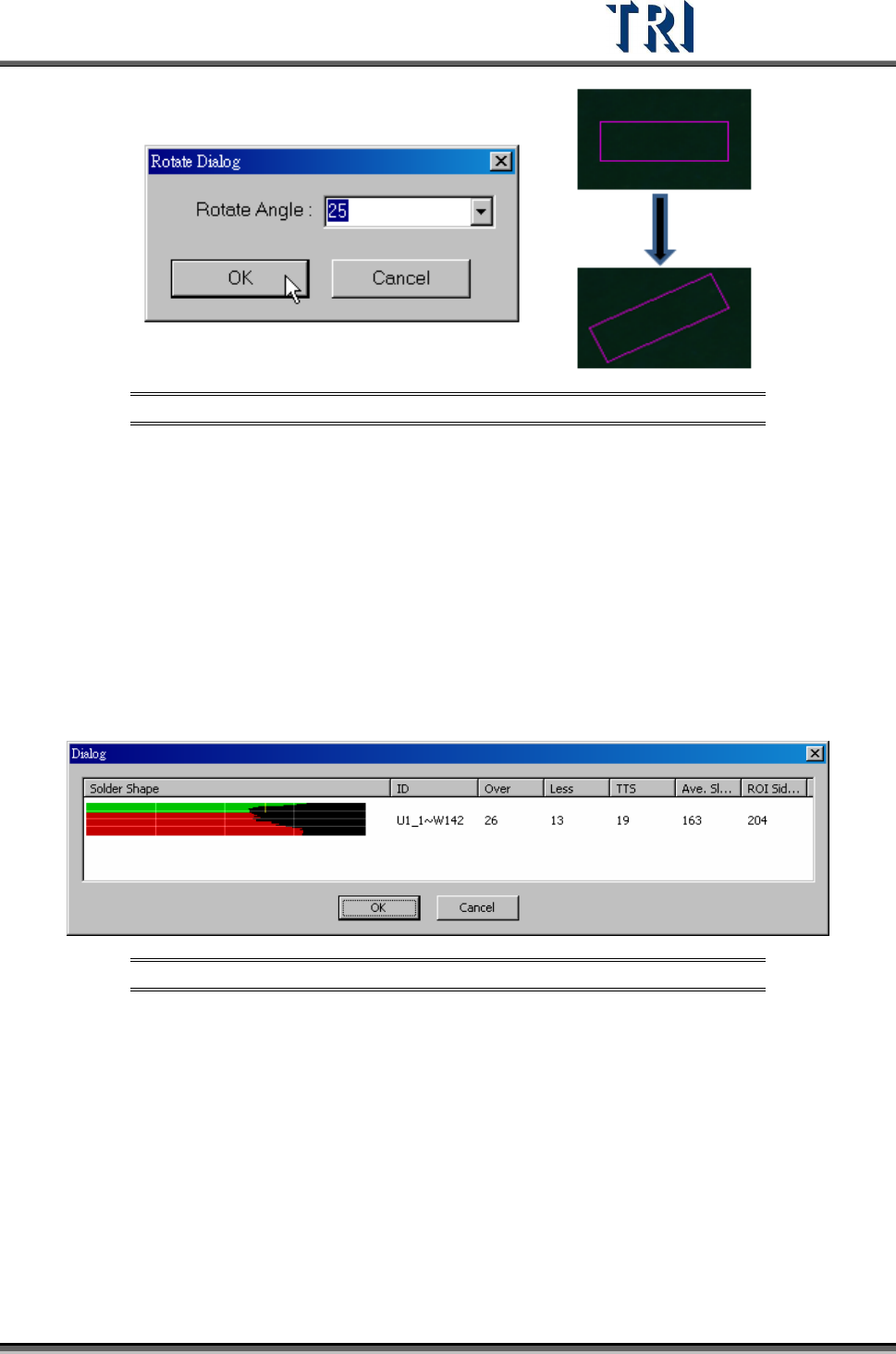
11.6.25 Set Control Box Angle
Rotate the control box manually. Refer to the following figure.
Test Research Inc.
TR7500 Series User Guide –Software v.2.9.0 255
Figure 426: Rotate Control Bo Process
11.6.26 Present Win
The control box will move to the center using the default size.
11.6.27 ICT Test
Forces a component to be tested by ICT.
11.6.28 Solder Shape Test
Display the solder inspection analyst result, as shown in the following figure. Only for the
TR7500 series.
Figure 427: Display Solder Shape
11.6.29 Bad Mark
Under [Train] users may right-click the mouse to add bad marks in an FOV. The system will
detect the bad mark each time, and the board will be labeled as [Skip] once the bad marks
fail. For more than one bad mark on the board, any of the bad marks will result in the board
labelled as [Skip]. Setting a bad mark will not decrease the inspection cycle time.
1. Move the control box on the taget point to set as a [Bad Mark].