TR7500_Series_Software_v29_En - 第281页
Test Research Inc. TR7500 Series User Guide – Software v.2.9.0 259 11.9 Functio n Area 11.9.1 Function Frame Click the [Train Dialo g] then press [F1] to change the characters of the bu ttons to hot key s. Press [F1] aga…
Test Research Inc.
258 TR7500 Series User Guide –Software v.2.9.0
11.7 FOV Image Boxes/Colors
Purple – Multi-function window. Select a [Missing/Missing Polarity] or [Lead] box
and double click on the multi-function window. The multi-function window will be
moved to the selected window.
Orange – Untrained box.
Dark blue – Untested inspection window.
Gray – Untested component.
Red – Selected box. Double-click one box and the system will automatically select
all the inspection boxes that are linked with the selected box.
Light Blue – The inspection boxes in other FOVs.
Light Purple – [Missing/Missing Polarity] or [Lead]
Light Green – Inspection boxes except [Missing/Missing Polarity/Lead].
11.8 Mouse Function in FOV Image
Left-click mouse once on any inspection box to select the box. Clicking twice will
automatically select all the linked inspection boxes of the component.
Press and hold [Alt], and left-click the mouse twice to pick an inspection box, and all the
boxes with the same inspection method will be selected as well.
Test Research Inc.
TR7500 Series User Guide –Software v.2.9.0 259
11.9 Function Area
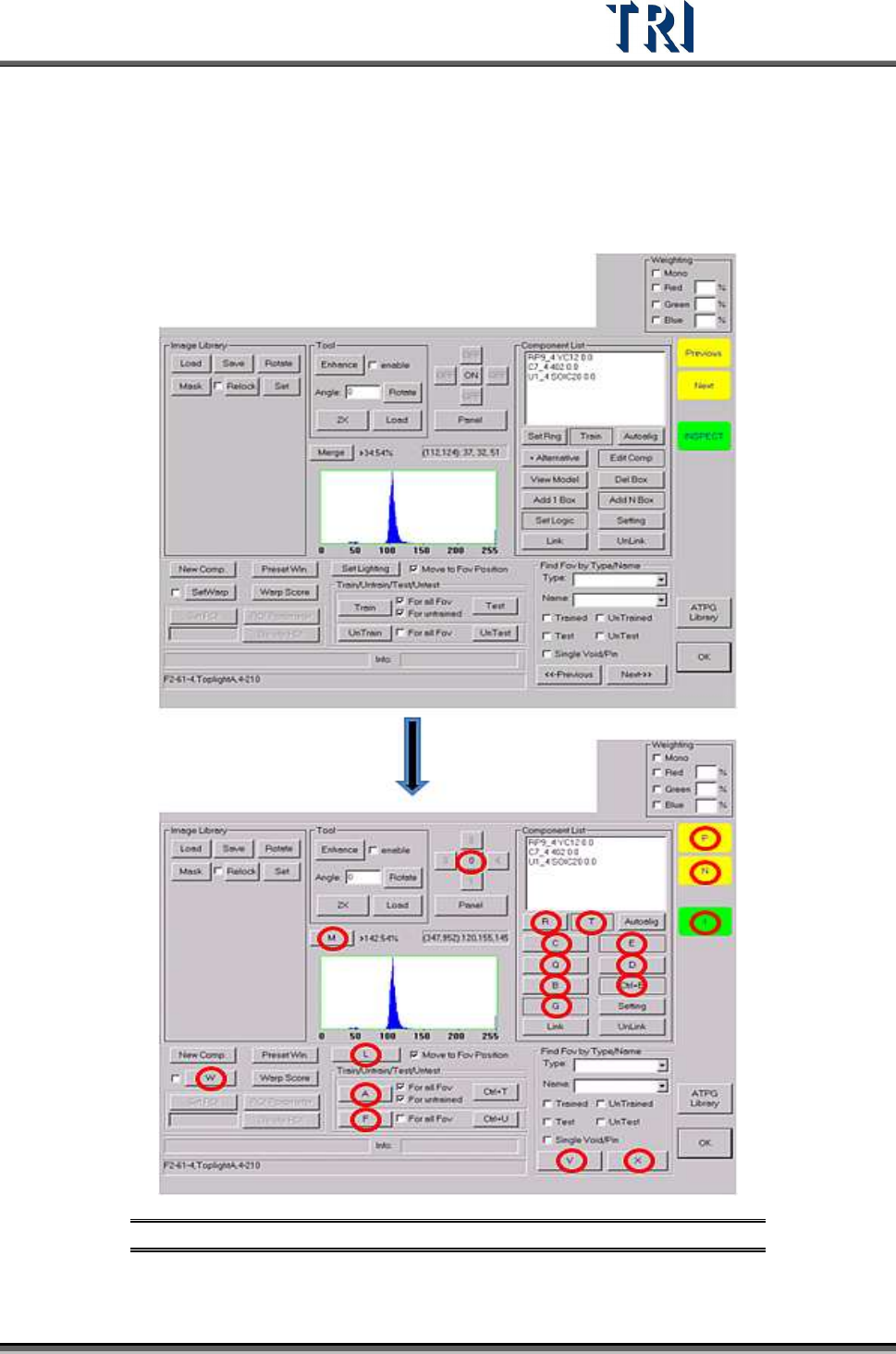
11.9.1 Function Frame
Click the [Train Dialog] then press [F1] to change the characters of the buttons to hot keys.
Press [F1] again and switch back.
Figure 432: Train Dialog – Press [F1] to Toggle Hot Keys
Test Research Inc.
260 TR7500 Series User Guide –Software v.2.9.0
11.9.2 Component List
11.9.2.1 Set Rng
Change the search range for inspection box [Missing/Missing Polarity/Lead/Align/Warp]. The
system will find the inspection box in the search range.
Setting Steps
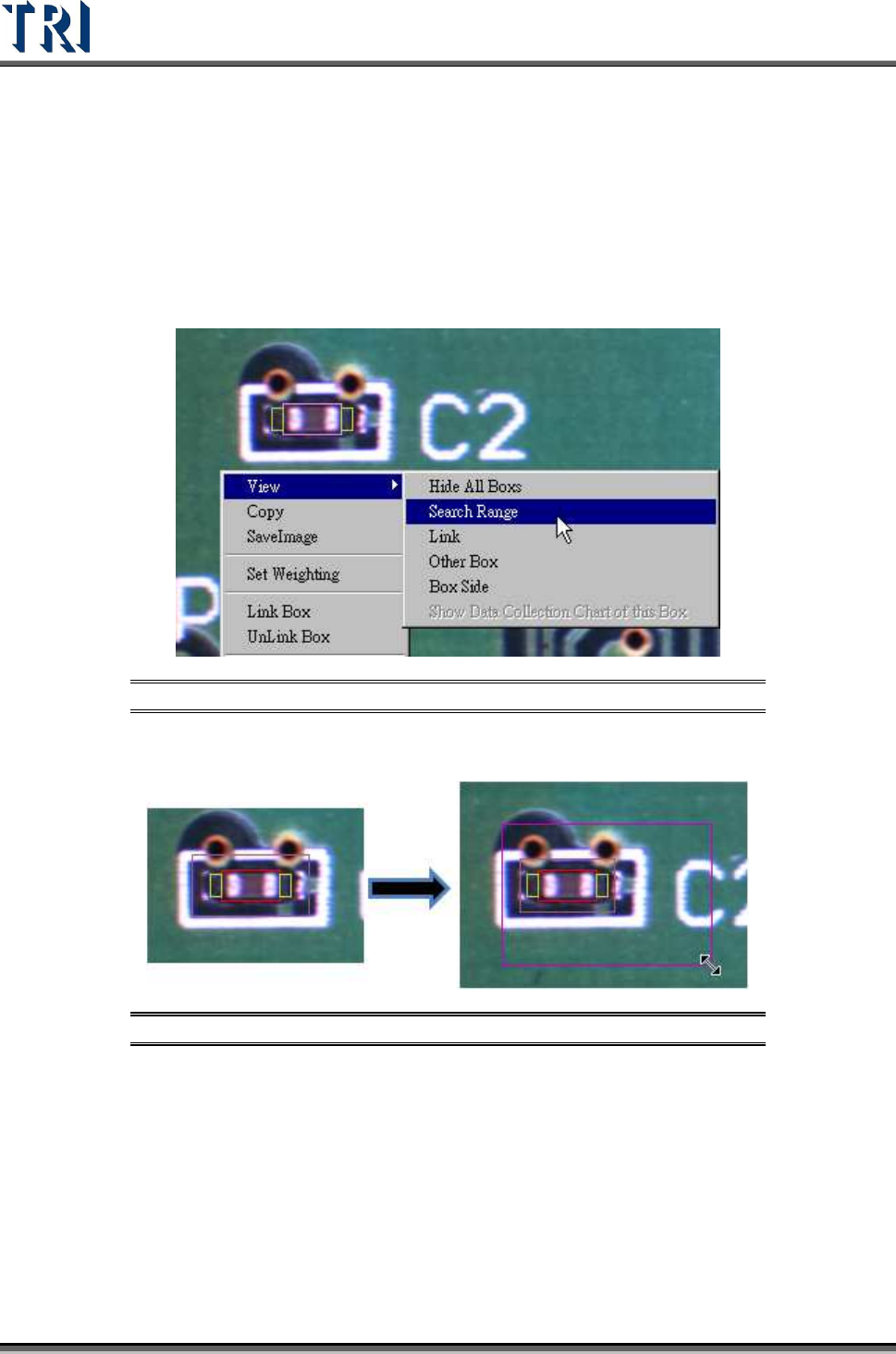
Step1. Right click on the image area and select [View/Search Range] to review the
inspection box.
Figure 433: Select View Search Range
Step2. Adjust the multi-function window to suit the search range then press [Set Rng].
Figure 434: Adjust Multi-Function Window
Step3. Select the copy condition.