TR7500_Series_Software_v29_En - 第282页
Test Research Inc. 260 TR7500 Series User Guid e –Softwa re v.2.9.0 11.9.2 Component List 11.9.2. 1 Set Rng Change the search ran ge f or inspection box [ Missi ng/Missing Polarity/Lea d/ Align/ W arp ] . The system will…
Test Research Inc.
TR7500 Series User Guide –Software v.2.9.0 259
11.9 Function Area
11.9.1 Function Frame
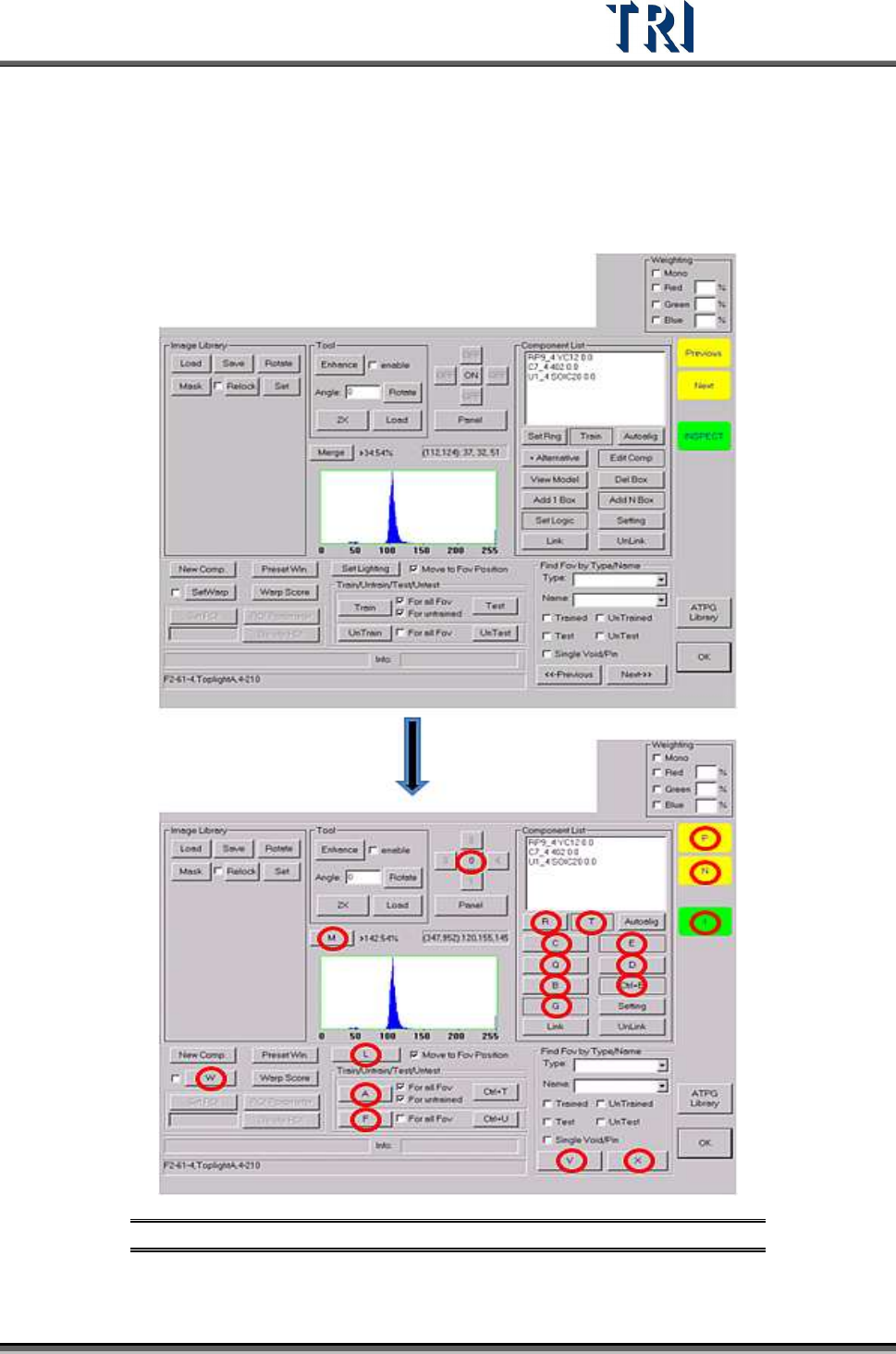
Click the [Train Dialog] then press [F1] to change the characters of the buttons to hot keys.
Press [F1] again and switch back.
Figure 432: Train Dialog – Press [F1] to Toggle Hot Keys
Test Research Inc.
260 TR7500 Series User Guide –Software v.2.9.0
11.9.2 Component List
11.9.2.1 Set Rng
Change the search range for inspection box [Missing/Missing Polarity/Lead/Align/Warp]. The
system will find the inspection box in the search range.
Setting Steps
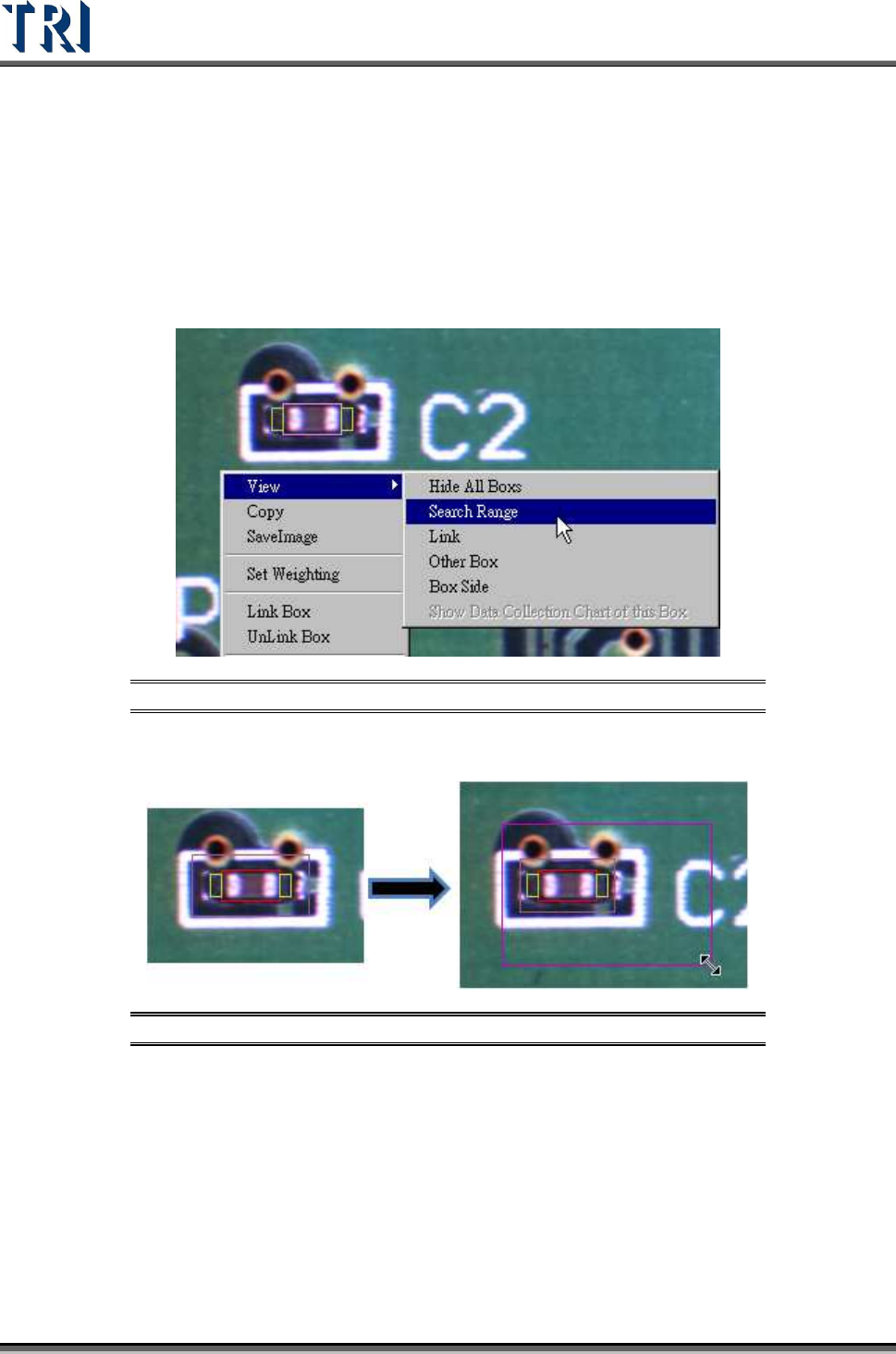
Step1. Right click on the image area and select [View/Search Range] to review the
inspection box.
Figure 433: Select View Search Range
Step2. Adjust the multi-function window to suit the search range then press [Set Rng].
Figure 434: Adjust Multi-Function Window
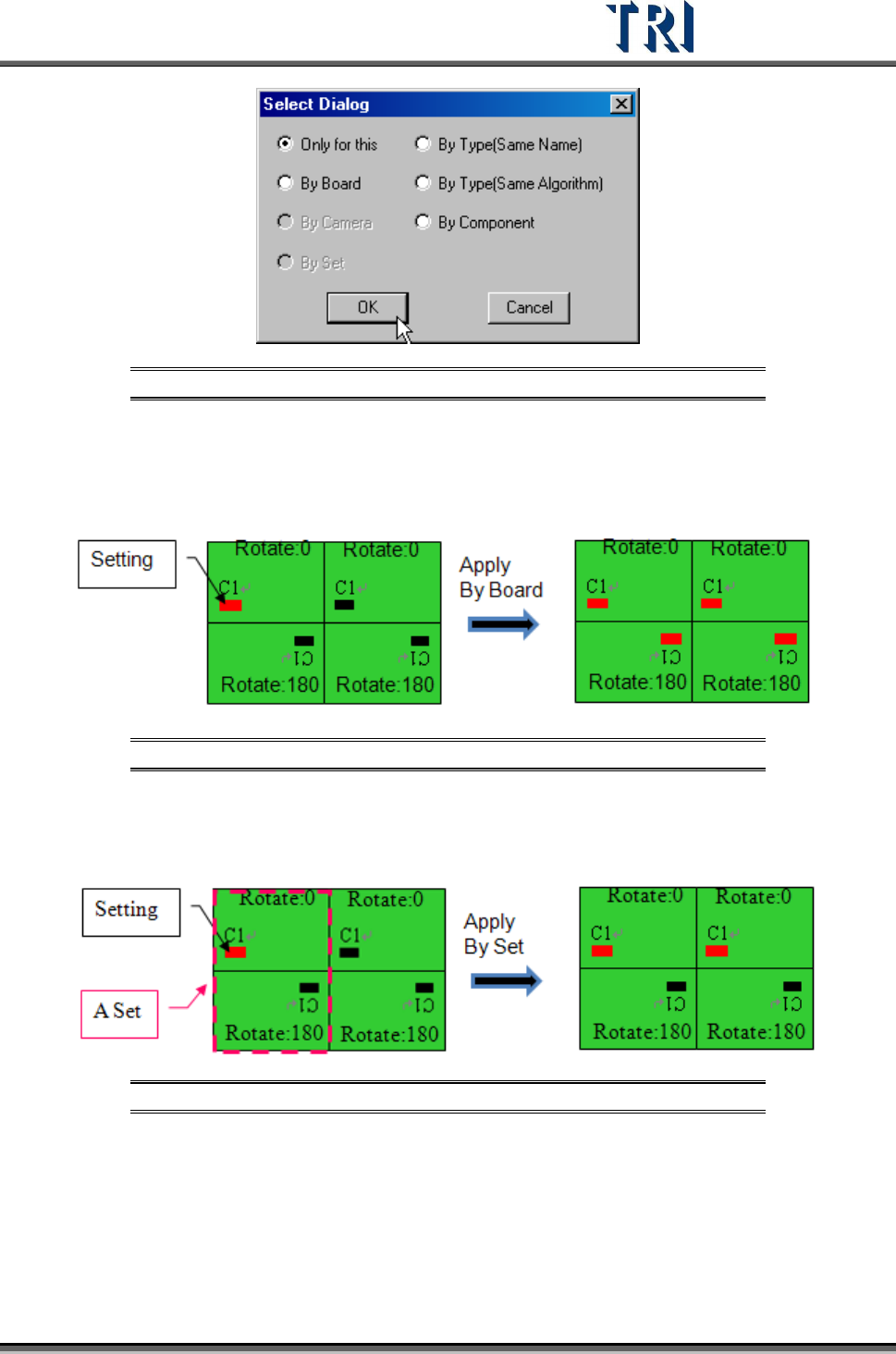
Step3. Select the copy condition.
Test Research Inc.
TR7500 Series User Guide –Software v.2.9.0 261
Figure 435: Select Copy Condition
[Only for this] – Only set on the selected component.
[By Board] – Apply to the active box of components with the same name on a
multi-board panel.
Figure 436: Copy Condition By Board
[By Camera] – Apply to the component with the same camera.
[By Set] – Apply to the relevant box by set.
Figure 437: Copy Condition By Set